
Overview #
This article explains how administrators can initialize indexing from the Codebeamer Reports page using the Indexing UI. Use this feature when you need to reindex items based on a cbQL query.
Prerequisites #
- You have Administrator privileges in Codebeamer.
- You have access to the Reports page.
- You can generate or view the cbQL string used by the report.
How Indexing from Reports works #
The Indexing UI allows administrators to trigger indexing directly from a Report without needing to manually define a query. When a report is run, Codebeamer generates a cbQL query in the background. The Indexing UI reuses this query to identify the exact set of items returned by the report and sends them for indexing.
This means:
- You can reindex a precise subset of items based on report results
- There is no need to recreate or manually input cbQL queries
- The same query can be reused to repeat indexing at any time
Indexing is executed immediately after confirmation and runs in the background, with progress visible from the user interface.
Run a report #
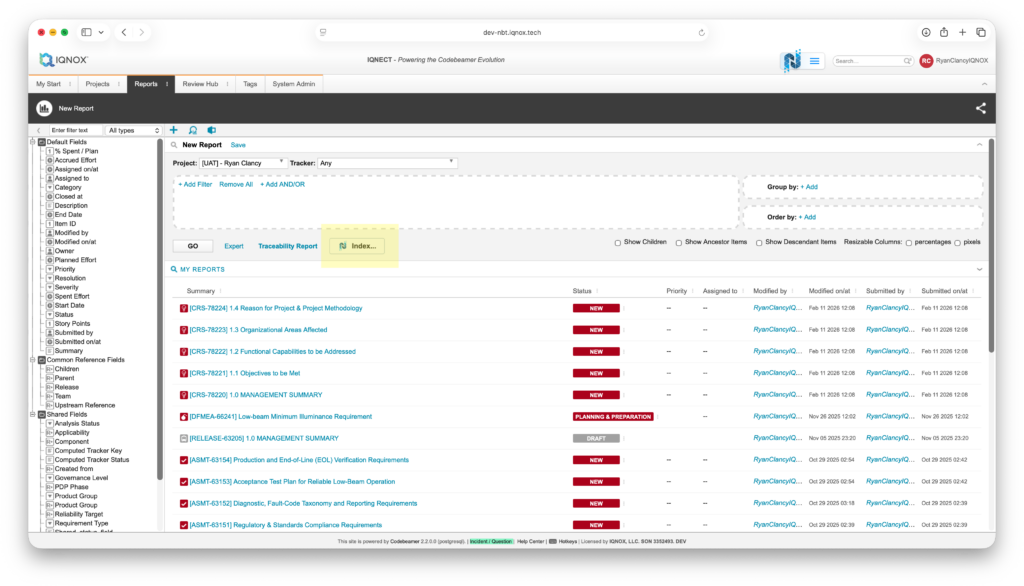
- Go to the Reports tab in Codebeamer.
- Run any report as usual.
- After the report loads, a new Index button appears.
- This button is only available to administrators.
Open the Indexing UI #
Click the Index button on the report.
A modal opens showing the cbQL string used by the report.
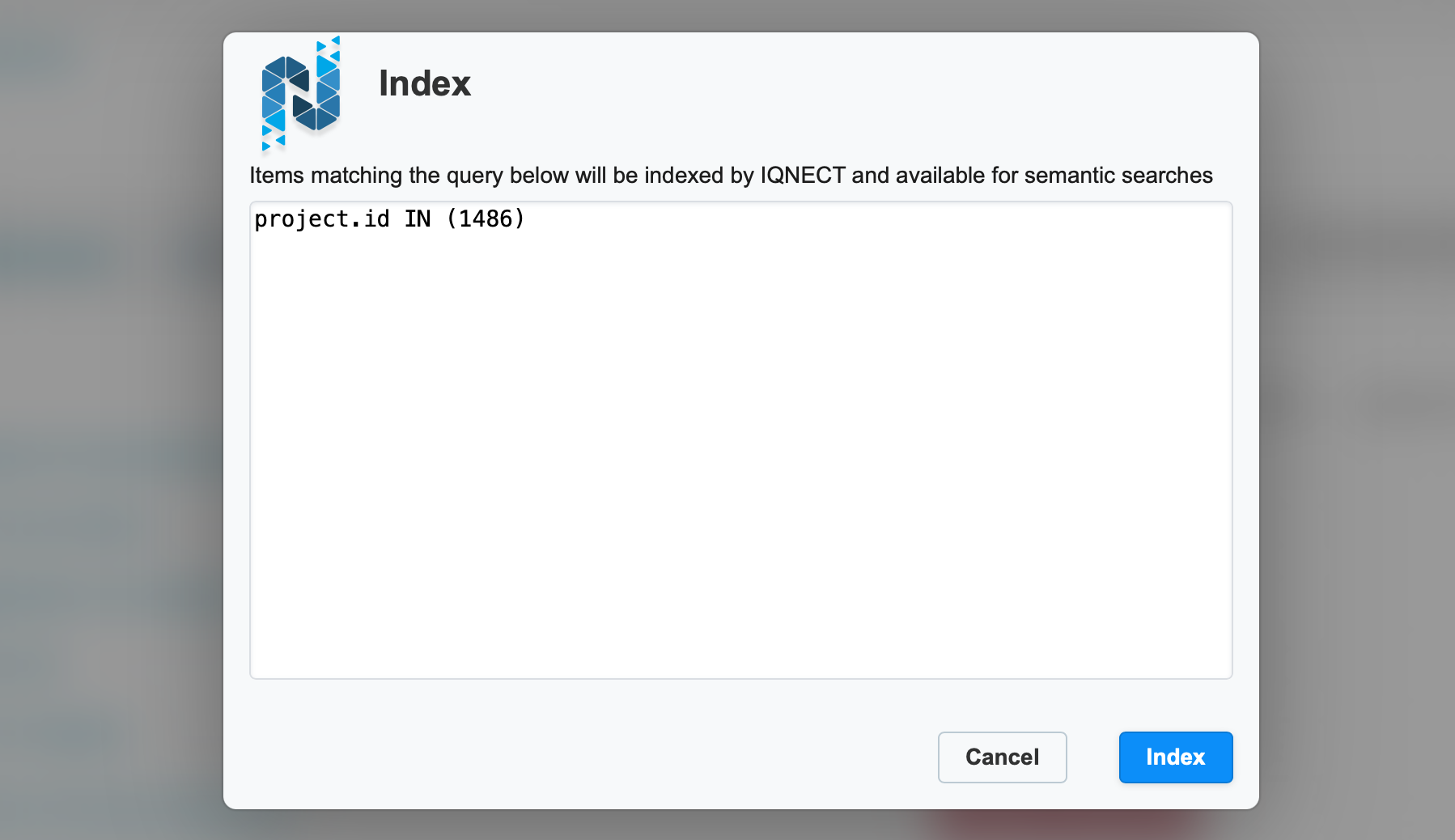
This string is the basis for reindexing.
It can be reused to reindex without rebuilding the report.
Start indexing #
In the modal, confirm the cbQL selection.
Click Index.
Indexing begins immediately based on the items returned by the cbQL query.
View indexing progress #
Indexing progress is shown in your user account popover.
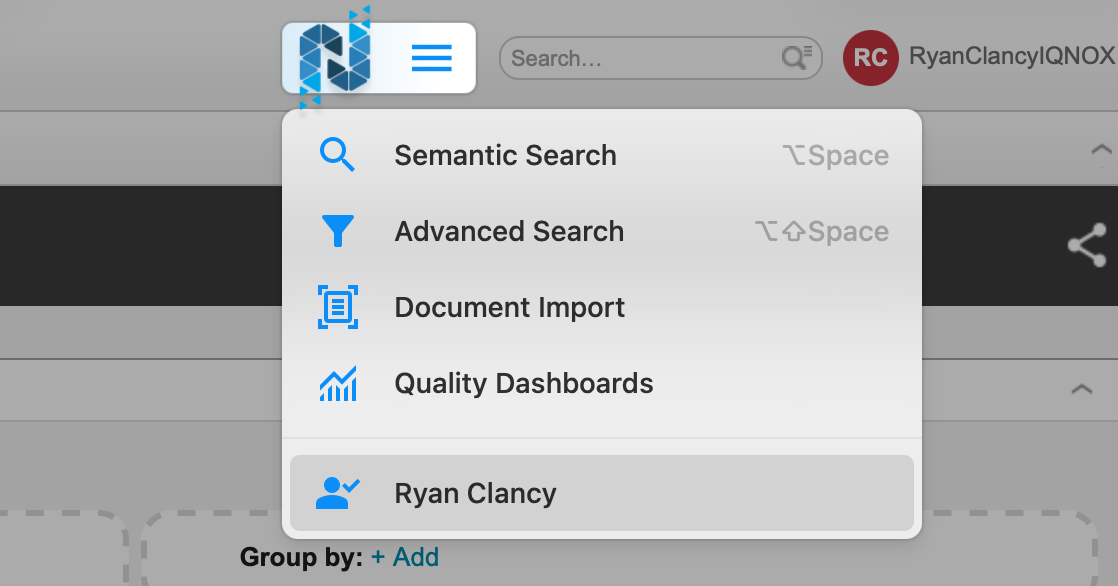
The popover displays:
- Number of items sent for indexing
- Number of items that could not be sent for indexing
- Number of items awaiting indexing
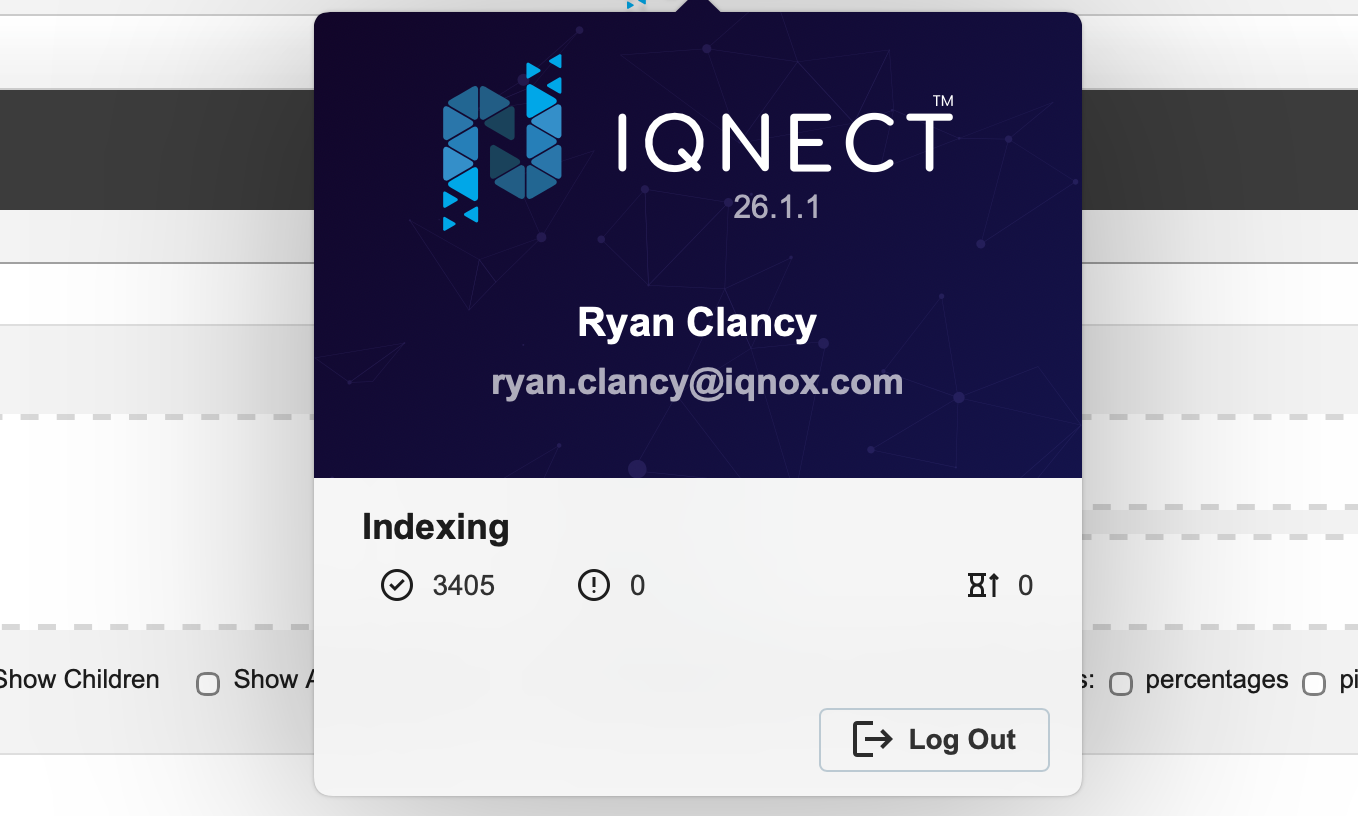
These values update as indexing progresses.
Results and next steps #
After indexing is complete, Codebeamer updates the indexed items based on the cbQL query you submitted. You can run additional reports and reindex again at any time using the same workflow.
