
Overview #
In IQNECT 26.1, Find Similar helps teams identify related or potentially duplicate tracker items directly from the workflow. Users can now compare an item against existing project content to confirm whether similar requirements, specifications, or tracker entries already exist.
This update improves traceability and consistency by reducing duplicate work and making it easier to reuse validated content.
Prerequisites #
- The tracker item you want to compare is visible in your project workspace.
- You have permission to view related tracker content.
- You are using IQNECT version 26.1 or later.
How Find Similar works #
Find Similar analyzes a selected tracker item and compares it against existing project content to surface related or duplicate entries. Instead of manually searching across trackers, the system uses AI-driven matching to identify similarities in structure, meaning, and context. The workflow is designed for speed and control:
- Automatically search across trackers for related items
- Rank results based on similarity and relevance
- Allow refinement using Advanced Search filters
- Enable direct action on results without leaving the workflow
This makes it easier to validate new content, avoid duplication, and maintain consistency across large or complex projects.
Find similar items from a tracker item #
Follow these steps to locate similar or duplicate items using the Find Similar feature:
Open your project #
Open the Projects tab and click on the project that contains the item you want to review.
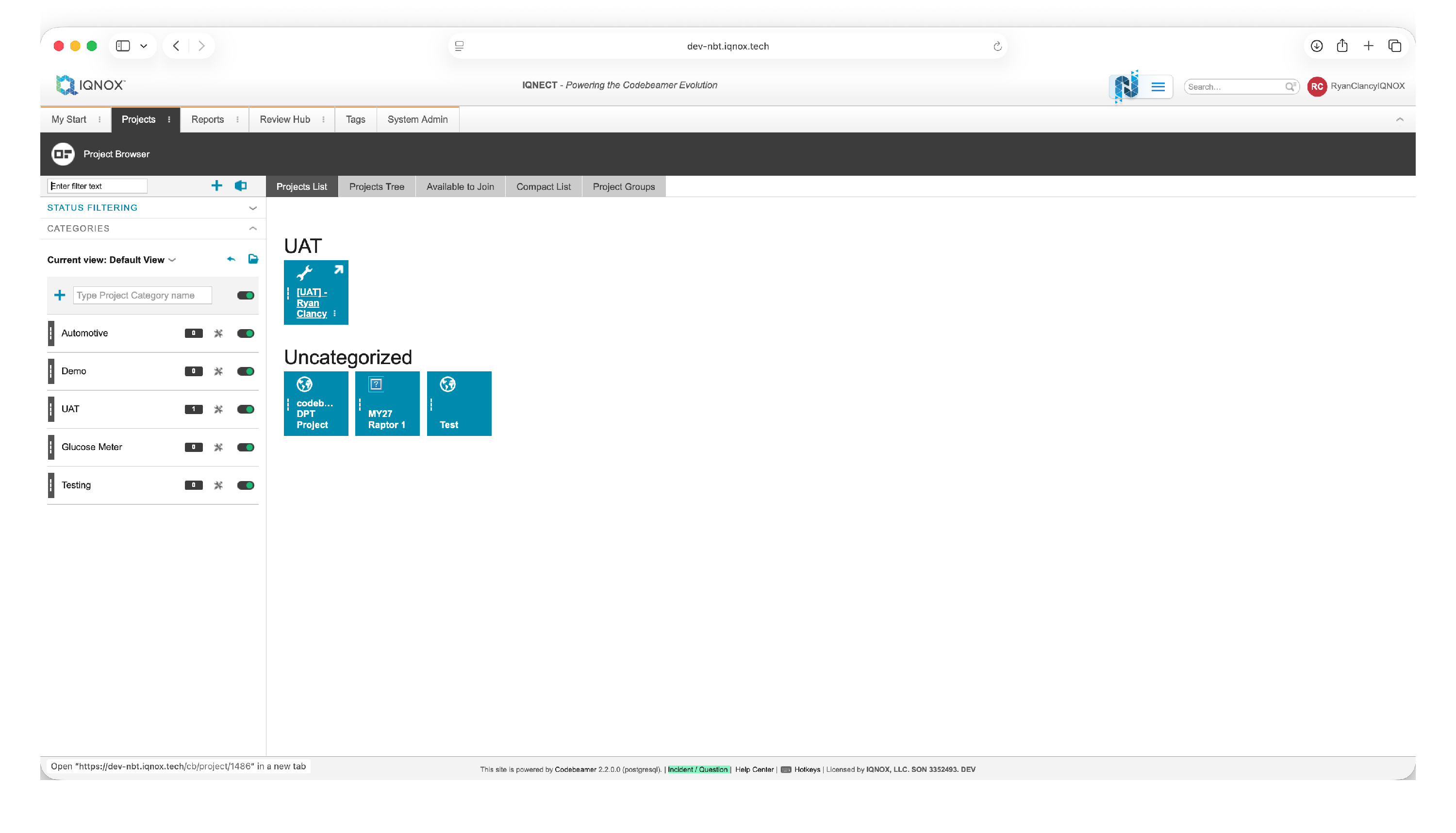
This will open the project workspace.
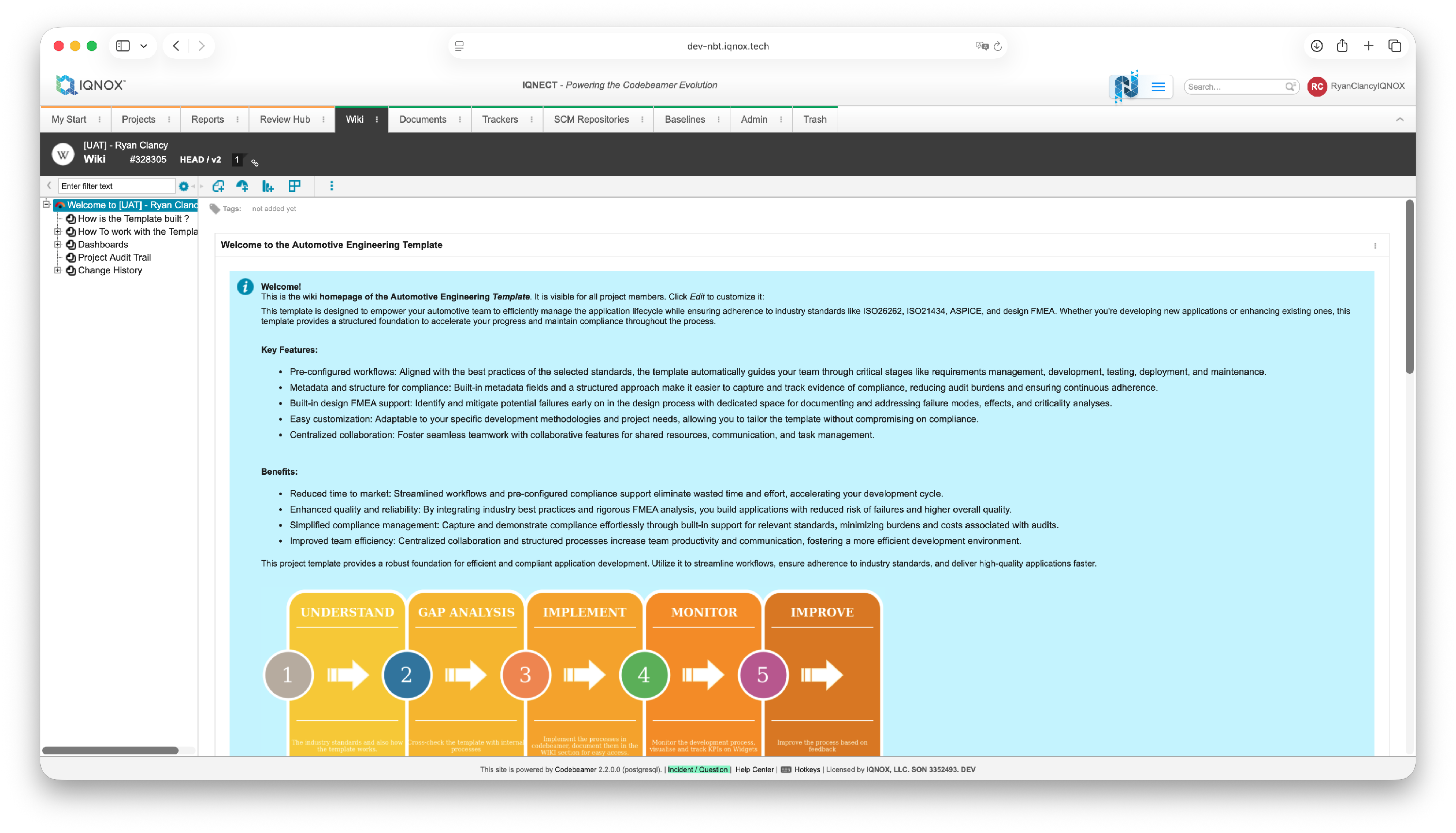
Select the tracker item #
Navigate to the Trackers tab.
Double click on the desired tracker in the tree structure on the left.
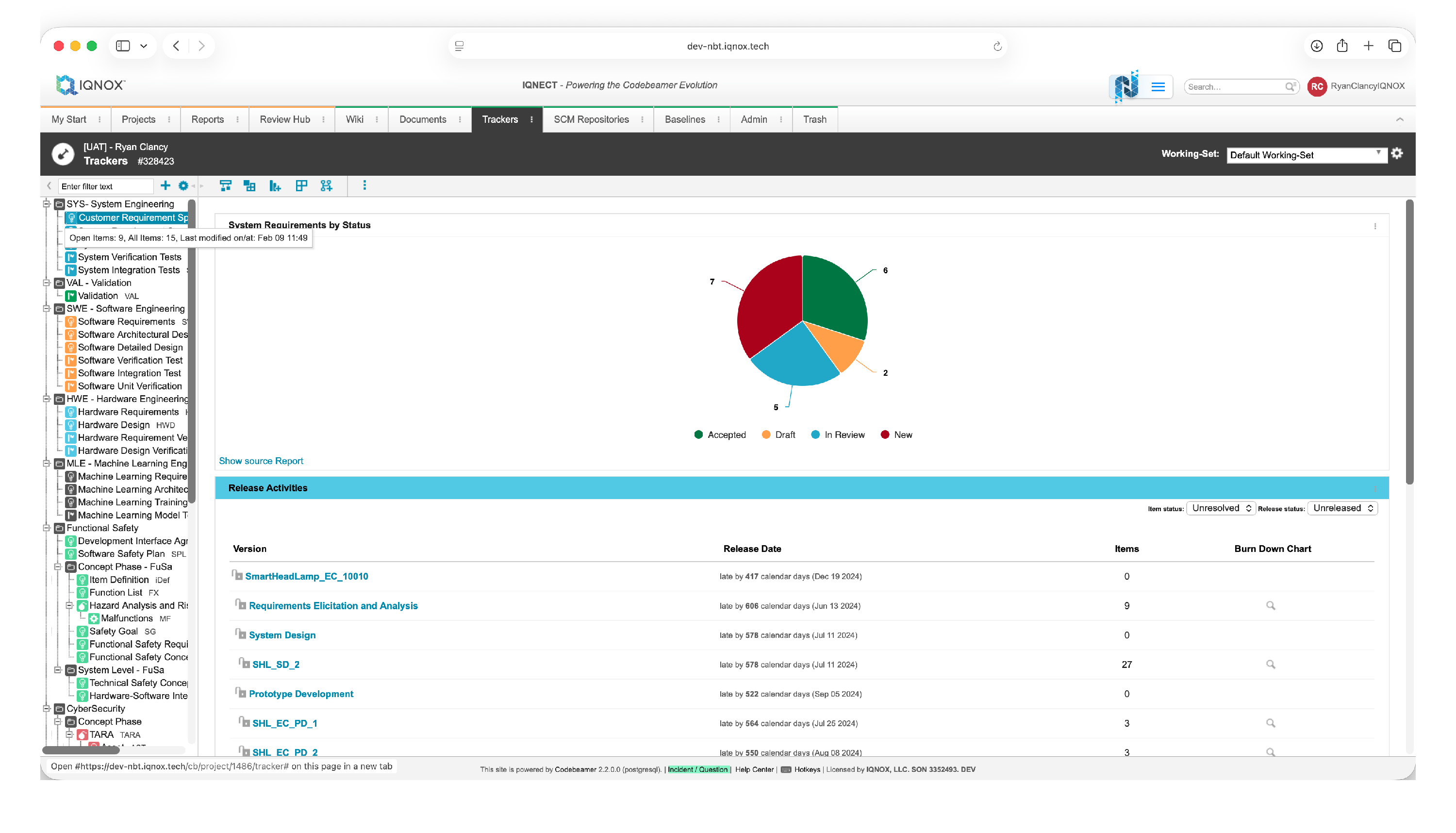
This opens the All Items view within that tracker.
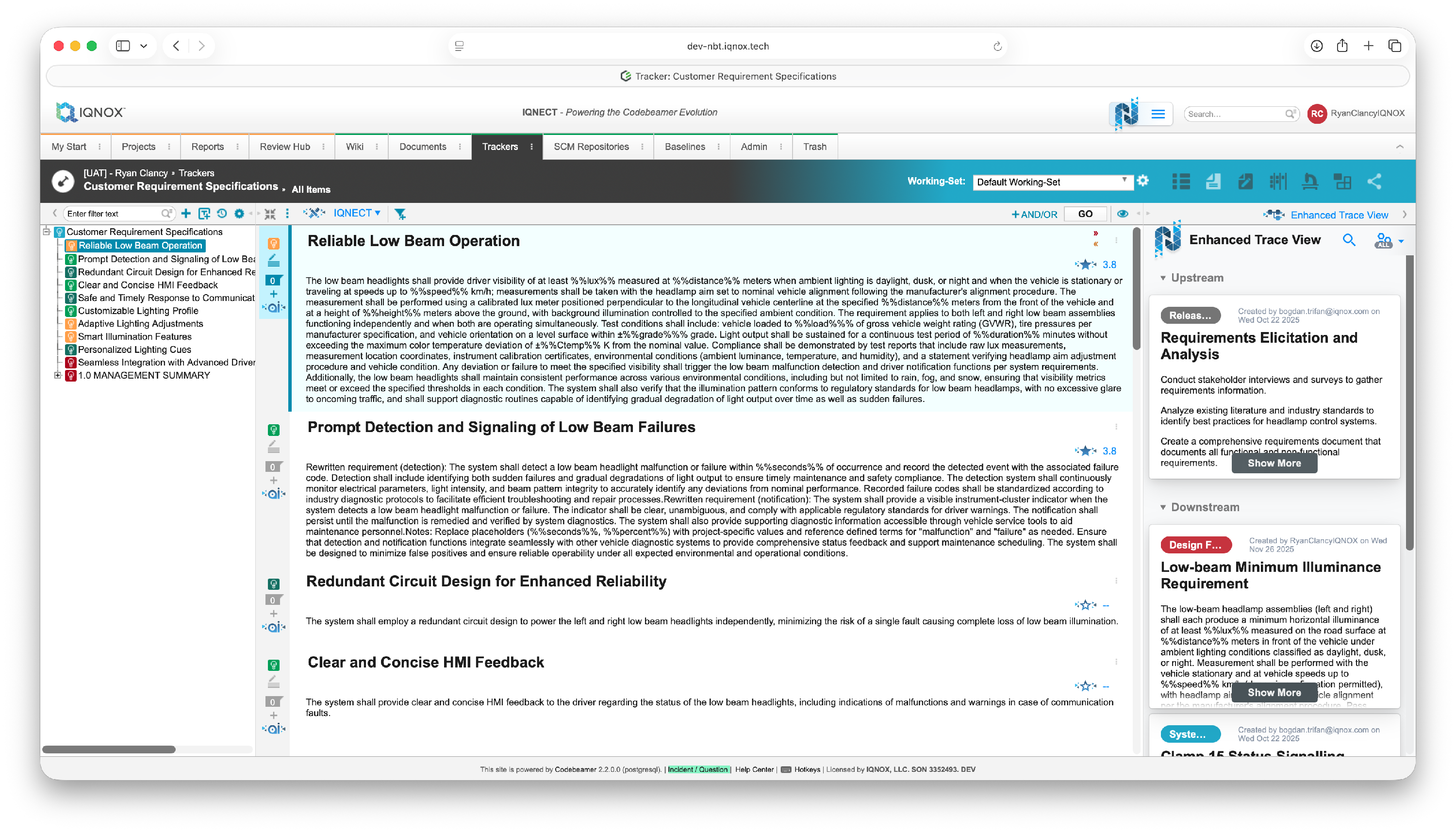
Select the item that you want to check for similar or duplicate entries.
Open the AI menu #
With the item selected, open the AI action menu.
This menu provides access to IQNECT’s AI-driven workflows for analysis and content refinement.
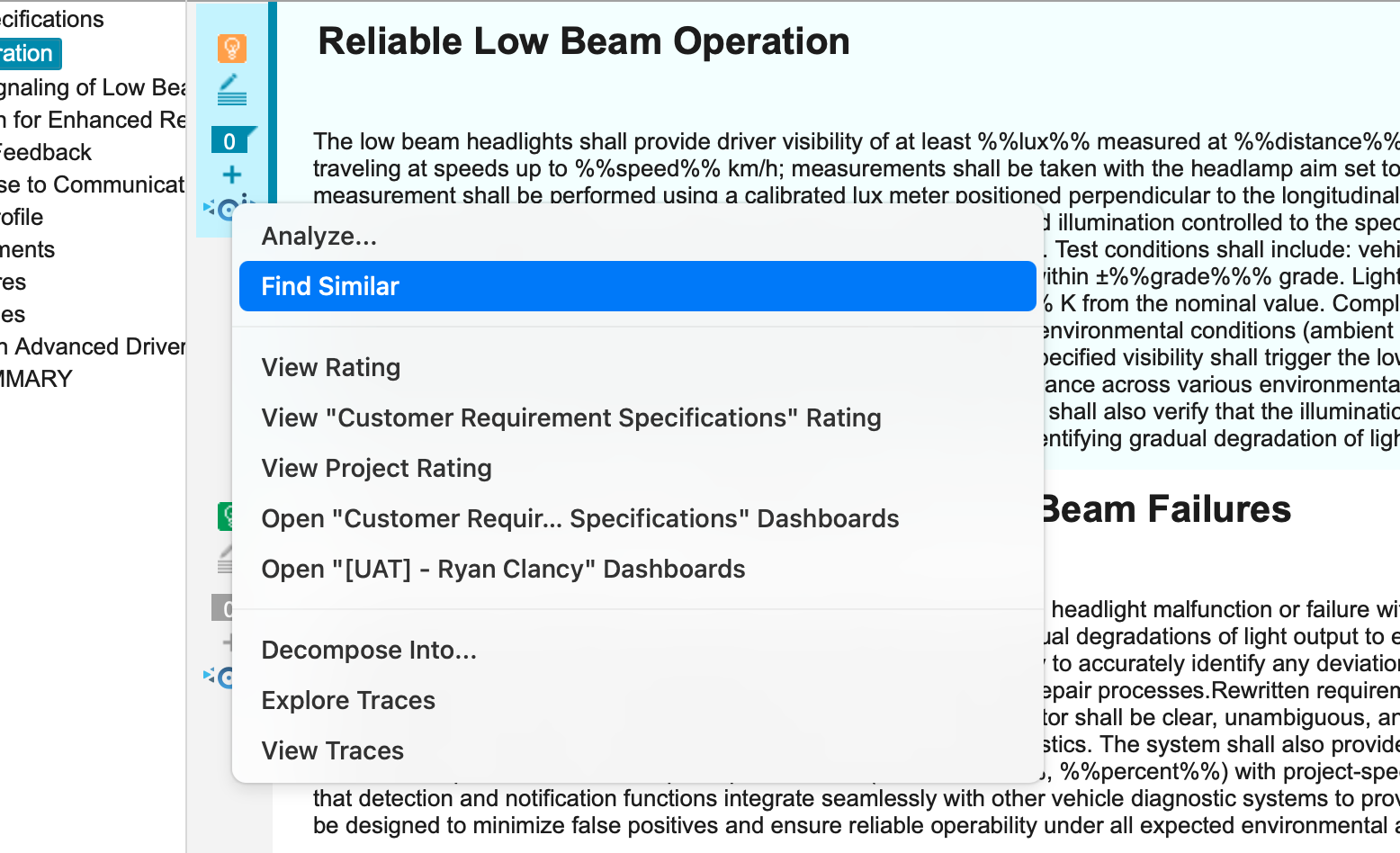
Select Find Similar .
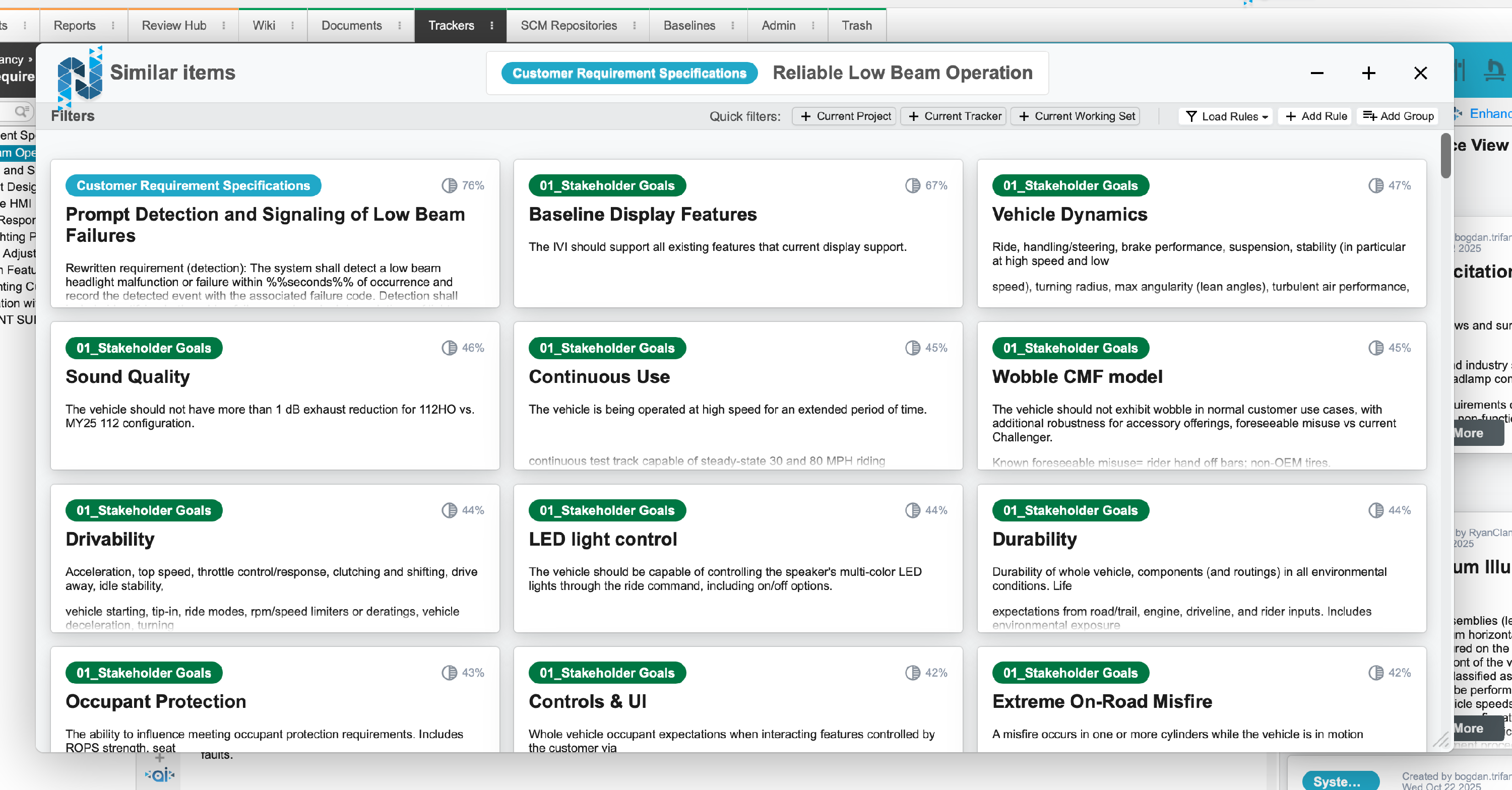
IQNECT searches across existing tracker content and displays a list of related or similar items.
This allows users to confirm whether an item already exists before creating or updating new content.
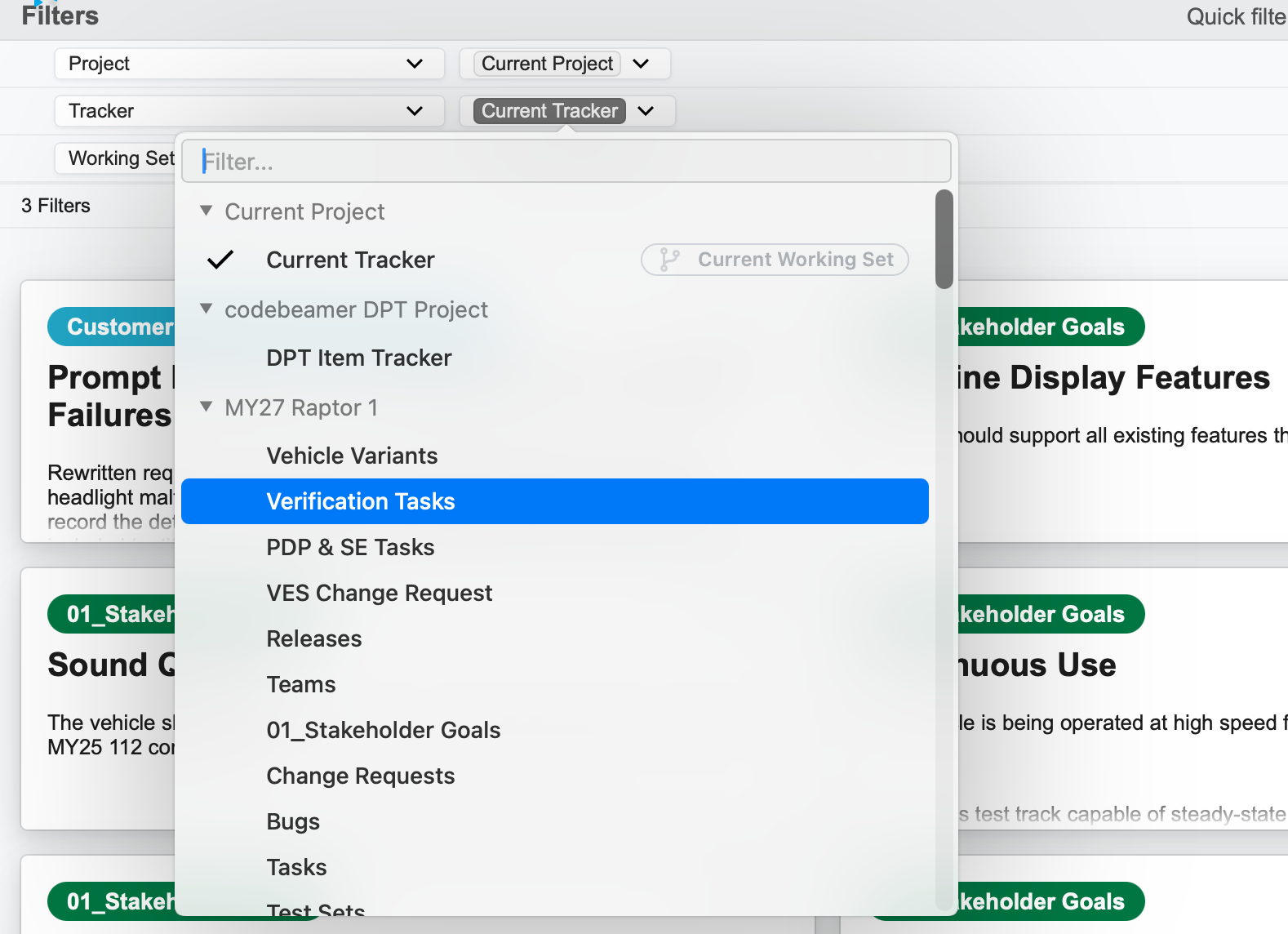
Refine results with filters #
Because Find Similar is built on Advanced Search, results can be refined using the same tools and Filters available in search workflows.
Take action on Similar Items #
From the Similar Items view, users can perform additional actions, including:
- Opening an item for review
- Refactoring content for alignment
- Analyzing related tracker entries
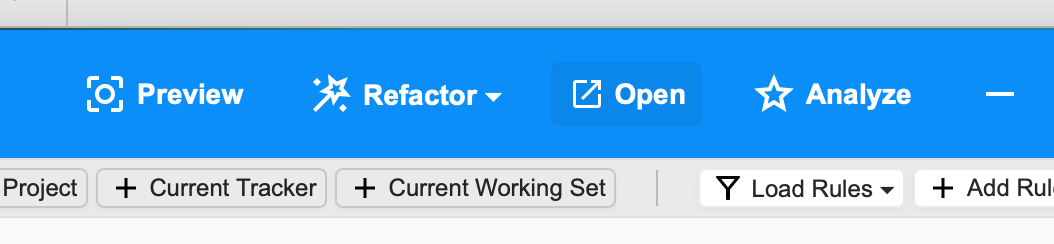
This keeps duplicate checking integrated into the normal workflow.
Results and next steps #
You’ve successfully used Find Similar to identify related or potentially duplicate tracker content.
Use this workflow to prevent redundancy, reuse validated requirements, and maintain cleaner tracker structures as your project evolves.
