
Overview #
IQNECT Projects provides a centralized workspace for organizing engineering initiatives across multiple connected systems. Instead of viewing resources within individual applications, projects aggregate engineering information from systems such as Codebeamer, Windchill PLM, and Jira into a single project view.
Each project displays connected resources, project health, lifecycle information, and engineering metrics while preserving data within its source system. This allows teams to manage engineering work from a project perspective rather than from individual repositories.
Prerequisites #
Before creating or managing projects, ensure that:
- IQNECT Projects is enabled.
- At least one provider system has been configured.
- The required engineering projects exist in the connected systems.
- The user has permission to create or manage projects.
How IQNECT Projects work #
IQNECT Projects organizes engineering information around a business initiative instead of an individual engineering application. Each project acts as a central workspace that aggregates engineering resources from connected provider systems while preserving the original data within those systems.
After provider systems are associated with a project, IQNECT retrieves and indexes the configured engineering resources. These resources are organized into Resource Shapes that group similar engineering artifacts, such as requirements, tests, documents, parts, and issues. As engineering information changes within connected systems, scheduled project updates refresh the project so users can work with current engineering data.
Project membership and access controls determine which users can view or manage project information. This enables engineering teams, project managers, and other stakeholders to collaborate from a shared project workspace while maintaining appropriate access permissions.
Create a project #
Follow these steps to create a new IQNECT project.
Open Projects #
Open the IQNECT Admin view.
Select the Projects icon (a star.)
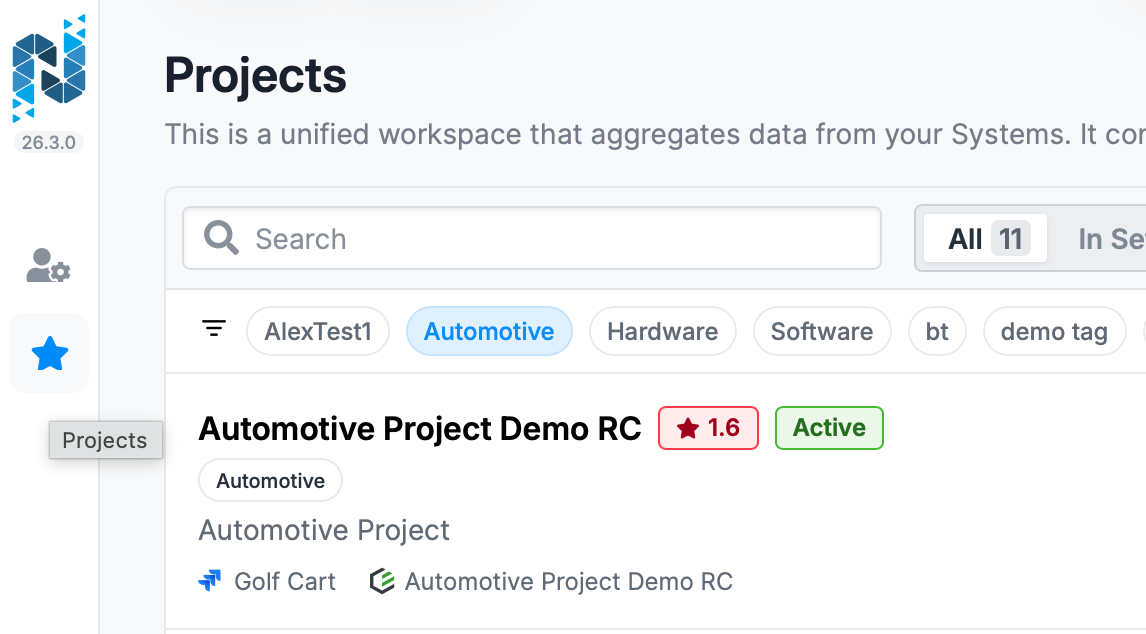
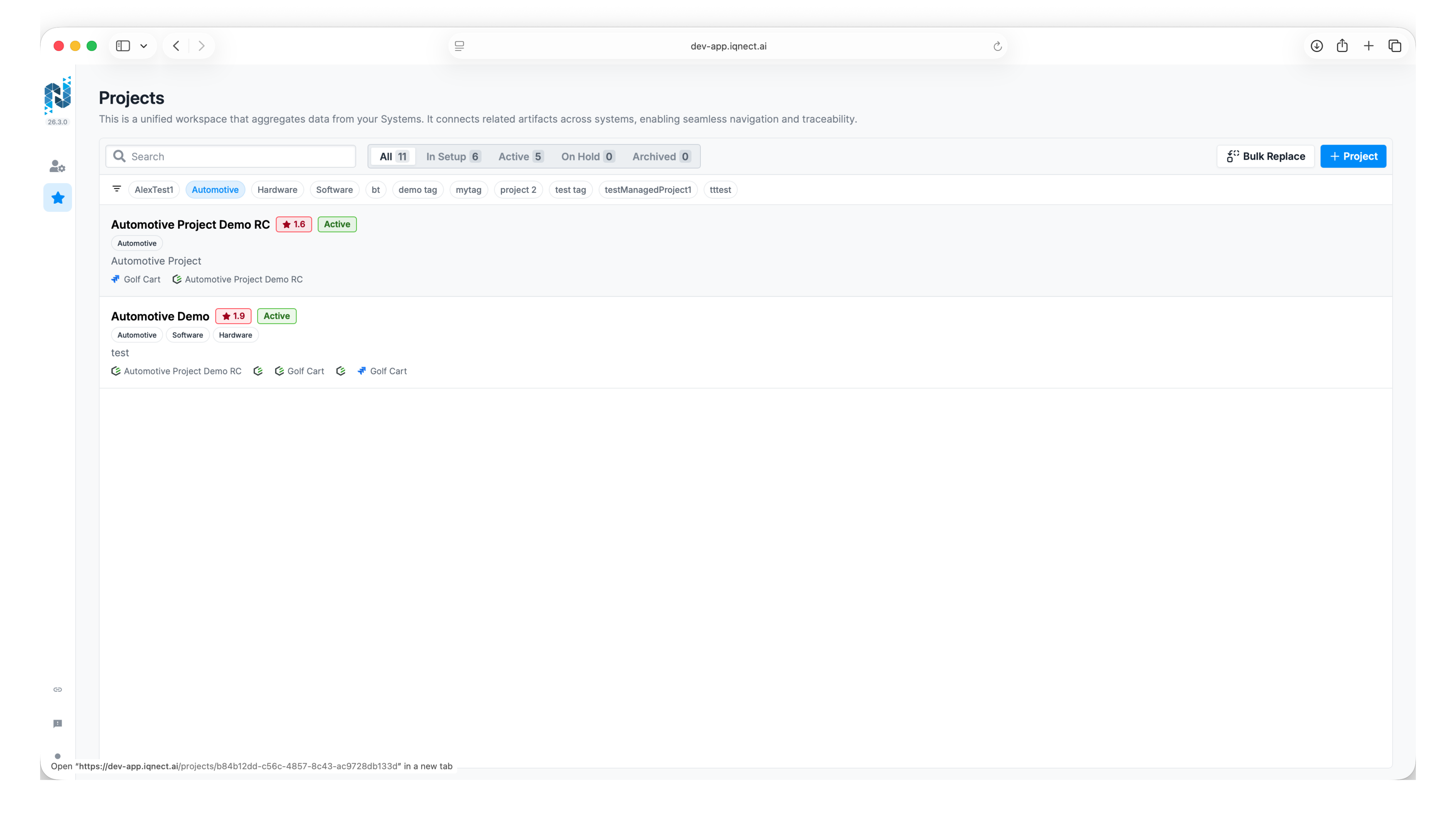
The Projects page displays all projects that are available to the current user.
Search Projects #
The Projects page includes search and filtering capabilities to simplify navigation.
Projects can be filtered by:
- Name
- Title
- Description
- Lifecycle status
- Tags
These filters update the project list immediately.
Create a new project #
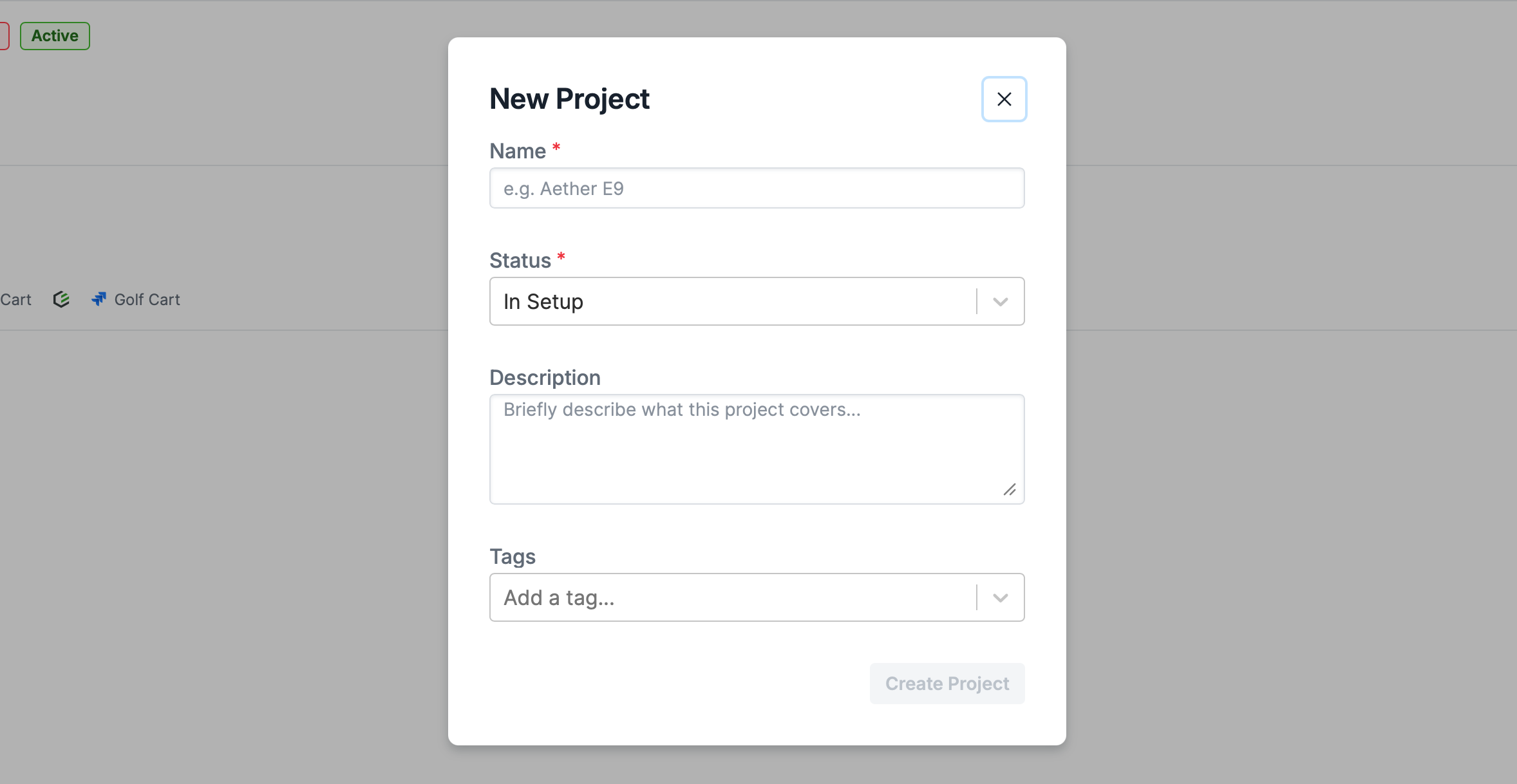
Select + Project.
Enter the project information, including:
- Project name
- Status
- Description (optional)
- Project tags (optional)
Select Create Project.
IQNECT creates the project and opens the Resource Shapes.
View project resources #
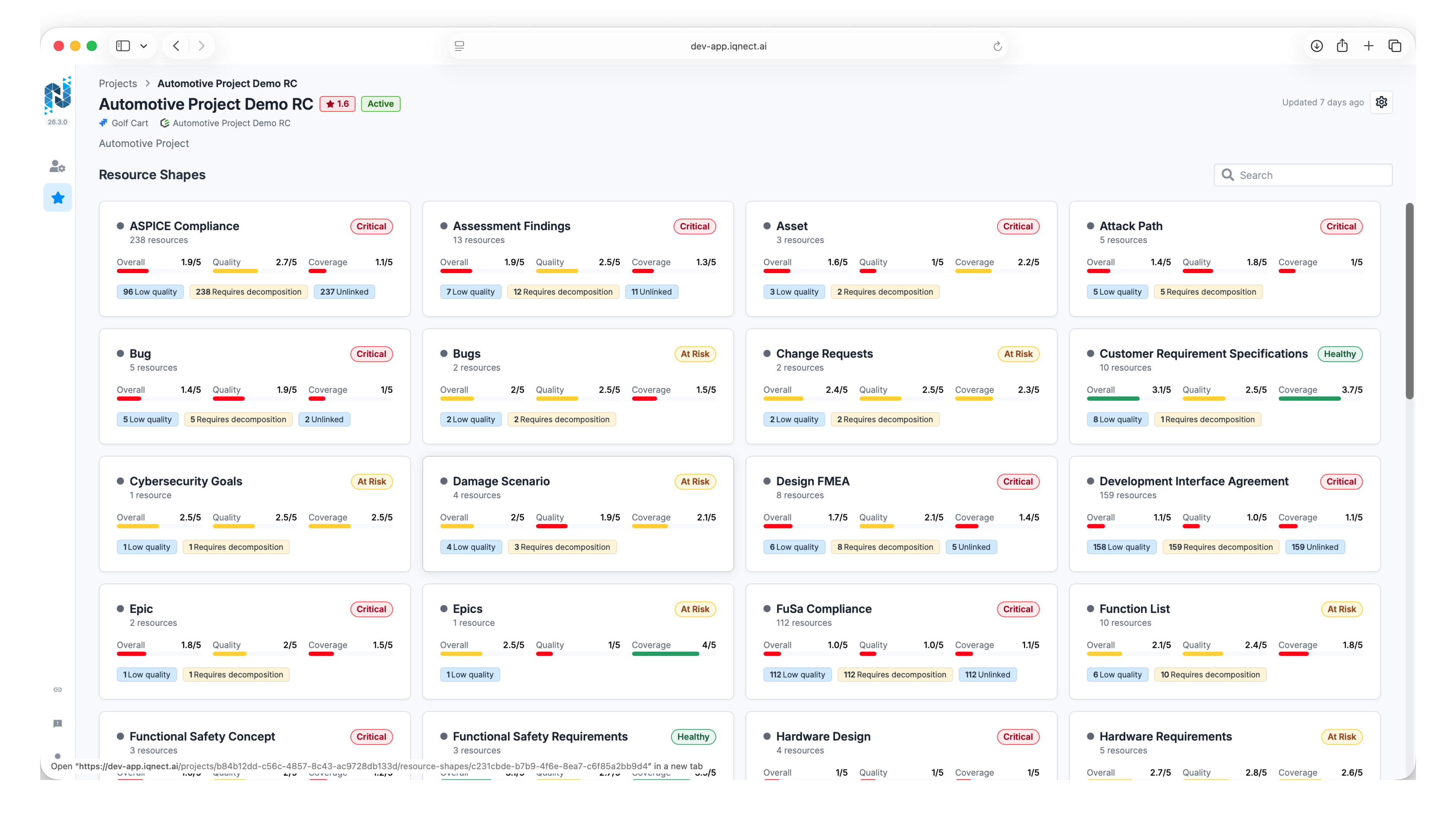
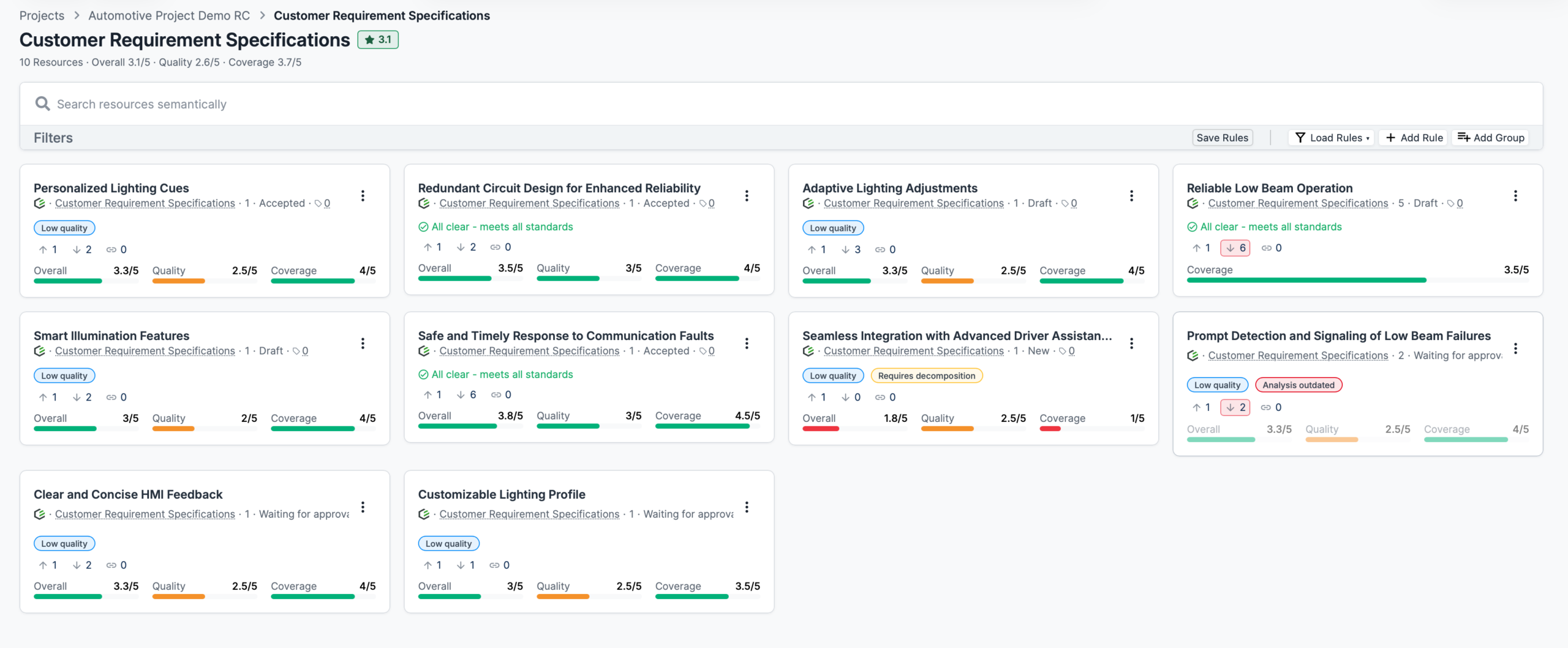
Open a project to view its resource shapes.
Each resource shape groups similar engineering resources together.
Examples include:
- Requirements
- Parts
- Tests
- Documents
- Issues
Each resource shape displays summary information, including:
- Resource count
- Health
- Quality metrics
- Coverage metrics
- Suspicion signals
Select a resource shape to display the individual resources.
Configure project sources #
Projects aggregate information from one or more connected engineering systems.
Open Project Settings #
Open the project.
Select the Settings icon.
Add connected systems #
Select Manage Sources.

Choose one or more connected systems.
For each system:
- Select the engineering project.
- Configure any required project options or tags.
- Save the configuration by clicking Done.
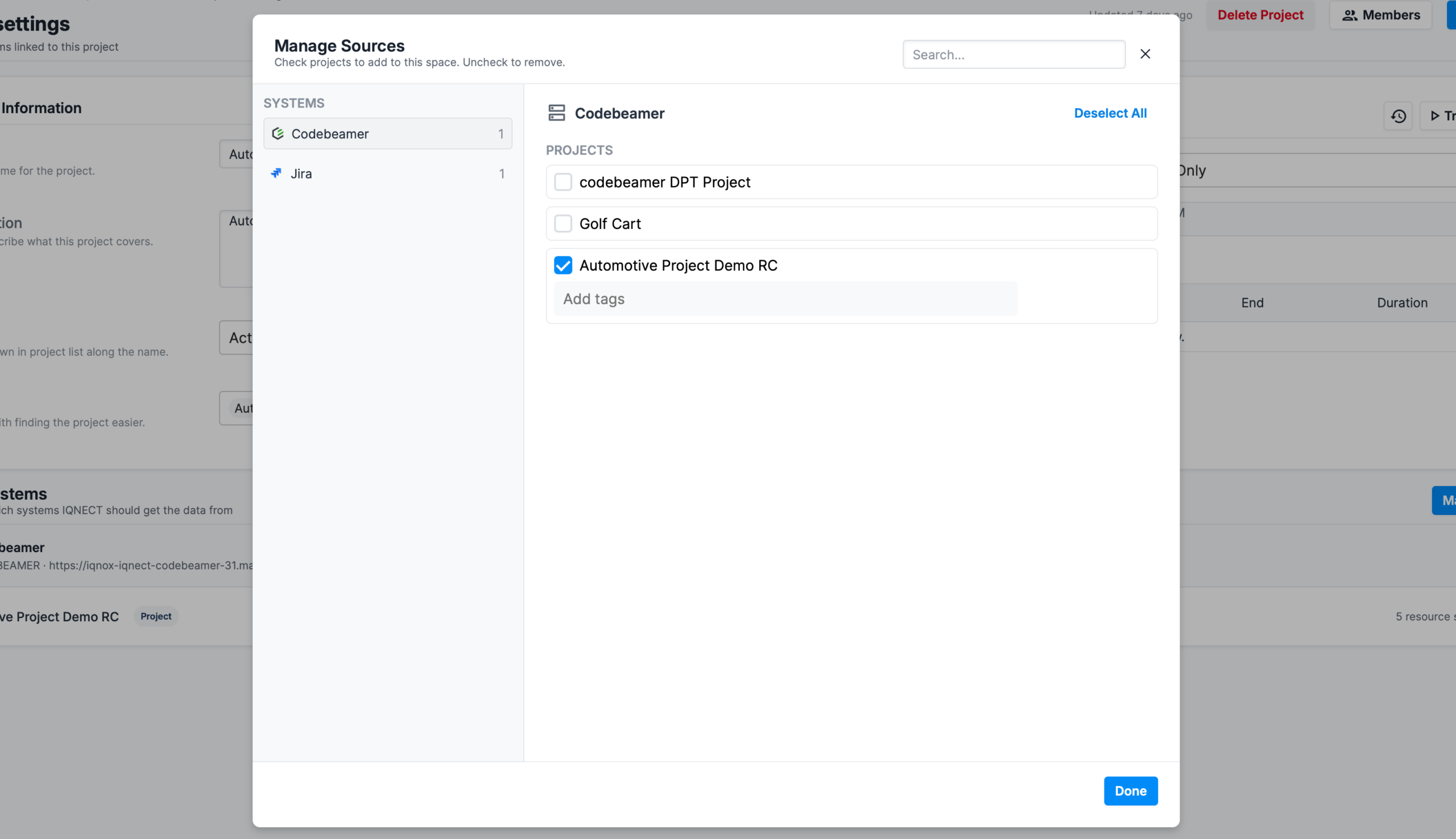
After a source is added, IQNECT automatically starts an update job to retrieve project data.
Manage project members #
Projects use role-based access control.
Add a member #
Open Project Settings.
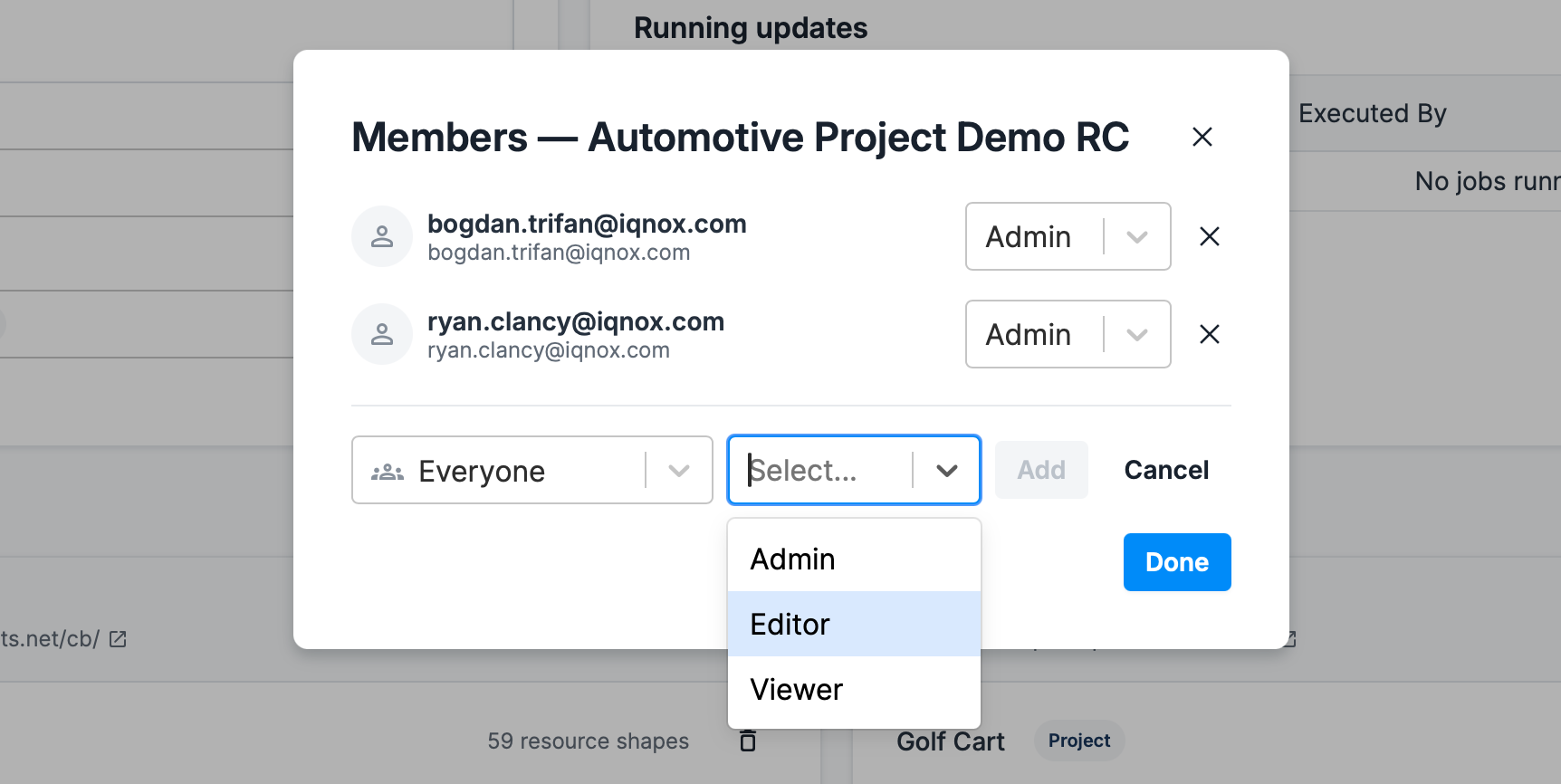
Select Members.
Choose Add Member.
Select either:
- User
- Group
Assign one of the following roles:
- Administrator
- Editor
- Viewer
Save the changes.
Replace a project member #
If a project member changes roles or leaves the project, administrators can replace that user across multiple projects.
Open Bulk Replace.

Select the existing user.
Select the replacement user.
Choose the projects to update.
Select Replace in X role(s).
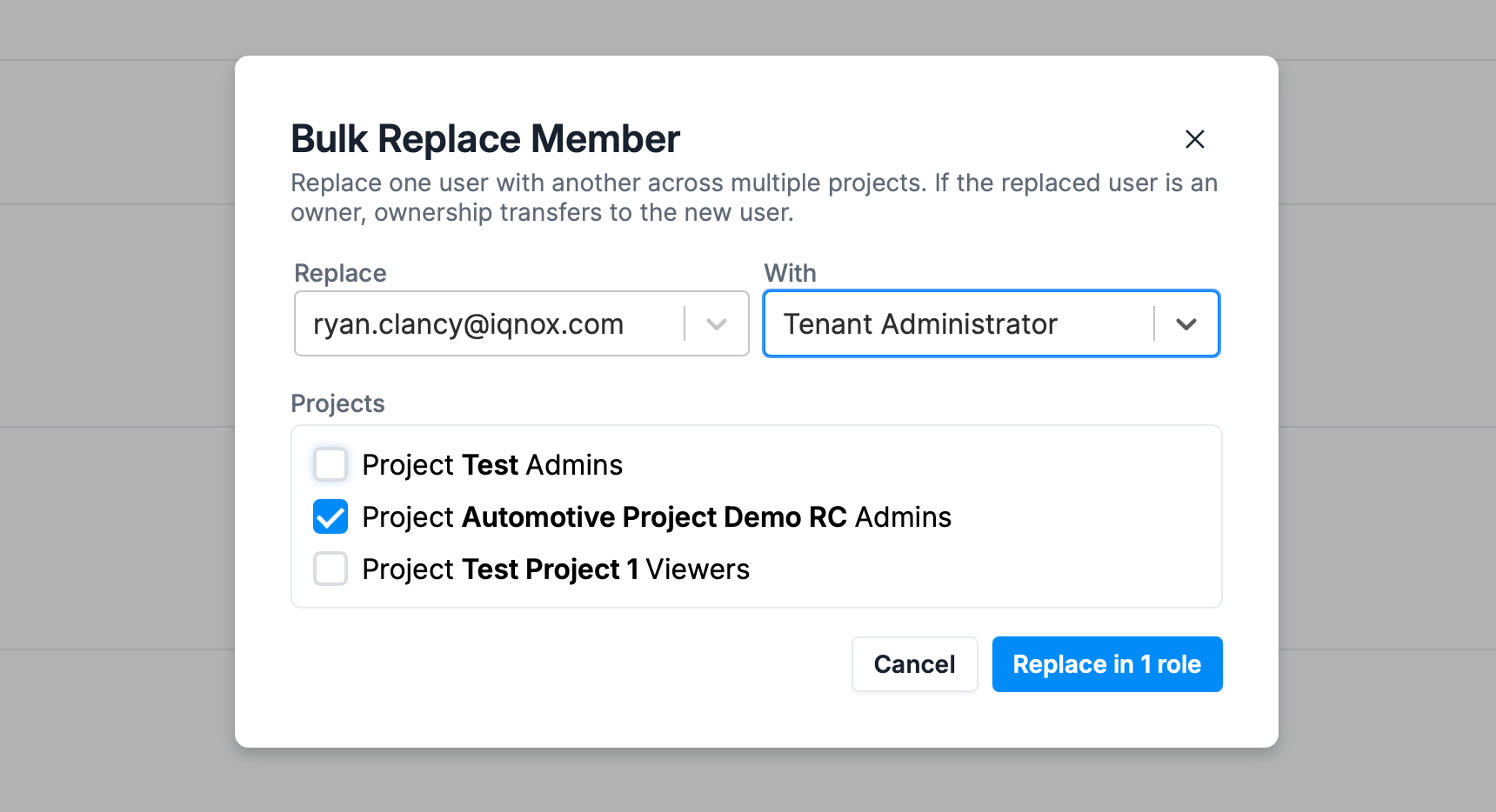
IQNECT updates the selected projects with the new project member.
Configure automatic project updates #
Projects can refresh automatically to retrieve the latest engineering information.
Open Project Settings.
Configure the update frequency.
Save the configuration by clicking Save Changes.
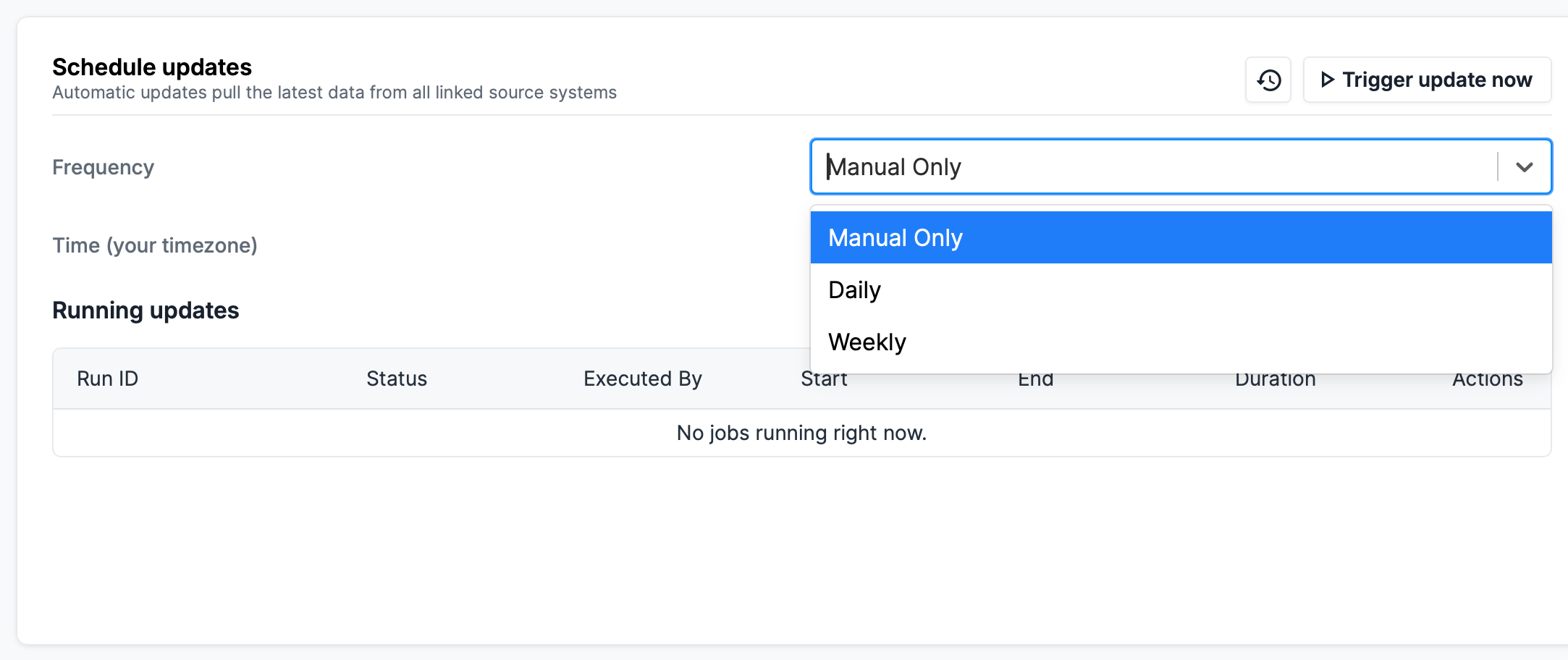
IQNECT automatically refreshes project information according to the configured schedule.
Results and next steps #
You have successfully created and configured an IQNECT project.
Projects provide a centralized view of engineering information across connected systems, allowing teams to organize resources, manage project access, and monitor engineering health from a single interface.
