
Overview #
In IQNECT 26.2, Semantic Search now includes Project Category visibility and multi-project selection, giving users greater control over search scope.
In multi-project environments, results can become noisy and harder to interpret. With this update, users can define the scope upfront by selecting specific projects or categories, ensuring more relevant results.
This improves accuracy, reduces manual filtering, and enables faster, more targeted analysis.
Prerequisites #
- You are using IQNECT version 26.2 or later.
- You have access to multiple projects or project categories.
- You have permission to view tracker data within the selected scope.
How Semantic Search scope works #
Semantic Search now allows users to explicitly define the scope of their query before executing it. This is done by selecting one or more projects or project categories.
Once selected, IQNECT limits search results to only those within the defined scope. This prevents unrelated data from appearing in results and ensures that queries return contextually relevant information. This is particularly useful when:
- Working across multiple projects with overlapping data
- Searching for requirements, risks, or test artifacts tied to a specific product area
- Performing analysis that depends on clearly defined boundaries
By combining scoped selection with semantic search capabilities, IQNECT improves both the precision and usefulness of search results.
Perform a targeted Advanced Search #
Follow these steps to perform a targeted Search using Project Category visibility and multi-project selection:
Open your project #
Open the Projects tab and select your project.
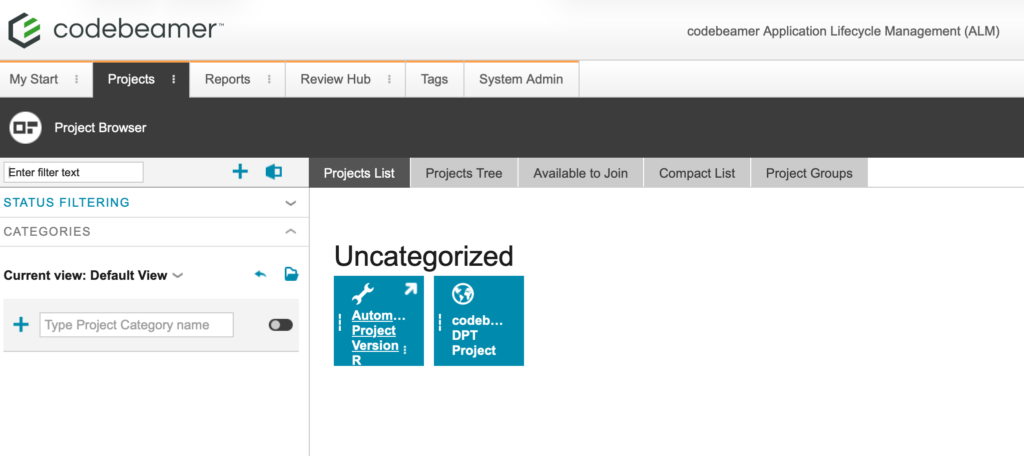
This will open the Wiki tab for that project.
Select the tracker item #
Navigate to the Trackers tab. Double-click on the desired tracker in the tree structure on the left.
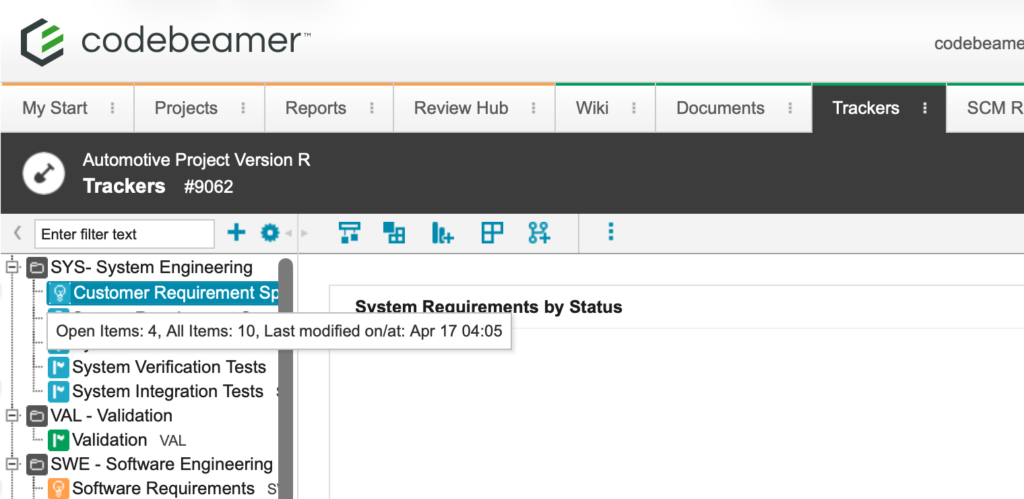
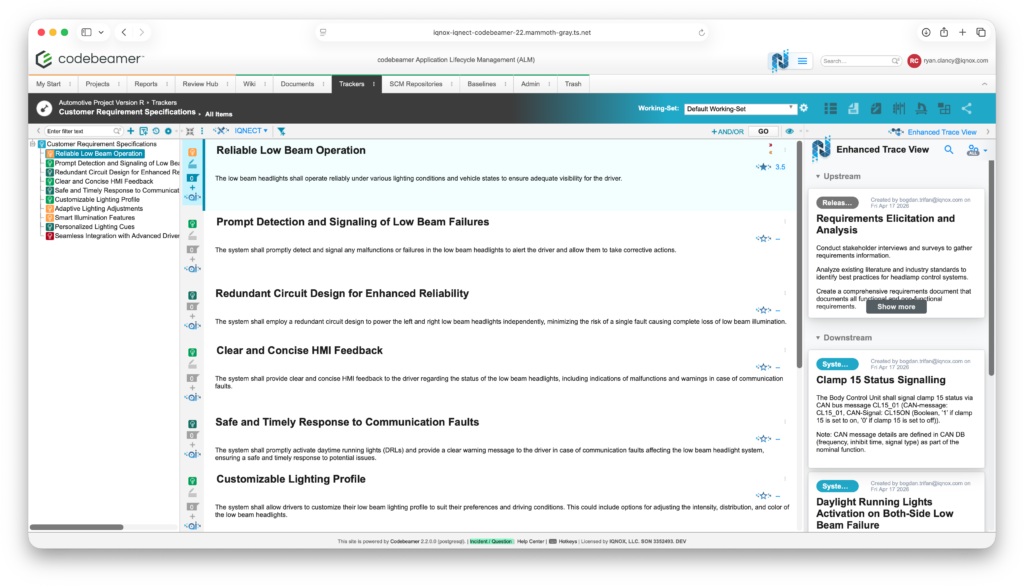
This will bring you into the All Items view for that tracker, where you can access and manage items within the selected project.
Open Advanced Search #
Access Advanced Search using one of the following methods:
- Click the hamburger menu beside the IQNECT logo and select
Advanced Search - Use the keyboard shortcut:
-
- Windows: Alt + Shift + Space
- Mac: Shift + Option + Space
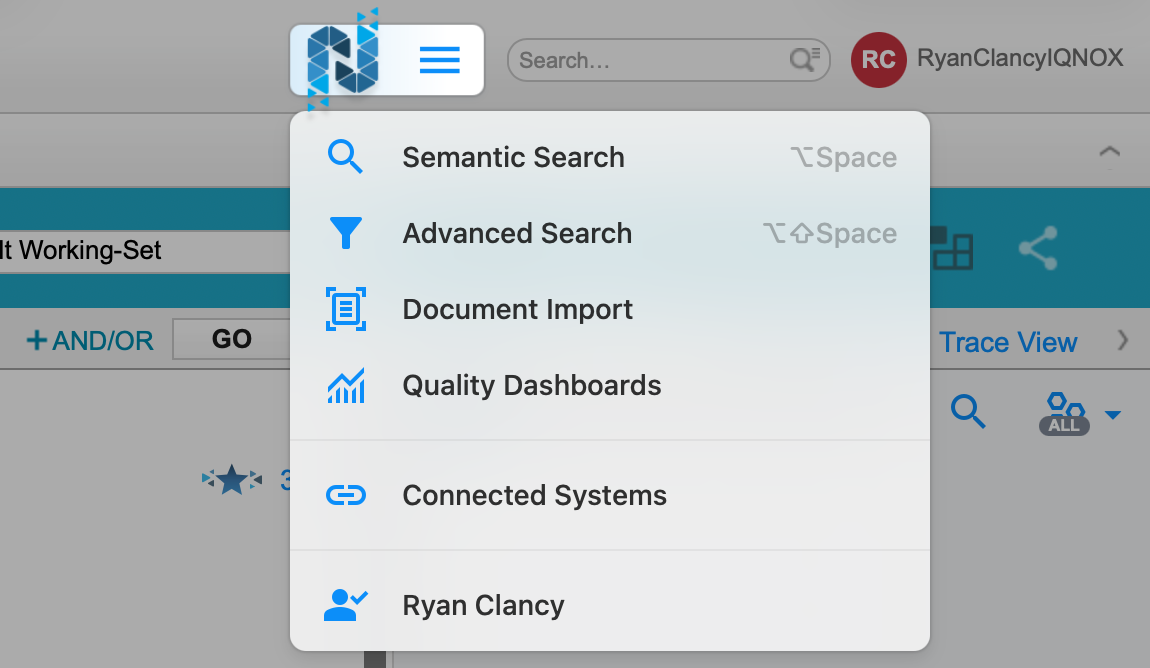
This will open the Advanced Search interface.
Select project categories & enter your query #
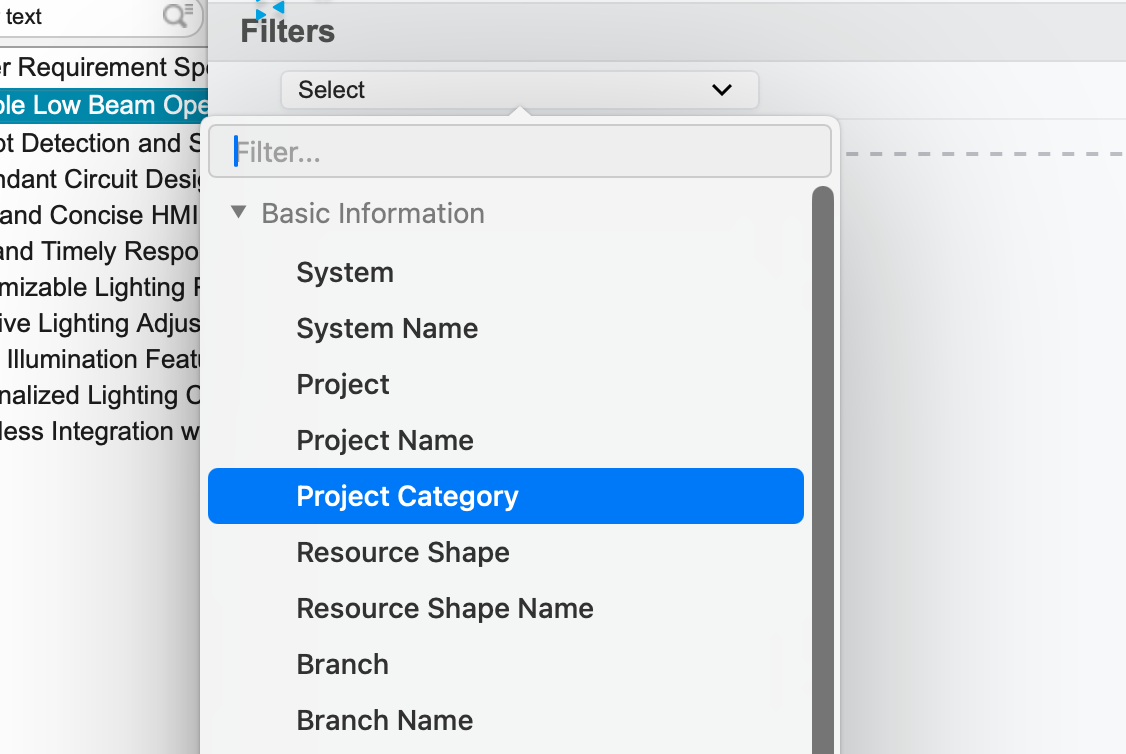
Within the Advanced Search interface, define the scope of your search by selecting + Add Rule, and then Project Category. Then you can enter your search query.
Review results #
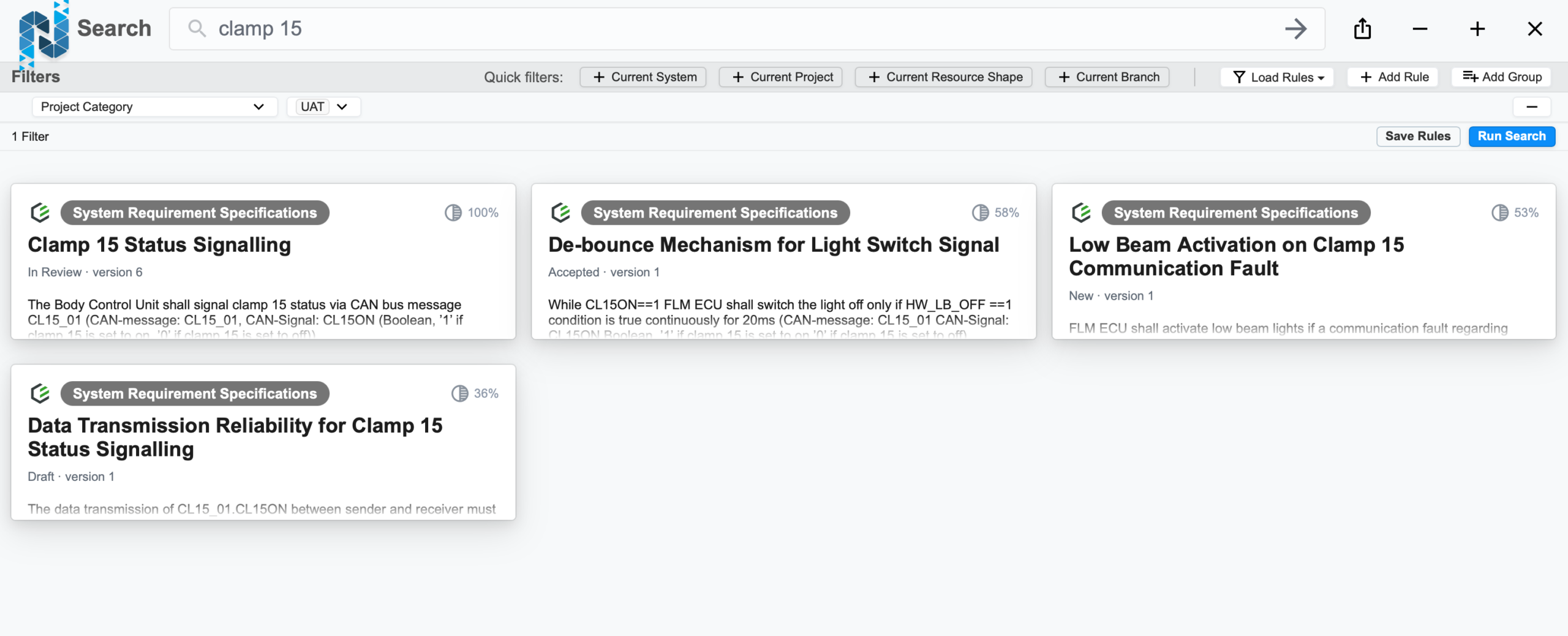
IQNECT returns results limited to the selected projects or categories. Review the results list and refine your query if needed. Because the scope is already constrained, results are more focused and easier to interpret.
This allows you to:
- Perform more effective cross-project analysis
- Quickly identify relevant items
- Reduce time spent filtering unrelated results
Results and next steps #
You’ve successfully performed a scoped Advanced Search using project category visibility and multi-project selection.
By defining the scope of your search upfront, you can significantly improve result precision and reduce noise in environments with large or distributed datasets.
Use this feature to streamline discovery, support targeted analysis, and maintain better control over how information is accessed across projects as your system scales.
