
Overview #
The Admin UI provides tools for exporting and importing IQNECT configuration settings between environments. These capabilities help administrators back up configurations, simplify deployments, and maintain consistency across IQNECT environments.
In IQNECT 26.3, the Admin UI introduces support for configuration export and import, making it easier to transfer supported configuration settings between IQNECT environments.
Prerequisites #
Before exporting or importing configurations, ensure that:
- The user has administrative permissions.
- The IQNECT environment has been configured.
- The required provider integrations have been established.
How configuration import and export work #
Configuration export packages supported IQNECT settings into a reusable file that can be stored or transferred to another environment.
During import, IQNECT validates the configuration package before applying the settings to help ensure the configuration is complete and compatible.
Export a configuration #
Configuration export allows administrators to create a reusable copy of an IQNECT configuration.
Open the IQNECT Admin UI and navigate to the configuration management page.

Select Export.

Choose the configuration to export.
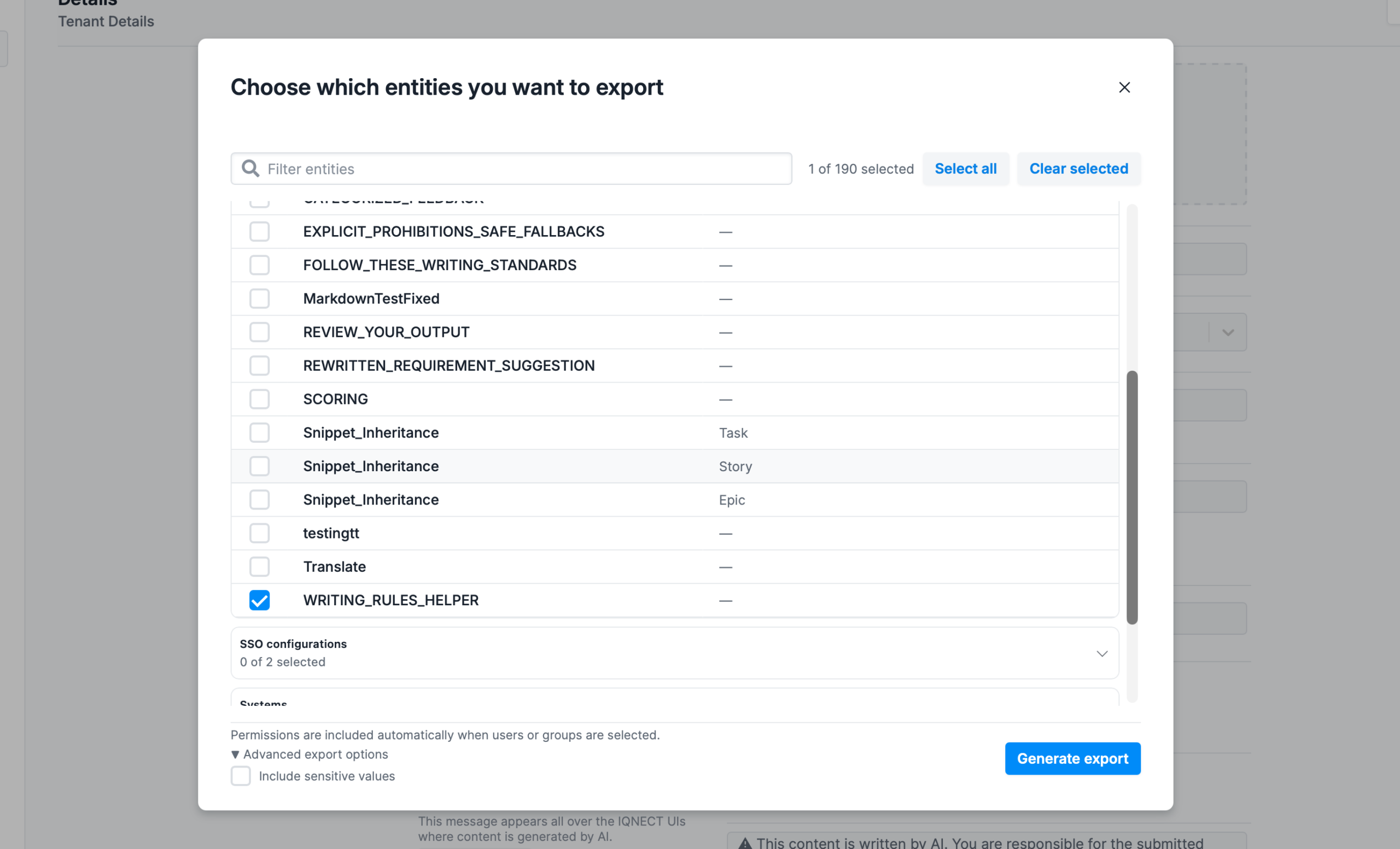
Please note there is an Include sensitive values button in the Advanced export options.

Start the export process by clicking Generate export.
IQNECT generates an export package containing the selected configuration settings.
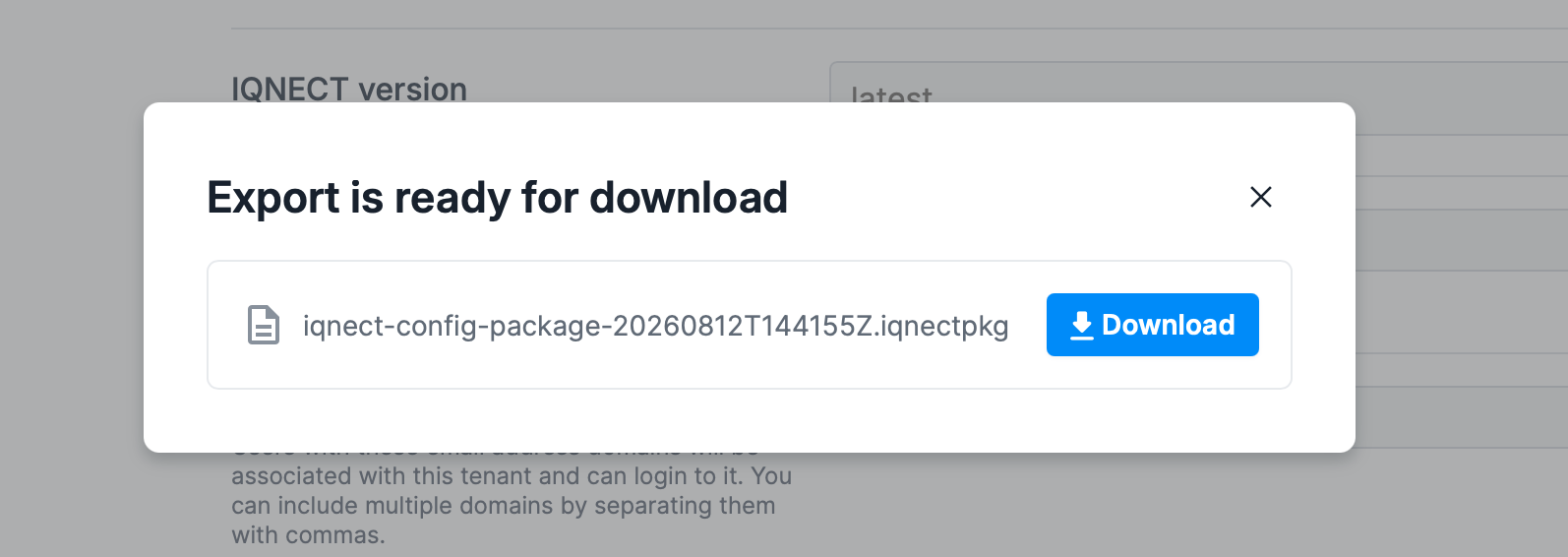
The exported configuration can be stored for backup purposes or imported into another IQNECT environment.
Import a configuration #
Previously exported configurations can be imported into another IQNECT environment.
Open the IQNECT Admin UI, select Import.
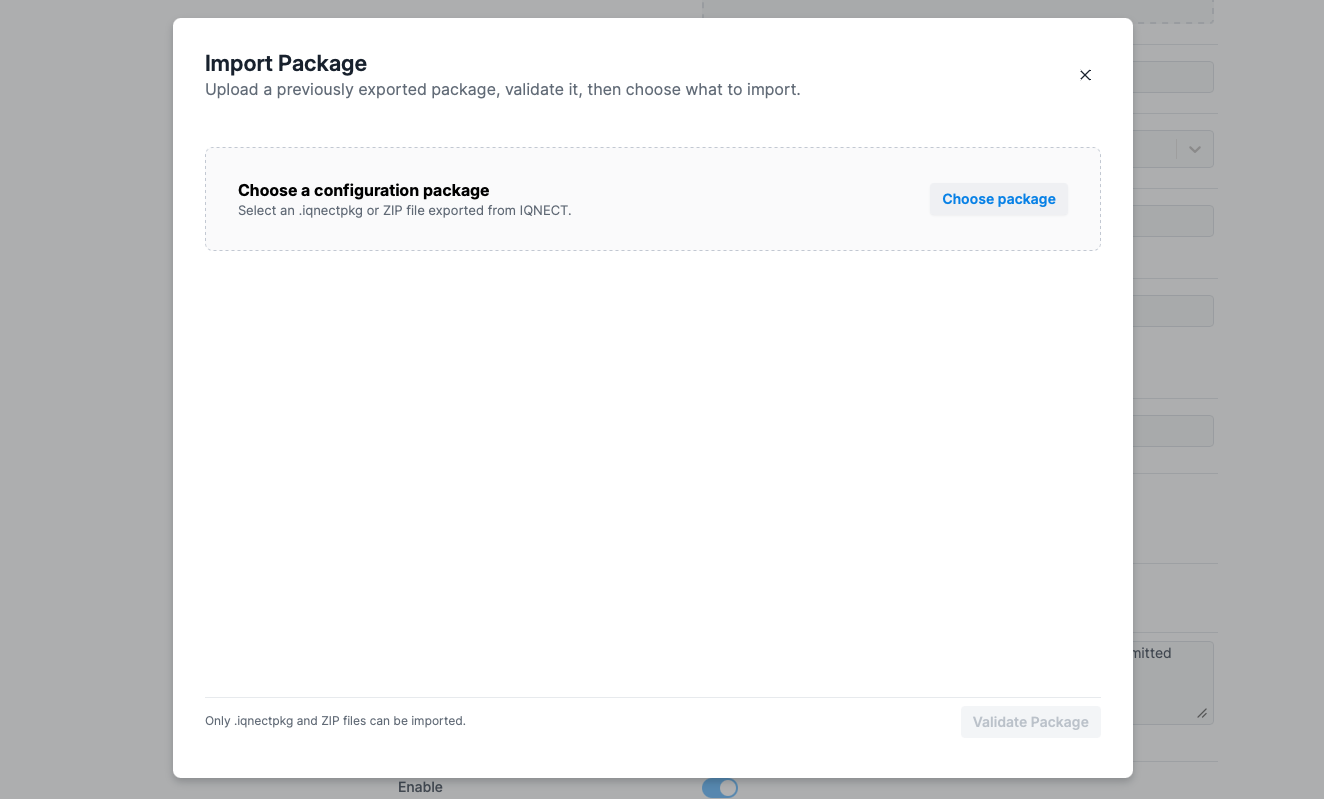
Choose the exported configuration package.
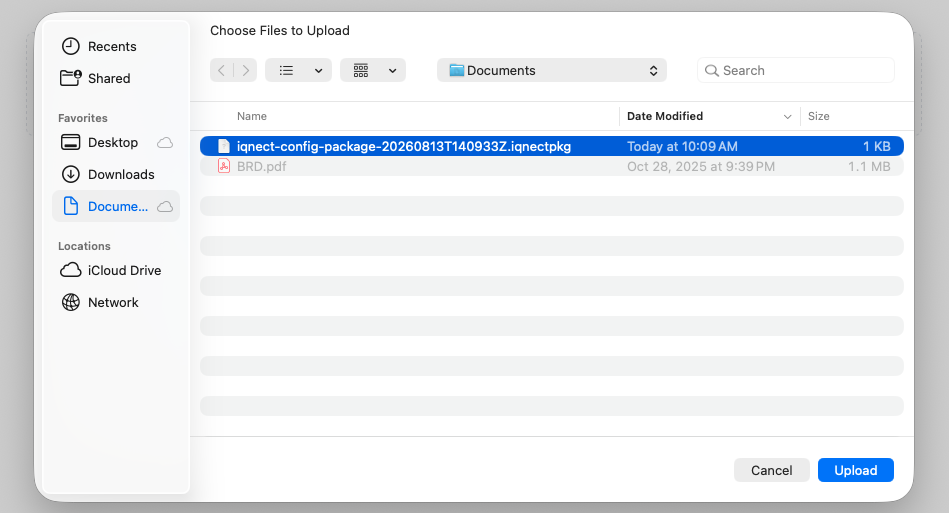
Click Upload to upload the package. You should see a success message when it is successfully uploaded.

Select Validate Package to validate the configuration package before applying the imported settings.

If validation identifies any issues, resolve the reported errors before repeating the import.
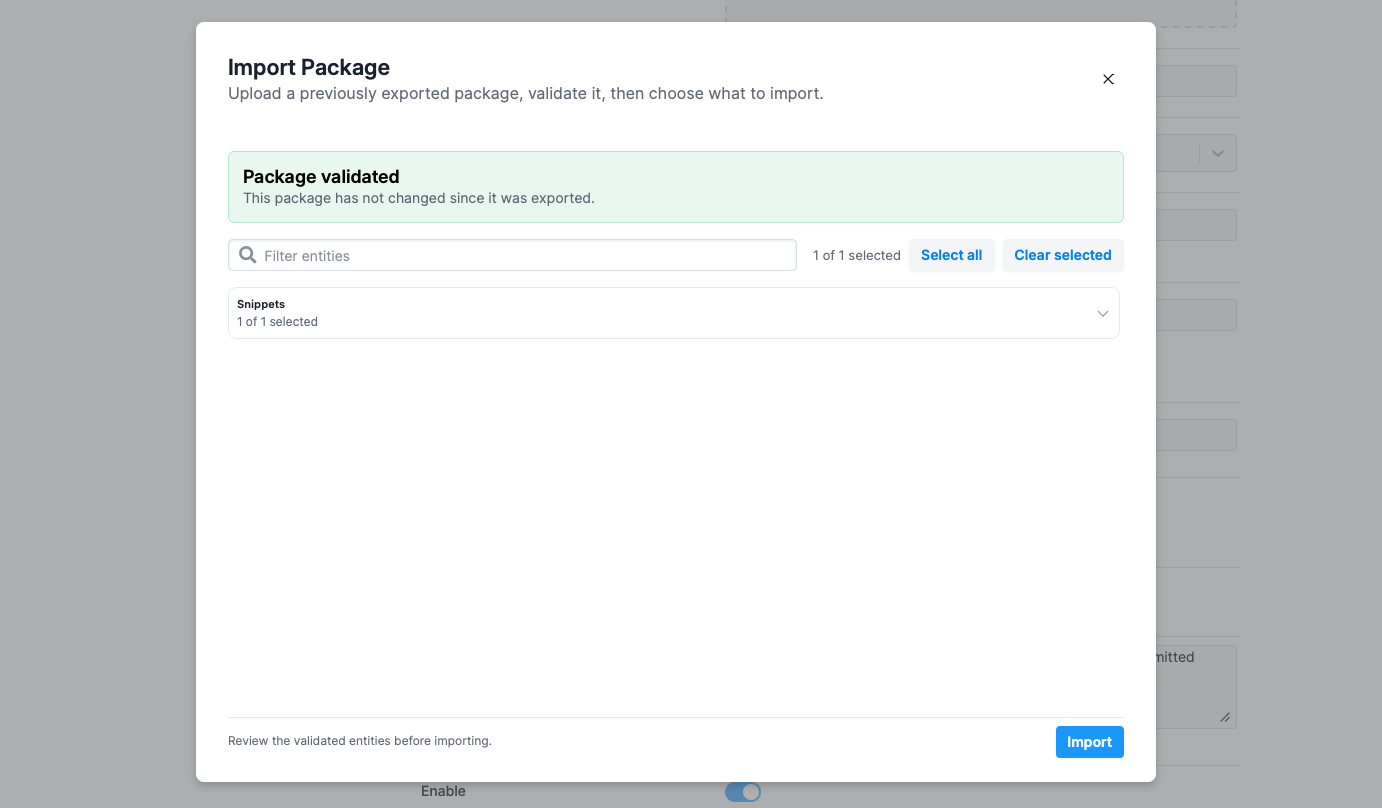
Now select Import to import the configuration.
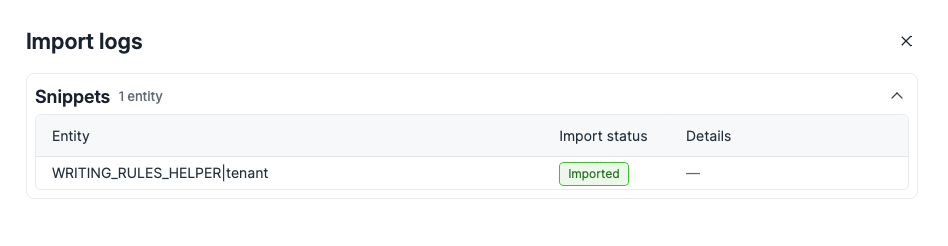
You will see the Import status column that will tell you if the configuration was imported or not.
Verify the imported configuration #
After the import completes, review the updated configuration.
Verify that:
- Configuration settings have been imported successfully.
- Provider connections are available.
- Required services are operating correctly.
- Expected functionality is available.
If necessary, update environment-specific settings after the import is complete.
Results and next steps #
You have successfully exported and imported IQNECT configuration settings.
Configuration import and export help administrators maintain consistent IQNECT environments while simplifying configuration backup, migration, and deployment.
