
Overview #
Enhanced Trace View and Trace Views provide centralized interfaces for exploring engineering relationships across connected lifecycle systems. They enable users to visualize upstream and downstream trace relationships, navigate engineering dependencies, and understand how engineering artifacts are connected from a single workspace.
In IQNECT 26.3, these traceability capabilities introduce provider system filtering, trace rule cardinality enforcement, and an improved Trace View/Trace Report experience with a simplified interface for exploring complex engineering relationships.
Together, these enhancements make cross-system traceability easier to navigate while helping organizations maintain consistent engineering relationships across the product lifecycle.
Prerequisites #
Before using Enhanced Trace View and Trace Views, ensure that:
- Cross-system integrations are configured.
- Trace relationships have been created.
- The user has permission to access trace diagrams.
- Indexed resources are available.
How Trace Views work #
Trace View displays upstream and downstream relationships for engineering resources across connected lifecycle systems. Users can navigate between related resources, filter the diagram by provider system, and explore engineering dependencies from a single view.
When creating new trace relationships, IQNECT validates the connection against configured trace rule cardinality to help ensure consistent and compliant traceability across the engineering lifecycle.
Open Trace View #
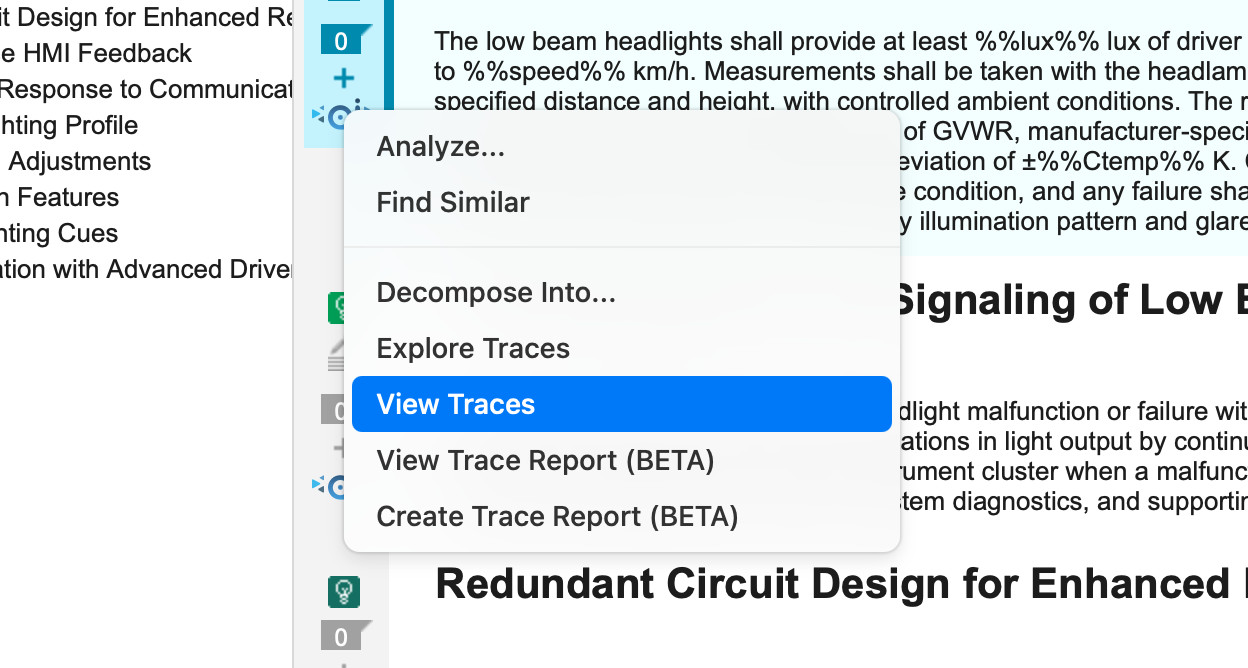
Trace View can be opened from items throughout IQNECT.
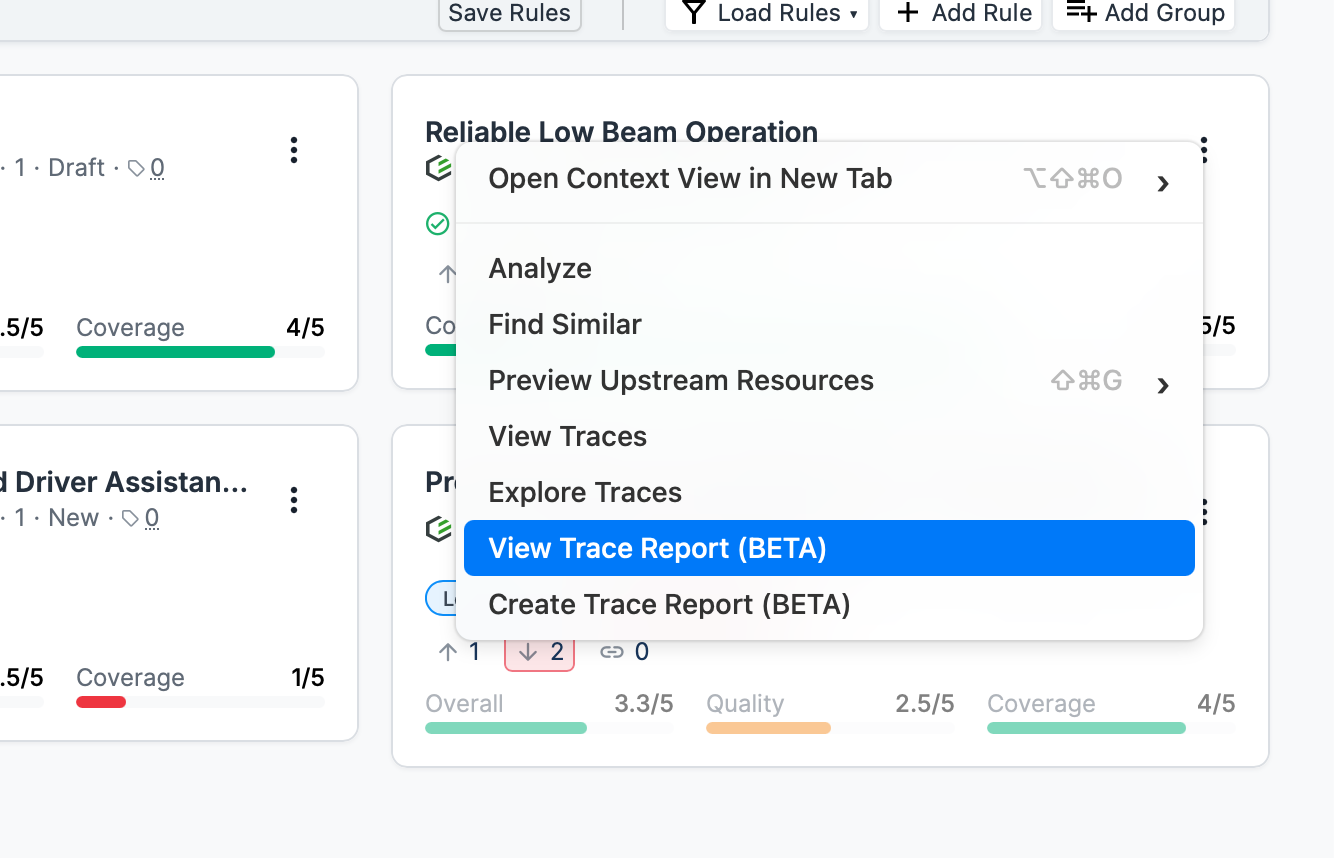
Click on an items menu.
Select View Trace Report, which is in BETA stage at the time of this release and features an improved UI.
IQNECT displays the selected resource and its connected engineering relationships.
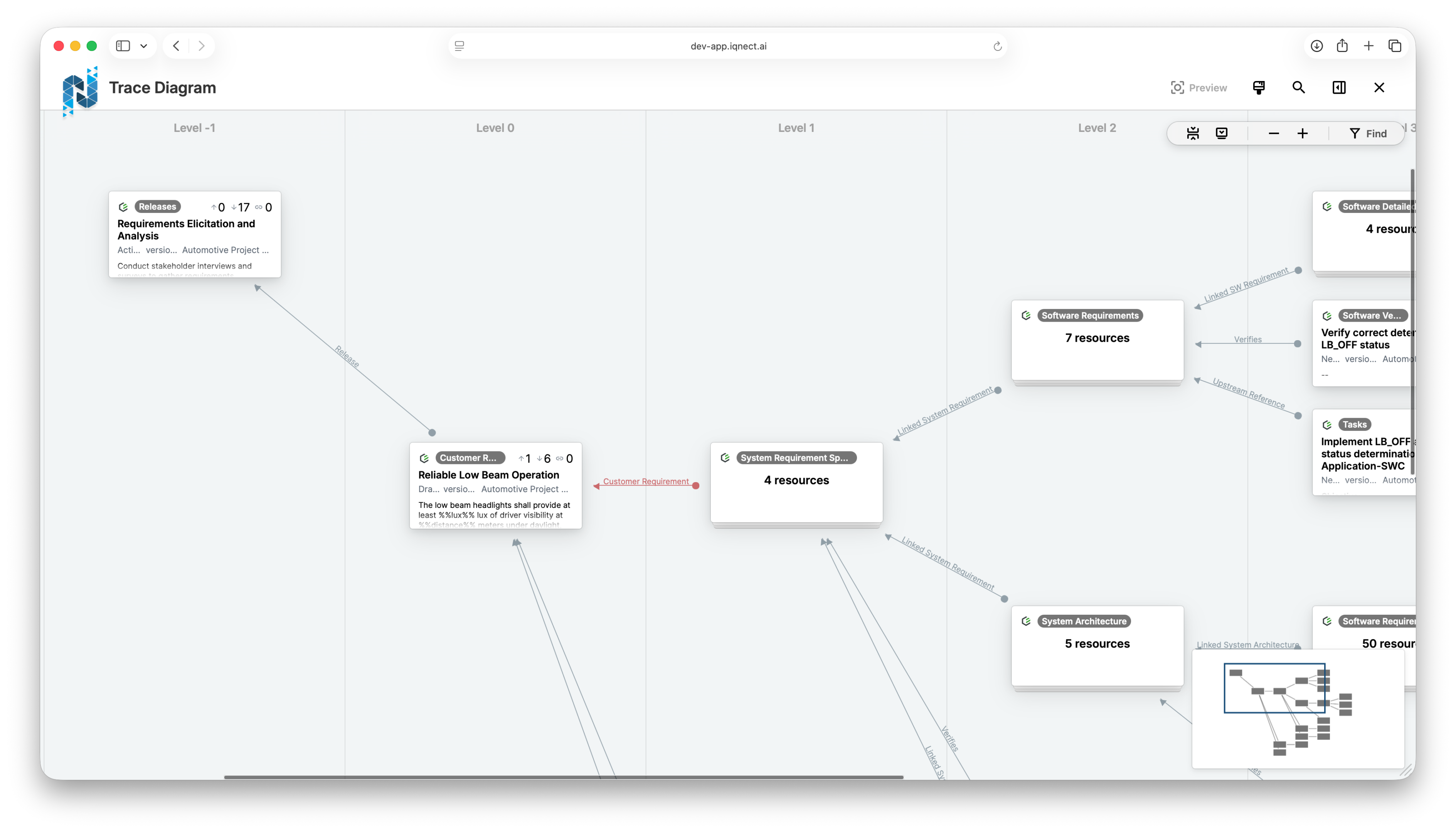
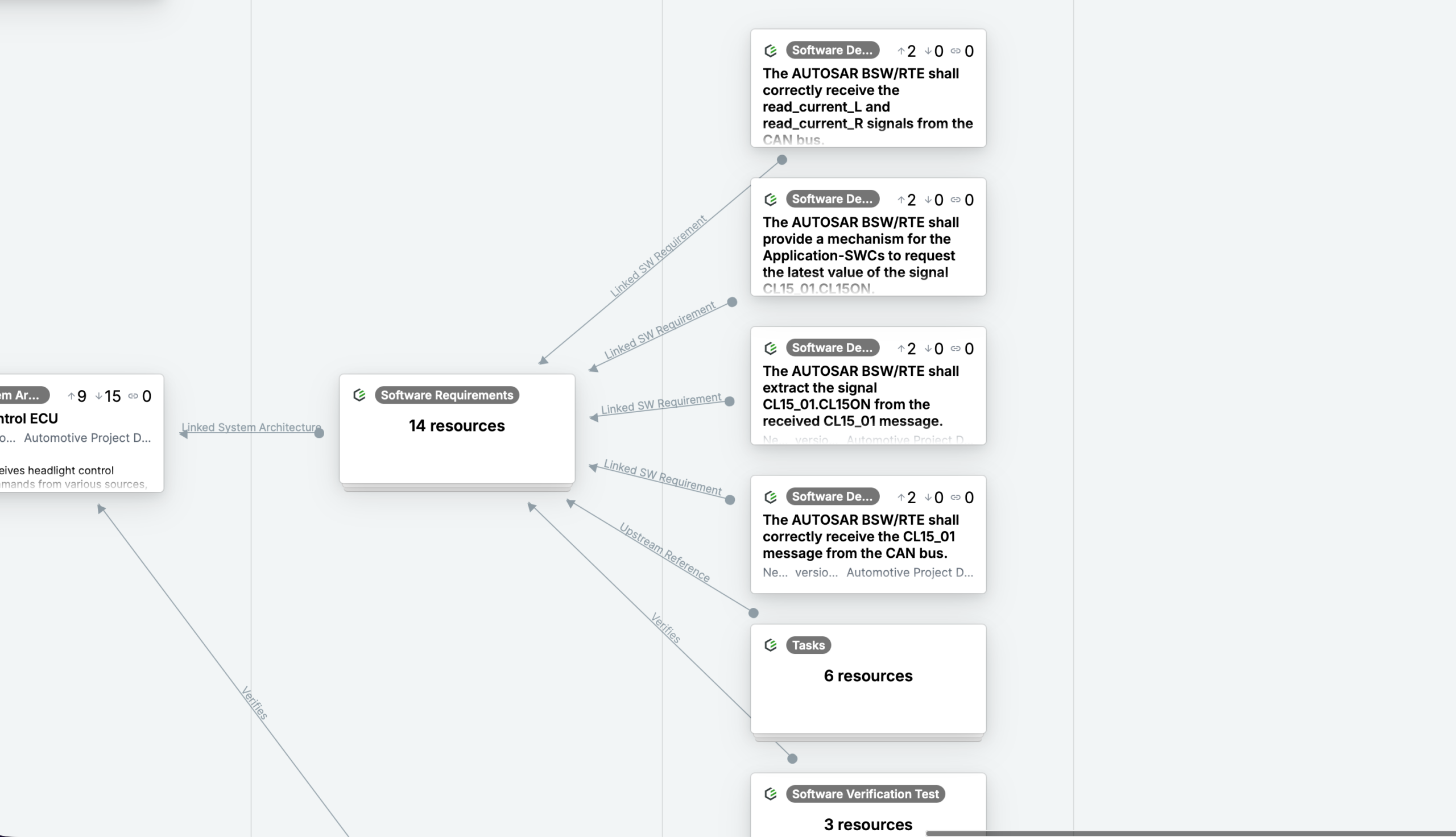
Depending on the available trace data, the view may include upstream, downstream, and other relationships from multiple connected provider systems.
The enhanced Trace View/Trace Reports allows users to investigate engineering dependencies without leaving the trace diagram.

Expand or collapse individual resources as needed to simplify the trace diagram.
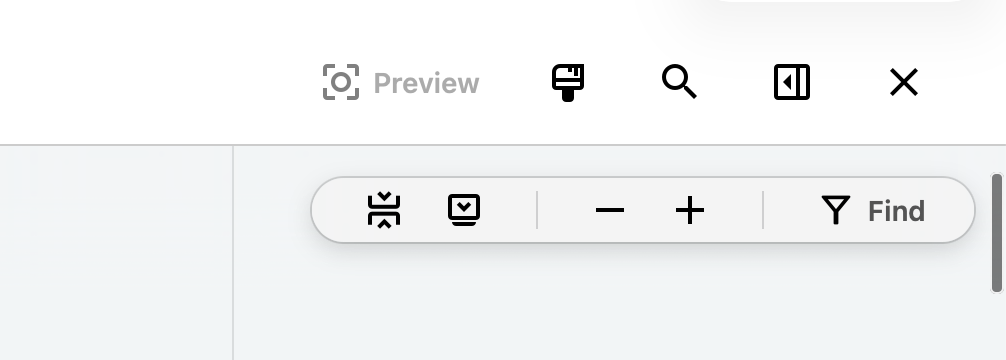
Use the Expand All button to display all connected resources, or the Stack All button to collapse the diagram into a simplified view for easier navigation.
This workflow helps users understand how requirements, parts, tests, documents, and issues are connected throughout the engineering lifecycle.
Filter resources by provider system #
Enhanced Trace View allows users to limit displayed resources to one or more provider systems.
Open Enhanced Trace View.
Locate the provider system filter.
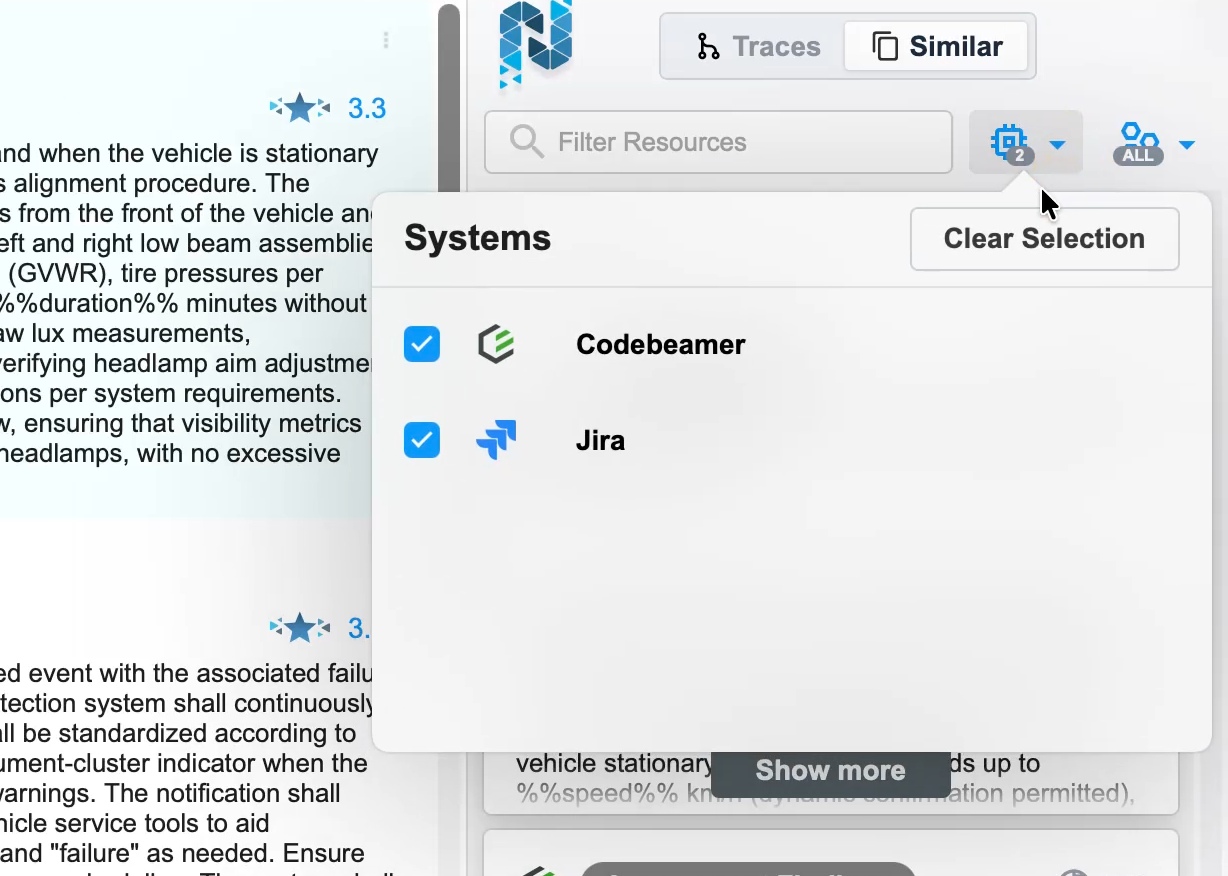
Select one or more provider systems.
The Enhance Trace View updates to display only resources from the selected system(s).
Filtering resources can simplify Enhanced Trace View by allowing users to focus on a specific engineering system during trace analysis.
Isolate trace relationships #
Trace View allows users to isolate a specific trace relationship within the diagram.
Open View Traces.
Select the trace relationship you want to investigate.
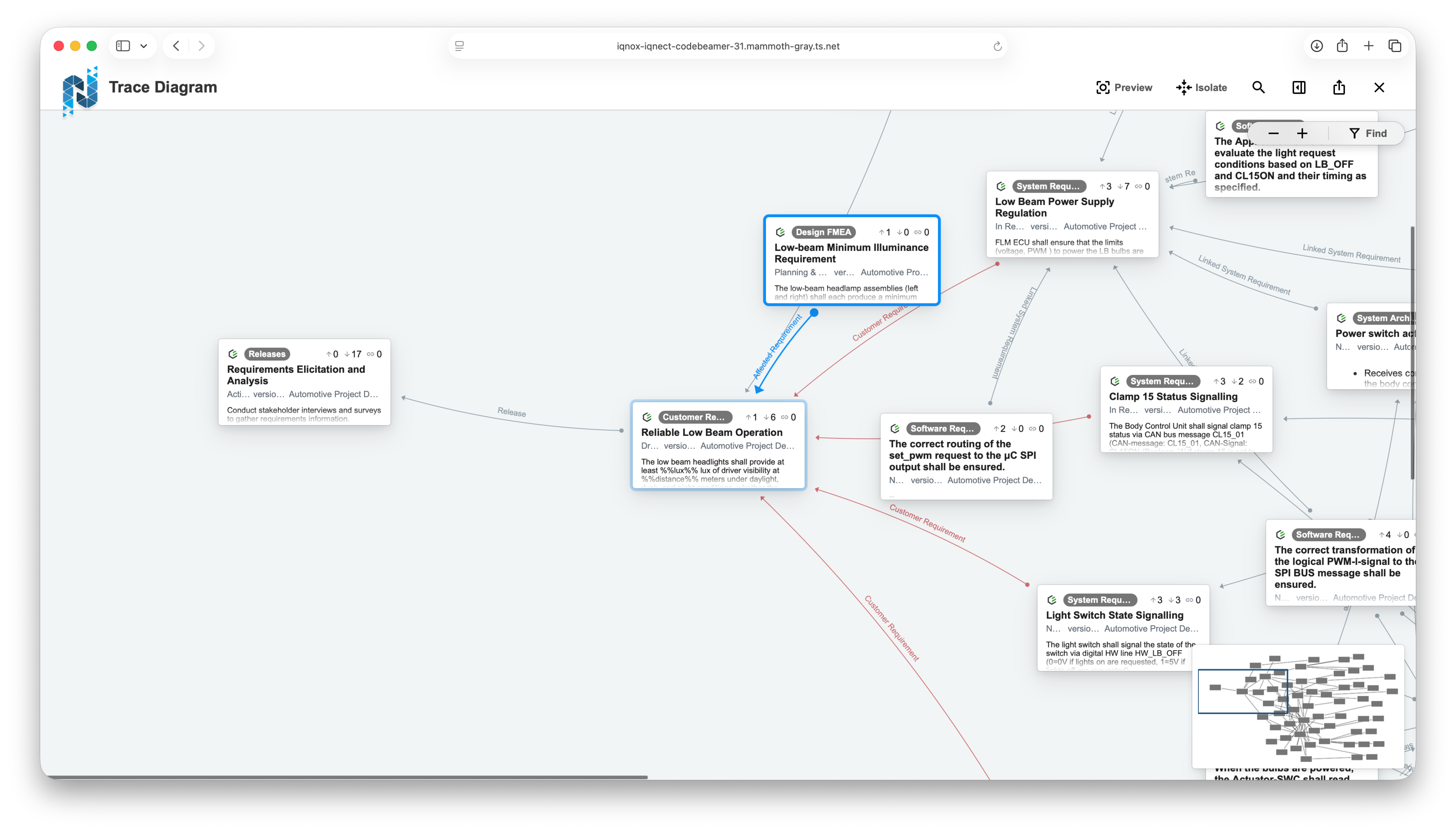
Choose Isolate Trace.

IQNECT hides unrelated resources and displays only the selected trace path and its connected engineering relationships.
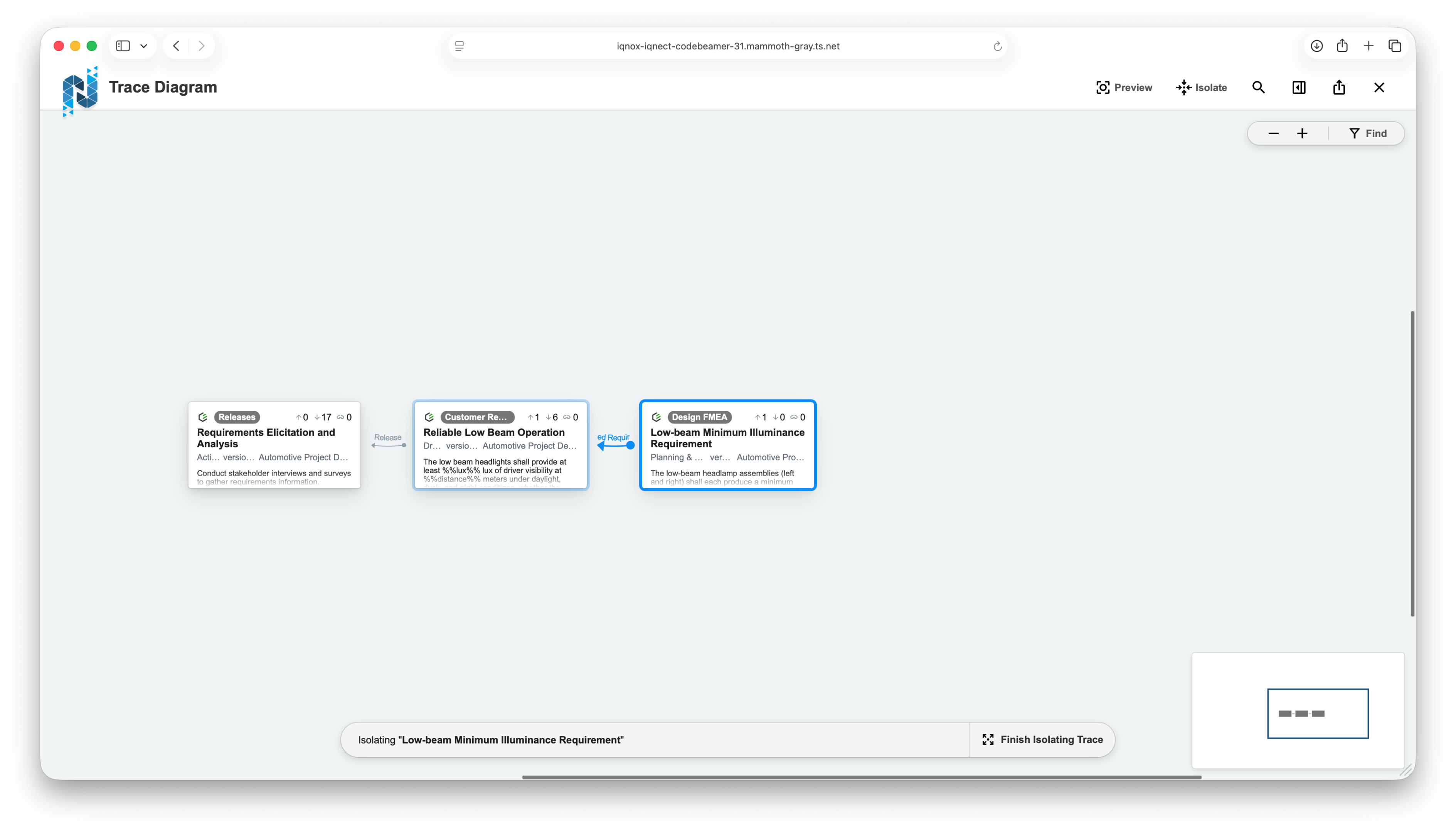
Select Finish Isolating Trace to return to the complete trace diagram.

Isolating traces simplifies complex trace diagrams, allowing users to focus on a specific engineering relationship or dependency without visual distractions.
Review trace rule cardinality #
When creating a trace relationship, IQNECT validates the relationship against the configured trace rules.

If the selected relationship satisfies the configured cardinality requirements, IQNECT creates the trace.
If the relationship violates the configured rules, IQNECT prevents the trace from being created until the configuration meets the required cardinality.
This validation helps maintain consistent engineering relationships across connected lifecycle systems.
Results and next steps #
You have successfully used the enhanced Trace Views to explore engineering relationships, filter resources by provider system, and create trace relationships that comply with configured trace rules.
Enhanced Trace View helps engineering teams visualize dependencies, maintain trace consistency, and navigate connected lifecycle information across multiple engineering systems.
