
Overview #
In IQNECT 26.2, deep linking has been introduced to preserve workspace state and enable sharing of specific views.
When working with multiple IQNECT windows (such as search, trace views, and analysis) your active workspace is now stored in the page URL. Refreshing the page restores these views automatically, eliminating the need to rebuild your workflow.
You can also generate shareable links for specific views, allowing other users to open the same configuration instantly.
This update improves continuity, collaboration, and reproducibility across workflows.
Prerequisites #
- You are using IQNECT version 26.2 or later.
- You have permission to view and share project data.
- You have access to IQNECT views within Codebeamer.
How deep links work #
IQNECT encodes the state of open UI components directly into the browser URL. When the page is refreshed or reopened, IQNECT reconstructs the workspace based on this encoded state.
Users can also generate focused links for individual views, such as trace diagrams, without including unrelated open windows.
Restore workspace after refresh #
Follow these steps to restore your workspace automatically:
Open your project #
Open the Projects tab and select your project.
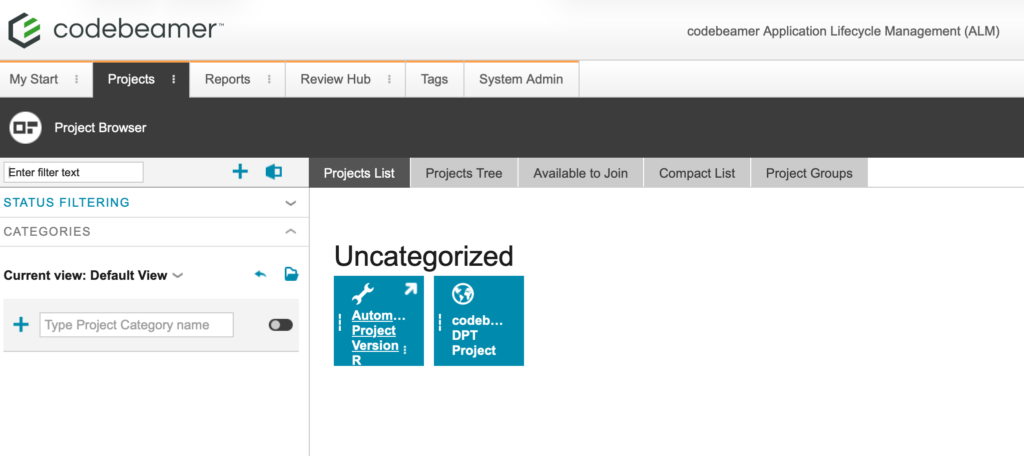
This will open the Wiki tab for that project.
Select the tracker item #
Navigate to the Trackers tab. Double-click on the desired tracker in the tree structure on the left.
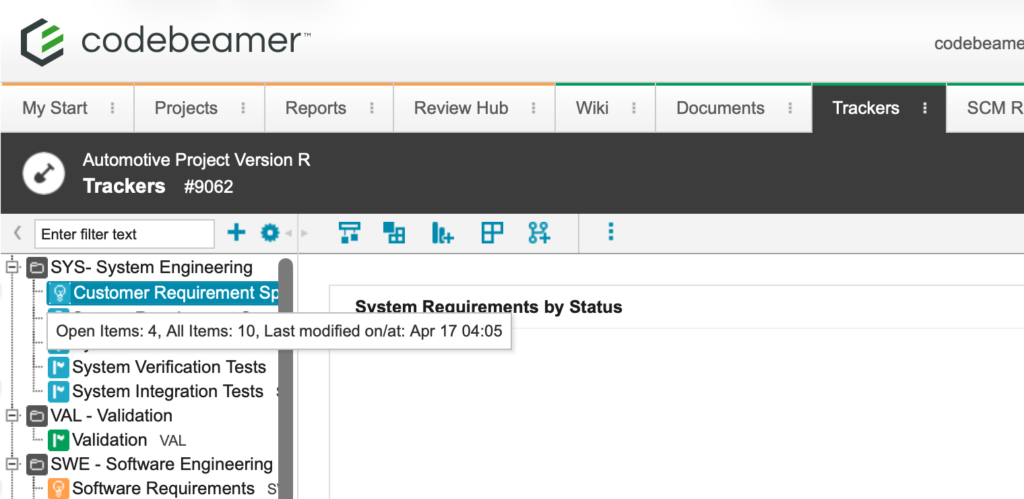
This will bring you into the All Items view within that tracker.
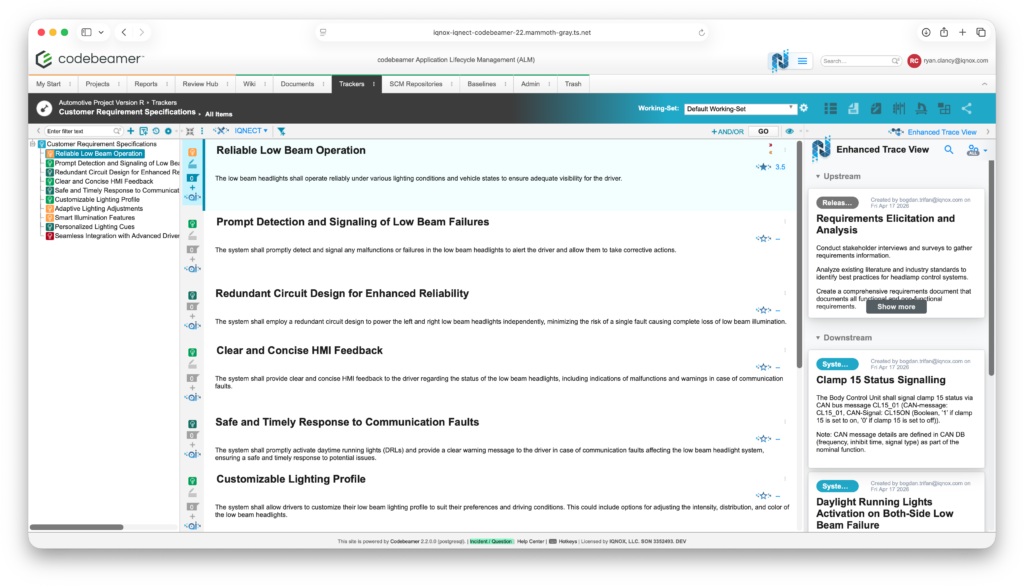
Open multiple IQNECT views #
Open one or more IQNECT windows, such as:
- Trace View
- Advanced Search
- Analysis view
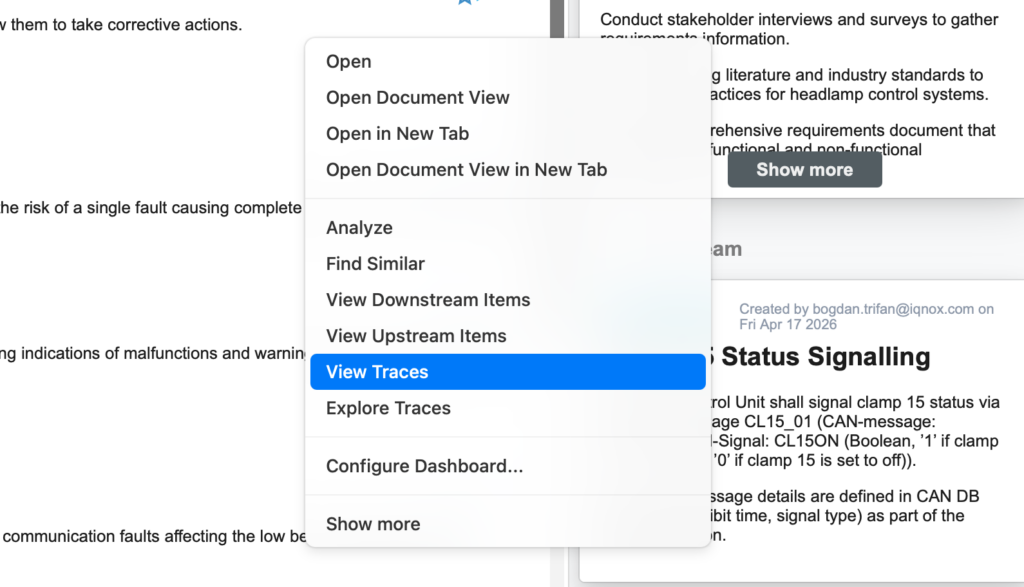
To bring up the Trace View, right-click on any trace item:
Or click on the IQNECT icon in the toolbar on the left on an item:
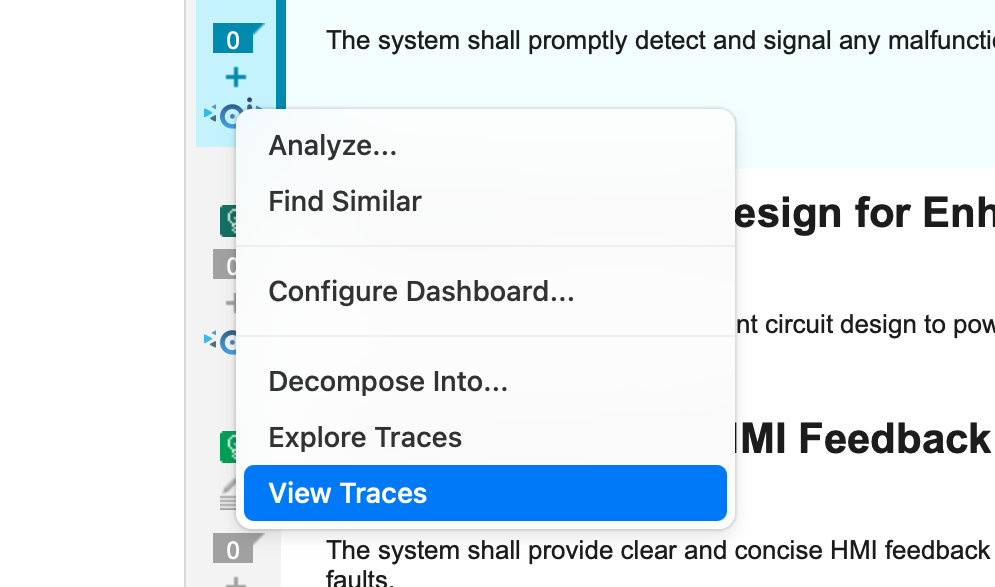
The View Traces option will appear in the dropdown menu. Click this to bring you to the Trace View.
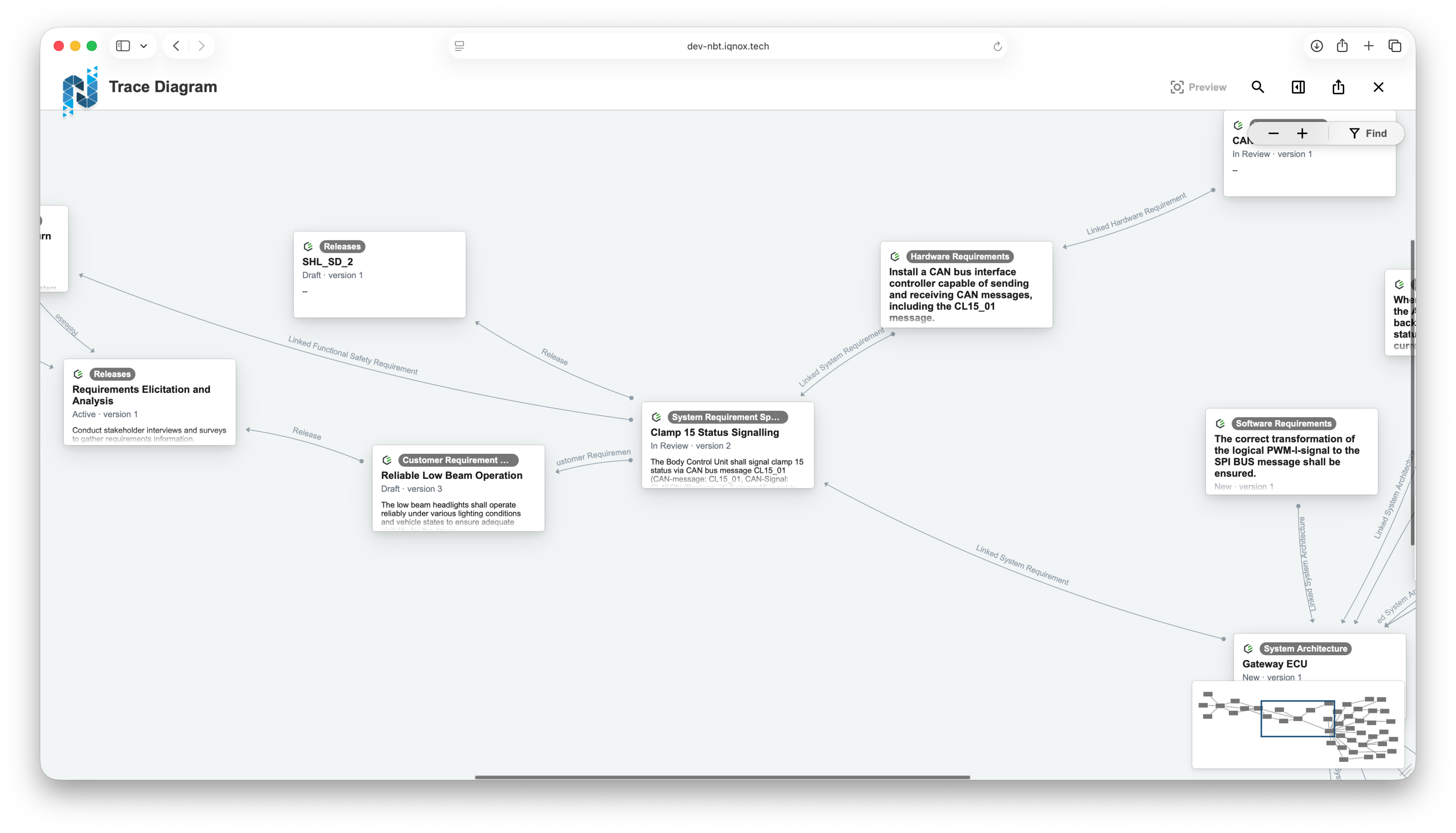
You can then bring up Advanced Search by either clicking the magnifying glass icon or using the shortcuts:
- Windows: Alt + Shift + Space
- Mac: Shift + Option + Space
This will open the Search window, where you can search various terms and apply filters. You can then Analyze an item by right-clicking on it and selecting Analyze from the dropdown. Your screen should now look something like this:

Refresh the page #
With all of these windows open simultaneously, refresh the browser. IQNECT restores all supported views to their previous state. The link to the specific page can also be copied in the browser and when loaded will load all of the previous windows that were open.
Note: Editing heavy UIs like Decompose do not get restored after refreshing.
Share a specific IQNECT view #
Open the desired view #
Navigate to the IQNECT view you want to share (for example, a trace diagram). Expand traces or apply filters as needed.
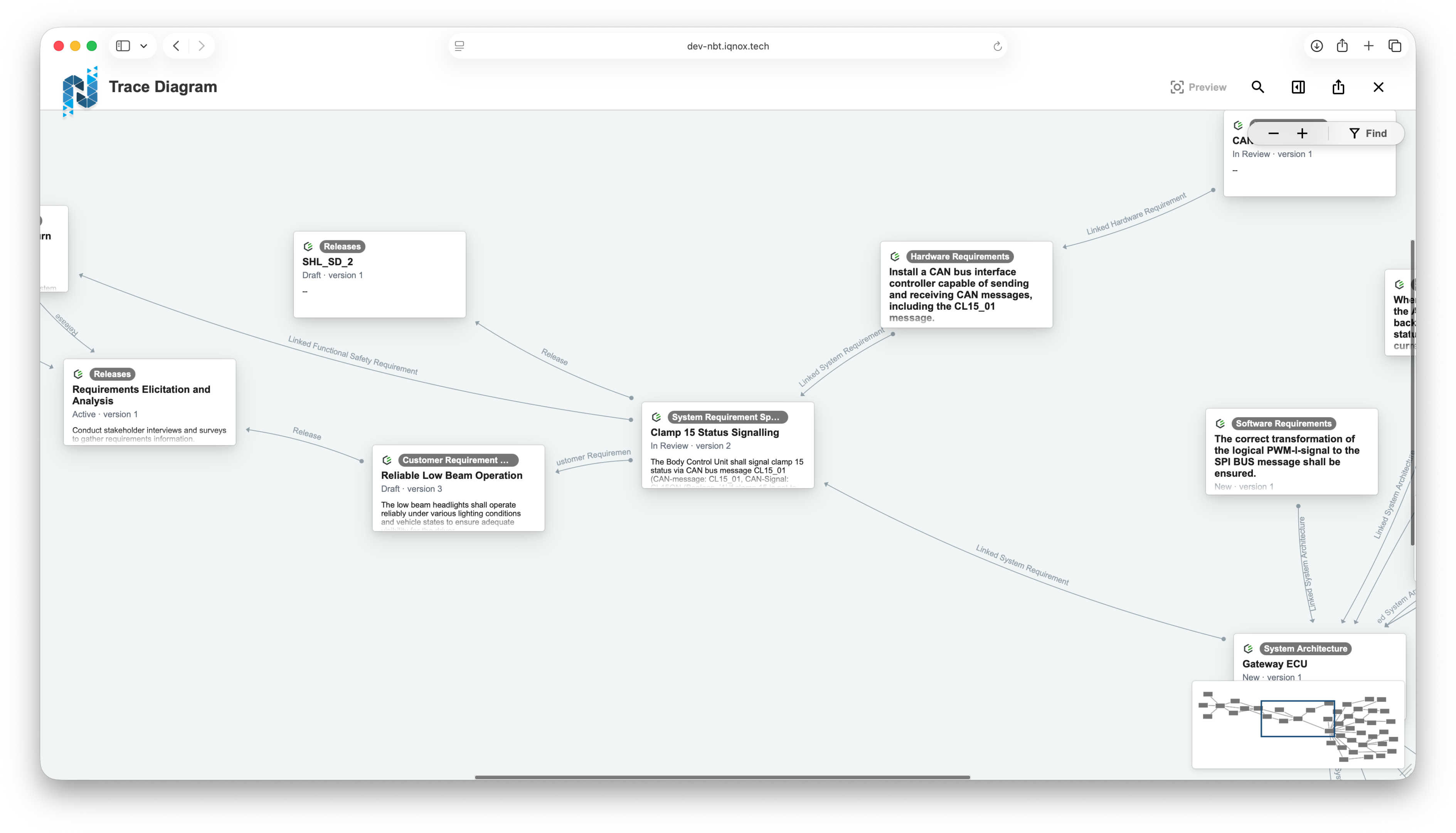
Generate a share link #
Click the Share button in the toolbar. IQNECT generates a URL containing only that specific view configuration.
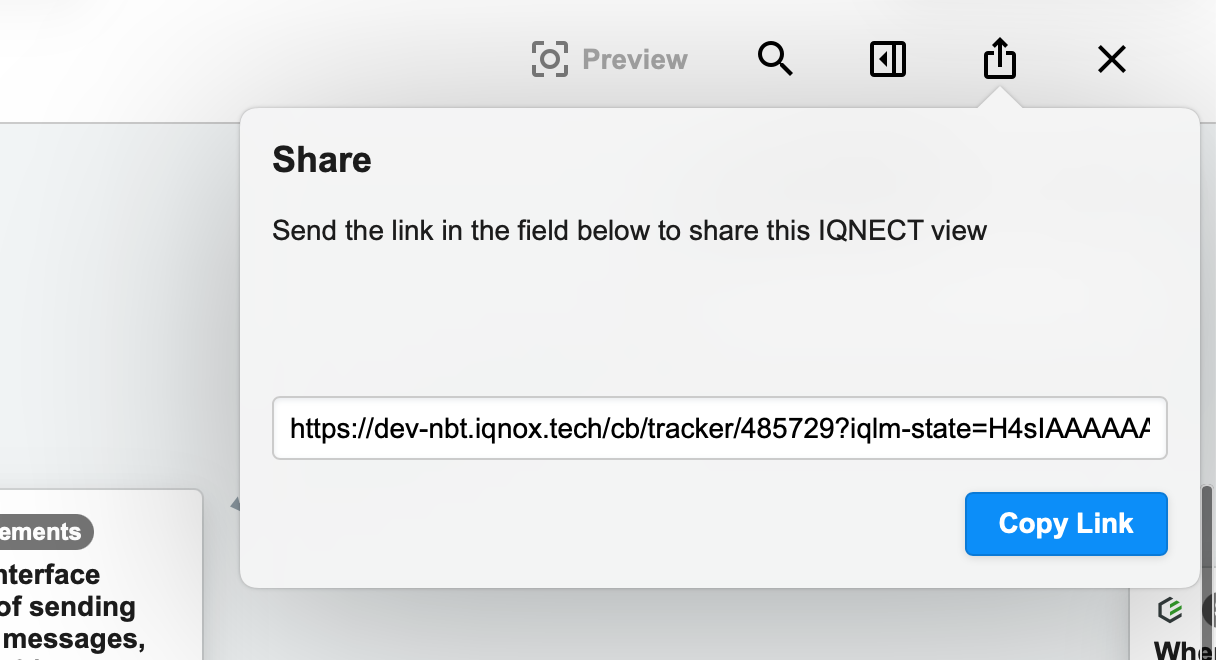
Share or open the link #
Copy the link and share it with another user, or open it in a new tab. The recipient will see the same configured view.
Results and next steps #
You’ve successfully preserved and shared IQNECT views using deep links.
Use this feature to maintain workflow continuity, reduce repetitive setup, and enable direct collaboration through shared system views.
