
Overview #
IQNECT 26.2 introduces Jira integration, allowing IQNECT to retrieve, normalize, and index Jira objects and traces.
Many engineering teams use Jira to manage development work, while requirements, product data, and traceability may live in other systems. Without integration, teams must manually connect Jira issues to the broader lifecycle context.
With this update, IQNECT can bring Jira data into its connected lifecycle view. Jira objects and traces are normalized so they can be used alongside information from other systems. Jira objects are also indexed for semantic search, making them discoverable in IQNECT search workflows.
This update expands IQNECT beyond Codebeamer-only workflows and supports cross-system visibility for teams using Jira.
Prerequisites #
- You are using IQNECT version 26.2 or later.
- A Jira connection has been configured.
- You have permission to access the relevant Jira objects.
- Jira indexing has been enabled for semantic search.
How Jira integration works #
The Jira connector retrieves Jira objects and traces, then normalizes them into a structure IQNECT can use. Normalization allows IQNECT to work with Jira data consistently alongside data from other connected systems.
After Jira objects are indexed, users can find them through semantic search. This allows teams to discover relevant Jira items based on meaning and context, not only exactkeywords.
The workflow focuses on cross-system access:
- Retrieve Jira objects and traces.
- Normalize Jira data for IQNECT workflows.
- Index Jira objects for semantic search.
- Make Jira data available in cross-system search and traceability.
Use Jira data in IQNECT #
Follow these steps to work with Jira data in IQNECT:
Confirm the Jira connection #
Open the IQNECT Admin UI and select the Systems tab.
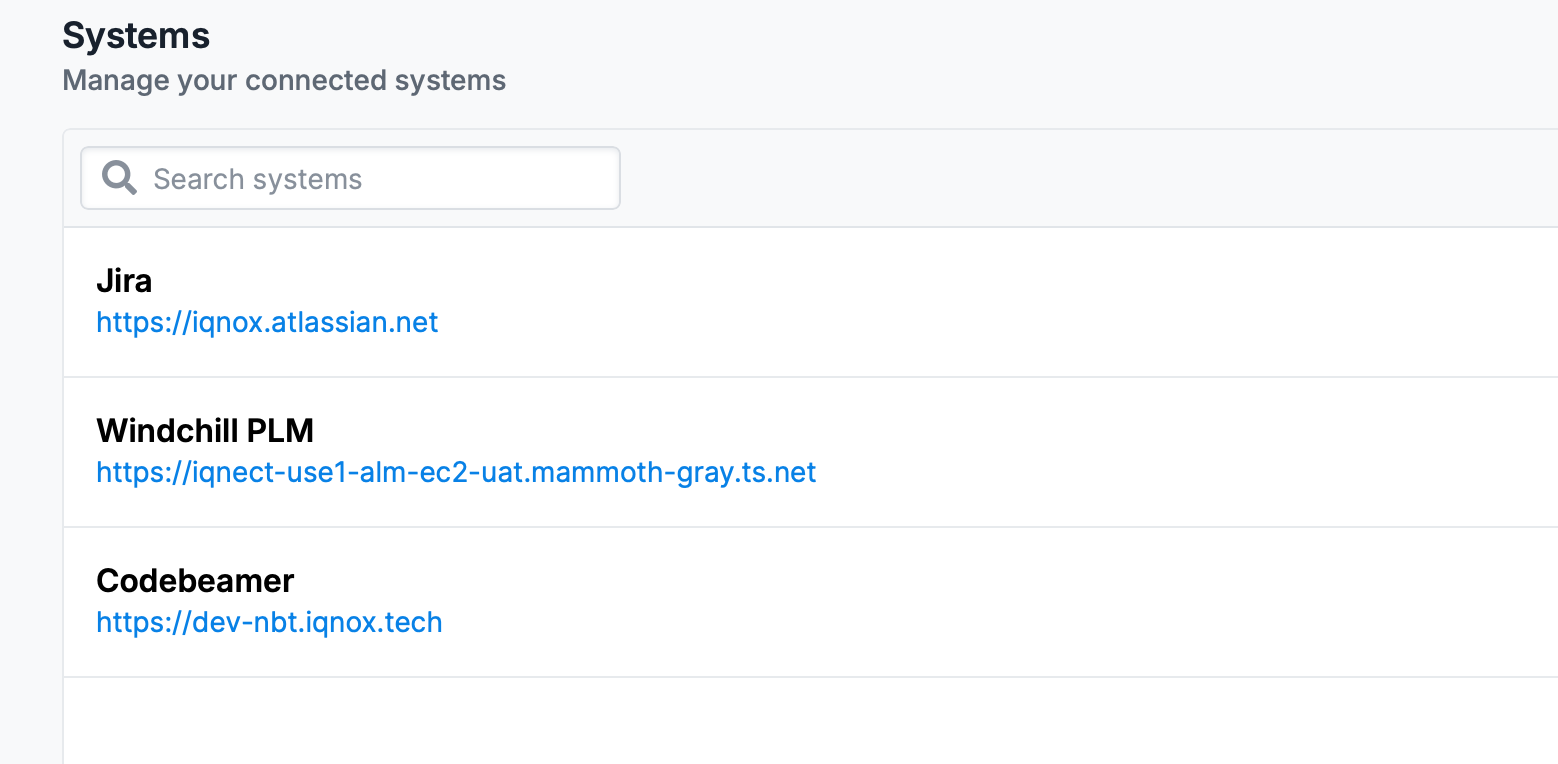
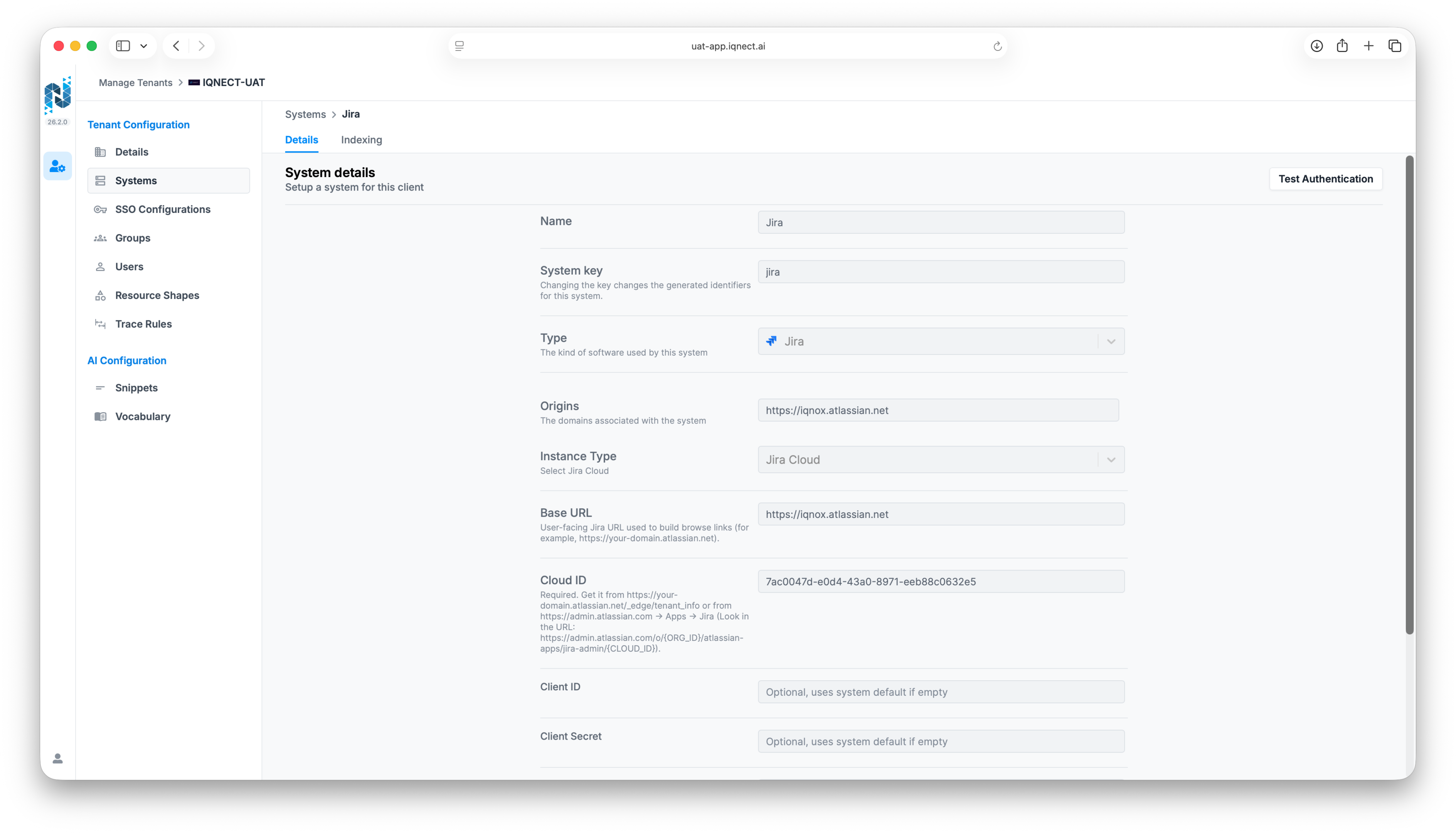
Review the configured Jira system connection. IQNECT requires connection details so it can retrieve and index Jira lifecycle data. Depending on the environment configuration, this can include:
- Jira base URL
- Jira Cloud ID
- Authentication configuration
- OAuth 2.0 settings
- Connection and access information
Confirm that the Jira connection is configured and active.
Confirm semantic indexing #
Verify that Jira indexing is enabled for semantic search workflows.
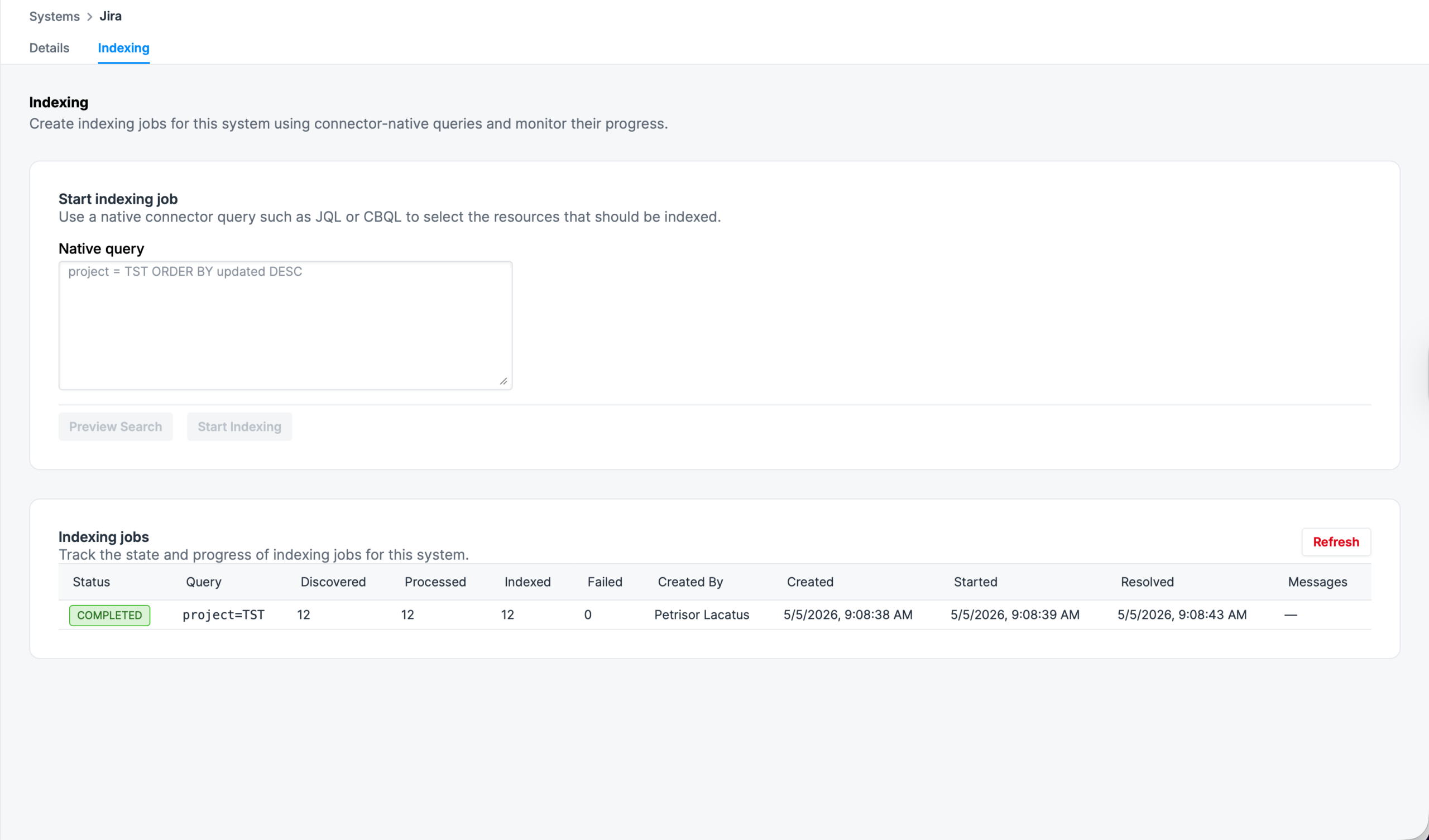
After indexing is complete, Jira lifecycle objects become available through IQNECT searches and connected workflows.
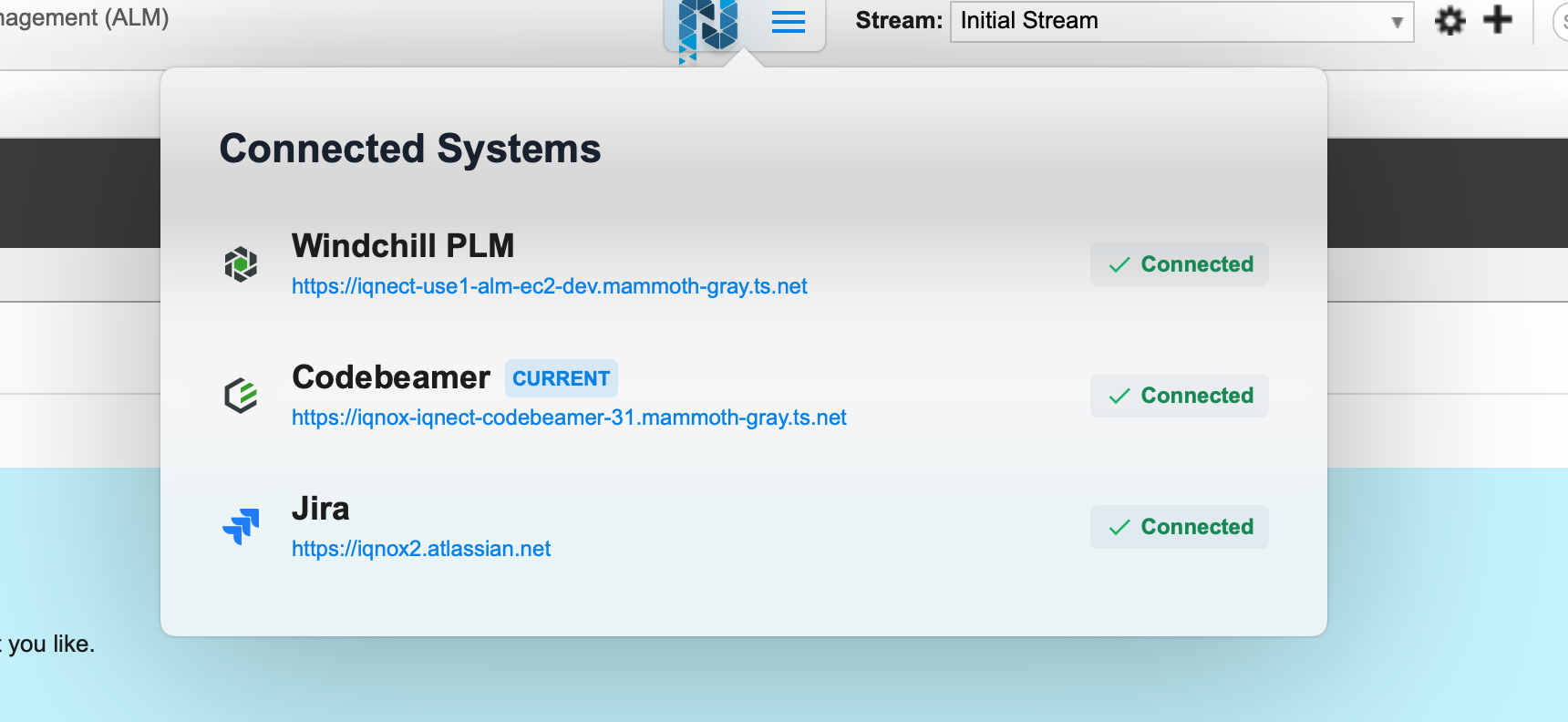
Search for Jira objects #
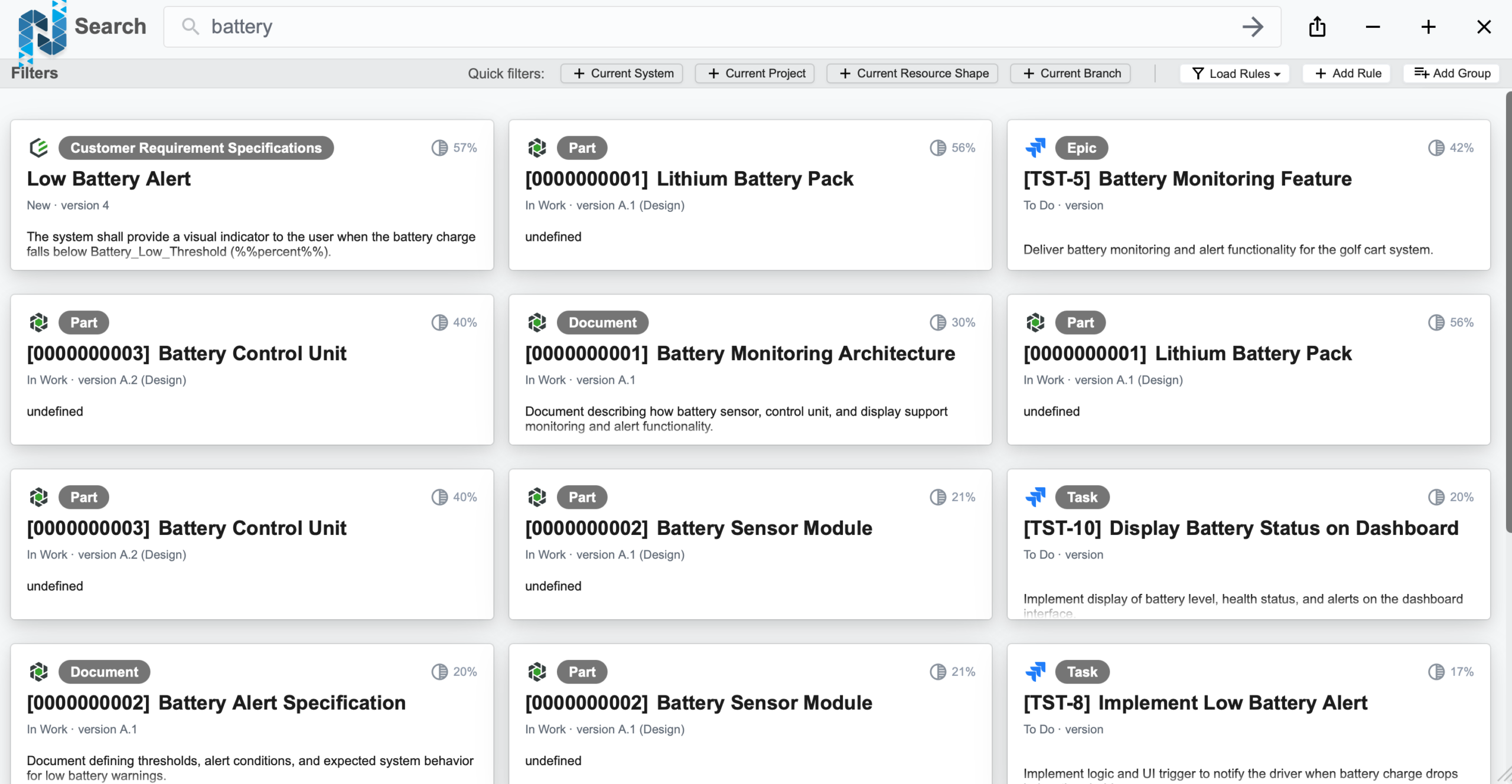
In Codebeamer, open Semantic Search or Advanced Search depending on your workflow. Enter a query related to the Jira task, lifecycle artifact, work item, or trace context you want to find.
IQNECT searches indexed Jira lifecycle objects alongside connected lifecycle resources from other systems when applicable.
Review Jira results #
Review the returned Jira lifecycle objects and related lifecycle context. Results can include connected lifecycle relationships, traces, requirements, and associated engineering information from integrated systems.
Results and next steps #
You’ve searched and reviewed Jira objects in IQNECT.
Use this integration to reduce tool switching, connect development work to lifecycle context, and improve visibility across Jira and other engineering systems.
