
Overview #
IQNECT 26.2 introduces persistent preferences for Quality Dashboards, allowing users to maintain consistent configurations across sessions without repeated setup.
Previously, users had to reapply filters, layouts, and views each time they returned, creating unnecessary friction, especially for teams relying on dashboards for reporting and quality reviews.
With this update, IQNECT automatically saves your dashboard configuration and restores it when you return, ensuring a stable, personalized view aligned with your workflow.
Prerequisites #
- You are using IQNECT version 26.2 or later.
- You have access to Quality Dashboards within your project.
- You have permission to view and configure dashboard settings.
How persistent preferences work #
IQNECT automatically captures and stores your dashboard configuration as you interact with it. This includes elements such as applied filters, selected data views, and layout preferences.
When you leave the dashboard and return later, IQNECT restores the dashboard to the exact state it was in during your last session. This behavior is applied at the user level, meaning each user can maintain their own personalized configuration without affecting others.
This ensures continuity across sessions and allows users to pick up where they left off without needing to reconfigure their workspace.
Configure and save dashboard preferences #
Follow these steps to configure and retain your dashboard preferences:
Open your project #
Open the Projects tab and select your project.
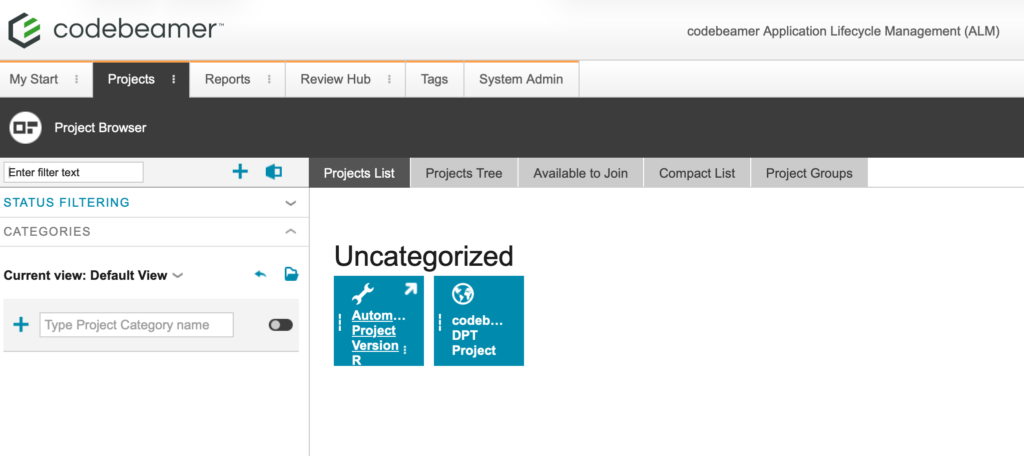
This will open the Wiki tab for that project.
Select the tracker item #
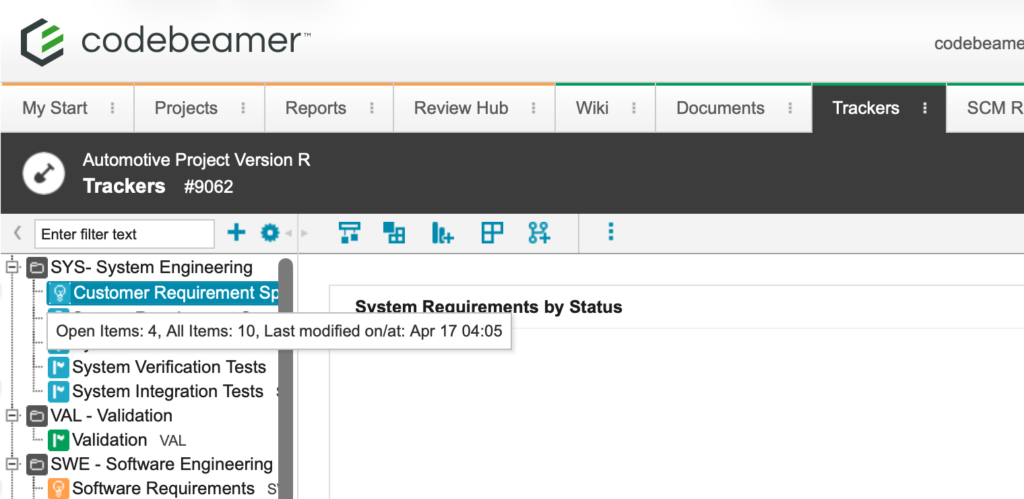
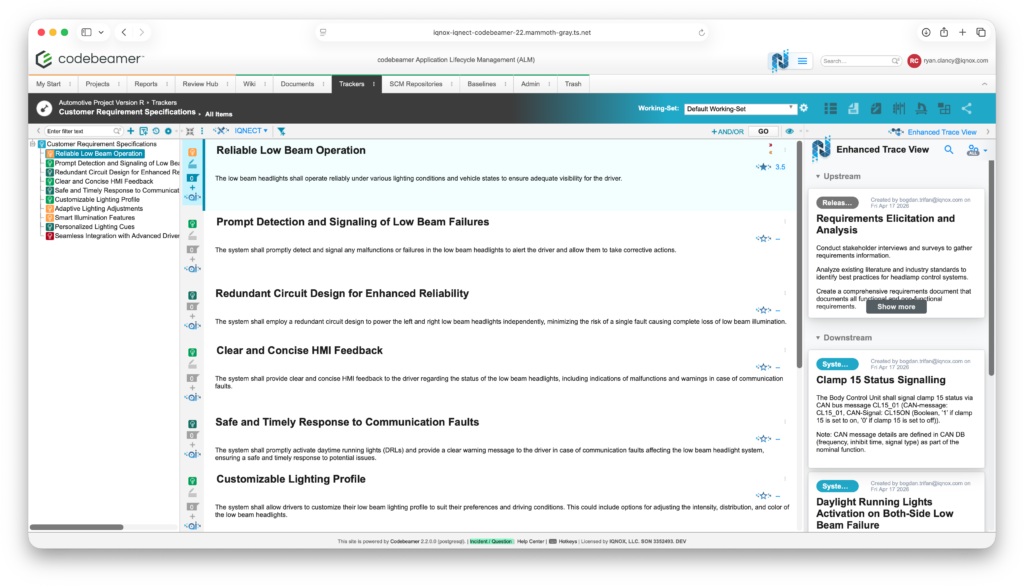
Navigate to the Trackers tab. Double-click on the desired tracker in the tree structure on the left.
This will bring you into the All Items view within that tracker.
Open the Quality Dashboards #
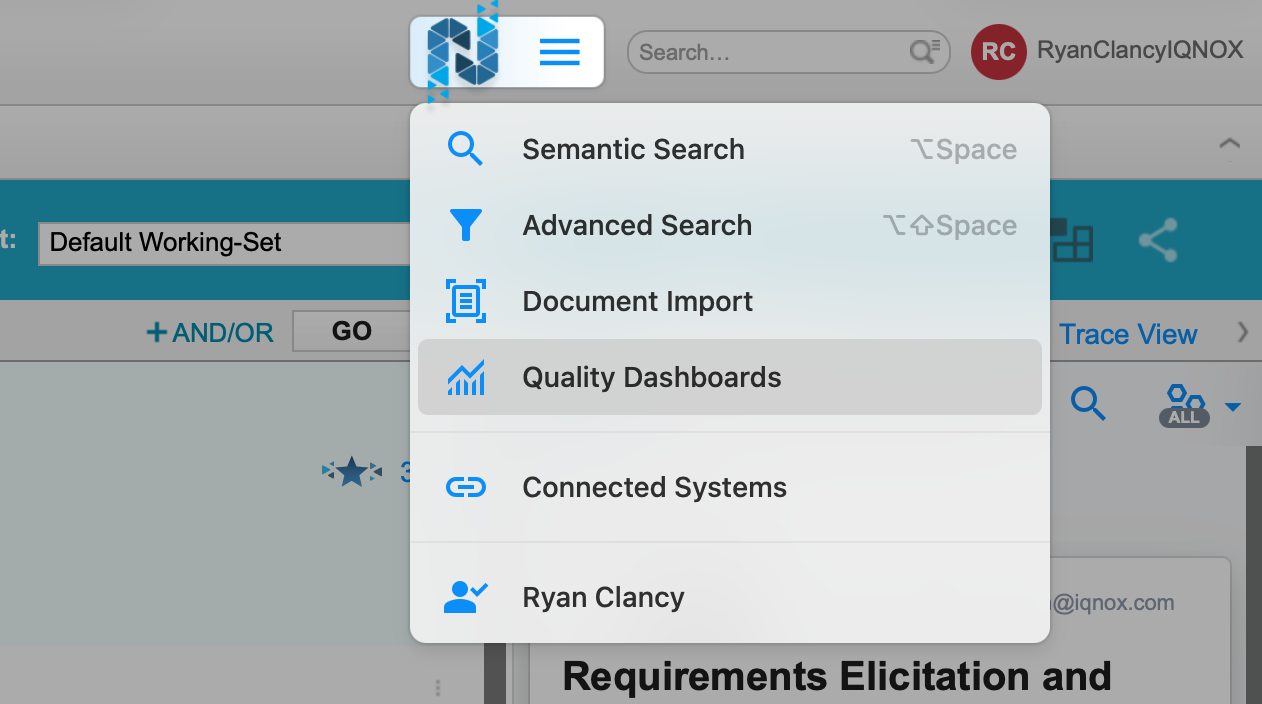
Access Quality Dashboards in the hamburger menu beside the IQNECT logo. This will display the available quality metrics, charts, and reporting components associated with your project.
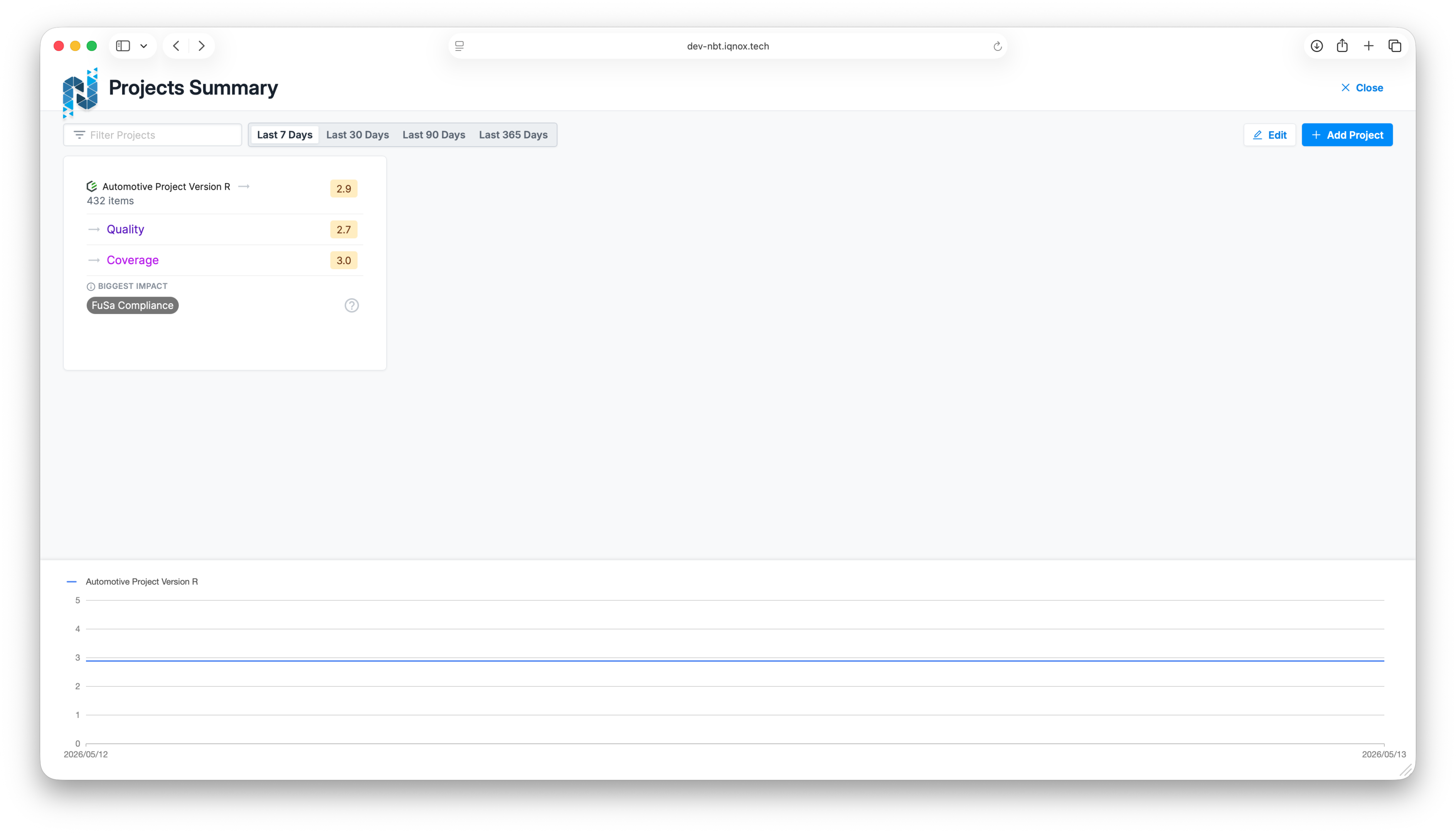
Apply filters and settings #
Adjust the trackers within the dashboard to match your needs by applying filters and modifying the layout. This may include:
- Filtering by project, category, or status
- Selecting specific metrics or data ranges
- Adjusting chart views or dashboard layout
- Focusing on particular quality indicators relevant to your workflow
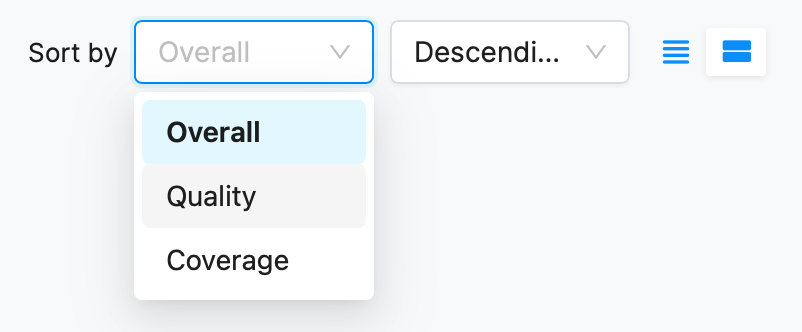
As you make these changes, IQNECT automatically saves your configuration in the background.
Exit and return #
Leave the dashboard and navigate to another part of the system, or close your session.
When you return to the Quality Dashboard at a later time, your previously applied filters and layout settings are automatically restored.
There is no need to manually reapply configurations or rebuild your dashboard view.
Results and next steps #
You’ve successfully configured a Quality Dashboard with persistent preferences.
By automatically saving and restoring your dashboard setup, IQNECT helps ensure that your reporting environment remains consistent and aligned with your workflow.
Use this feature to reduce repetitive setup, maintain stable reporting views across sessions, and improve efficiency when monitoring quality metrics, preparing for reviews, or tracking ongoing project performance.
