
Overview #
In IQNECT 26.2, Bulk User Import now includes a Status column to improve operational visibility during user onboarding workflows. Administrators can review import states, identify failed users, and troubleshoot onboarding issues more efficiently during bulk user management operations.
The Status column provides clear feedback throughout the import process, helping administrators quickly understand whether users were imported successfully or not.
This enhancement improves the Admin UI, increases onboarding visibility, and reduces manual troubleshooting effort during large-scale user administration workflows.
Prerequisites #
- You have permission to manage users.
- You are using IQNECT version 26.2 or later.
How the Status column works #
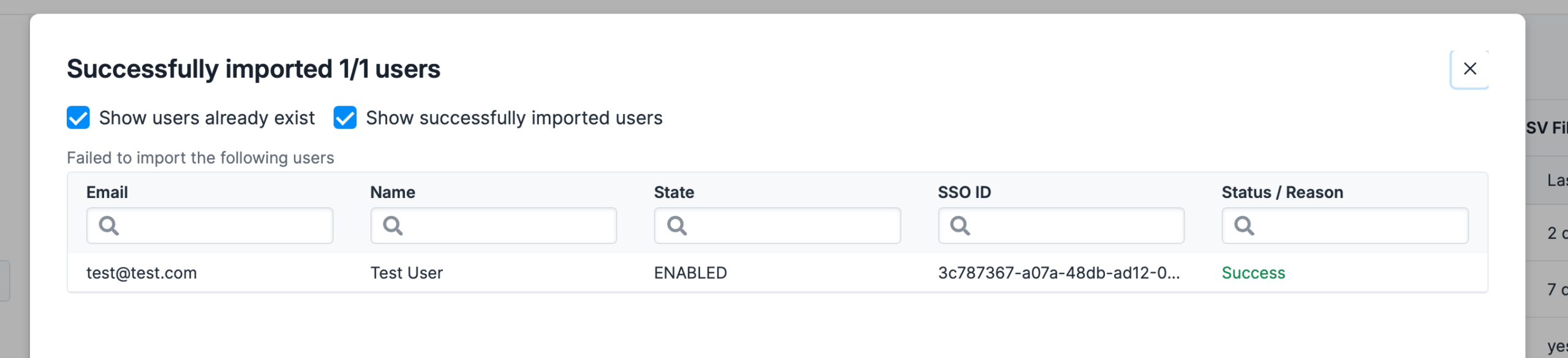
The Status column shows information during user import workflows. Status information can include:
- Successful imports
- Failed imports
- User already exists
- Incorrect email format
This helps administrators identify onboarding issues more quickly.
Review Bulk User Import status #
Follow these steps to review import status information.
Open Bulk User Import #
Open the Admin UI and go the the Users tab.
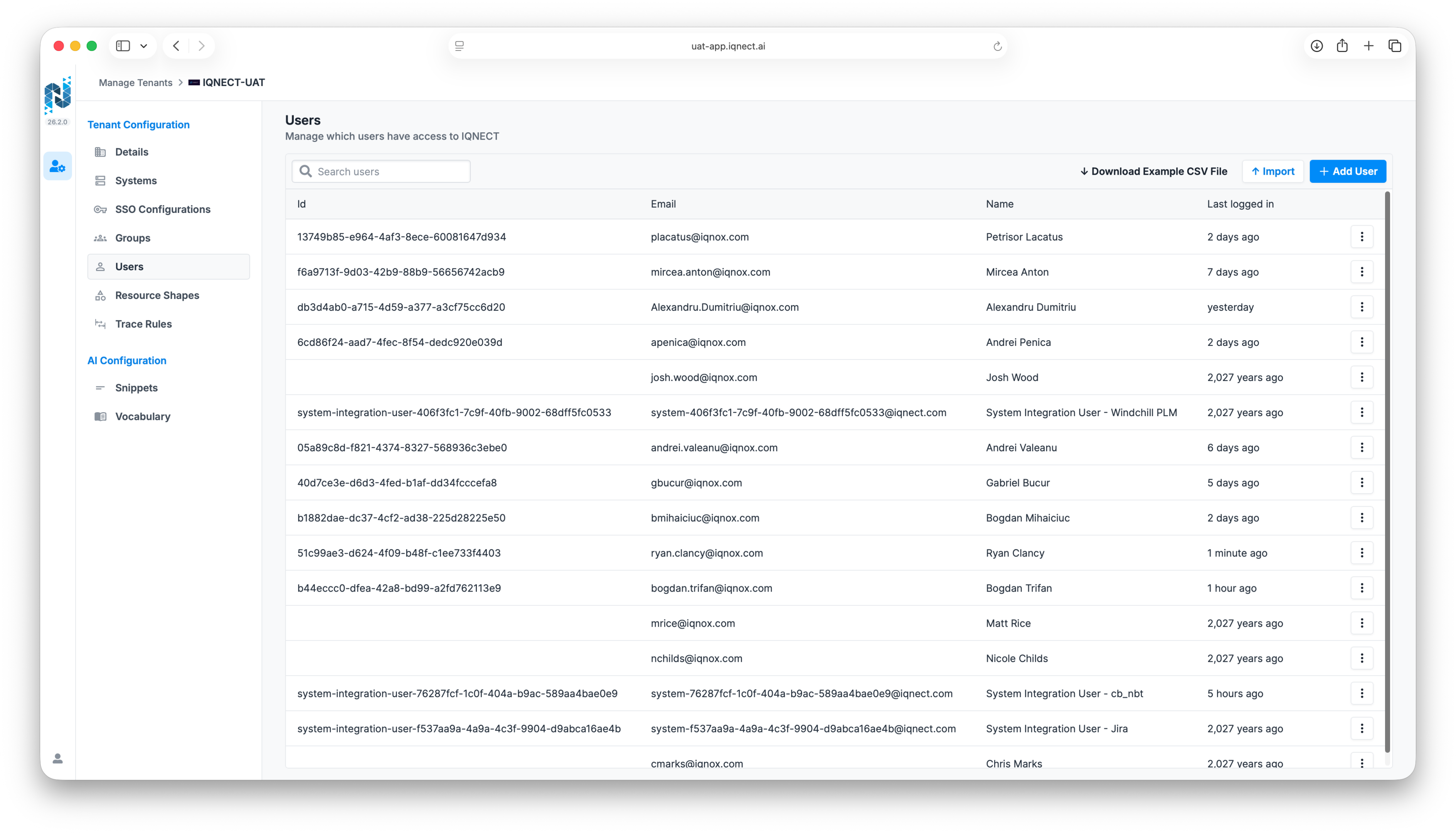
Click Import and it will allow you to select your file that contains the users information that you would like to import.
Upload user data #
Upload the desired user import file.
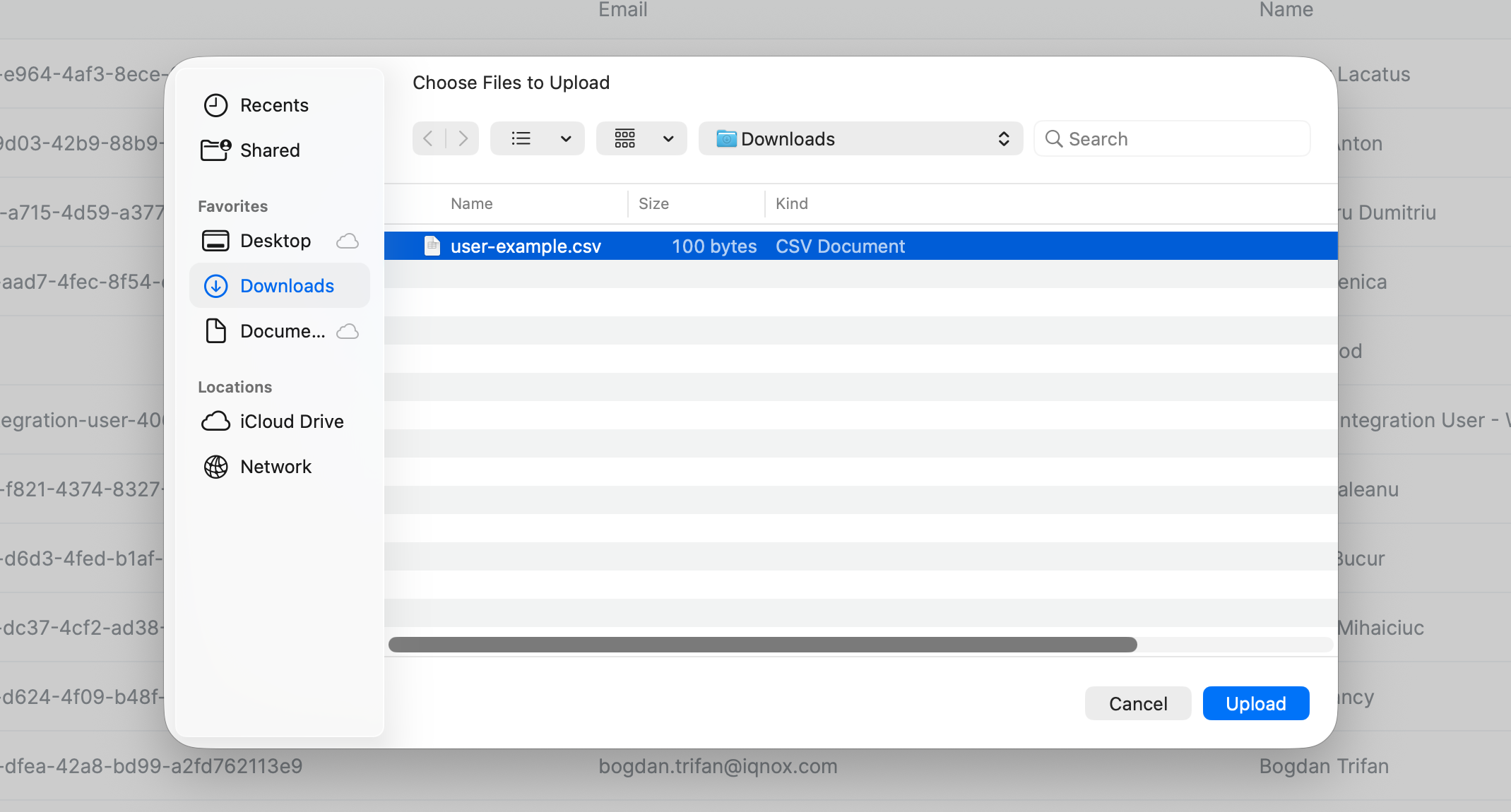
IQNECT begins processing the user import.
Review the Status column #
Review the Status column for each imported user. IQNECT displays import results for each record, it will display either Success or give a reason why it failed.
Results and next steps #
You’ve successfully imported bulk users and reviewed the status information.
Use the Status column to improve onboarding visibility, reduce troubleshooting time, and simplify lifecycle user administration across engineering environments.
