
Overview #
In IQNECT 26.2, Search and Trace diagrams now operate across multiple engineering systems instead of only within Codebeamer.
Teams can search, visualize, and connect lifecycle resources from systems such as Codebeamer, Windchill, and Jira using a unified cross-system trace experience.
This functionality improves lifecycle intelligence by helping engineering teams understand relationships across hardware, software, requirements, validation activities, and implementation workflows. Instead of reviewing engineering information in isolated systems, teams can now analyze connected lifecycle relationships through a centralized lifecycle view.
Cross-system Search and Trace diagrams also improve lifecycle visibility by helping teams identify dependencies, maintain engineering context, and understand how changes in one system may impact connected resources across the product lifecycle.
Prerequisites #
- You are using IQNECT version 26.2 or later.
- Cross-system integrations are configured.
- Trace data is available from the connected systems.
- You have permission to view the items and relationships in the various systems.
How cross-system Search and Trace diagrams work #
IQNECT normalizes Resource Shapes across connected systems and allows teams to search, visualize, and define relationships between lifecycle resources from a centralized interface.
Cross-system Search helps teams locate requirements, tasks, PLM objects, validation artifacts, and connected engineering resources across Codebeamer, Jira, and Windchill.
Cross-system Trace diagrams allow teams to visualize and create lifecycle relationships between connected resources regardless of where the data originates.
Search and Trace diagrams support:
- Cross-system lifecycle discovery
- Cross-system resource visualization
- Drag-and-drop trace creation
- Upstream and downstream relationships
- Cardinality configuration
- Suspect trace indicators
- Connected lifecycle navigation
This creates a system-agnostic lifecycle experience across engineering environments.
Search for Items across systems #
Follow these steps to search for Items across connected systems.
Open your project #
Open the Projects tab and select your project.
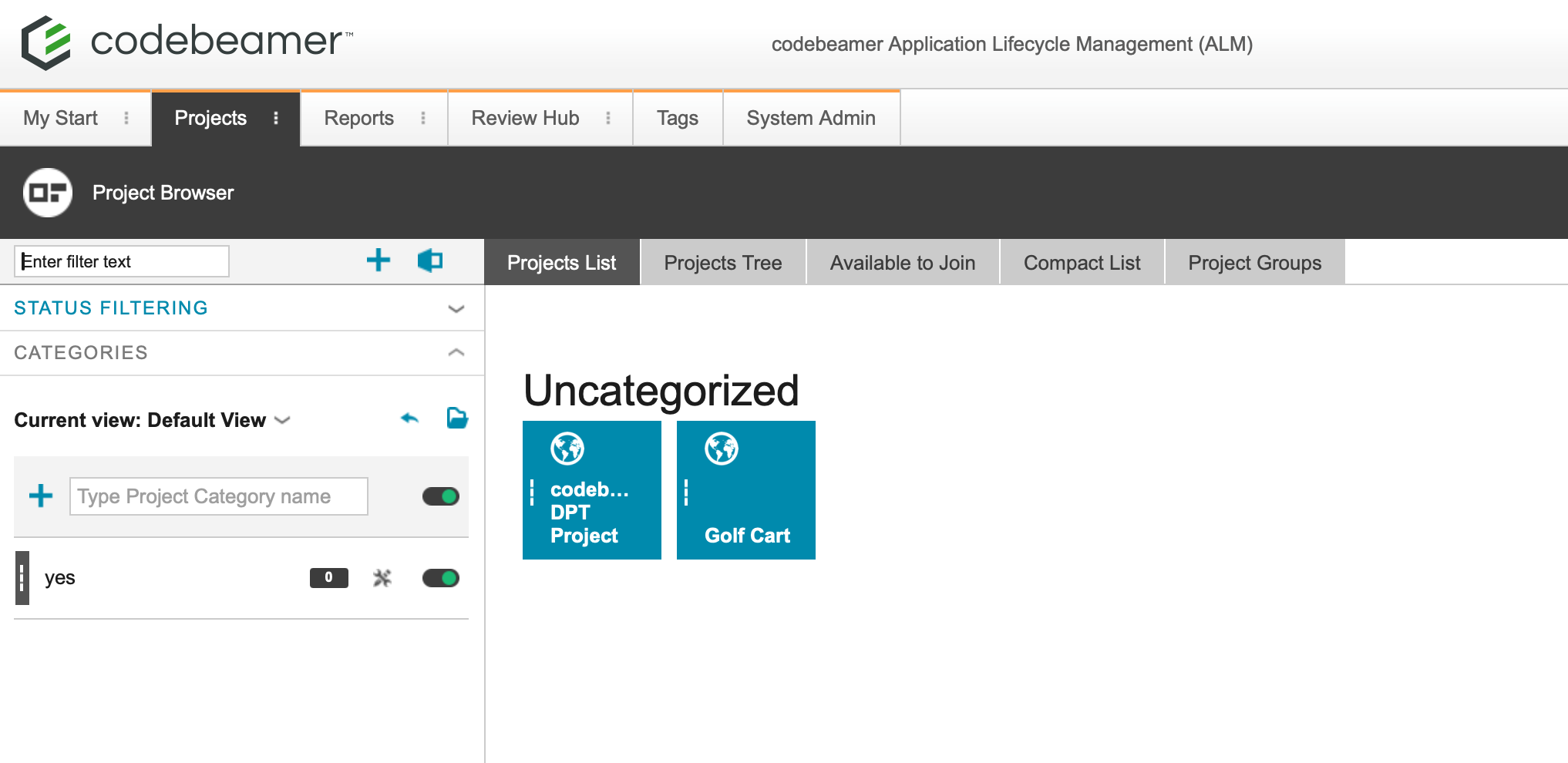
This will open the Wiki tab for that project.
Select the tracker item #
Navigate to the Trackers tab. Double-click on the desired tracker in the tree structure on the left.
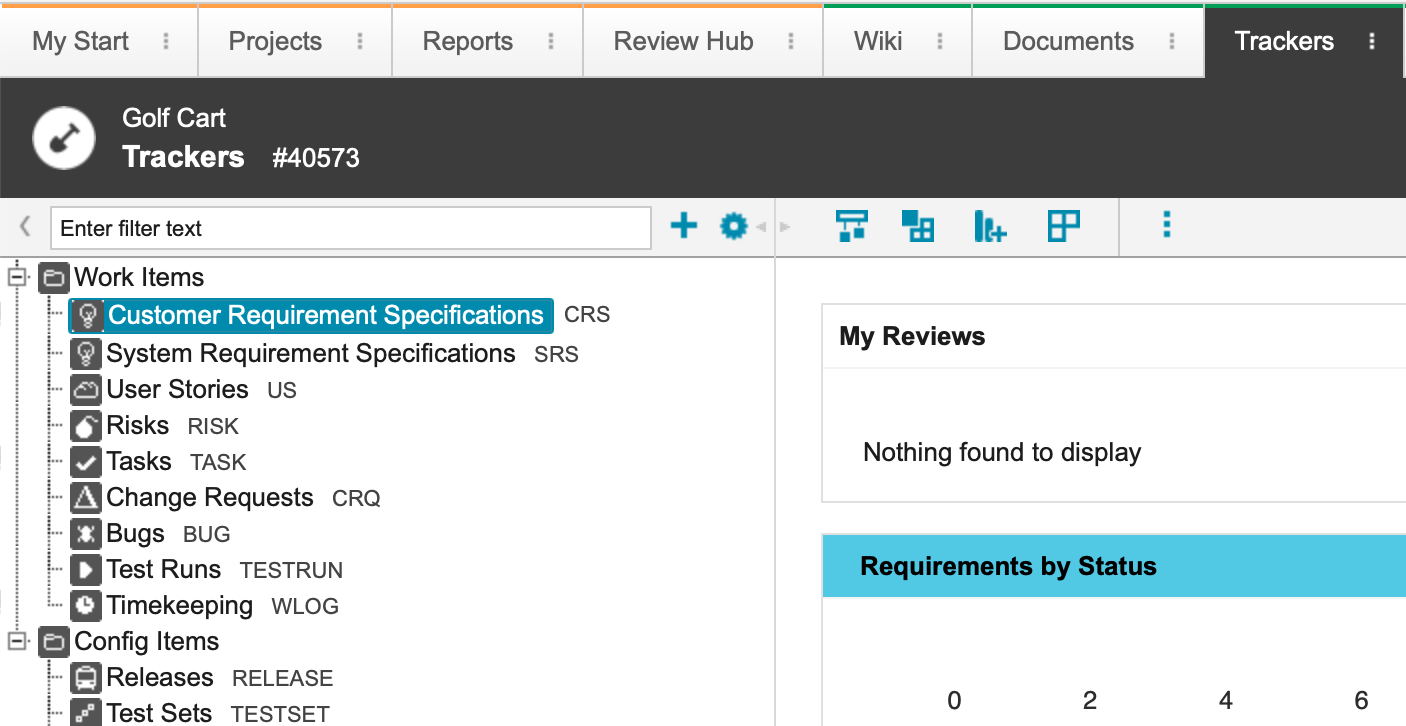
This will bring you into the All Items view within that tracker.
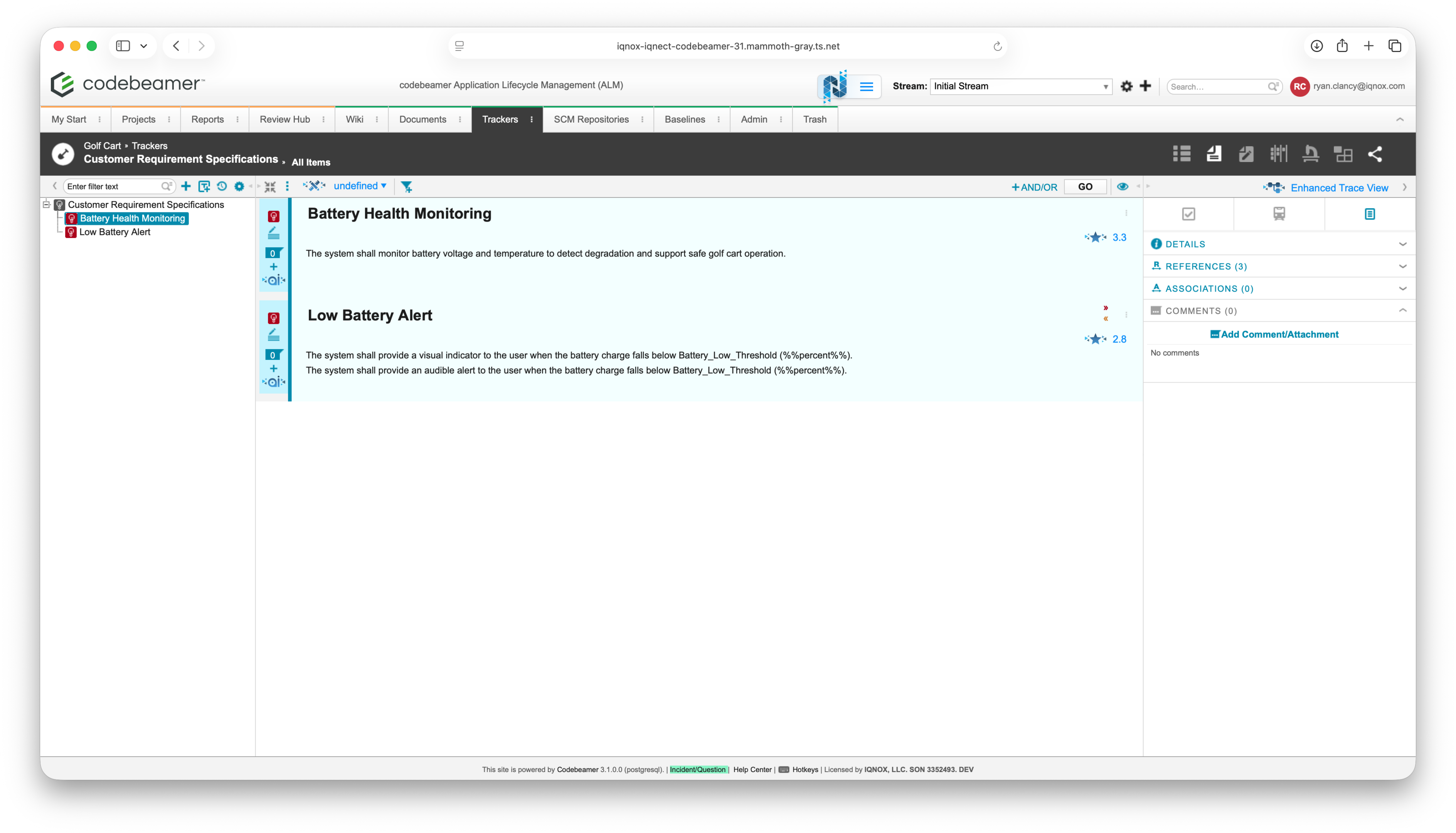
Open Search #
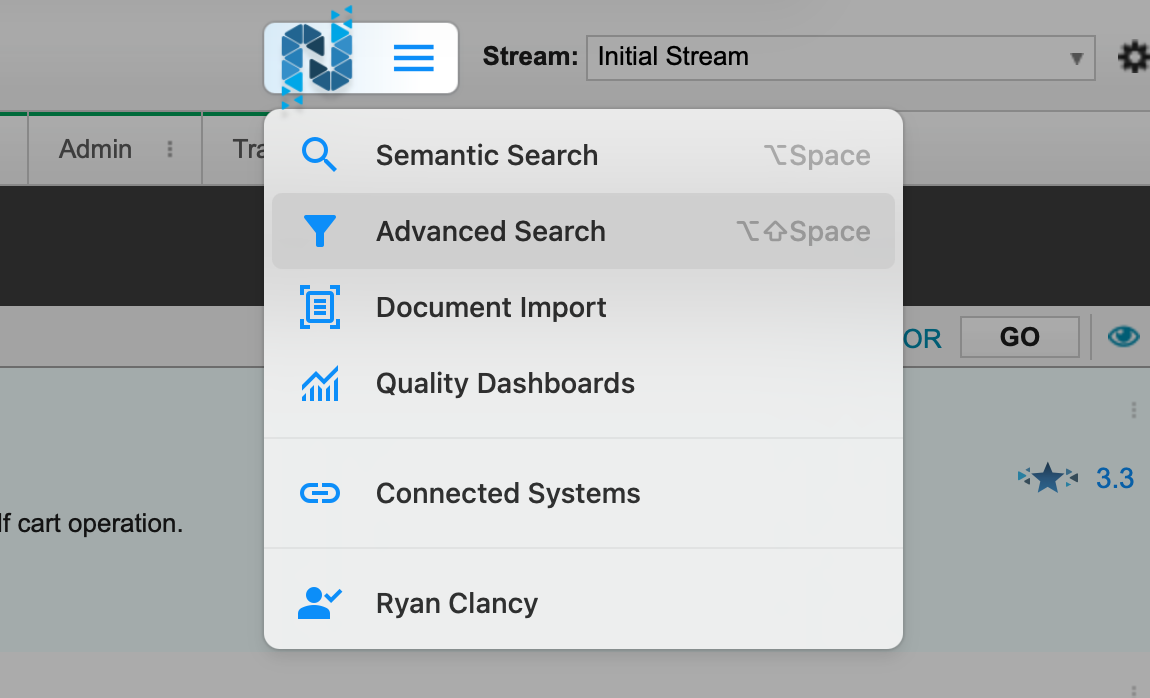
Open the IQNECT hamburger menu and select Advanced Search. IQNECT opens the Search interface.
Enter a search query #
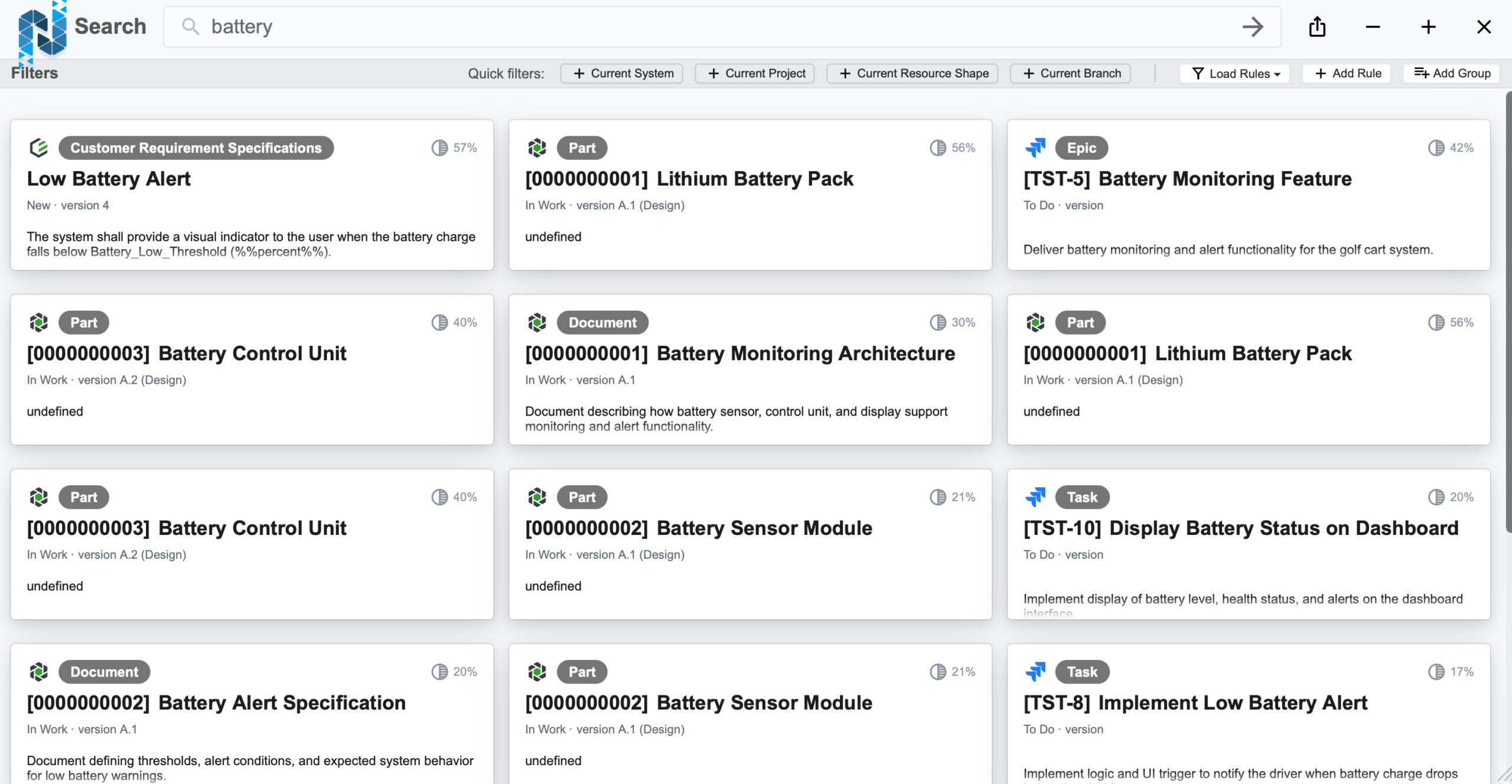
Enter a search query into the search field. Queries can include lifecycle resources such as:
- Requirements
- Tasks
- User stories
- PLM objects
- Validation artifacts
- Connected engineering resources
Review search results #
IQNECT displays lifecycle resources from connected systems within a unified results view. Results can include resources from:
- Codebeamer
- Jira
- Windchill
- Additional connected systems
Open connected lifecycle resources #
Select an item to review its associated context, relationships, and lifecycle information.
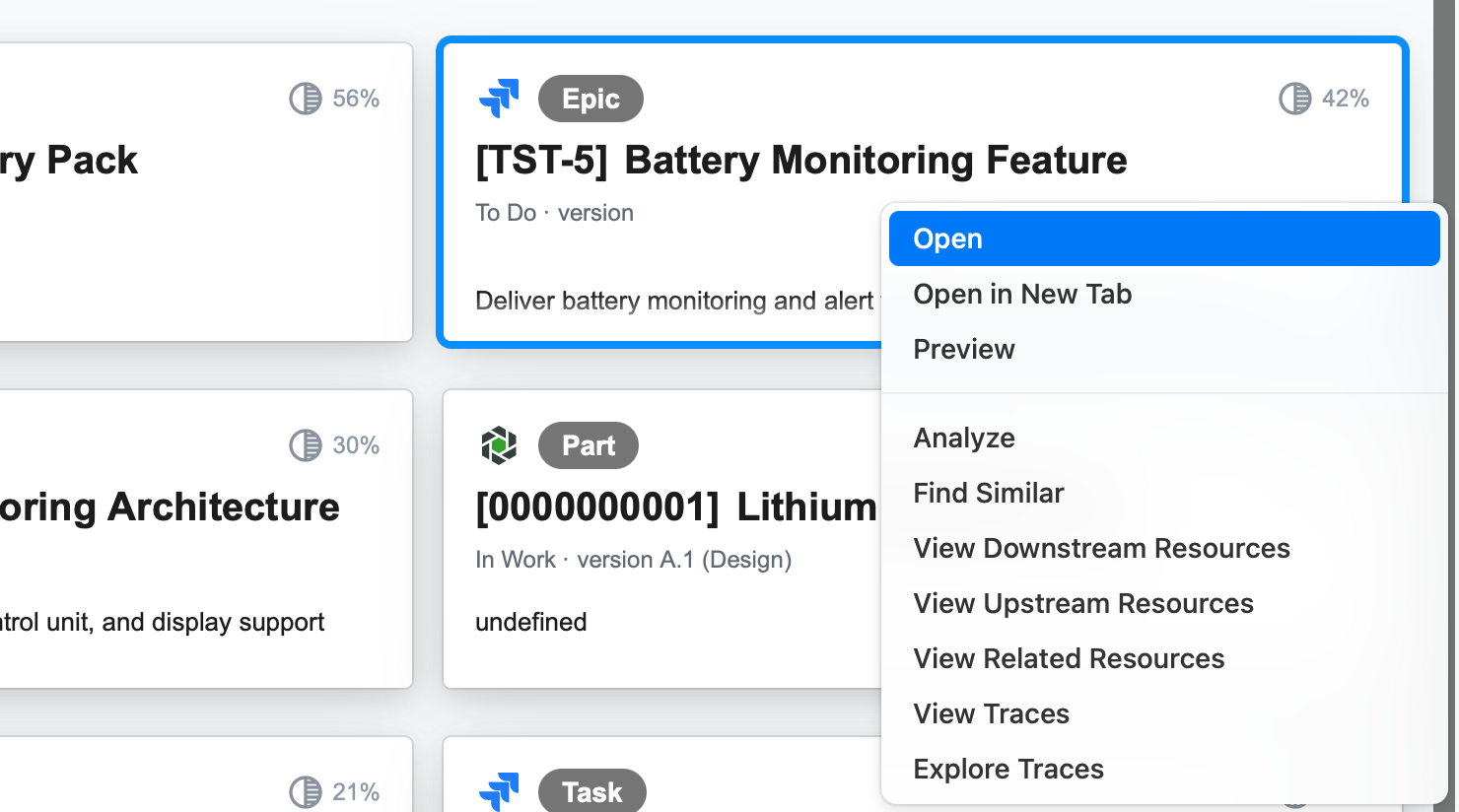
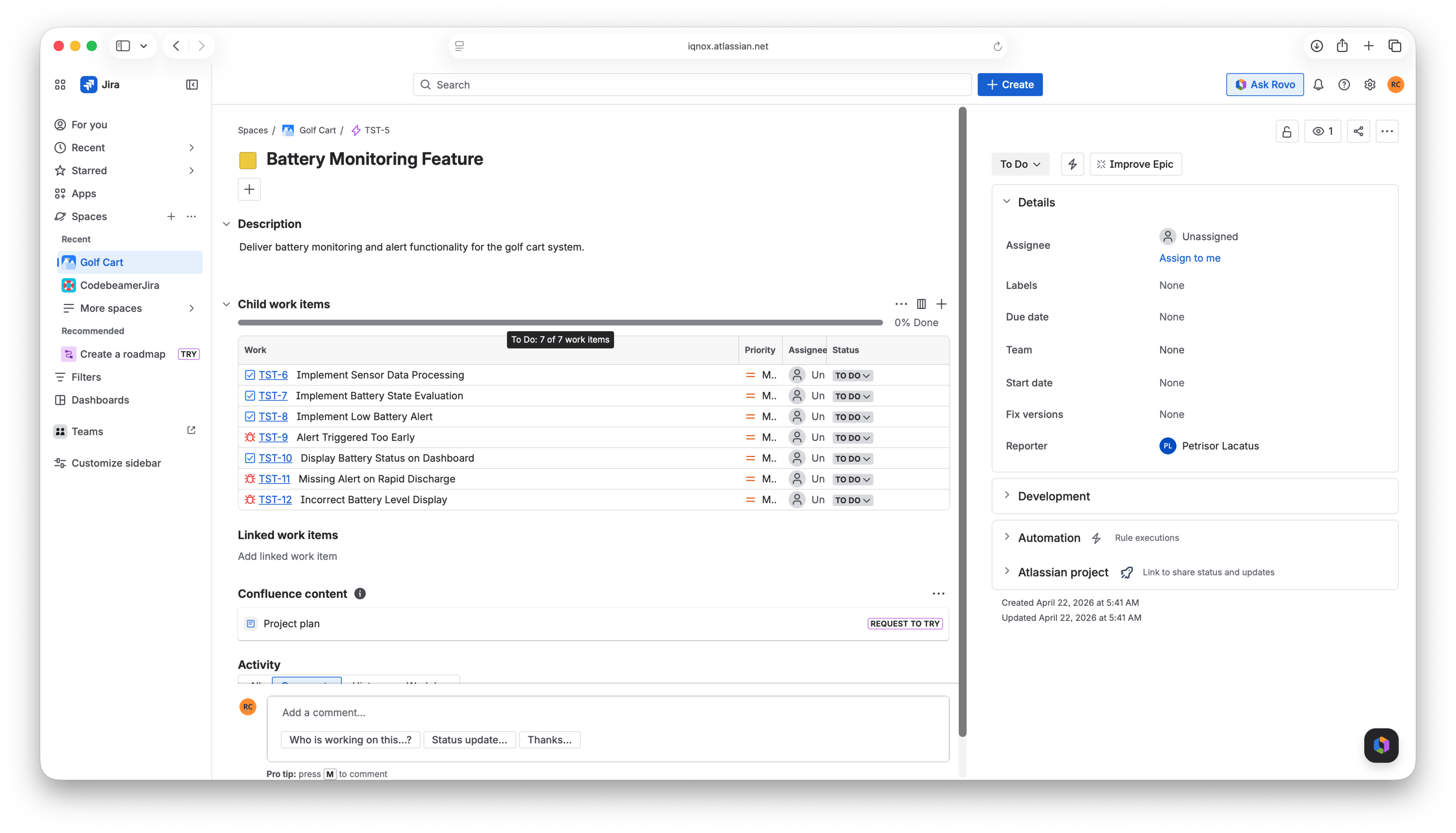
Users can navigate directly between connected systems using the available lifecycle navigation options.
View a cross-system trace diagram #
Follow these steps to view trace relationships across systems:
Open a supported item #
Choose an item that has trace relationships in one or more connected systems. This may be a requirement, task, product object, or another configured resource type.
Open the trace diagram #
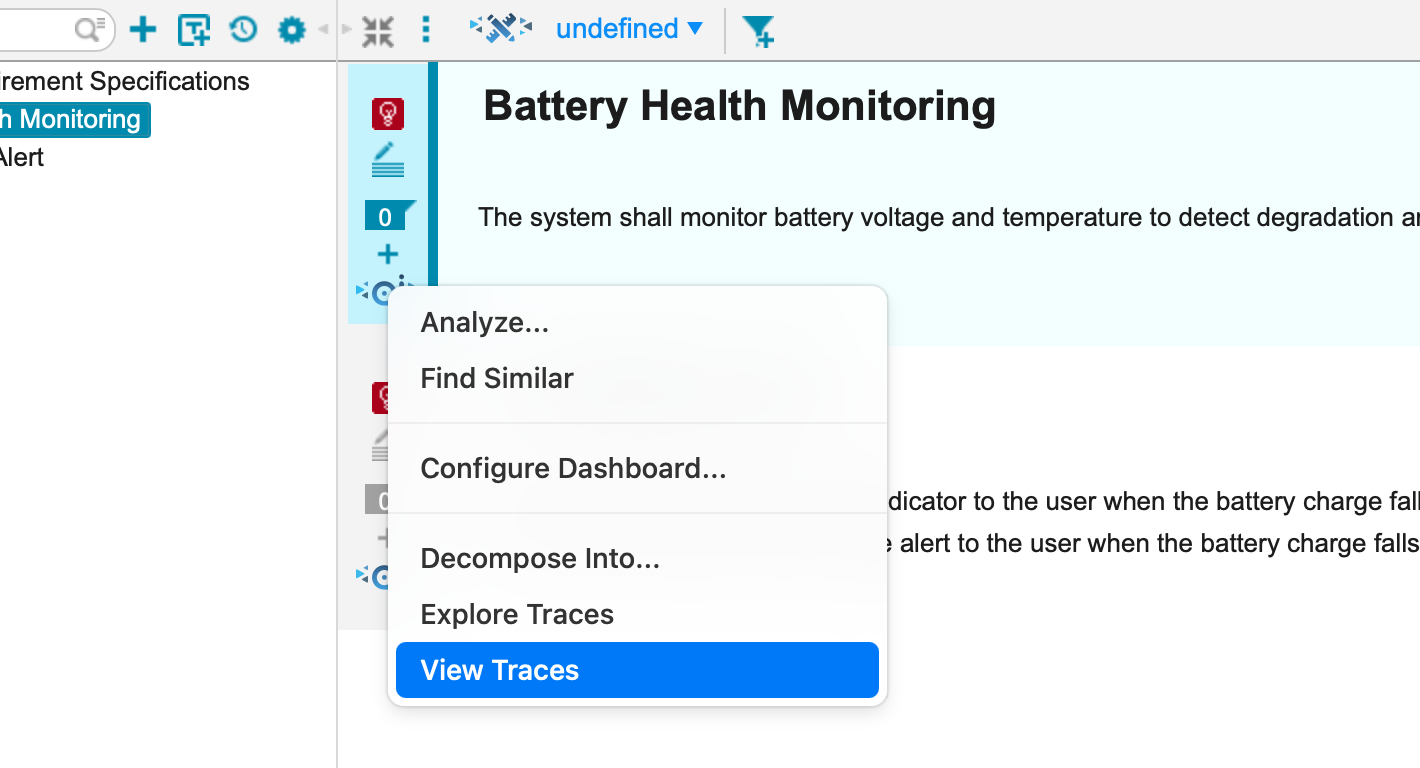
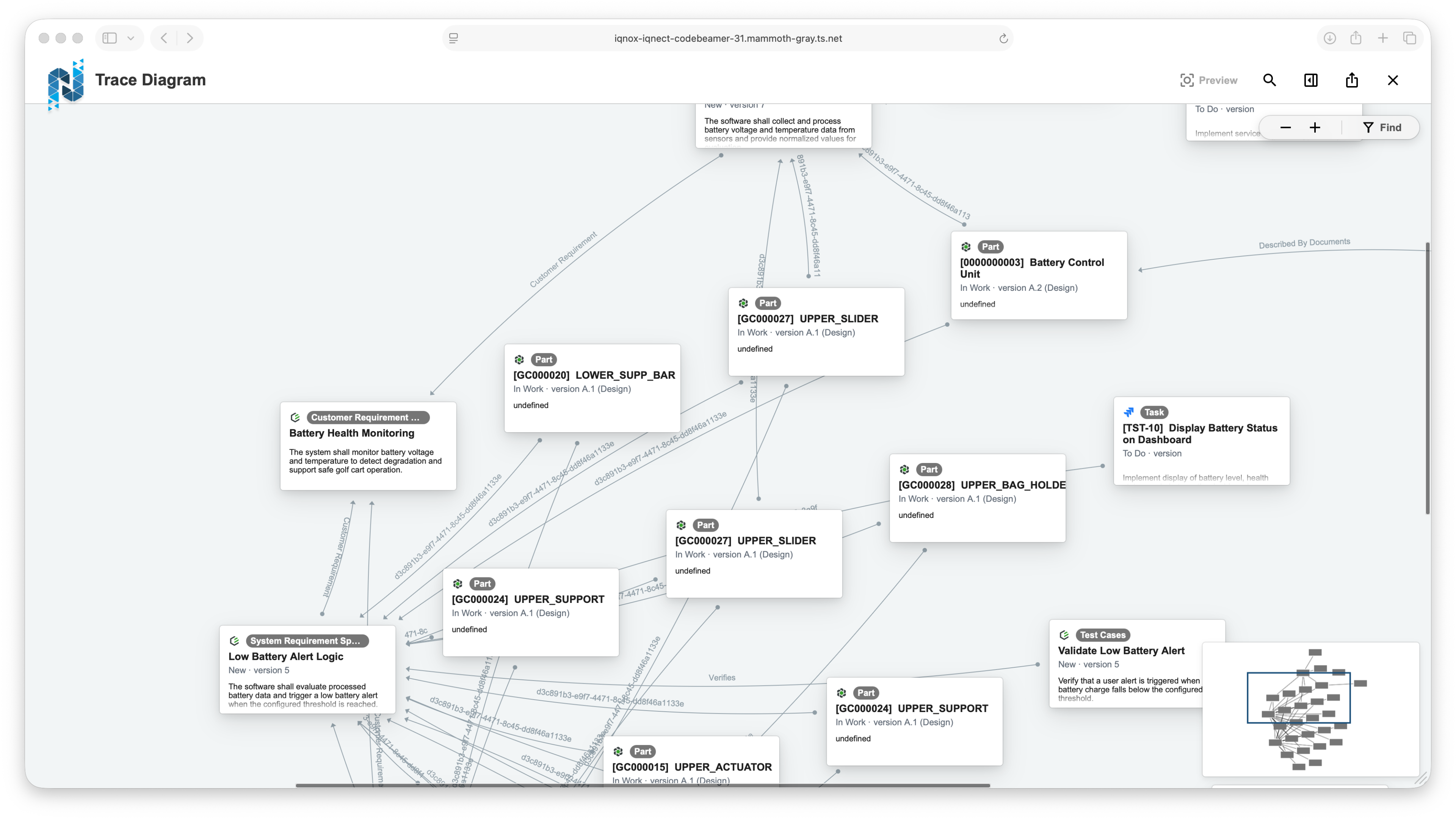
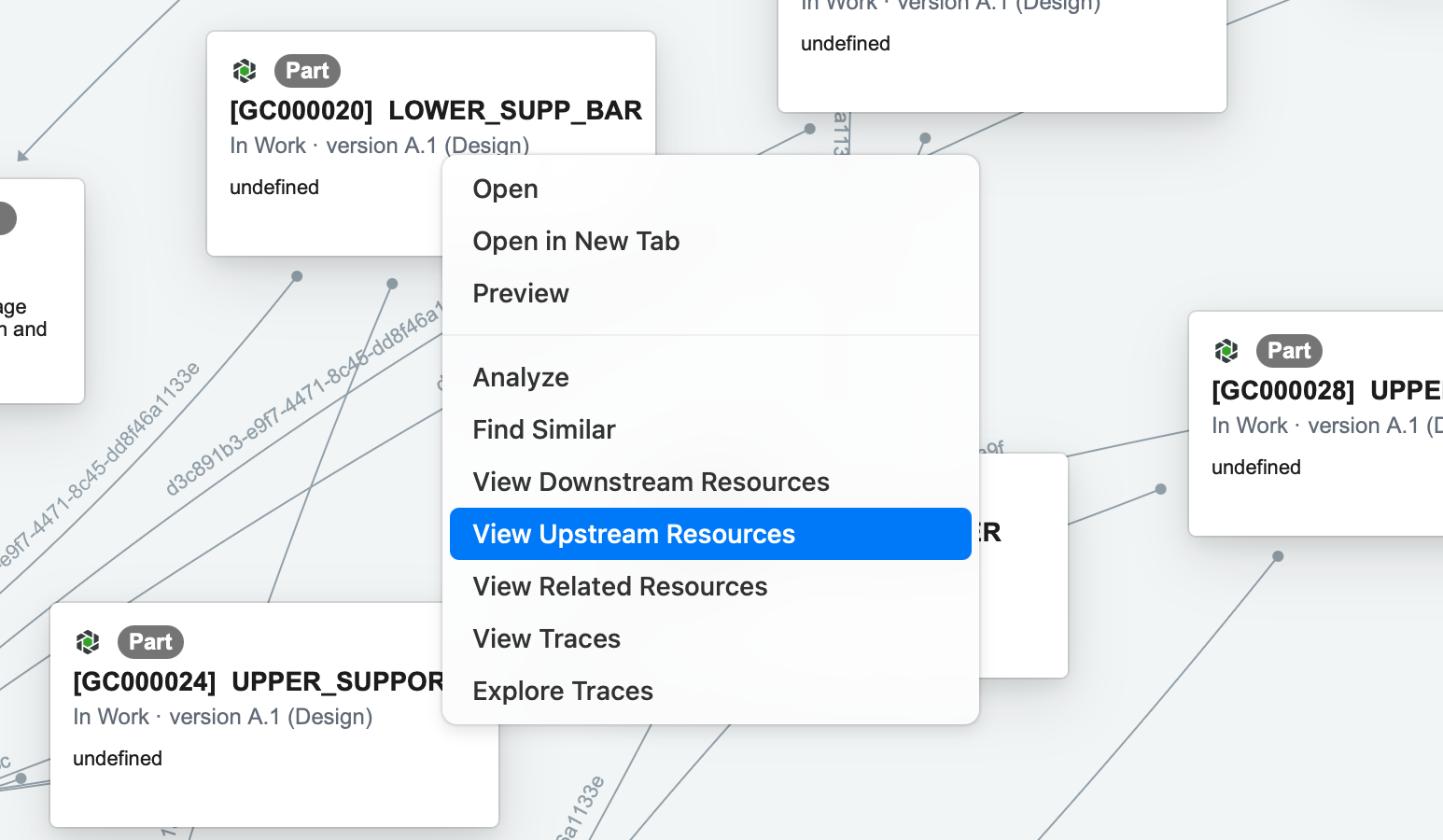
Open the IQNECT trace diagram for the selected item by selecting View Traces. IQNECT loads available trace relationships based on configured connections and permissions.
Review connected systems #
Review the nodes and relationships displayed in the diagram.
The diagram may include resources from multiple systems, depending on the available traces.
Expand trace relationships #
Expand relevant nodes to explore upstream or downstream relationships.
Use this view to understand how an item connects to related work across the lifecycle.
Analyze impact #
Review the diagram to identify dependencies, gaps, or affected items.
This helps users understand the broader impact of changes across connected systems.
Results and next steps #
You’ve reviewed a cross-system trace diagram.
Use this feature to understand relationships across tools, improve change impact analysis, and maintain traceability across the product lifecycle.
