
Overview #
In IQNECT 1.5, trace creation is faster and more intuitive than ever. You can now create, manage, and remove traces directly from the Enhanced Trace View, Trace Viewer, and Decomposition View, all using simple drag-and-drop gestures.
This update streamlines the trace management process, letting you link related tracker items without navigating multiple menus.
Prerequisites #
- The tracker items you want to connect are visible in your project workspace.
- You have permission to create and remove traces.
- You are using IQNECT version 1.5 or later.
Create traces using drag and drop #
Follow these steps to add traces using the new drag-and-drop feature:
Open your project #
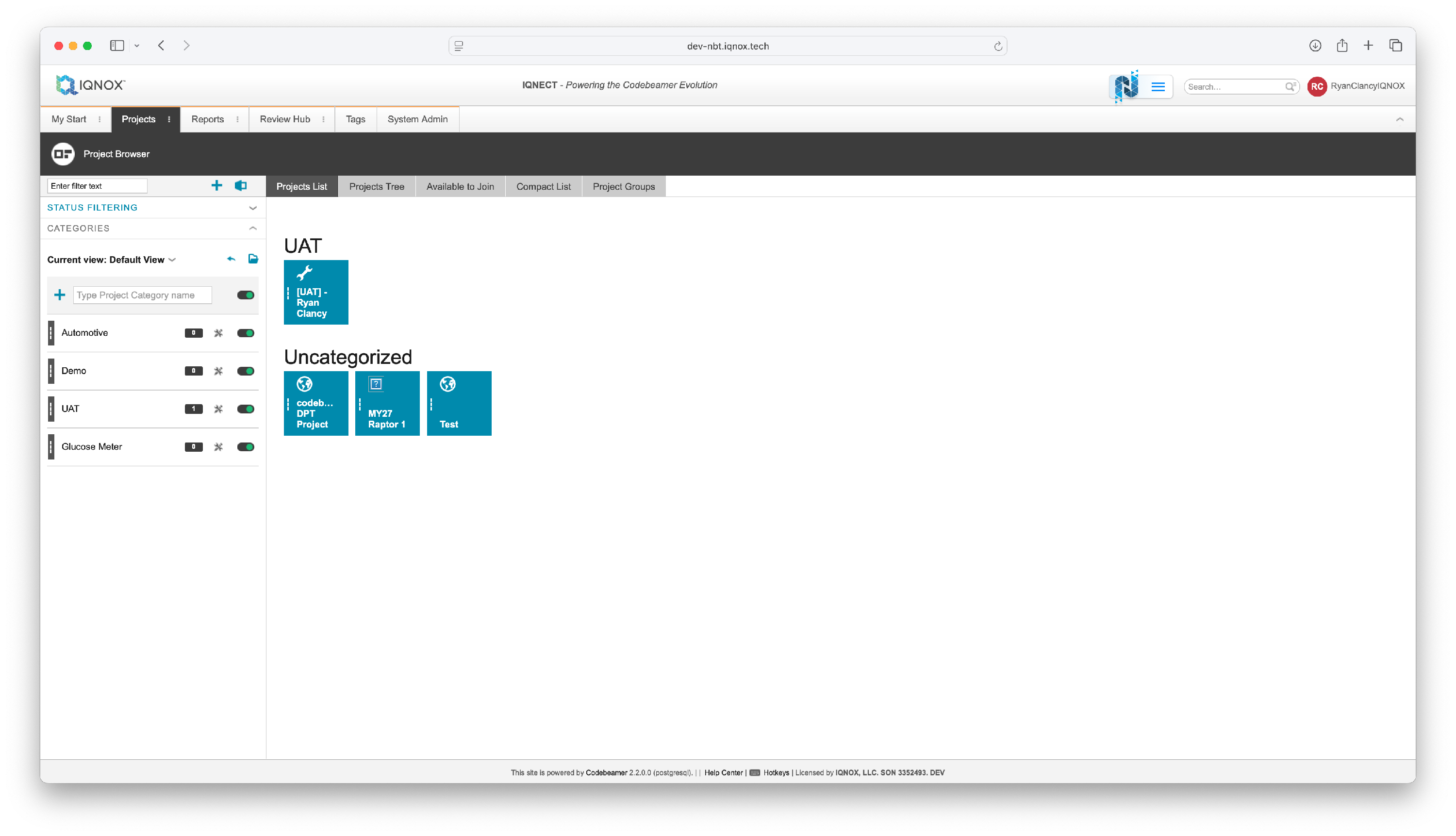
Open the Projects tab and click on the project that you want to add traces in.
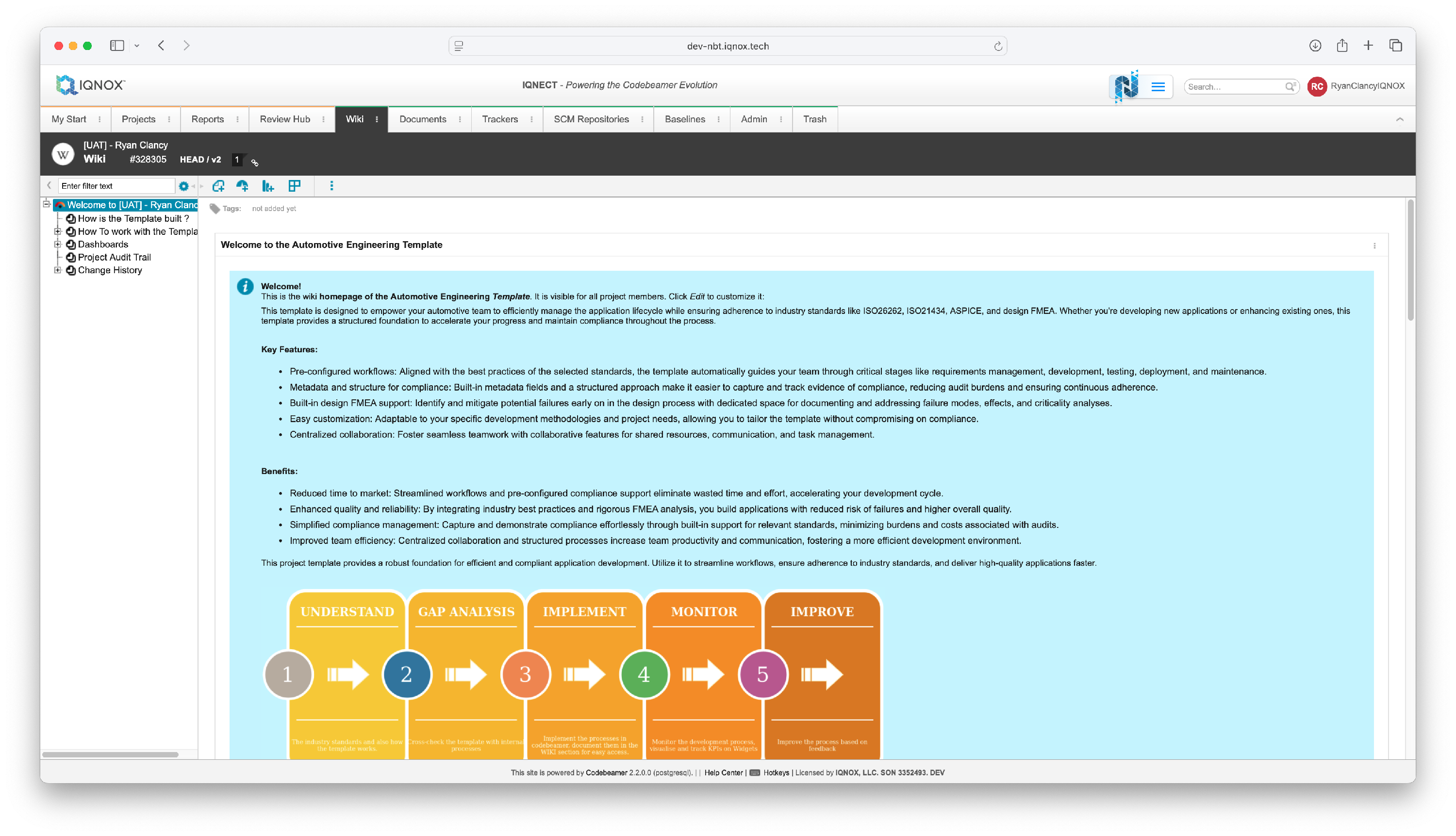
This will open the Wiki tab for that project.
Select the tracker item #
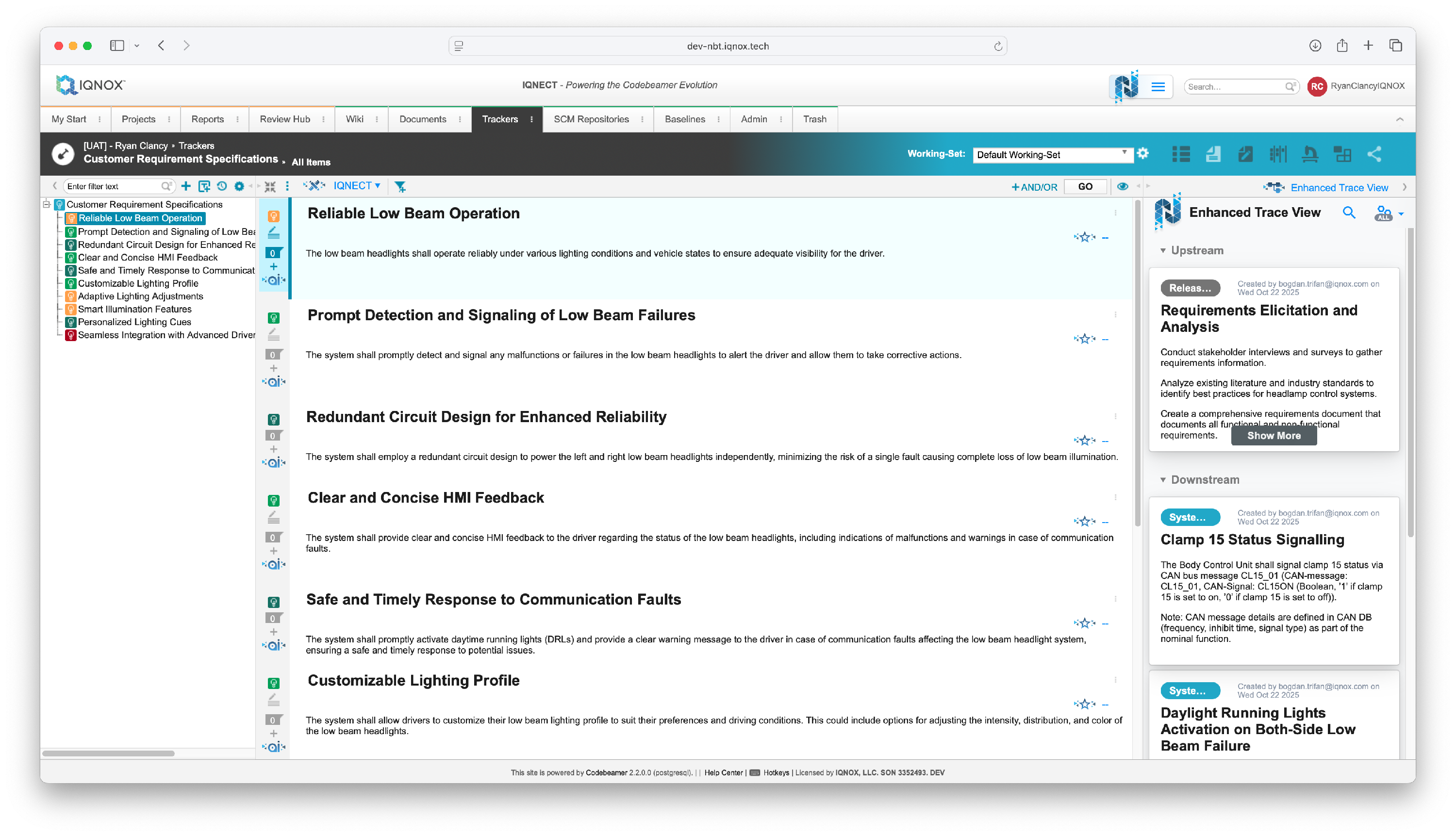
Navigate to the Trackers tab.
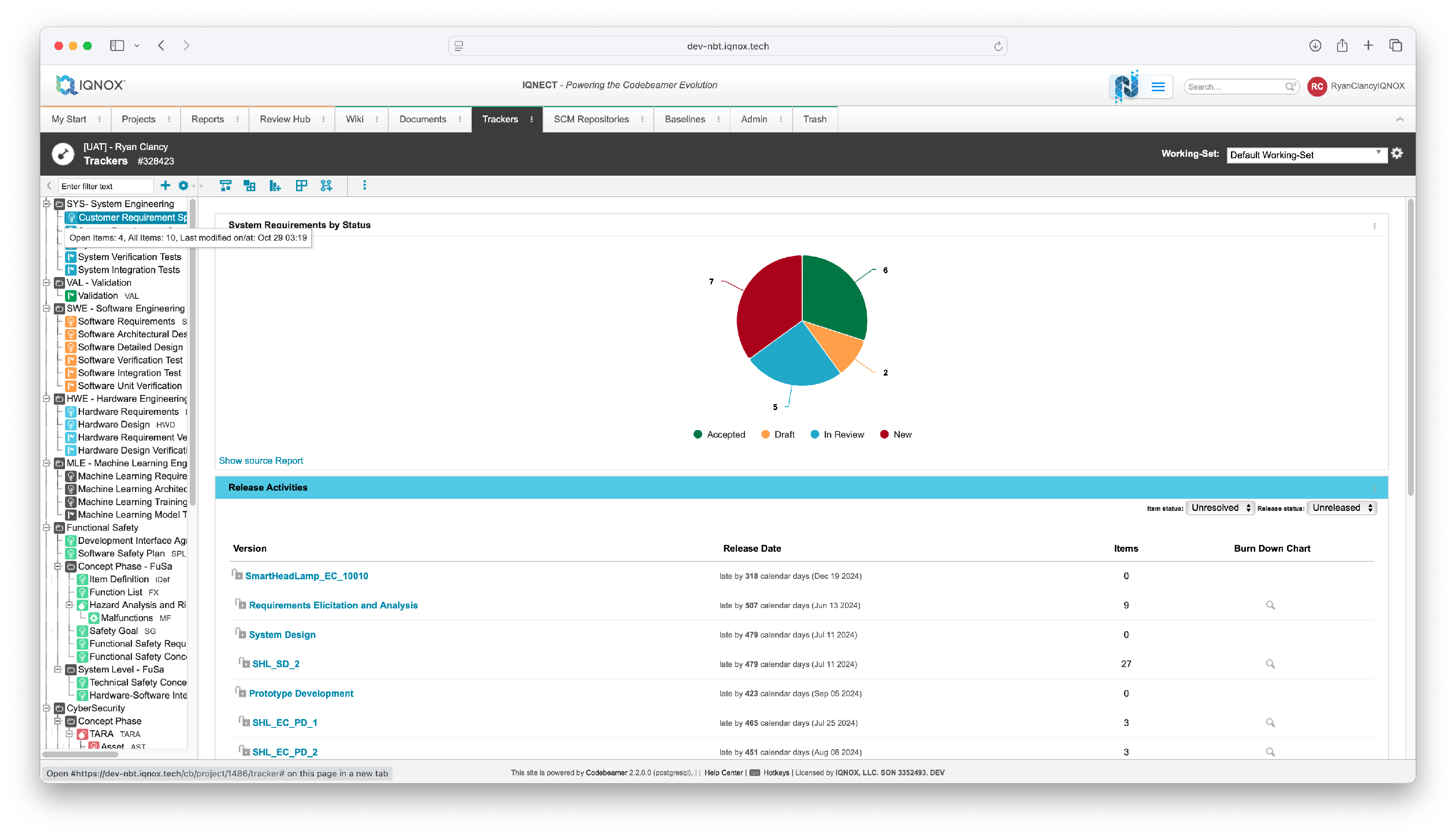
Double click on the desired tracker in the tree structure on the left.
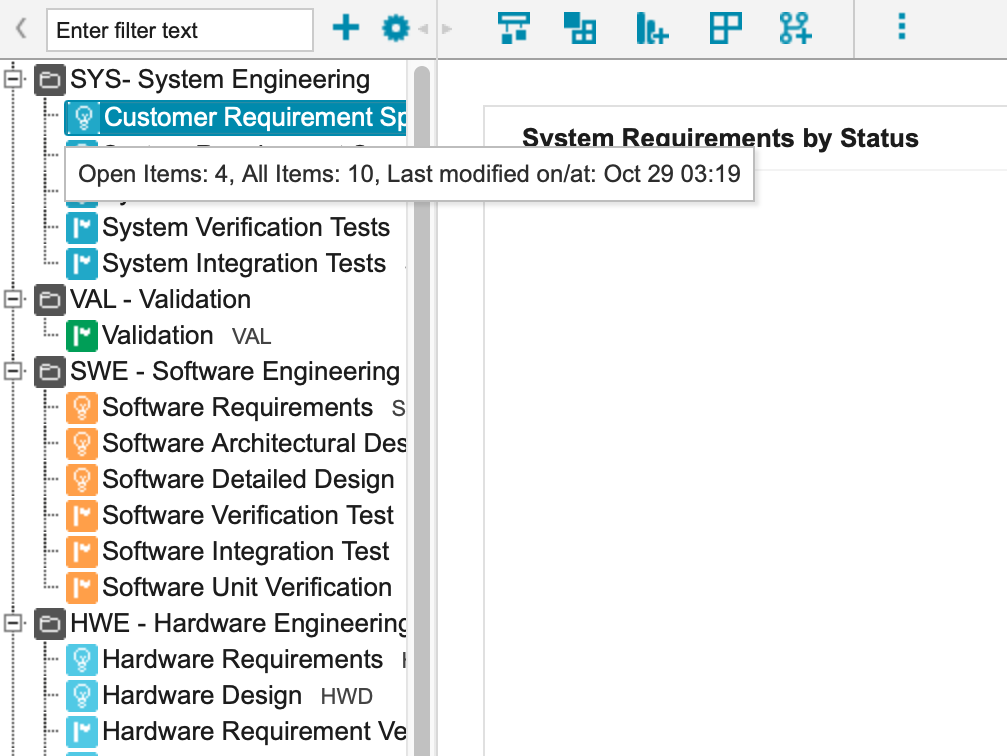
This will bring you into the All Items view within that tracker.
Here you can select the item that you want to add a trace to.
Run a Semantic Search #
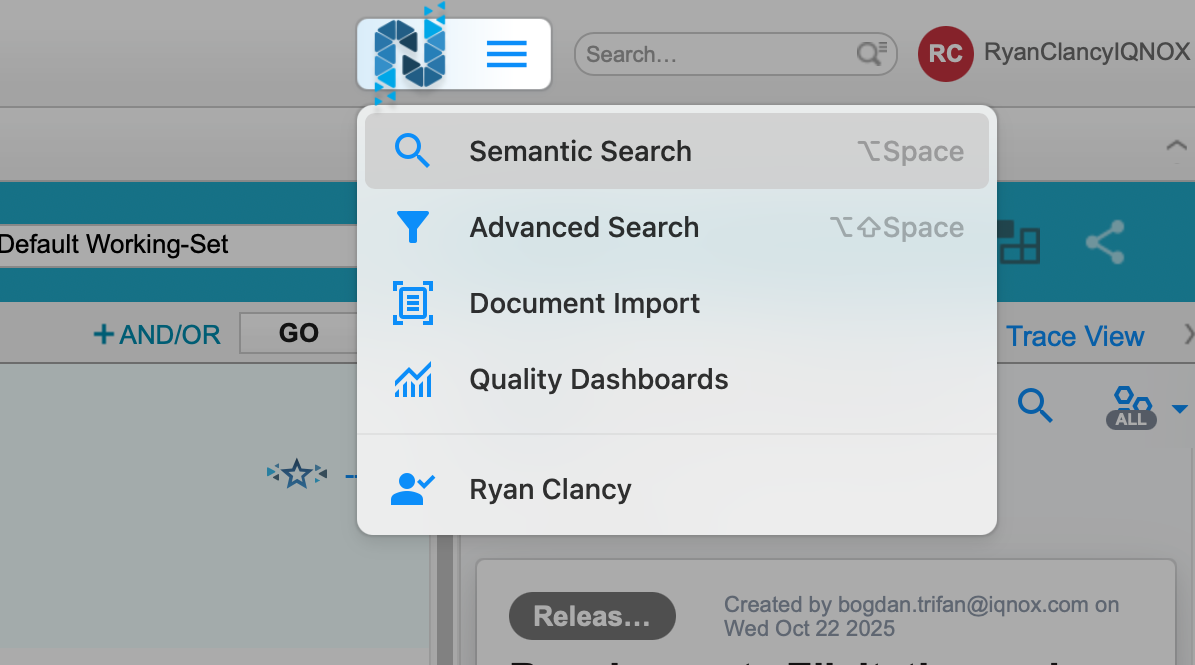
Open the hamburger menu beside the IQNECT logo and select Semantic Search .
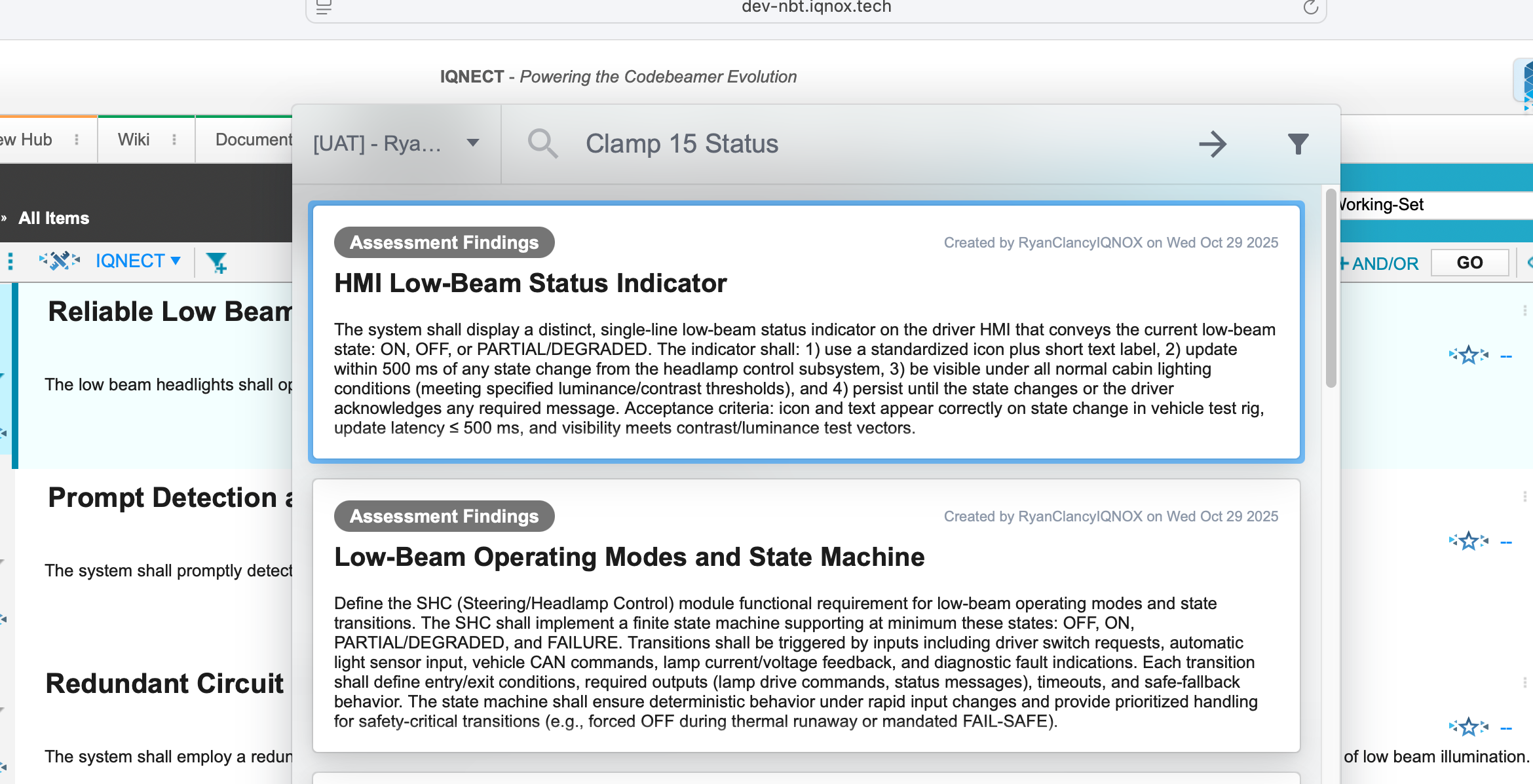
Choose your project, then enter a term (for example, Clamp 15 Status ).
The results will appear in the Semantic Search panel.
Drag and drop a result into Enhanced Trace View #
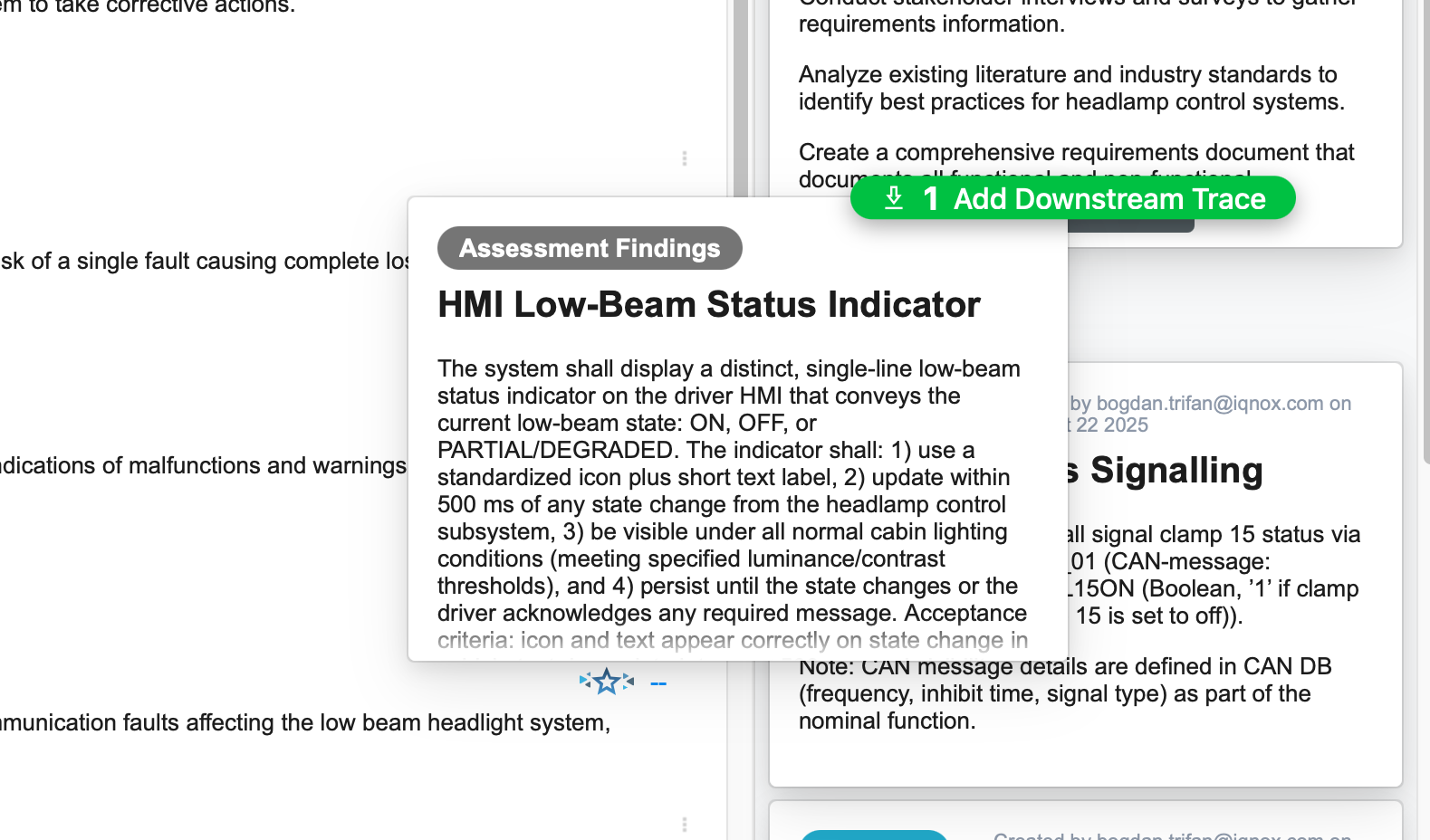
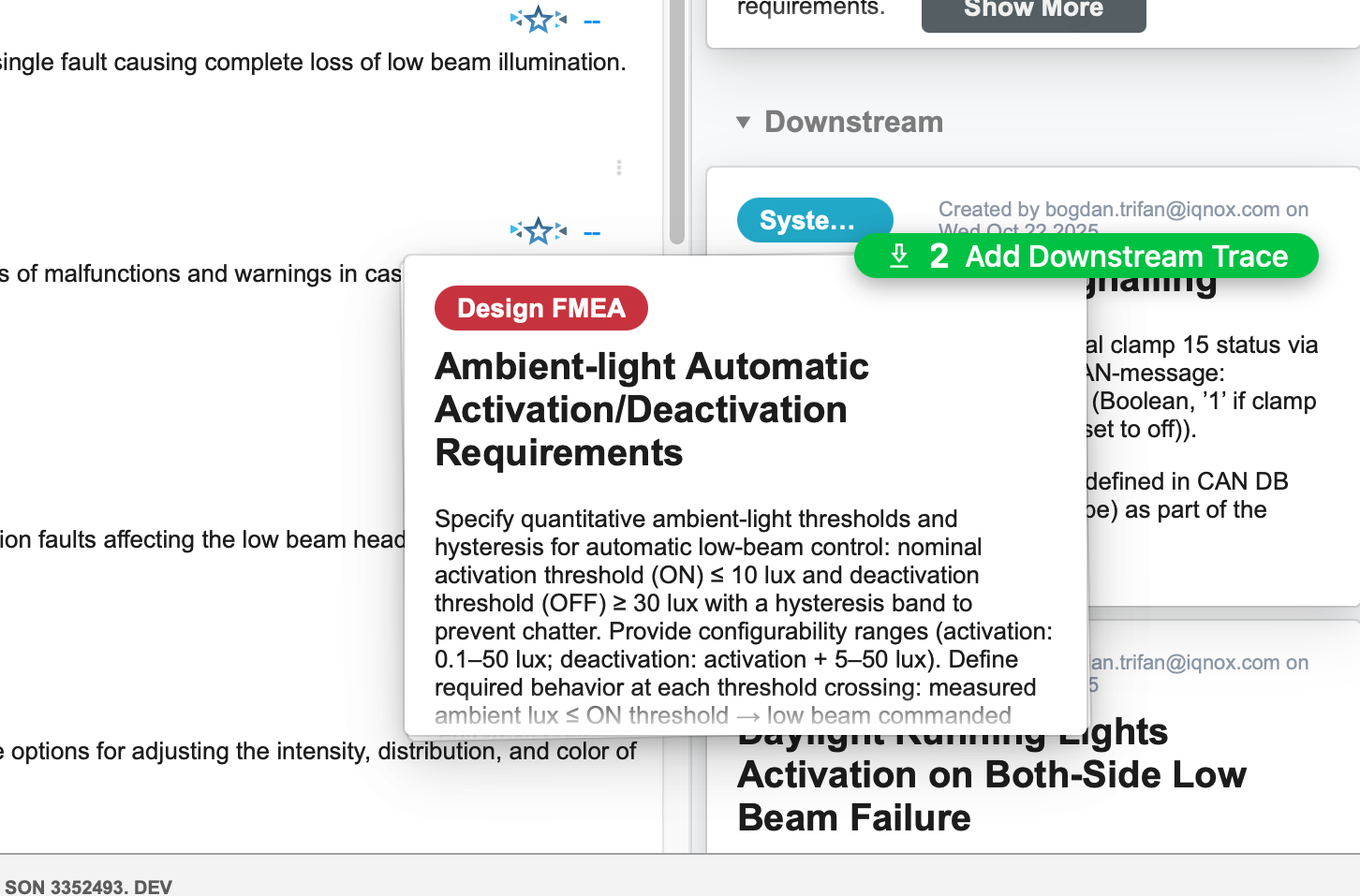
Click and hold a result from Semantic Search and drag it into the Enhanced Trace View.
- Drop the item on the upstream section to create an upstream trace.
- Drop it on the downstream section to create a downstream trace.
Use Advanced Search for refined results #
For more specific filtering, open Advanced Search . Click Add Rule to refine by project, tracker, or other criteria, and add your search term.
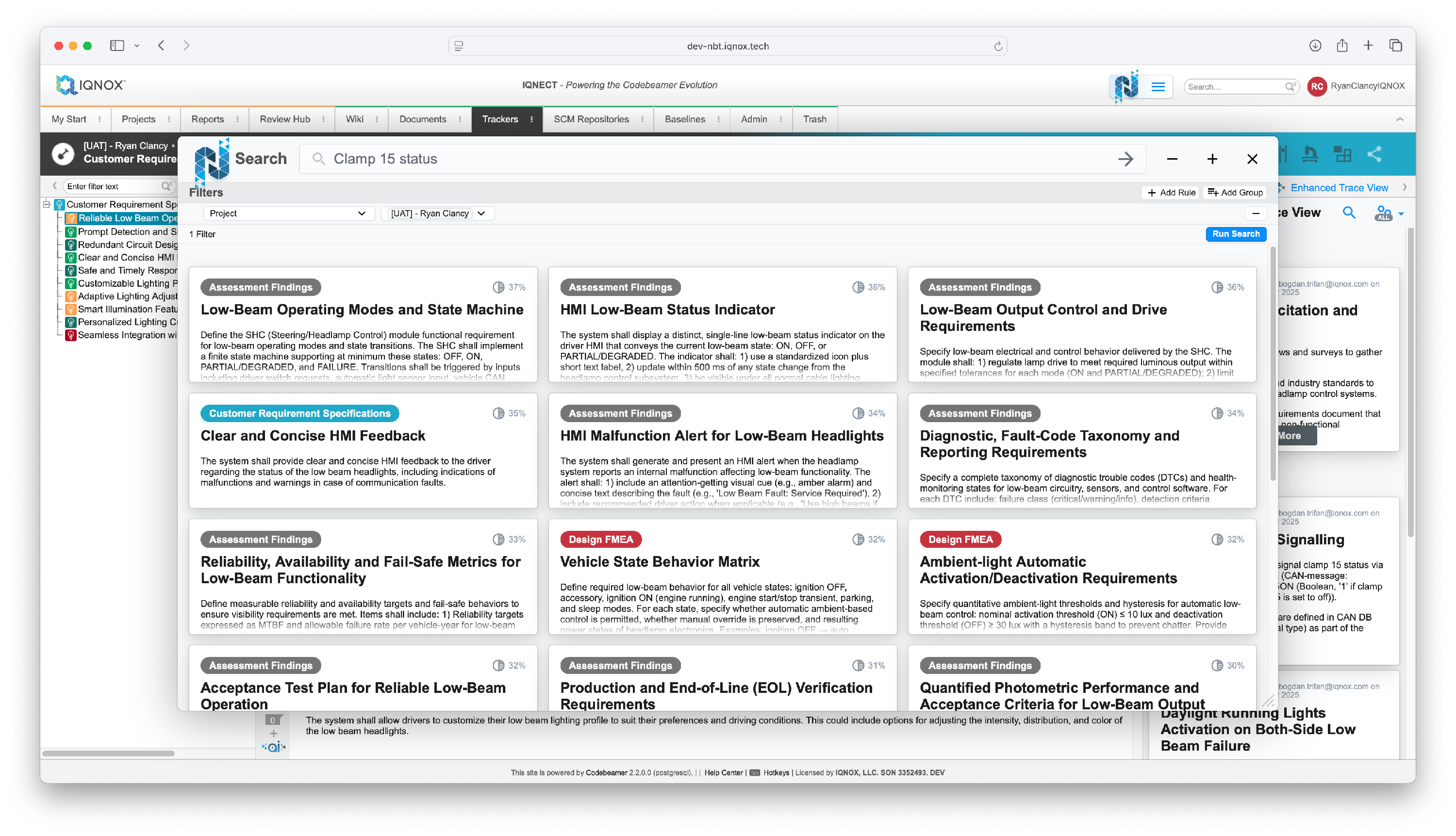
Once results appear, you can again drag and drop one or more resources into the Enhanced Trace View.
Hold Command (Mac) or Control (Windows) to select multiple resources.
When only part of a selection is valid, the UI visually separates acceptable and unacceptable items before the drop using orange and grey colors, so you know exactly which traces can be created.
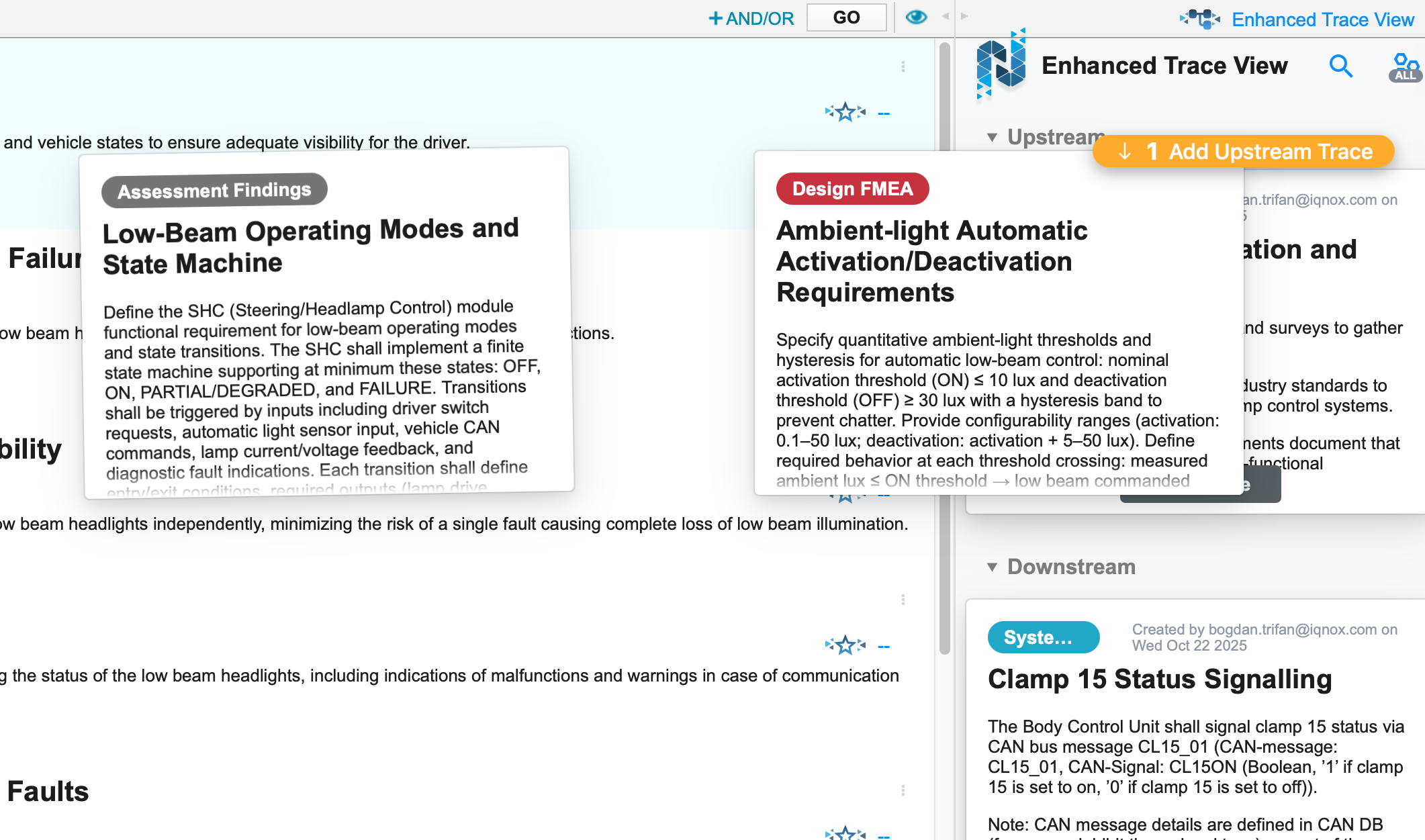
When all items are aceptable, they will be green.
Create Traces in other views #
Trace Viewer #
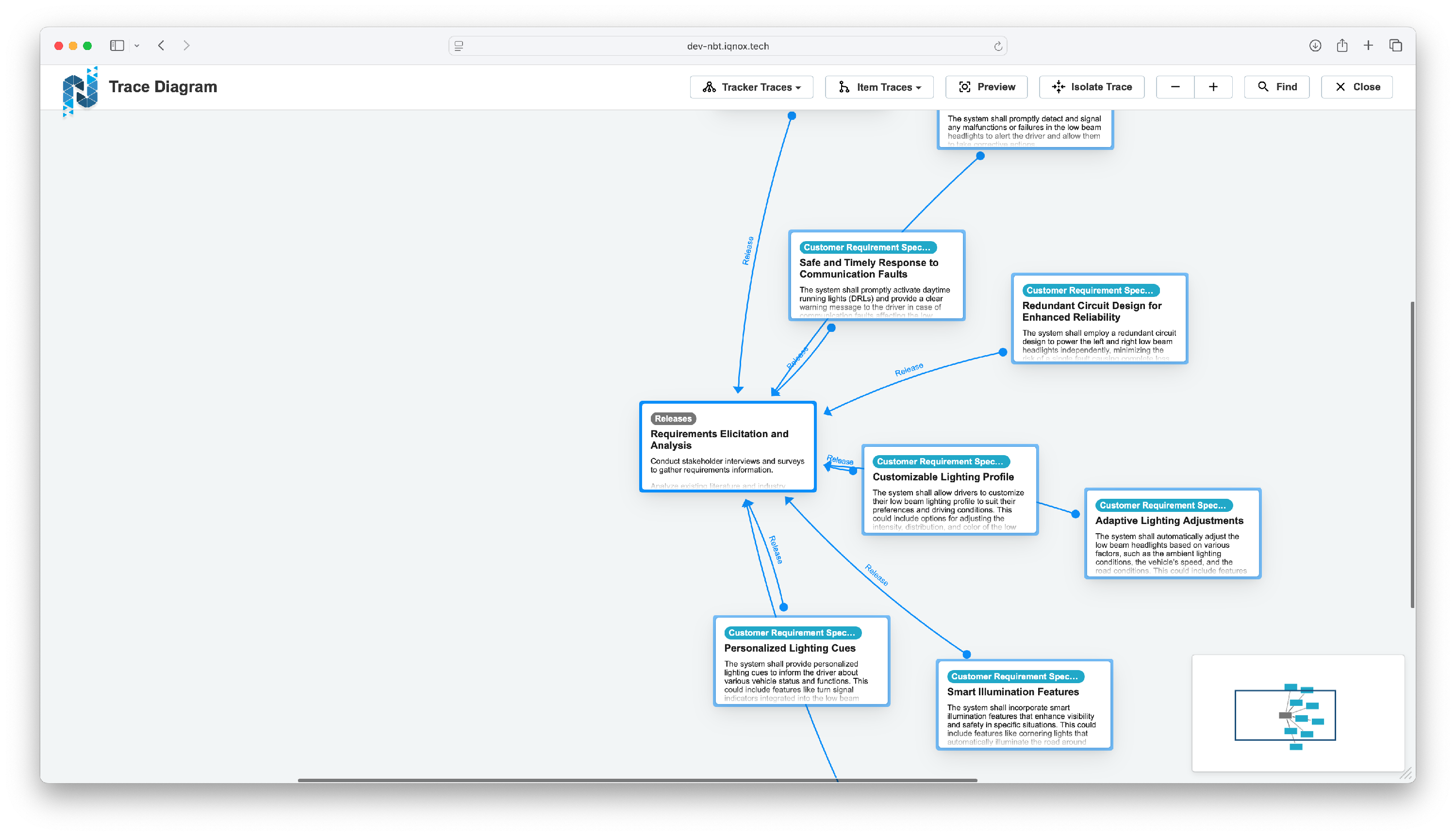
Open the Trace Viewer using Explore Traces .
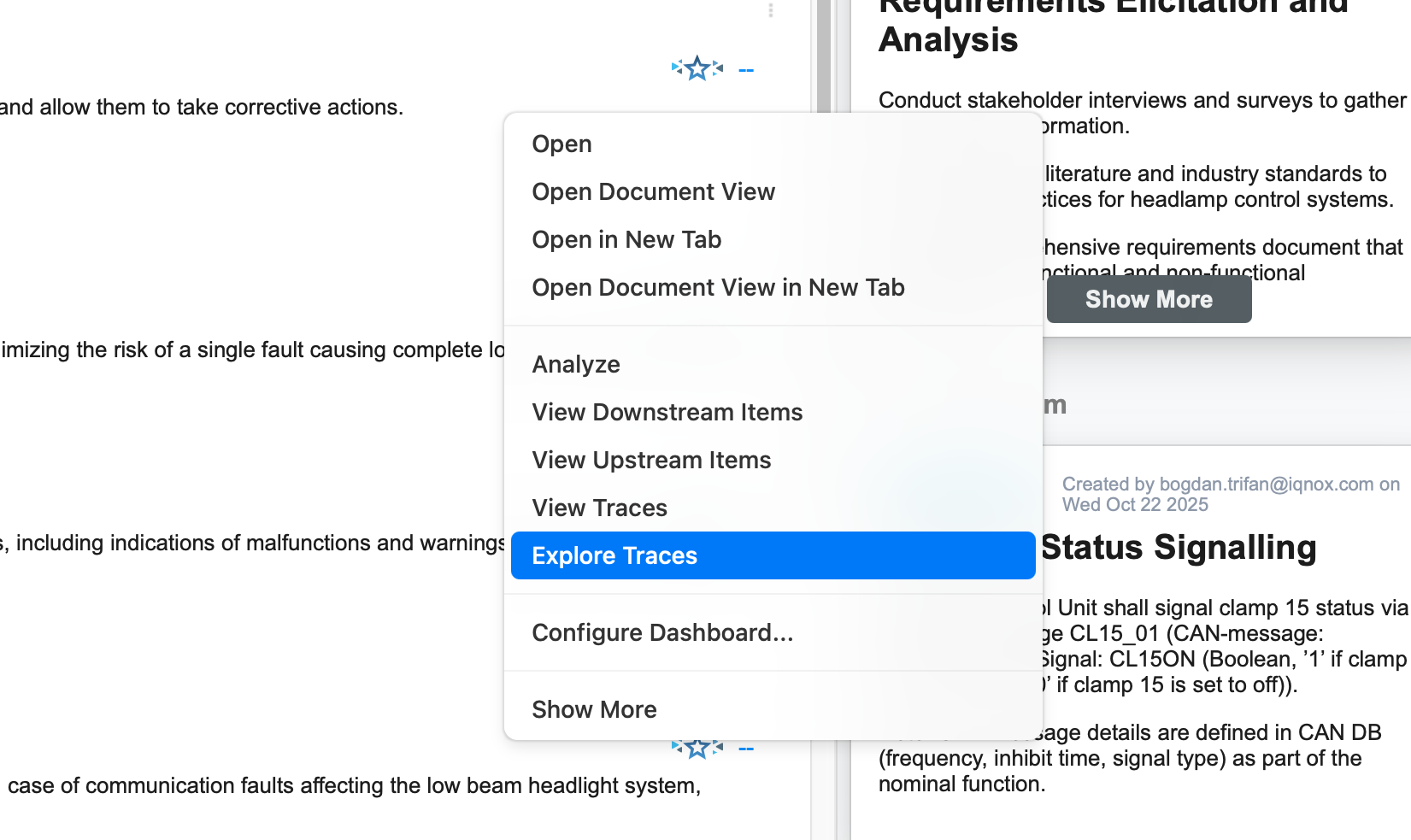
Expand the desired traces by clicking Expand Traces... .
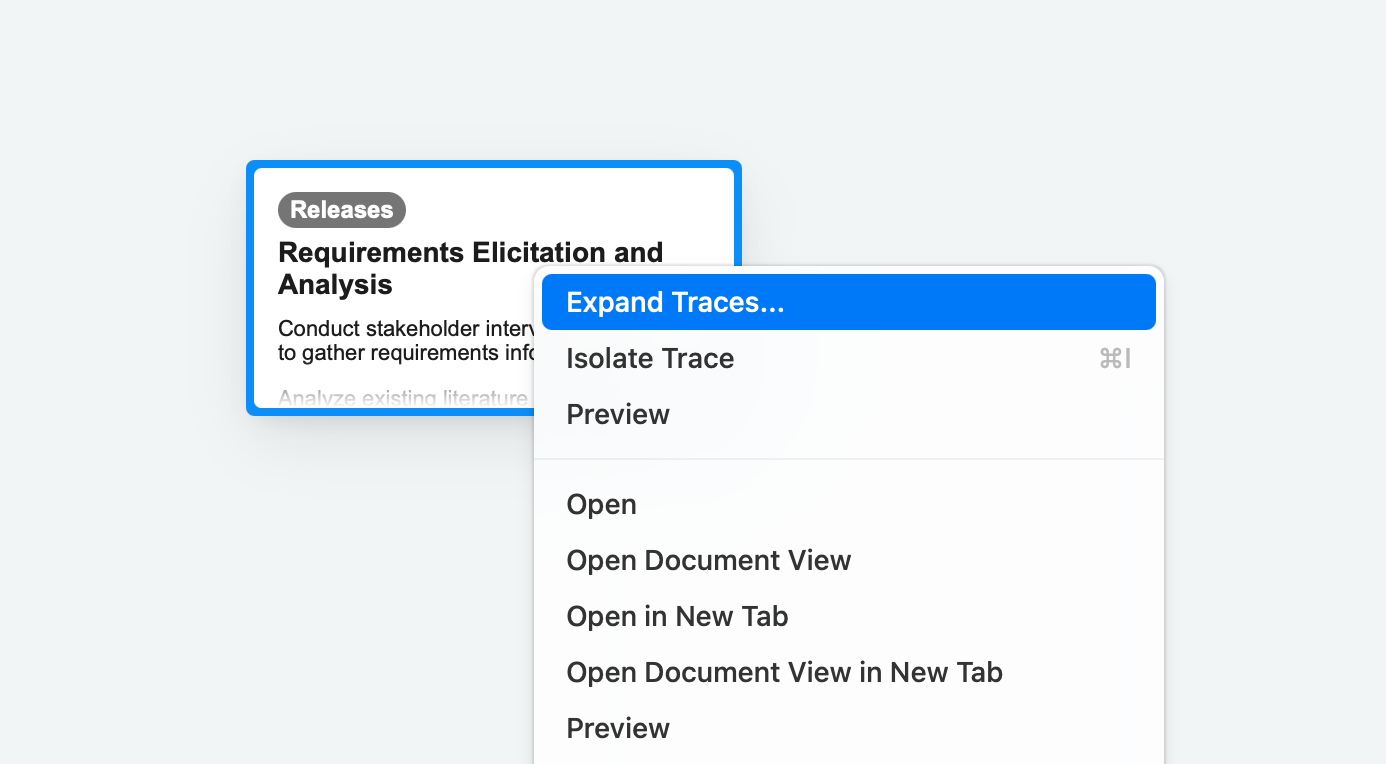
The traces will expand and fill out the screen.
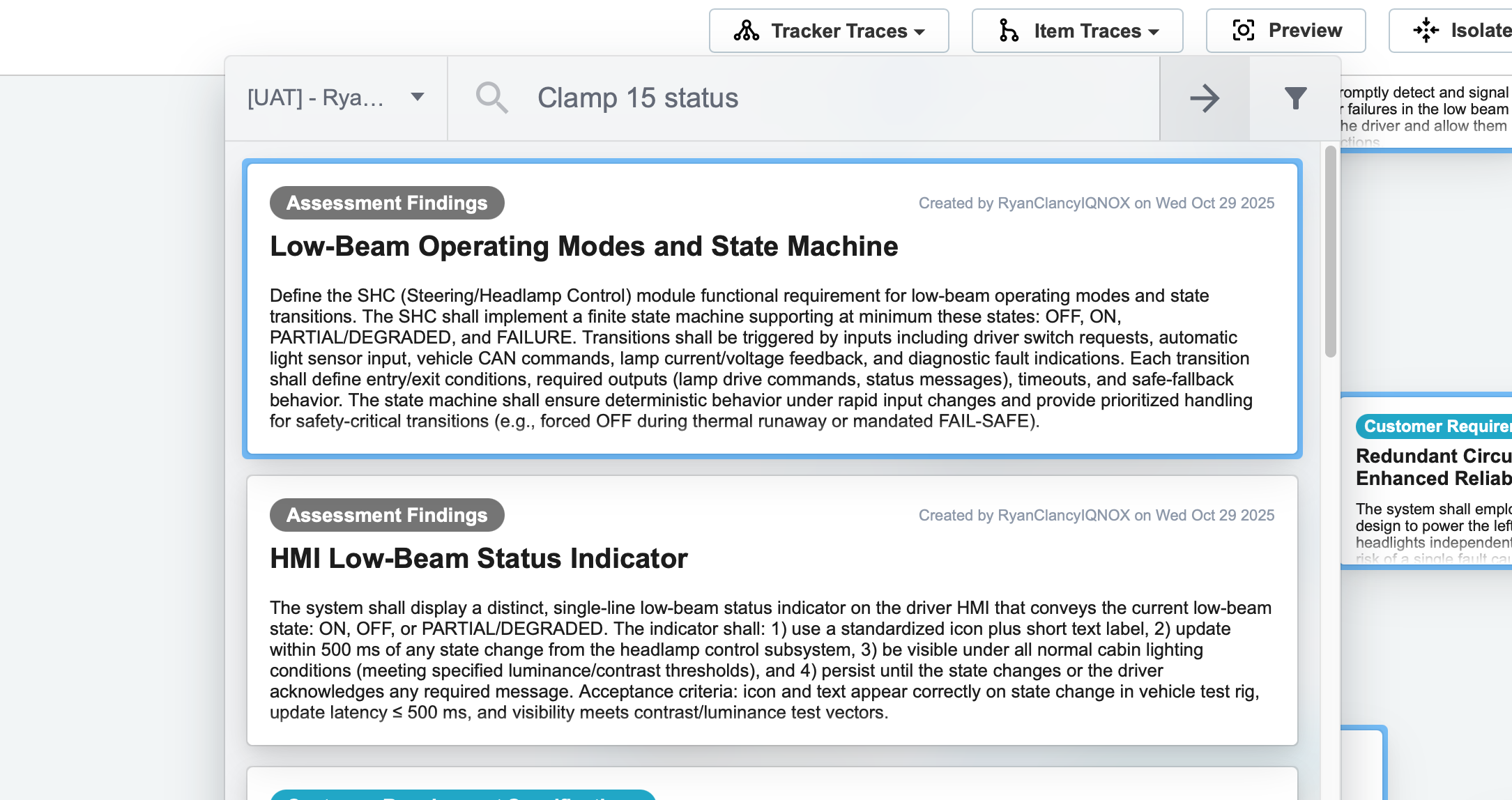
Use Semantic Search (Option + Space) or Advanced Search (Option + Shift + Space) to locate relevant items.
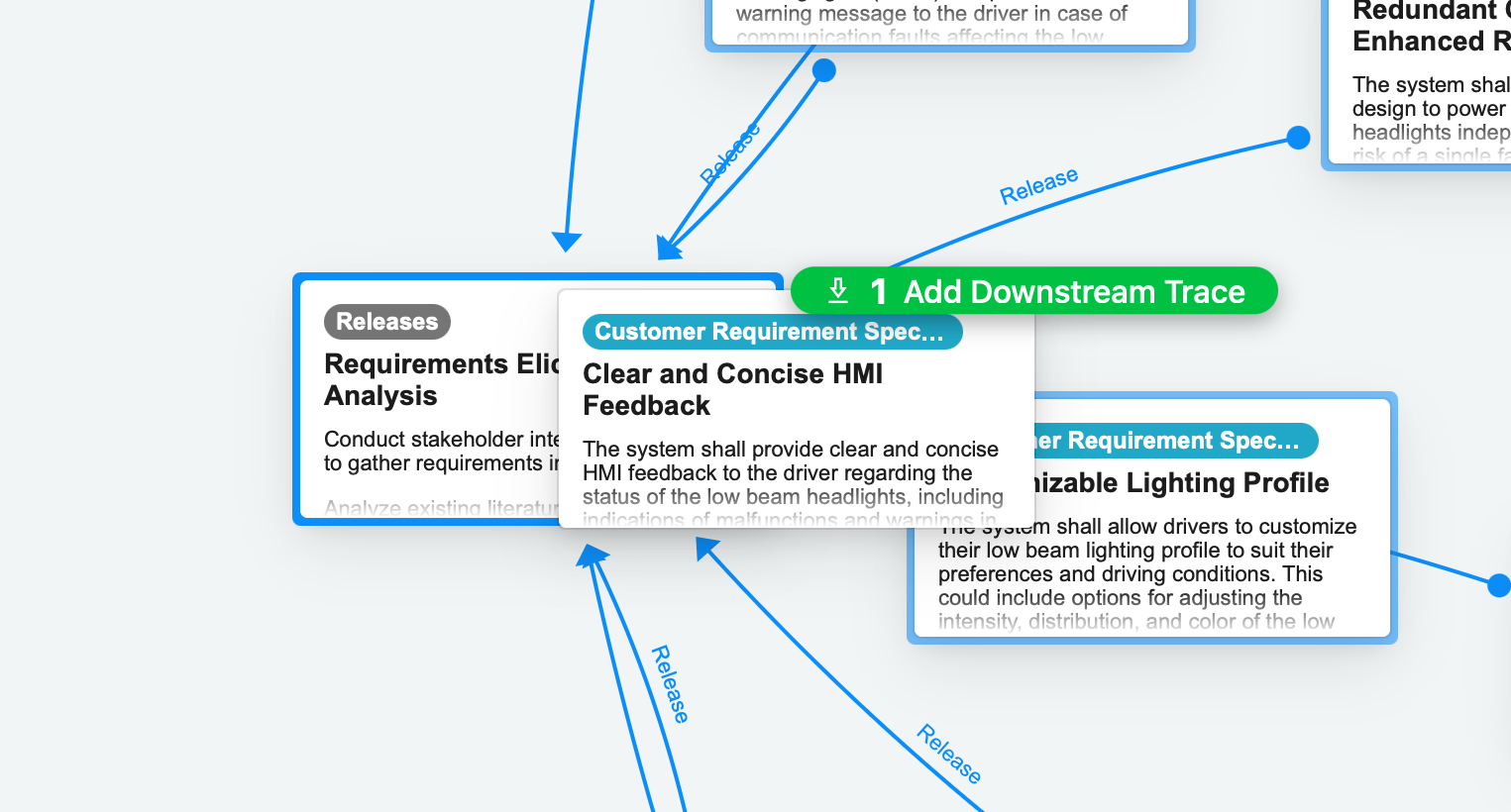
Drop the item on the right half of a resource to create a downstream trace, or on the left half to create an upstream trace.
Decomposition view #
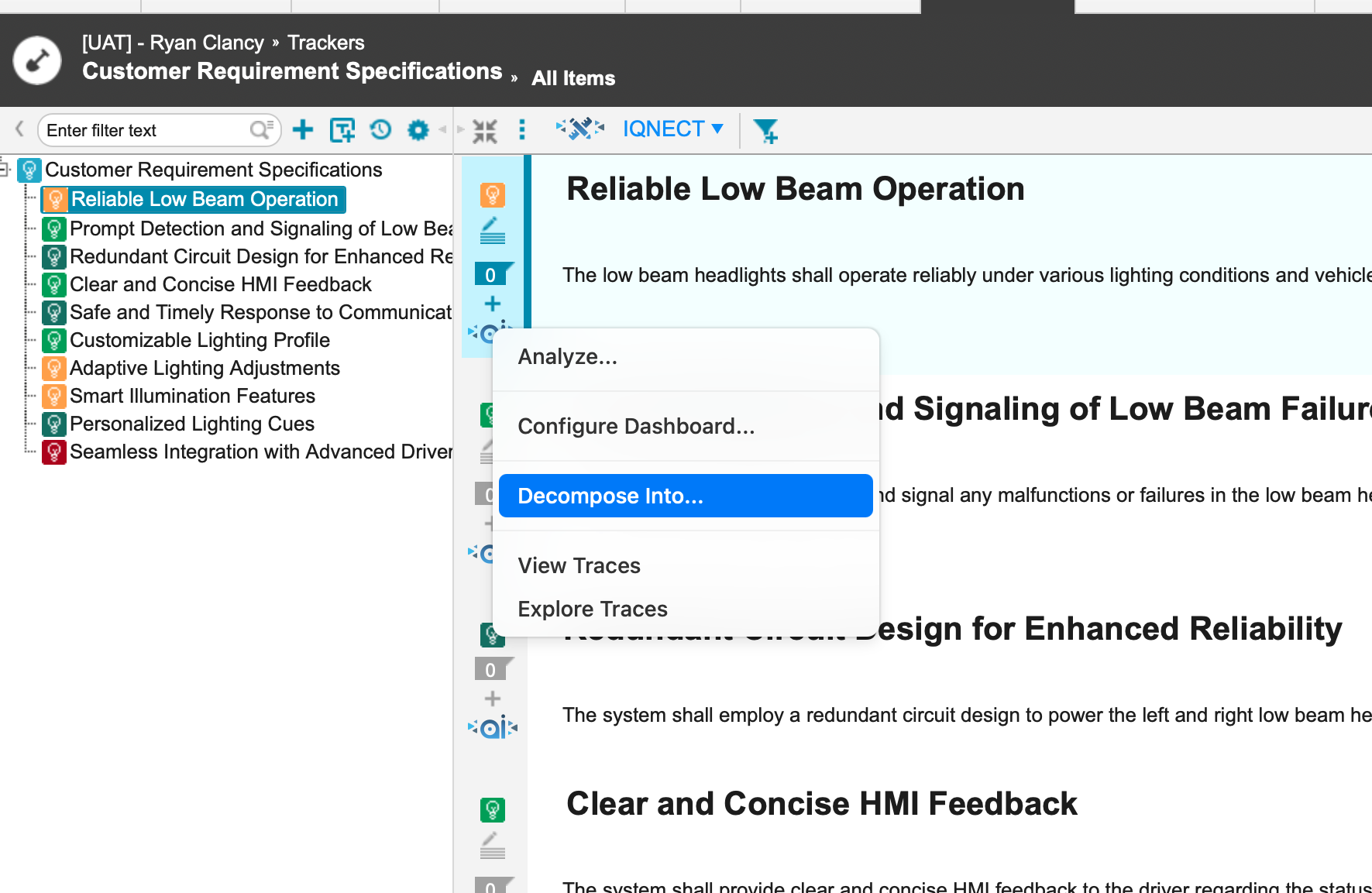
Select your desired item you want to decompose from the All Items view.
In the icon menu on the left-hand side of the item, select the Decompose icon.
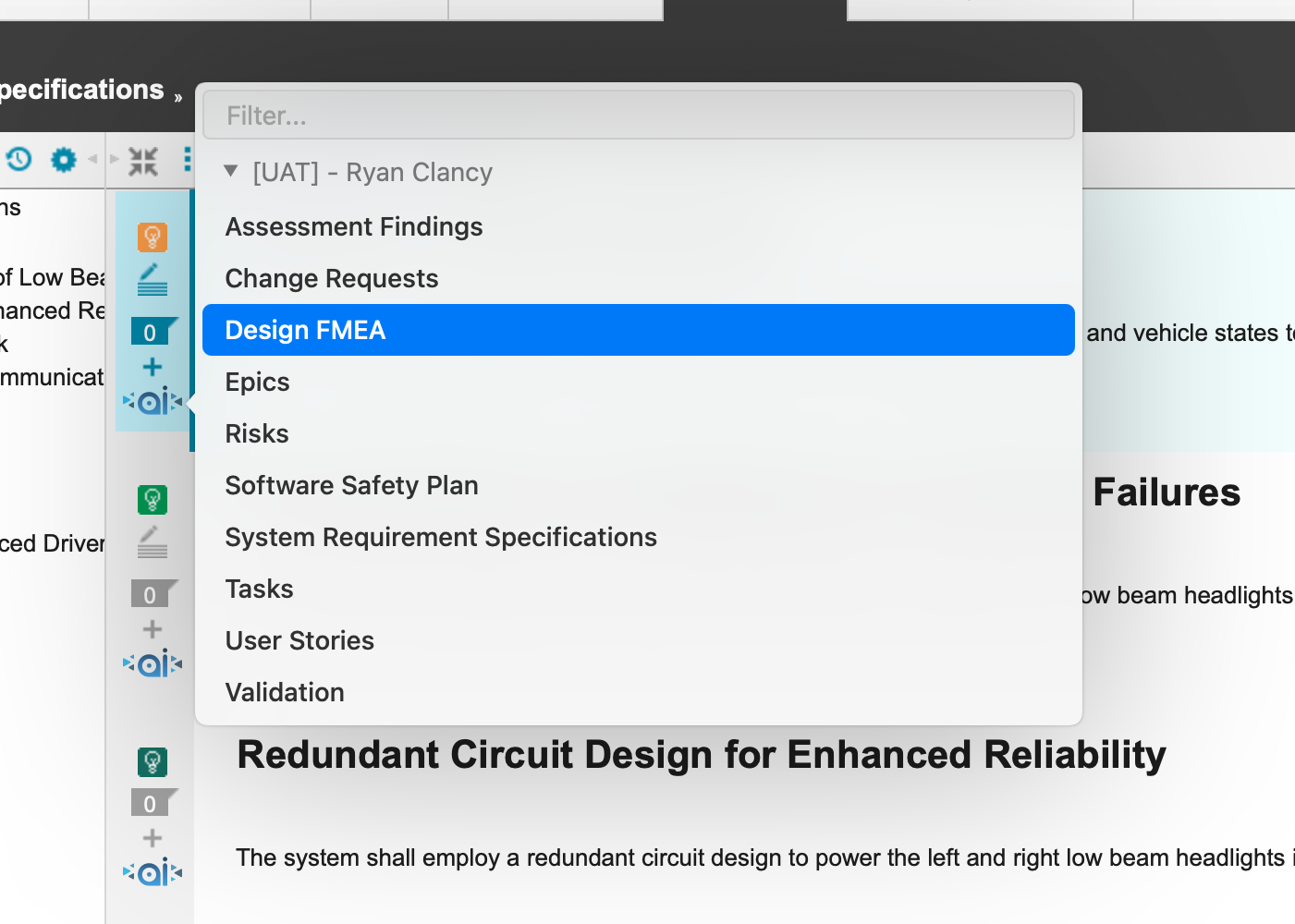
Click Decompose Into... to open a list of available trackers.
Choose the tracker you want to decompose the selected item into.
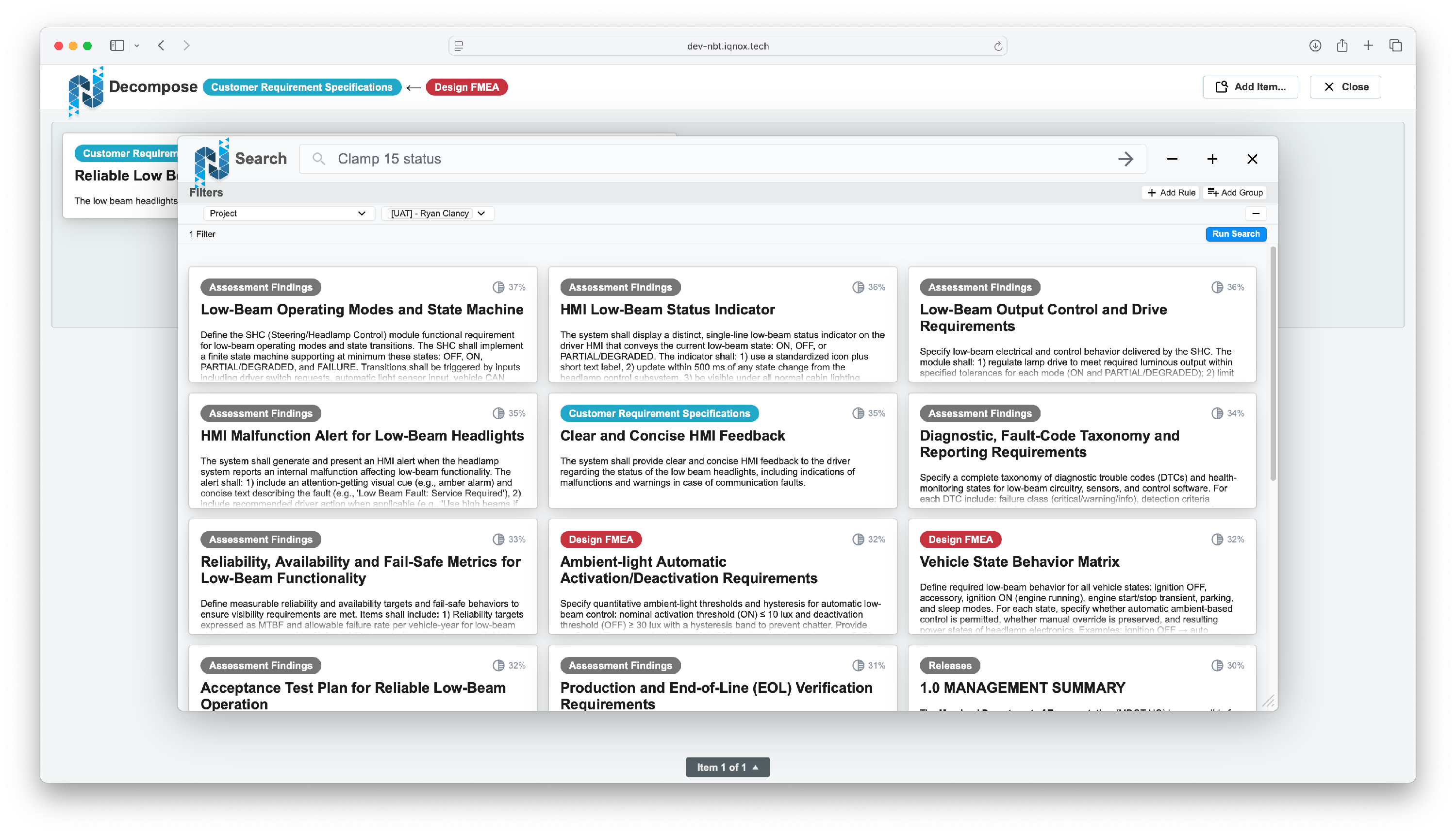
Run a Semantic or Advanced Search in the decomposition view to find related items.
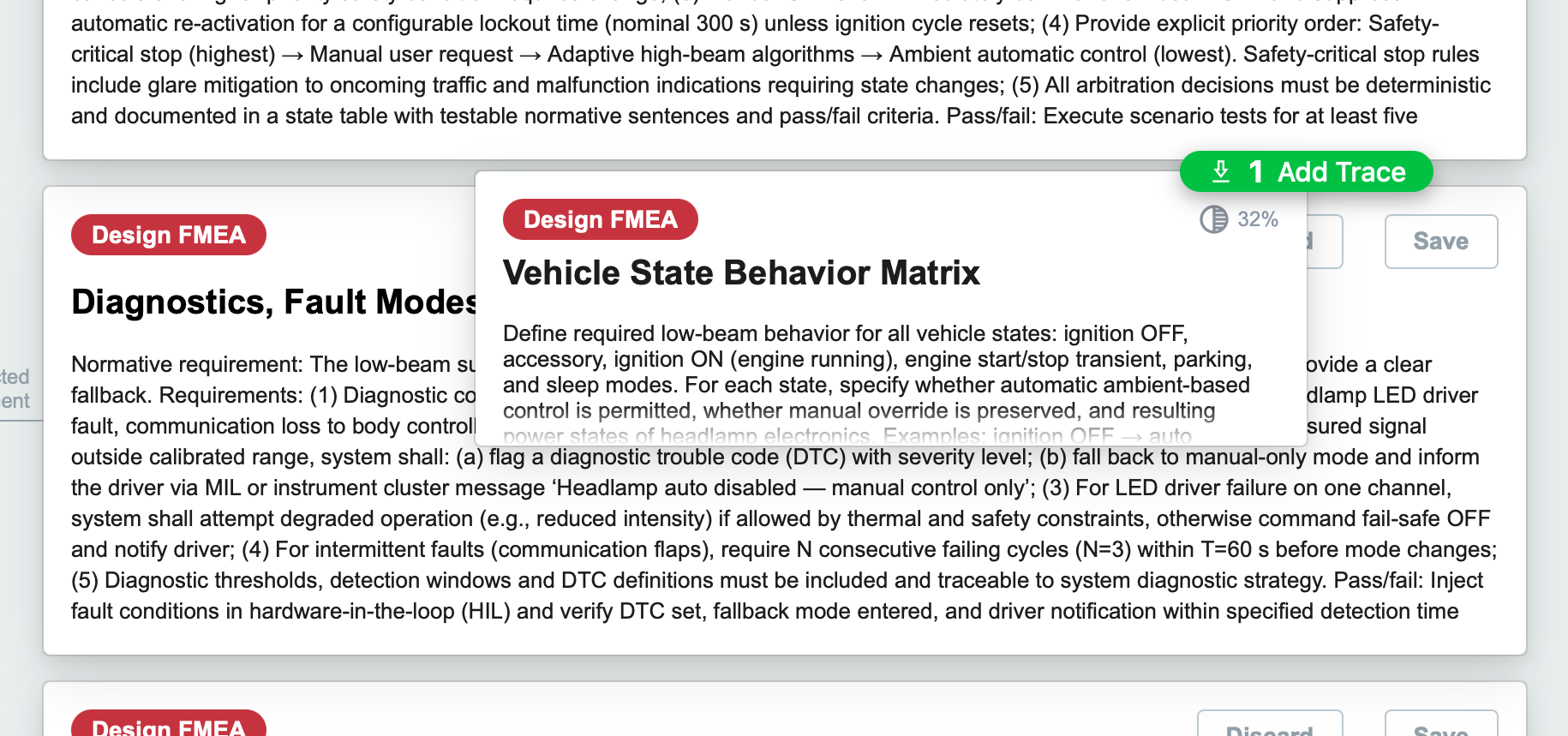
Drop items on the right half of the window to create downstream traces.
Remove traces #
In decomposition view #
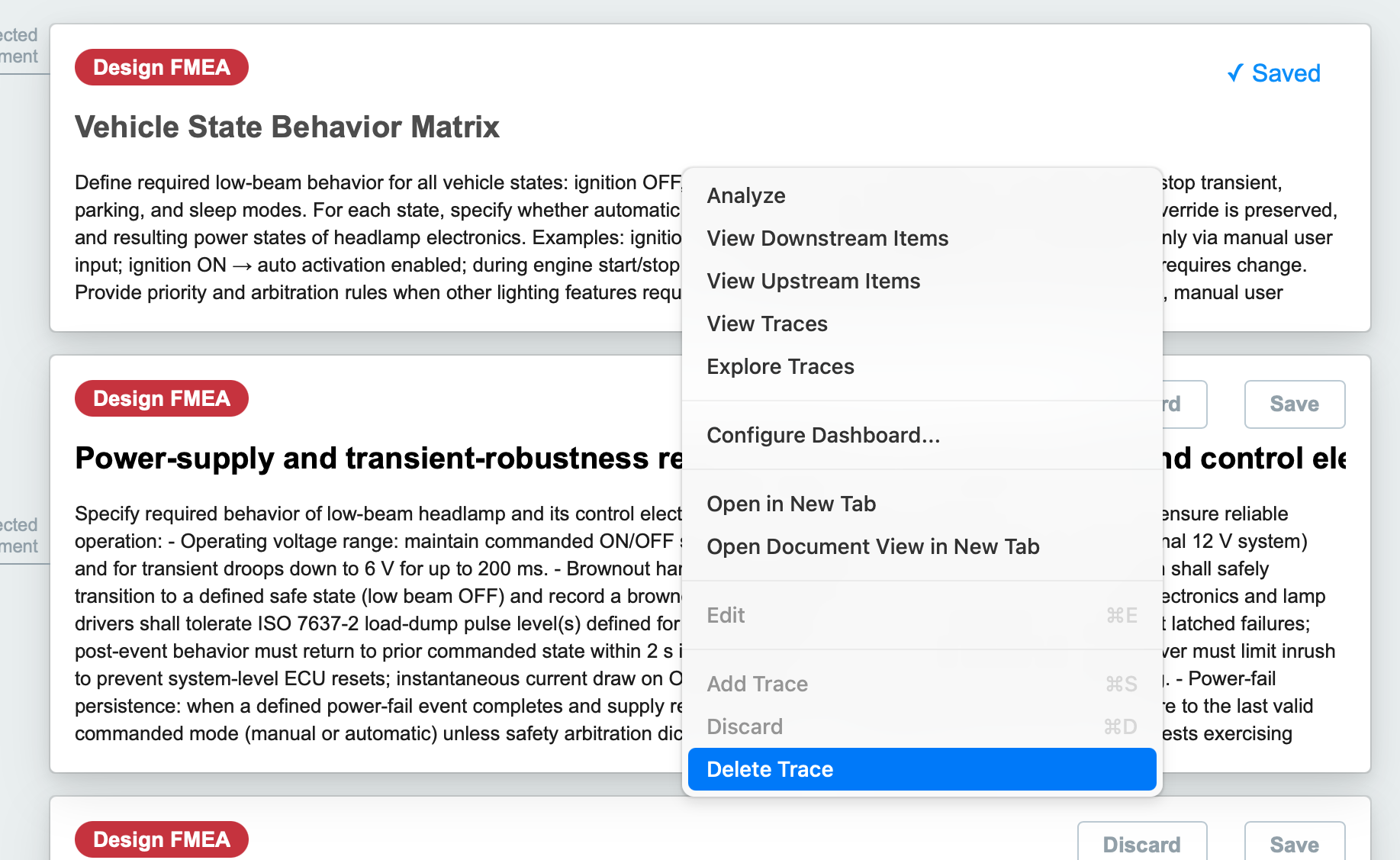
Right-click a saved resource and select Delete Trace to delete it.
In Enhanced Trace View #
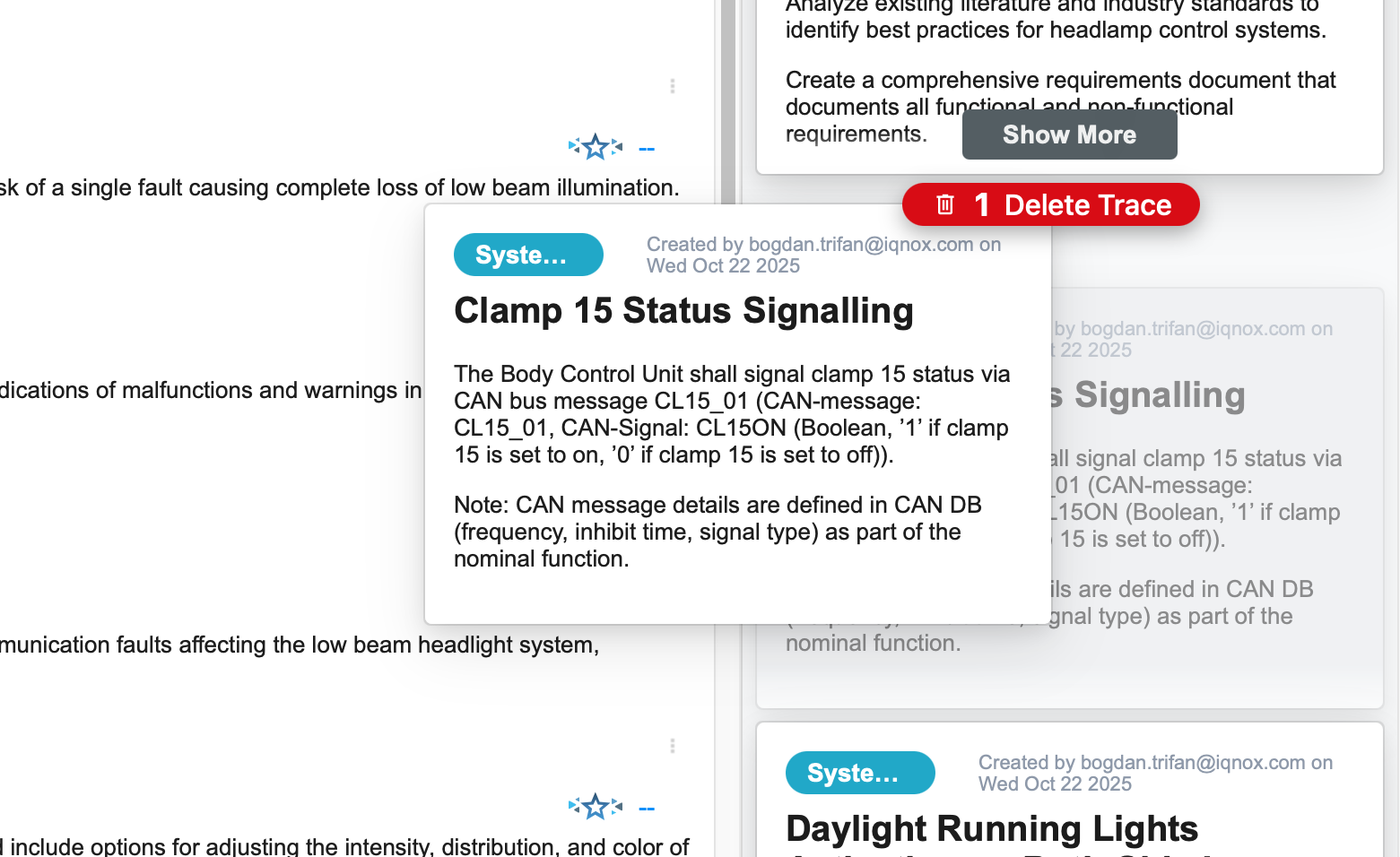
Hold Command (Mac) or Control (Windows) and drag the trace out of the sidebar to delete it.
In Trace Viewer #
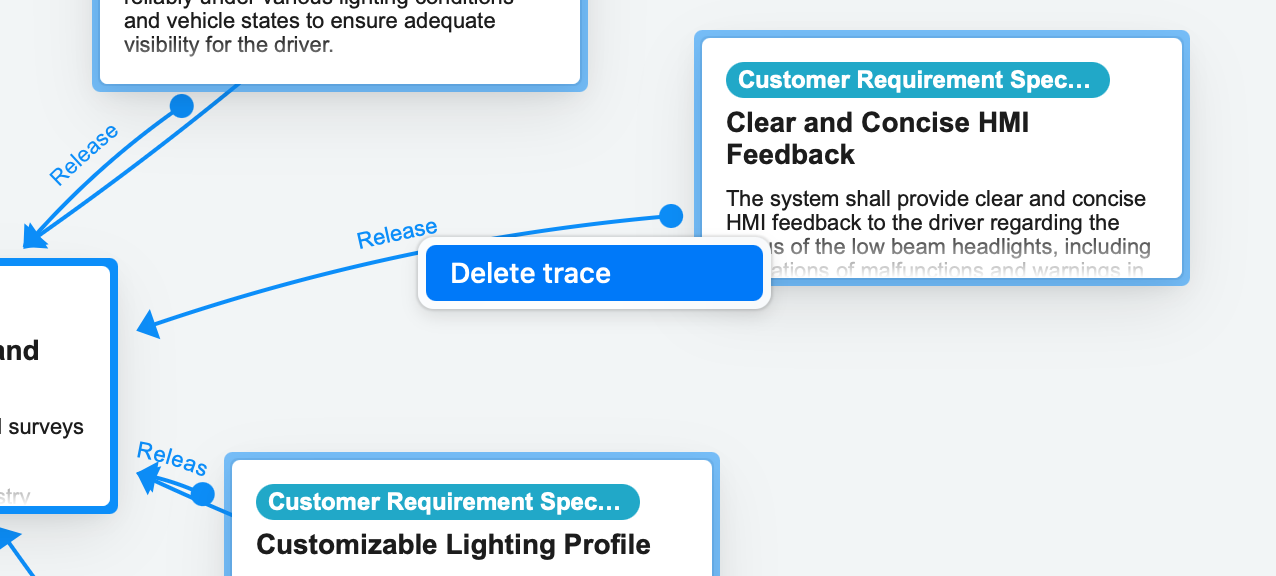
Right-click the trace line and choose Delete Trace . Deleted traces remain visible in Decomposition View and can be re-created later unless the linked resource is discarded.
Results and Next Steps #
You’ve successfully created and managed traces through drag-and-drop interactions across multiple IQNECT 1.5 views.
Use this workflow to quickly connect related tracker items, maintain accurate traceability, and cleanly remove or re-link traces as your project evolves.