
Overview #
In IQNECT 26.1, Admin Permission Control and Resource Shape Management provide administrators with stronger governance and clearer configuration tools across Codebeamer environments.
Permissions are now reflected directly in the User Interface, ensuring Users only see the IQNECT features they are authorized to access. Resource Shape improvements also provide better visibility into Mappings and allow administrators to reassign Shapes more efficiently.
This update helps organizations enforce role-based access, reduce configuration risk, and maintain cleaner project structures at scale.
Prerequisites #
- You have access to the IQNECT End-User Admin UI.
- You have administrative privileges for Tenant, User, and permission management.
- You are using IQNECT version 26.1 or later.
Manage feature-level permissions #
Follow these steps to configure permissions for IQNECT features in Codebeamer:
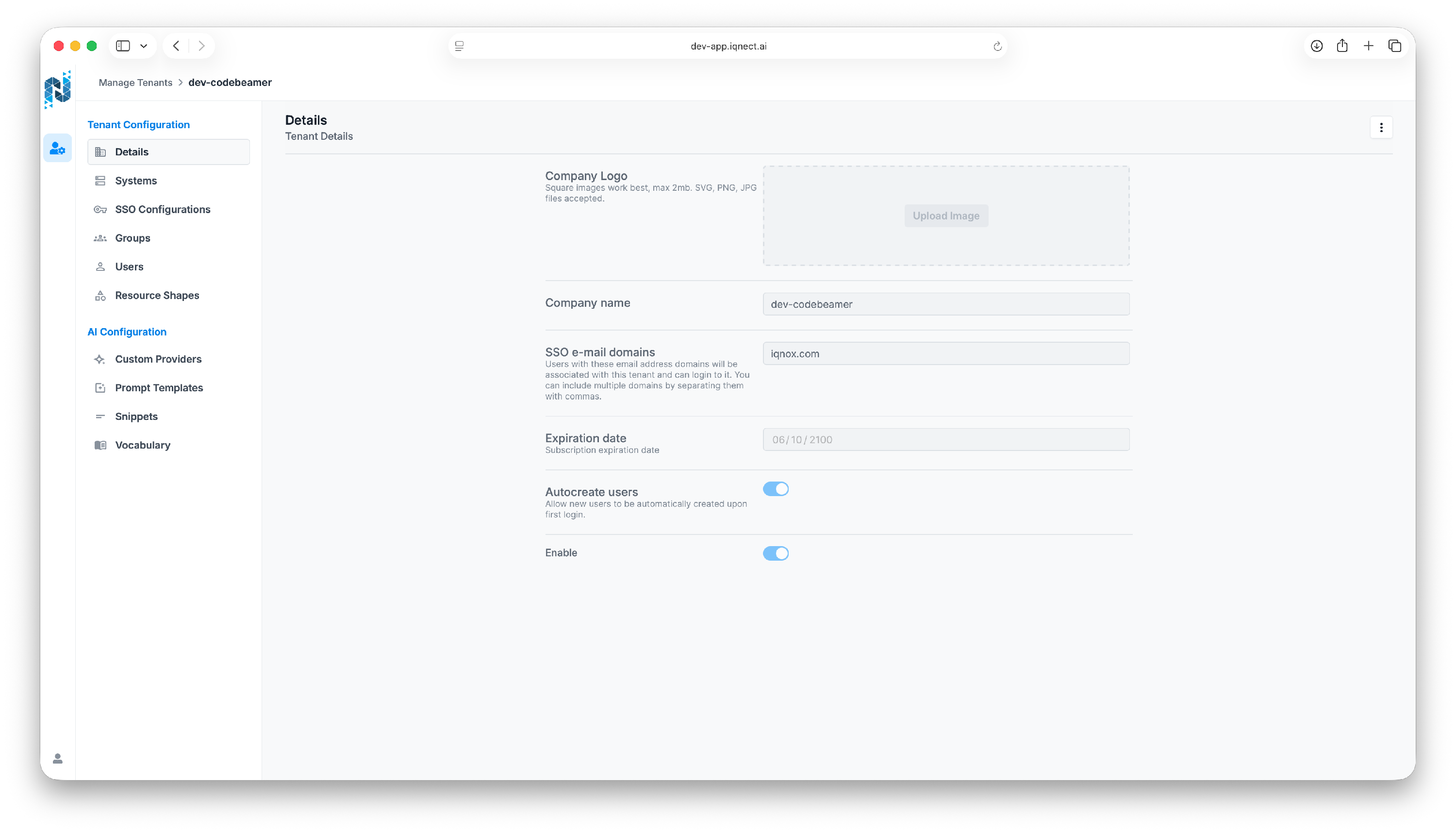
Open the End-User Admin UI #
This is the central location for managing Tenant, User, and system-level controls.
Navigate to Permissions #
You can access the permissions that each User has by going to the Users tab in the menu.
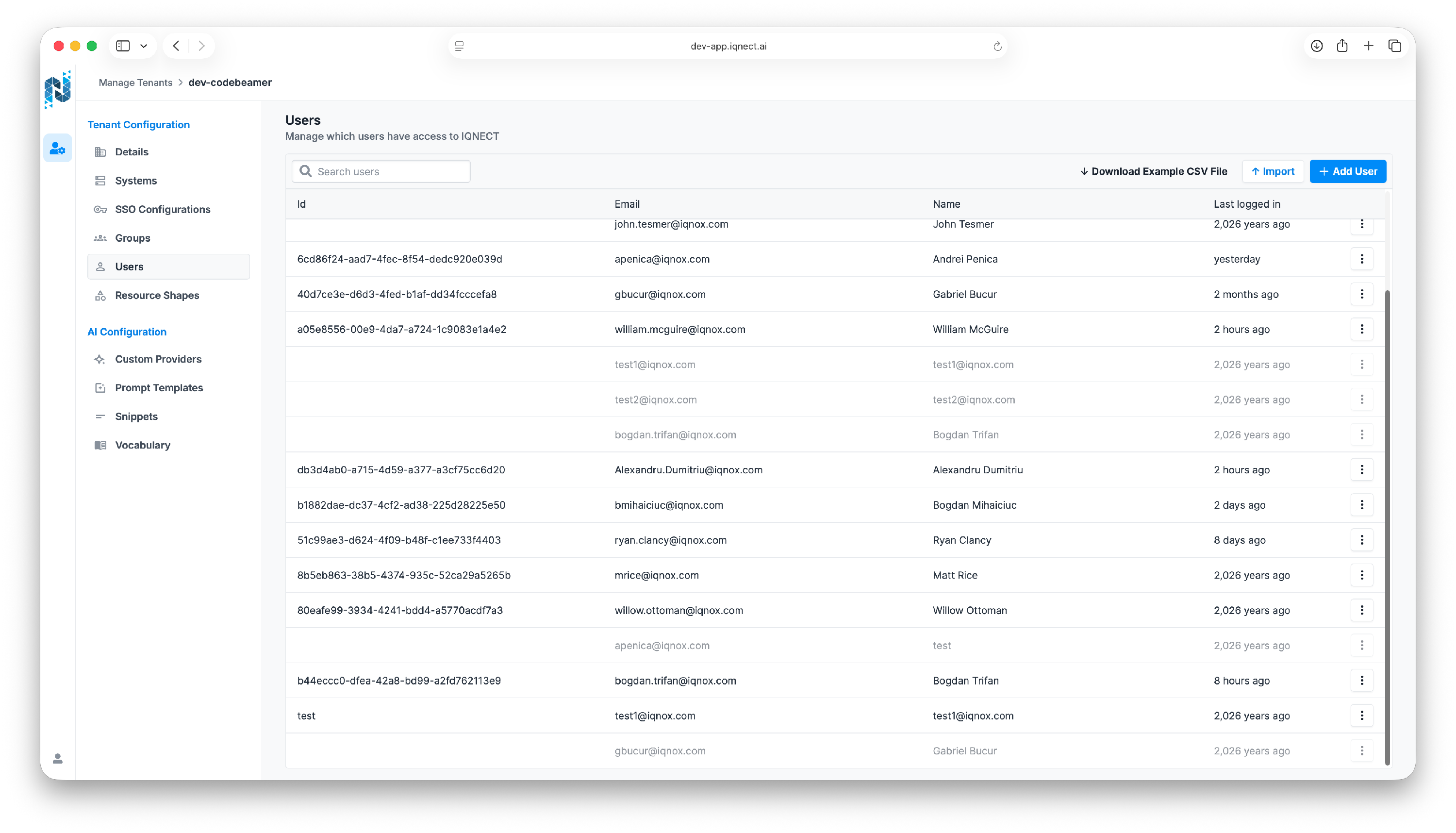
This view allows administrators to control User access to IQNECT features.
Select a User or Group #
Choose the User or Group that requires updated access.
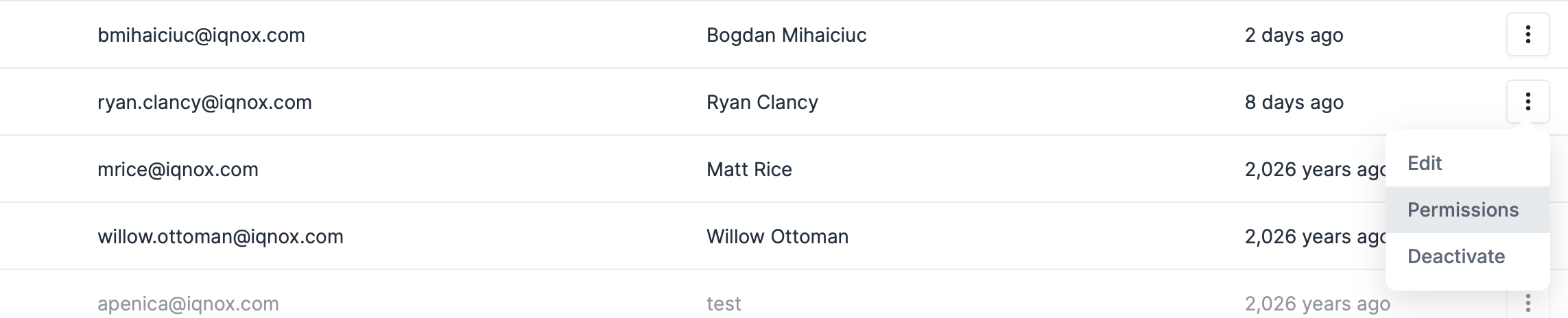
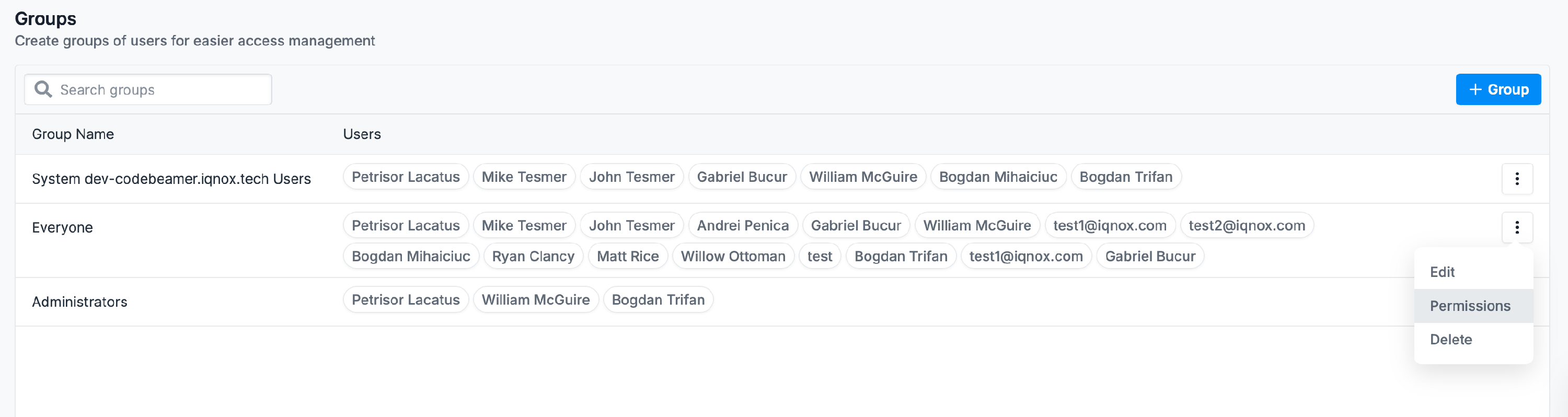
Permissions can be assigned at both levels:
- Individual Users for specific access needs
- Groups for scalable team-based governance
Direct permissions are assigned to Users (directly), and inherited permissions are granted when the User is part of a Group that is granted permissions.
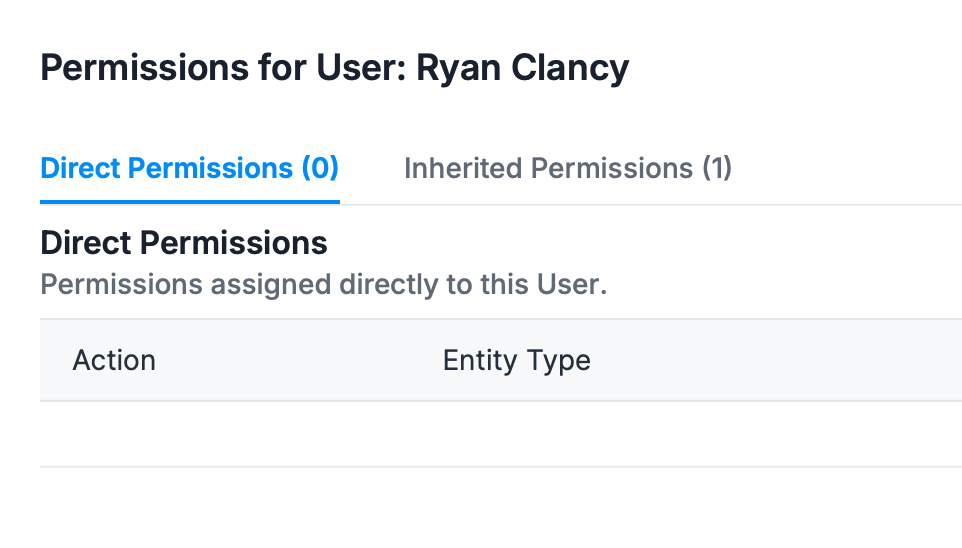
Assign feature permissions #
Select Create Permission to grant permissions.
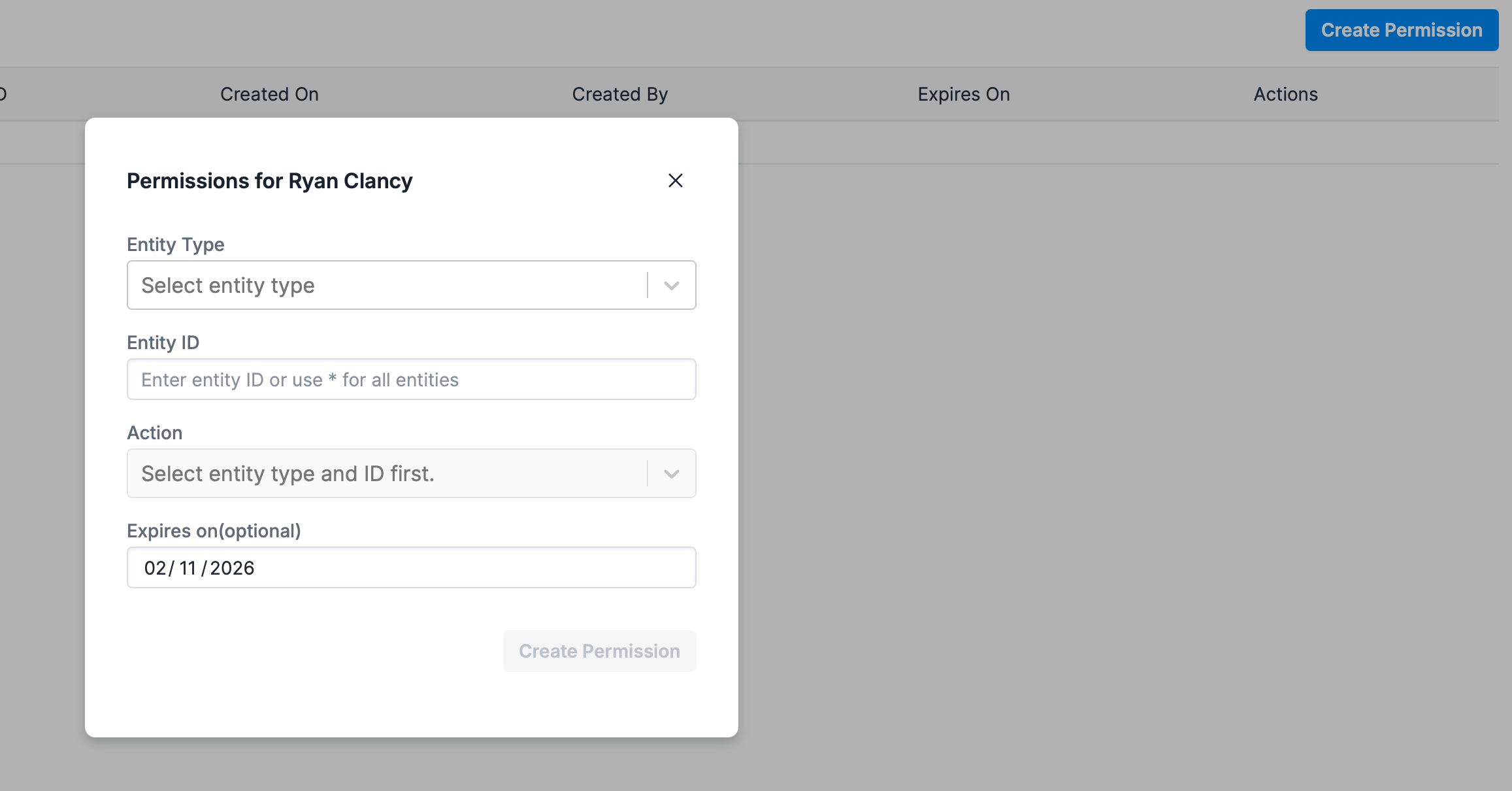
Permissions can control access to capabilities such as:
- Advanced Search
- Enhanced Trace View
- Document Importer
- Analyze actions
- Other IQNECT feature modules
Define the and Entity ID and Type #
Specify the Entity ID and Entity type associated with the permission.
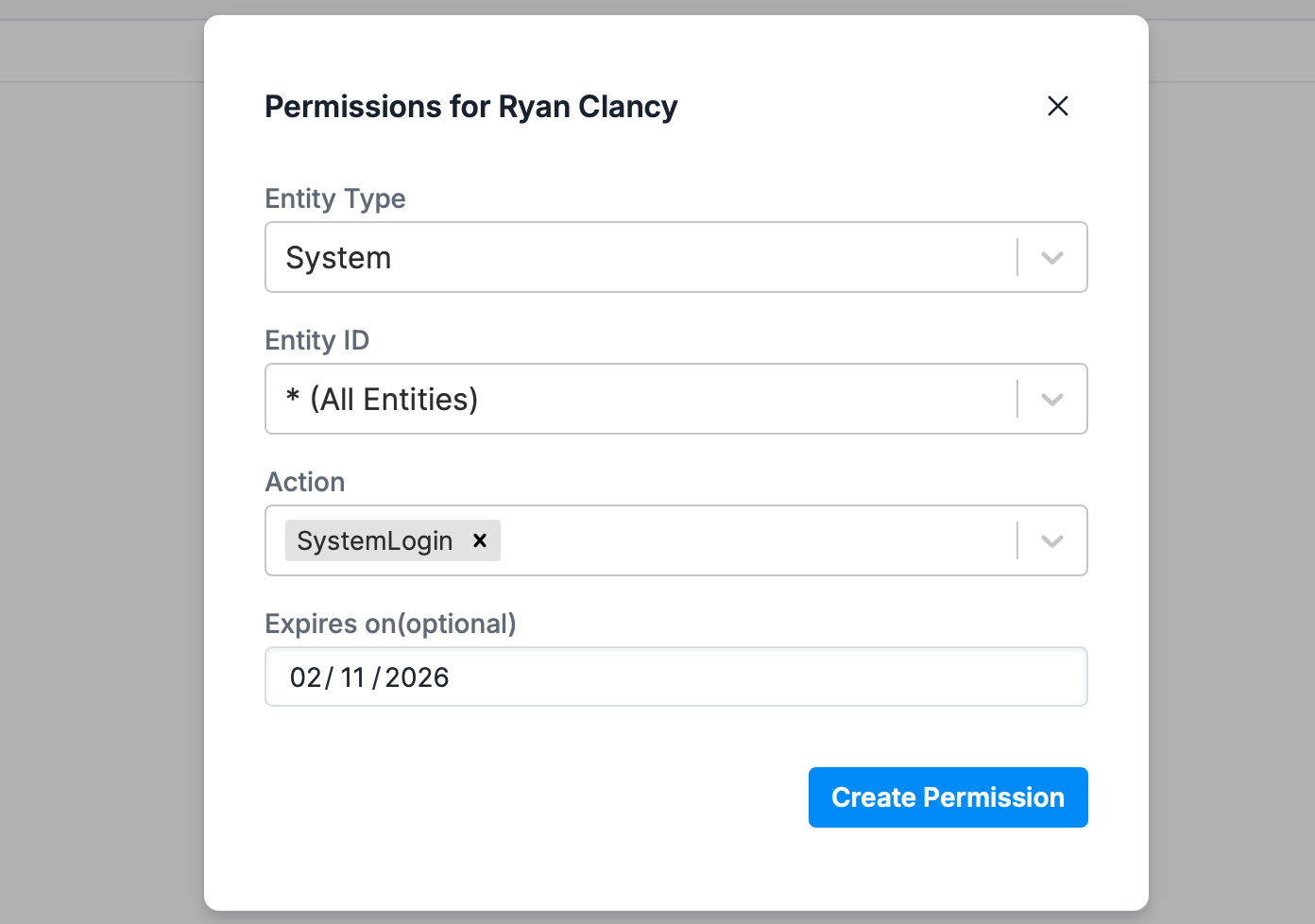
This ensures access is granted only within the correct environment and scope.
Save permission changes #
Click Create Permission to apply the permission update.

Once saved, the UI automatically adjusts based on the new permission settings.
Users only see the features they are authorized to access.

Manage Resource Shape Mappings #
IQNECT 26.1 also improves visibility and control over Resource Shape Mappings.
Resource Shapes define how structured resources are represented and linked across projects.
Open Resource Shapes #
In the End-User Admin UI Interface, navigate to the Resource Shapes tab.
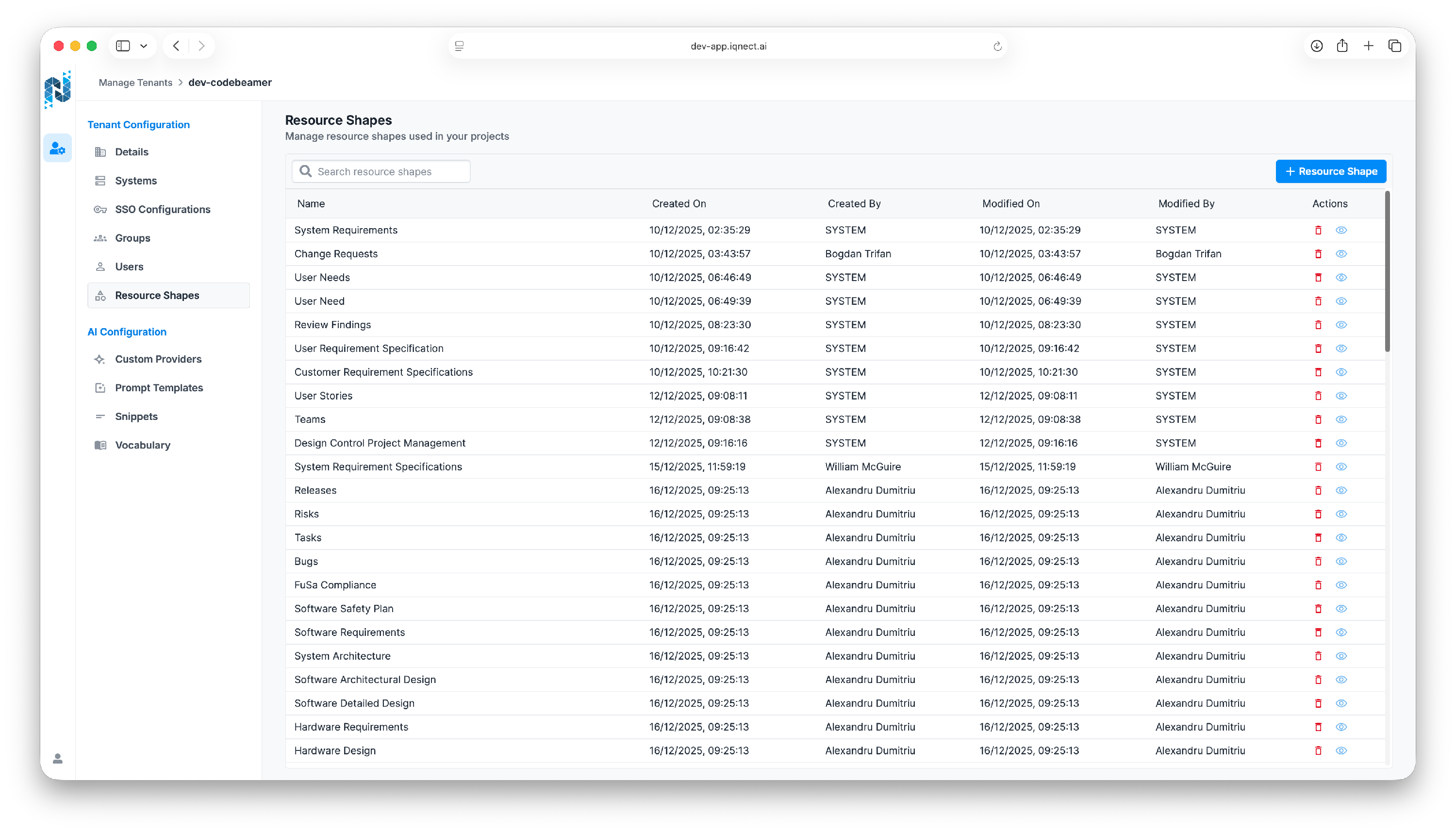
This view displays Resource Shape Mappings and associated project relationships.
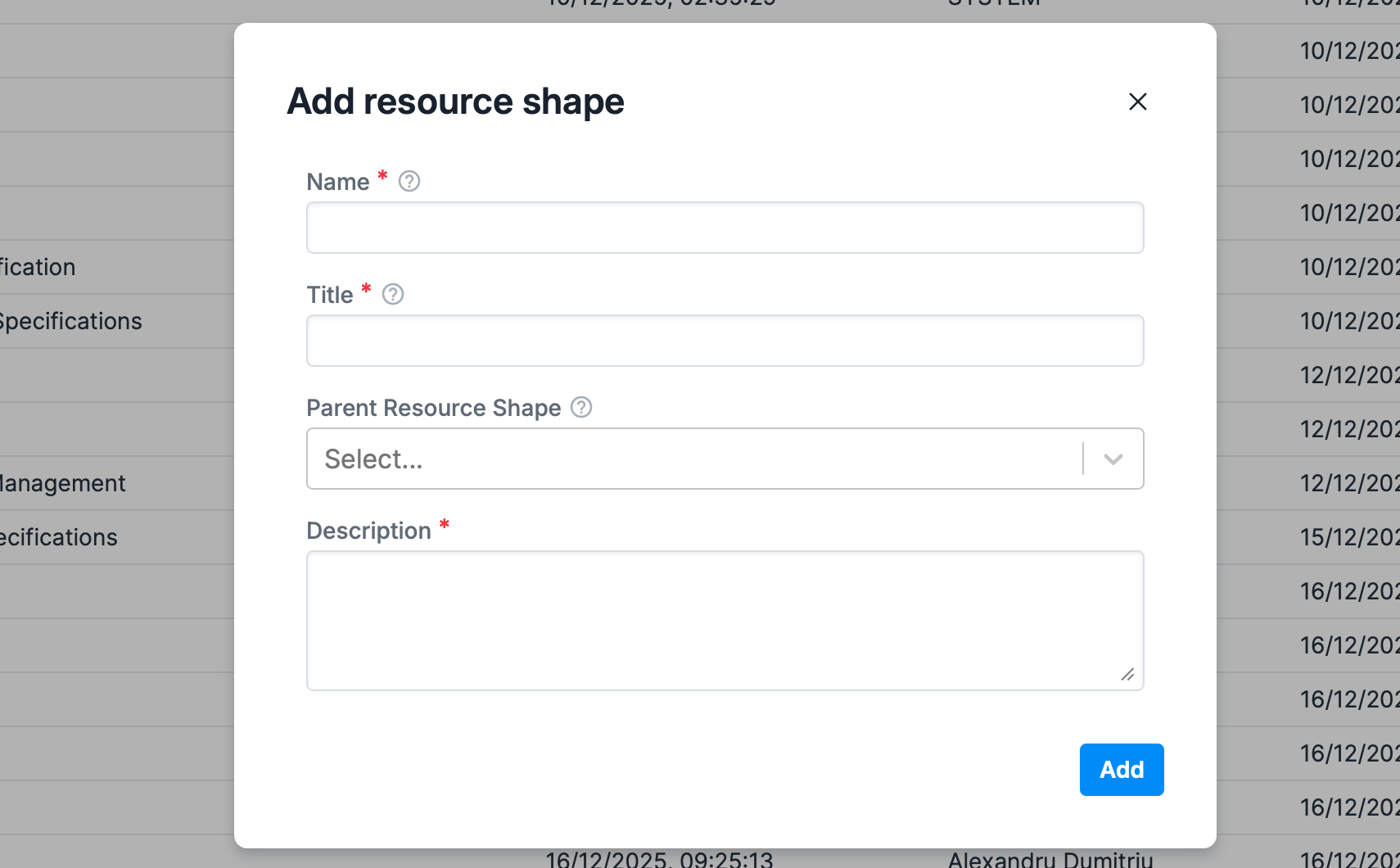
Create a new Resource Shape #
Hit + Resource Shape to create a new Resource Shape.
Review mapping visibility #
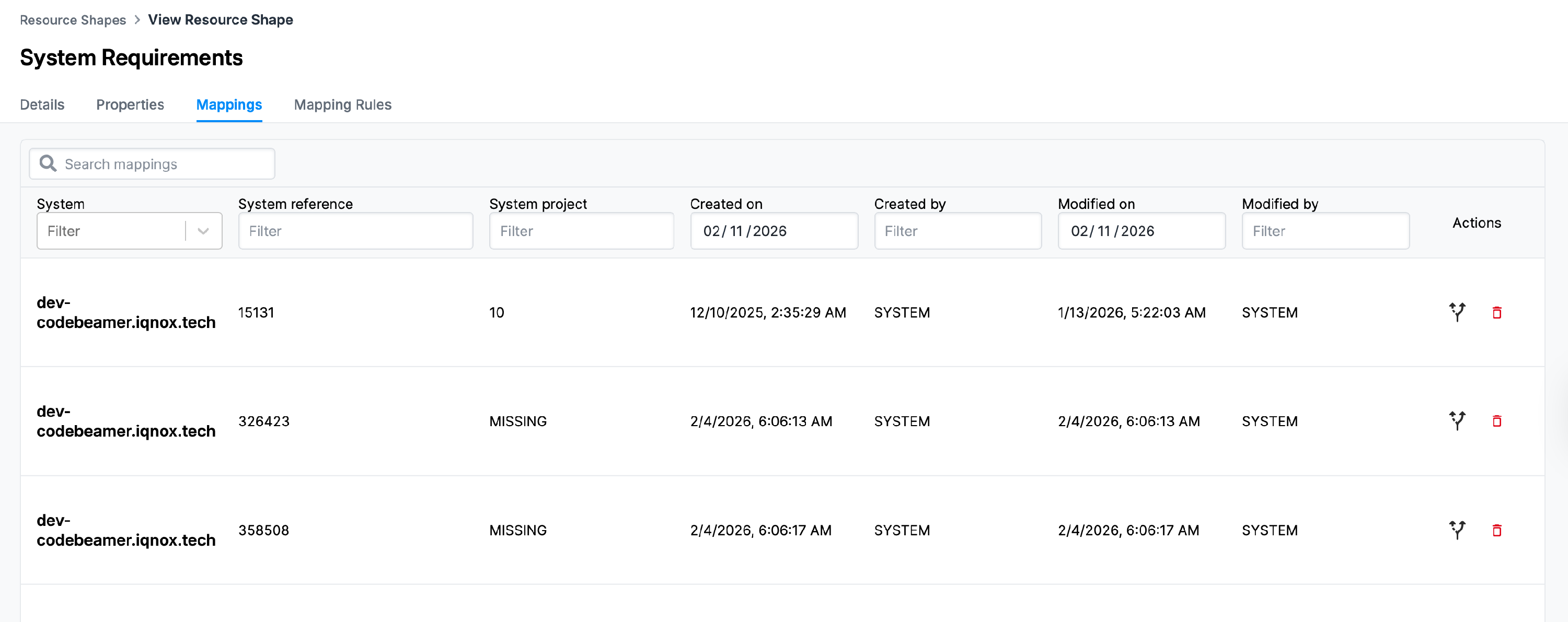
By clicking the eye icon on a Resource Shape, administrators can now see:
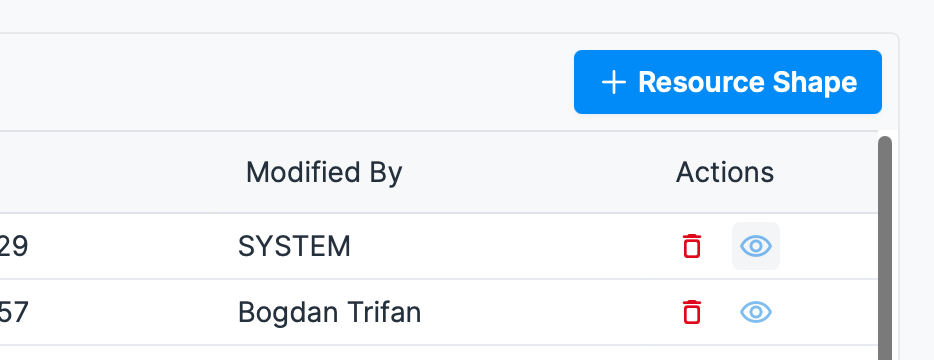
- Which Resource Shapes are mapped
- Which projects they apply to
- How Shapes are assigned across environments
Reassign a Resource Shape #
Select an existing Resource Shape Mapping, you can access the reassign menu by clicking the arrows icon.

Choose a new Resource Shape assignment to re-map the resource.
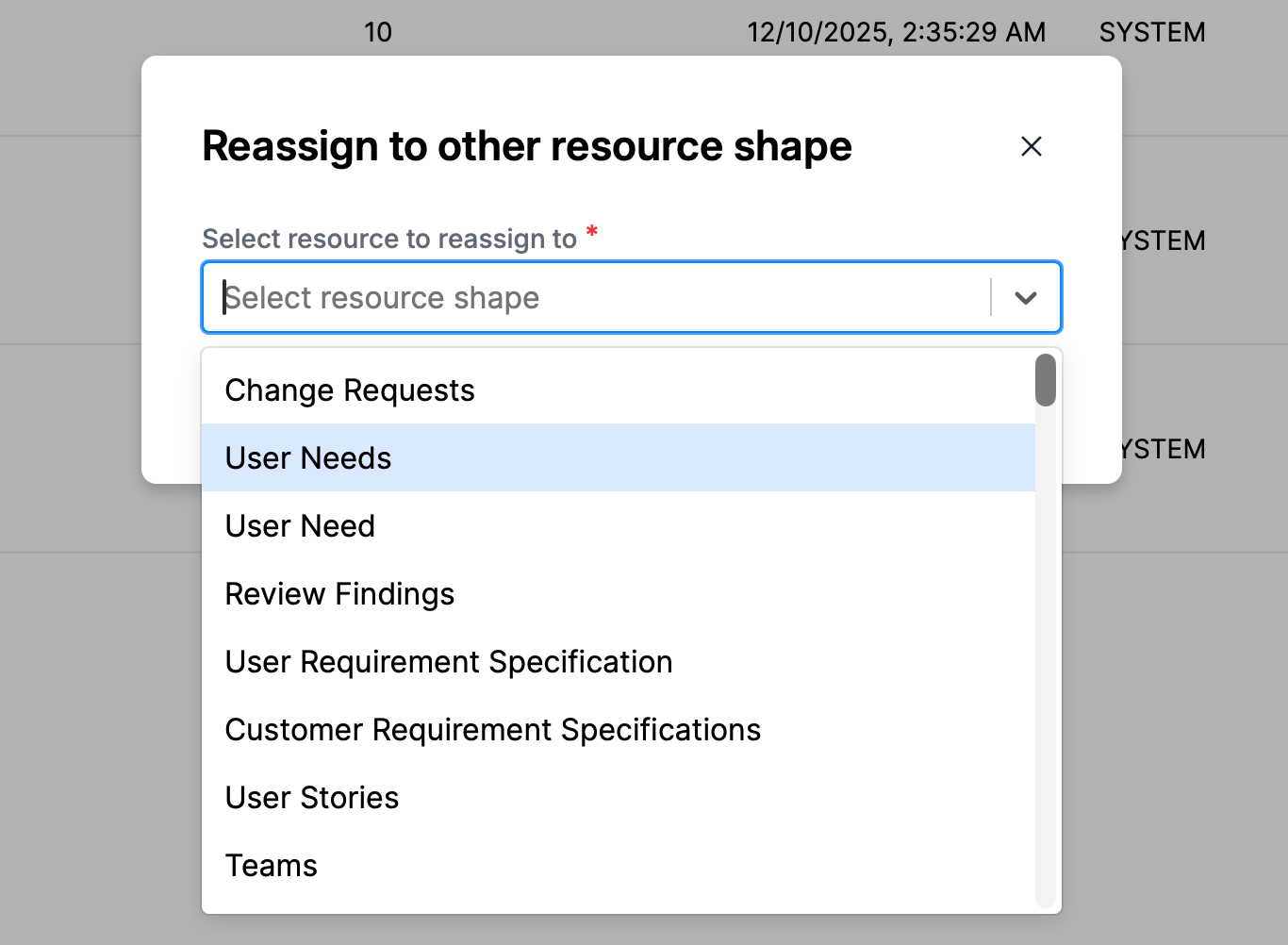
This allows administrators to update Mappings without disruptive manual reconfiguration.
Use filters to locate Mappings #
Filtering has been fixed and improved in IQNECT 26.1.

Use filters to quickly locate resource shapes in large environments.
Manage and add Resource Shape Mapping Rules #
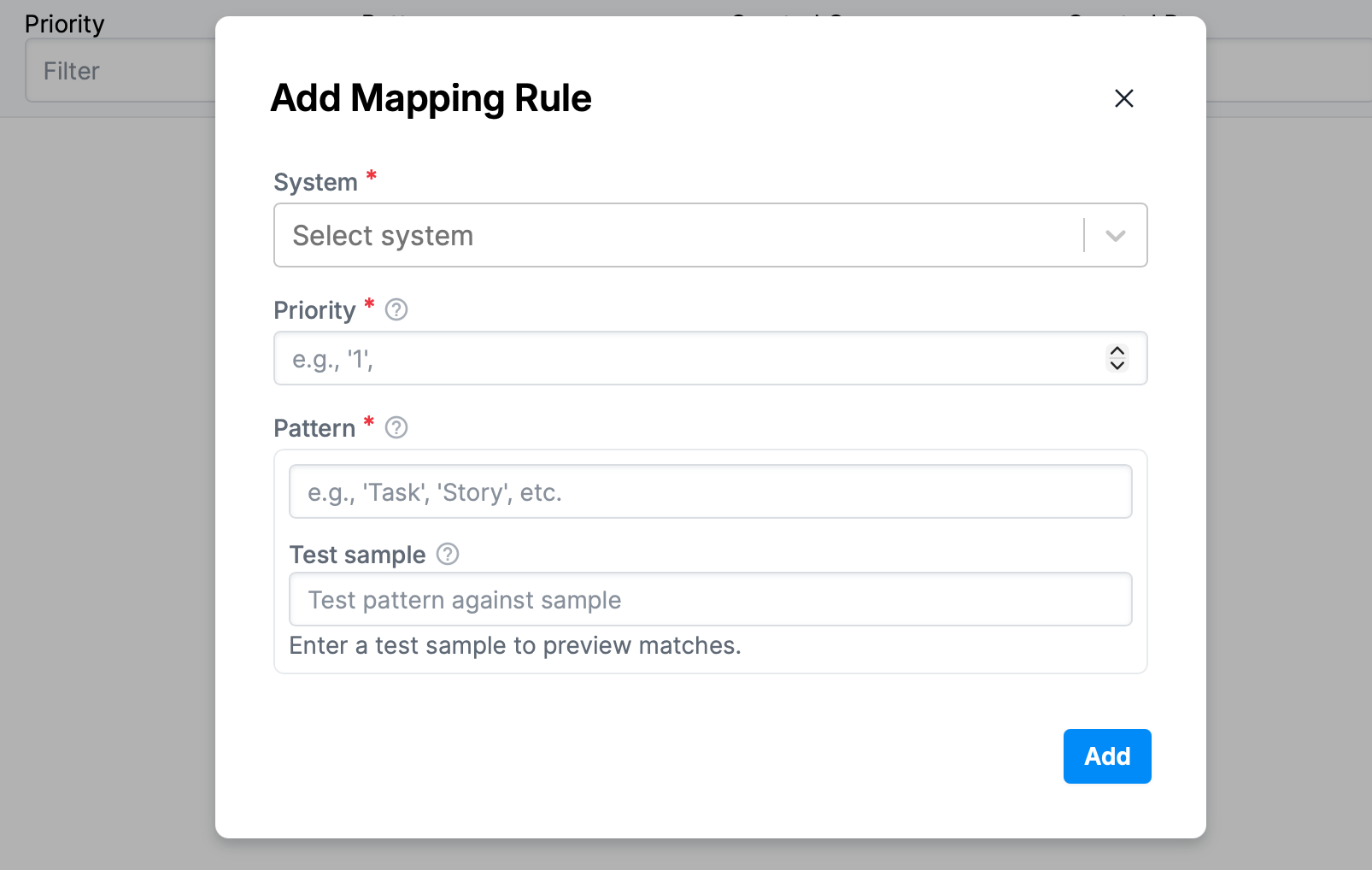
IQNECT 26.1 also supports managing Mapping Rules that control how Resource Shapes are assigned and interpreted across projects.

Mapping rules help administrators ensure that Resource Shapes remain consistent as environments evolve, especially when integrating new trackers, projects, or external resource definitions.
Results and Next Steps #
You’ve successfully configured feature-level permissions and reviewed Resource Shape Mappings through the IQNECT End-User Admin UI.
Use these workflows to enforce role-based access, improve governance, and maintain cleaner configuration across projects as your environment evolves.