
Overview #
This article explains how to analyze tracker items in IQNECT to assess clarity, completeness, consistency, and downstream coverage. Use the Analysis UI to review improvement suggestions, compare original and revised text, and understand scoring across key quality metrics.
Prerequisites #
- You have access to tracker items in document, issue, or table view.
- Your workspace includes an IQNECT analysis template configured by your organization.
Run an analysis on a tracker item #
IQNECT evaluates each requirement and provides a rating along with improvement suggestions.
Open the Analysis UI #
You can access analysis from multiple views:
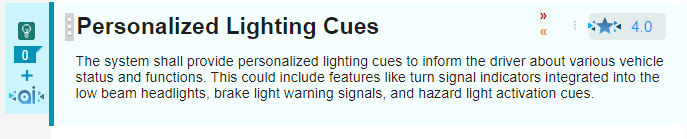
- Document view: Click the star icon in the top-right corner of a tracker item.
- Issue view: The star icon appears in the same position.
- Table view: The star icon appears next to the item title.
The star icon displays the item’s 5-star rating at a glance.
View analysis details #
-
Click the star icon.
The Analysis UI opens and displays:
- The original requirement text
- IQNECT’s suggested improvements
- A topic-based explanation of the rating
Topics included in the analysis #
Each topic includes its own reasoning and examples.
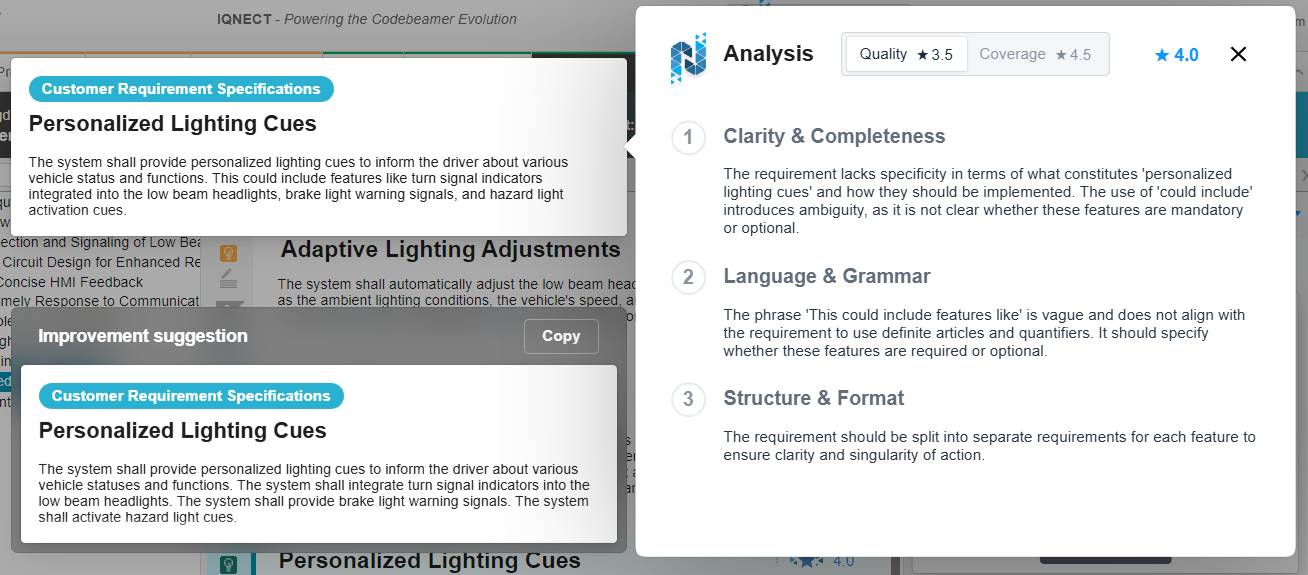
Quality #
Indicates how clearly the requirement is written, including completeness, clarity, and adherence to best practices.
Strong requirements are easy to understand and immediately actionable.
Example:
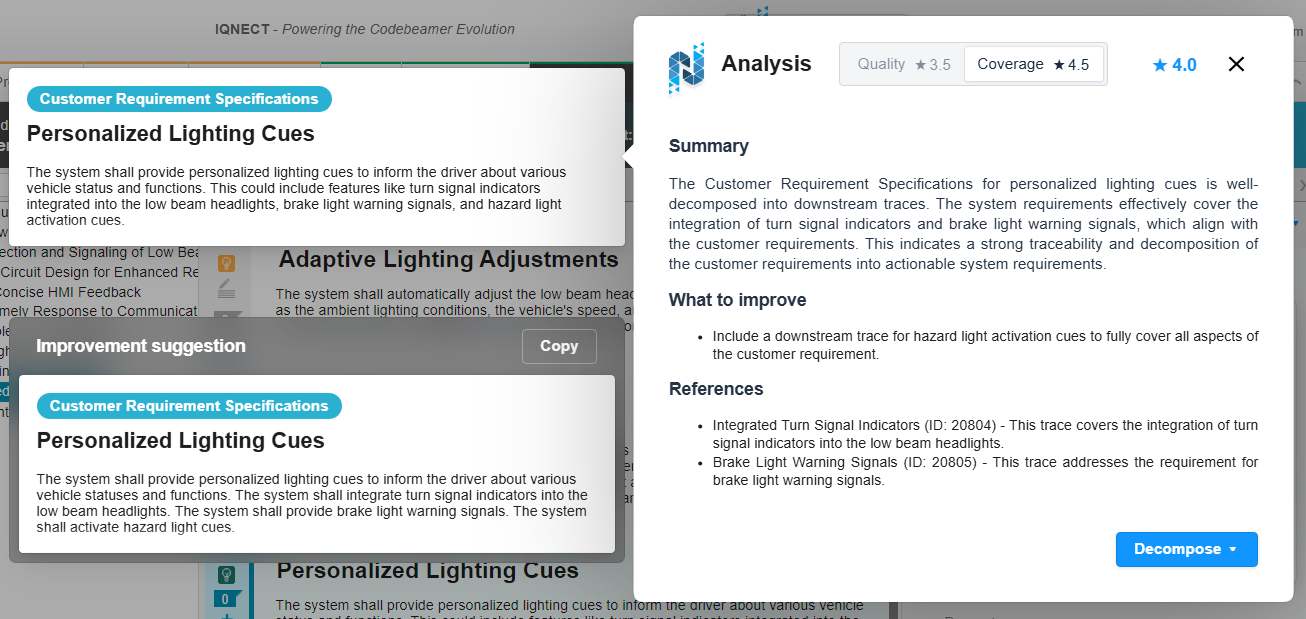
Coverage
Indicates how effectively the requirement is supported by downstream items.
High coverage means all aspects of the requirement are addressed by related items.
Example:
Switch to a detachable popover #
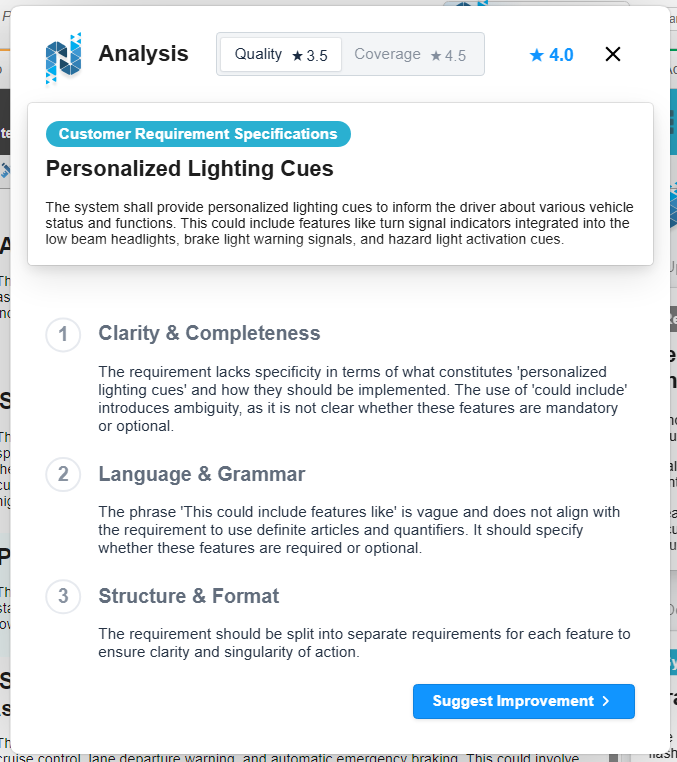
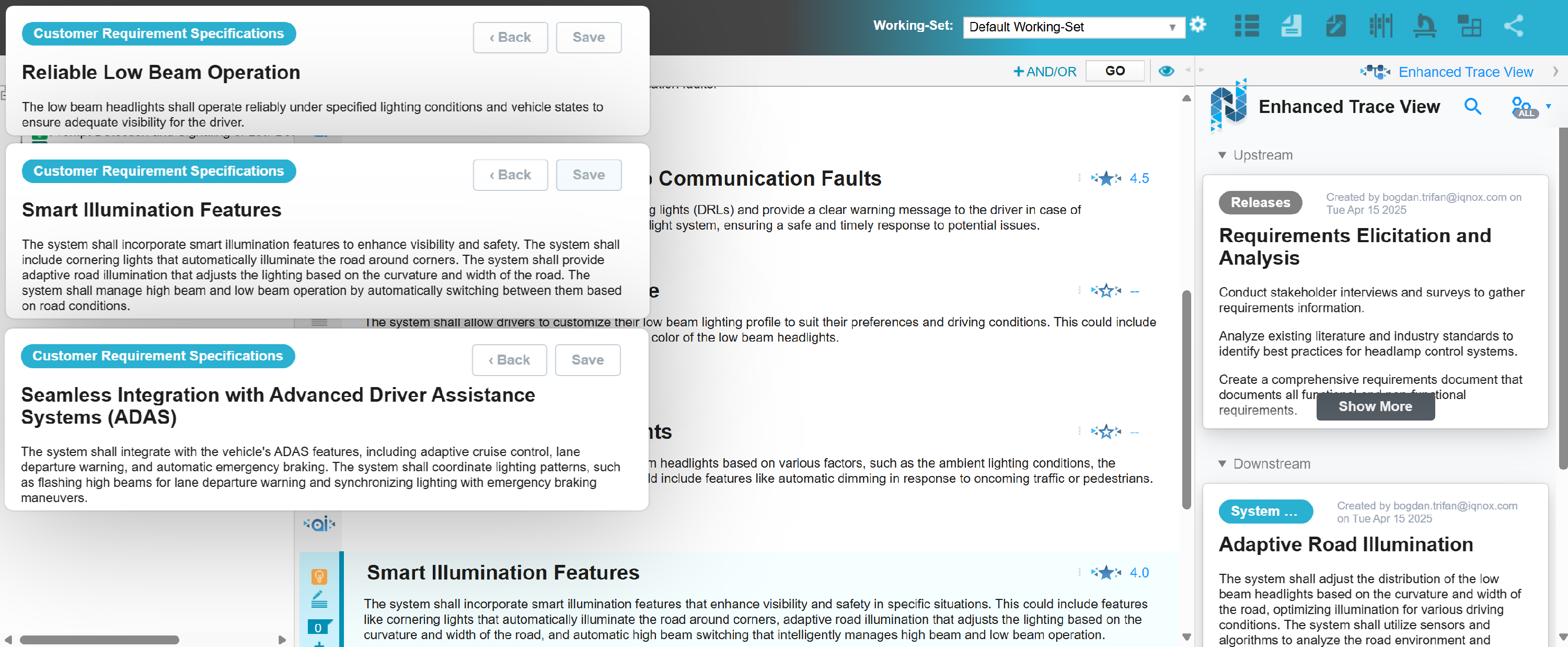
The Analysis UI can expand to full-screen or detach into a movable popover.
Use the popover mode #
- Detach the window using the available control.
- The full-screen UI closes, and the analysis moves into a floating popover.
- You can drag the popover anywhere on the screen.
Example:
Analyze multiple items at once #
- When detached, you can analyze additional items.
- Each Analysis popover remains independent, allowing you to review several items simultaneously.
Passing results #
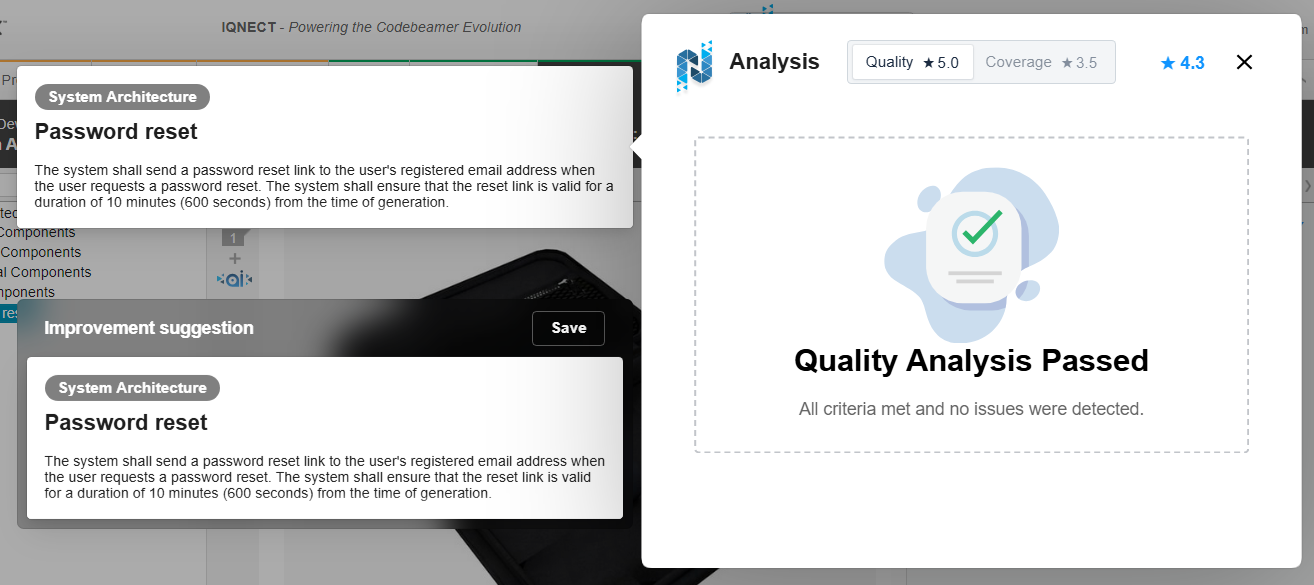
If the requirement fully meets quality or coverage criteria, IQNECT displays an information message indicating that no issues were detected.
Analyze all items in a tracker #
The Analyze All feature allows you to analyze every item in a tracker with one action.
Run Analyze All #
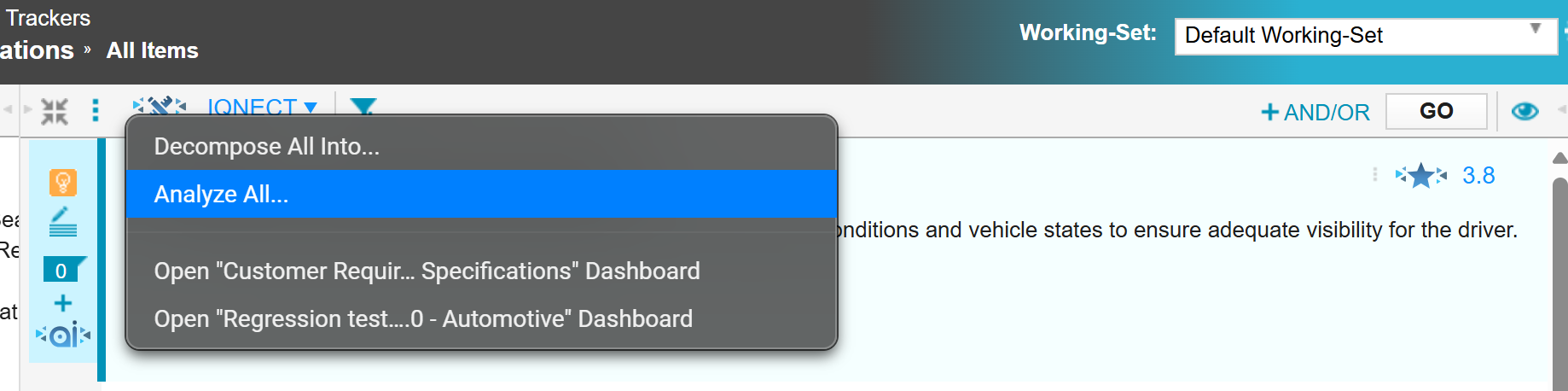
- Click the IQNECT button available from tracker toolbars.
- Select Analyze All.
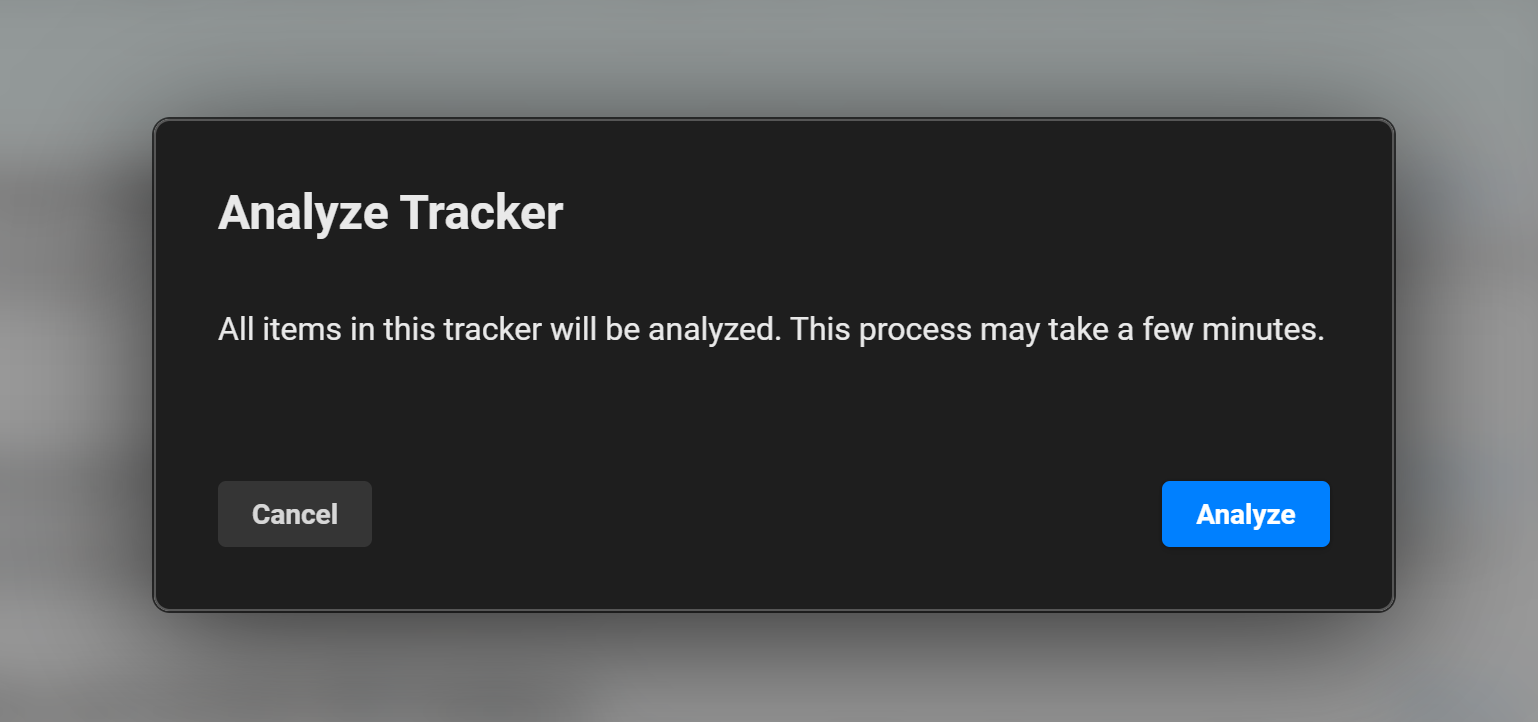
A confirmation message appears, explaining that:
- All items in the tracker will be analyzed
- The process may take time depending on the tracker size
Track progress #
After confirming:
-
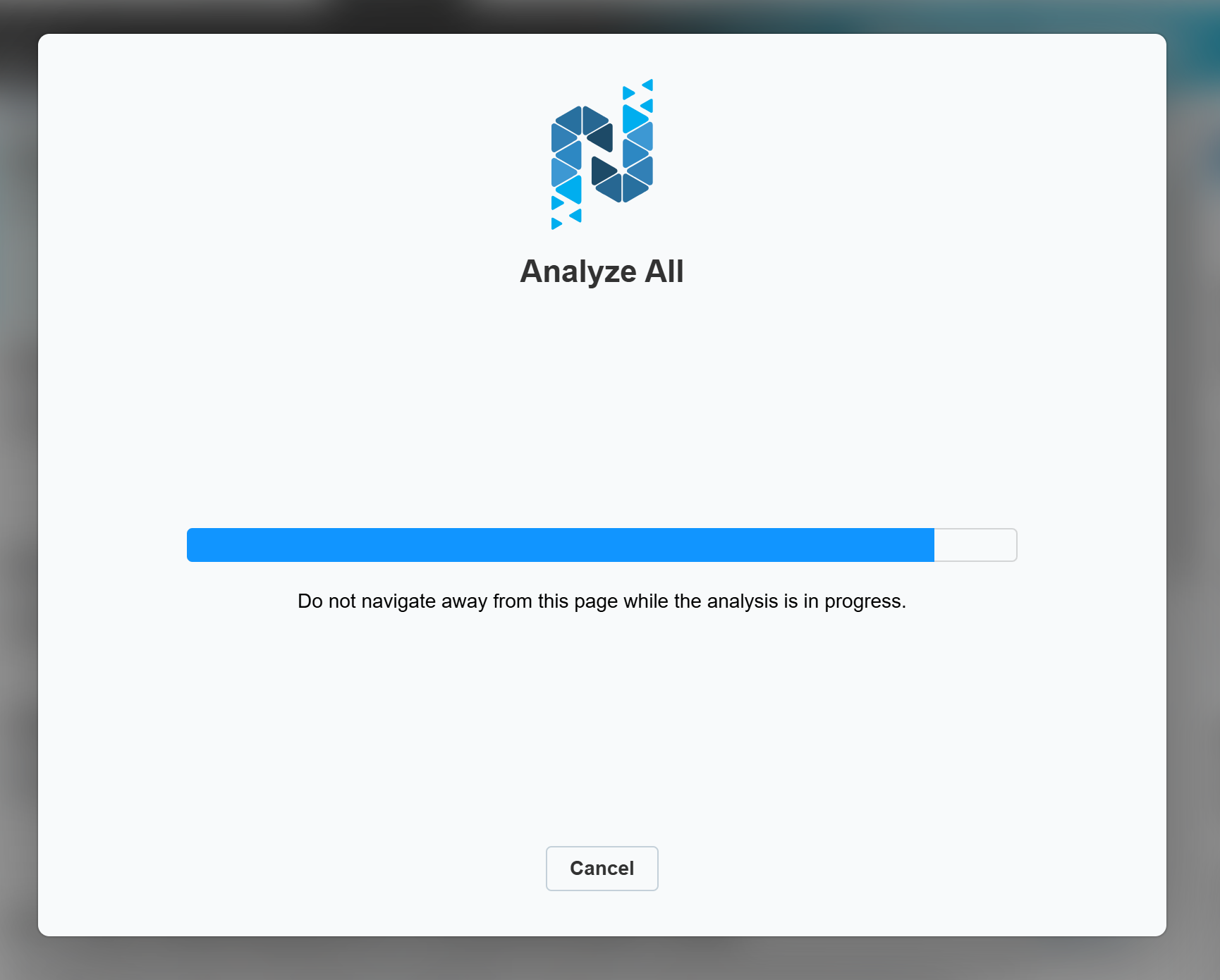
A progress window appears.
The window updates in real time as items are analyzed.
You can monitor:
- Total items processed
- Remaining items
- Overall progress
Understand quality metric scoring #
IQNECT uses your configured template to determine scoring. All scores range from 0.0 to 5.0, in 0.5 increments.
Default scoring categories #
Your organization may change these through template configuration, but IQNECT’s default categories include:
- Clarity & Completeness
- Language & Grammar
- Structure & Format
- Defined Terms & Units
- Consistency & Verifiability
Scores reflect how well each requirement meets the expectations defined in the template.
Note: Your categories, weights, and scoring thresholds may differ depending on your organization’s template settings. Any configuration updates directly affect how scores are calculated.