
Overview #
This article explains how to use IQNECT’s Autocomplete feature to speed up requirement writing and improve the clarity, tone, and quality of your text. Autocomplete is available in most requirement editors within IQNECT.
Using Autocomplete #
To help you write requirements faster, IQNECT offers an Autocomplete feature available in most requirement editors. Look for the magic wand icon in the editor toolbar to access it. Clicking this icon opens a menu with multiple options:
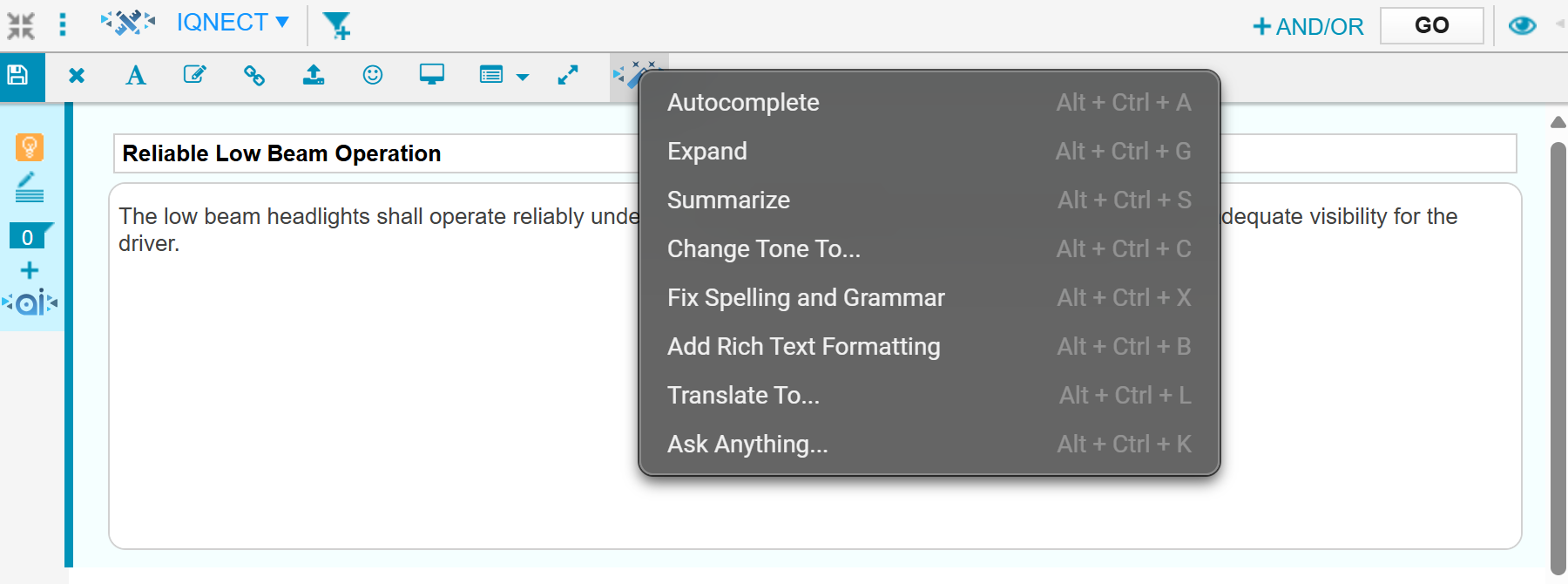
- Autocomplete:
- Adds more details to the existing sentence, while the original wording is retained at the beginning with the rest being contextually generated.
- Expand:
- The original sentence is replaced with a rephrased version and the meaning is preserved, but the sentence structure will be noticeably different.
- Summarize:
- Capability to produce a summary version of the text.
- Change Tone To:
- The text field supports autocomplete suggestions for known tones but still allows custom input.
- Fix Spelling and Grammar:
- Refactoring that corrects spelling and grammar.
- Add Rich Text Formatting:
- Adds formatting.
- Note: This option is disabled and appears grayed out when editing plain text.
- Translate To:
- The text field supports autocomplete suggestions for known languages while allowing free text.
- Ask Anything:
- A placeholder is included in the text field with a sample request for guidance.
You can also use keyboard shortcuts listed in the menu for quick access.
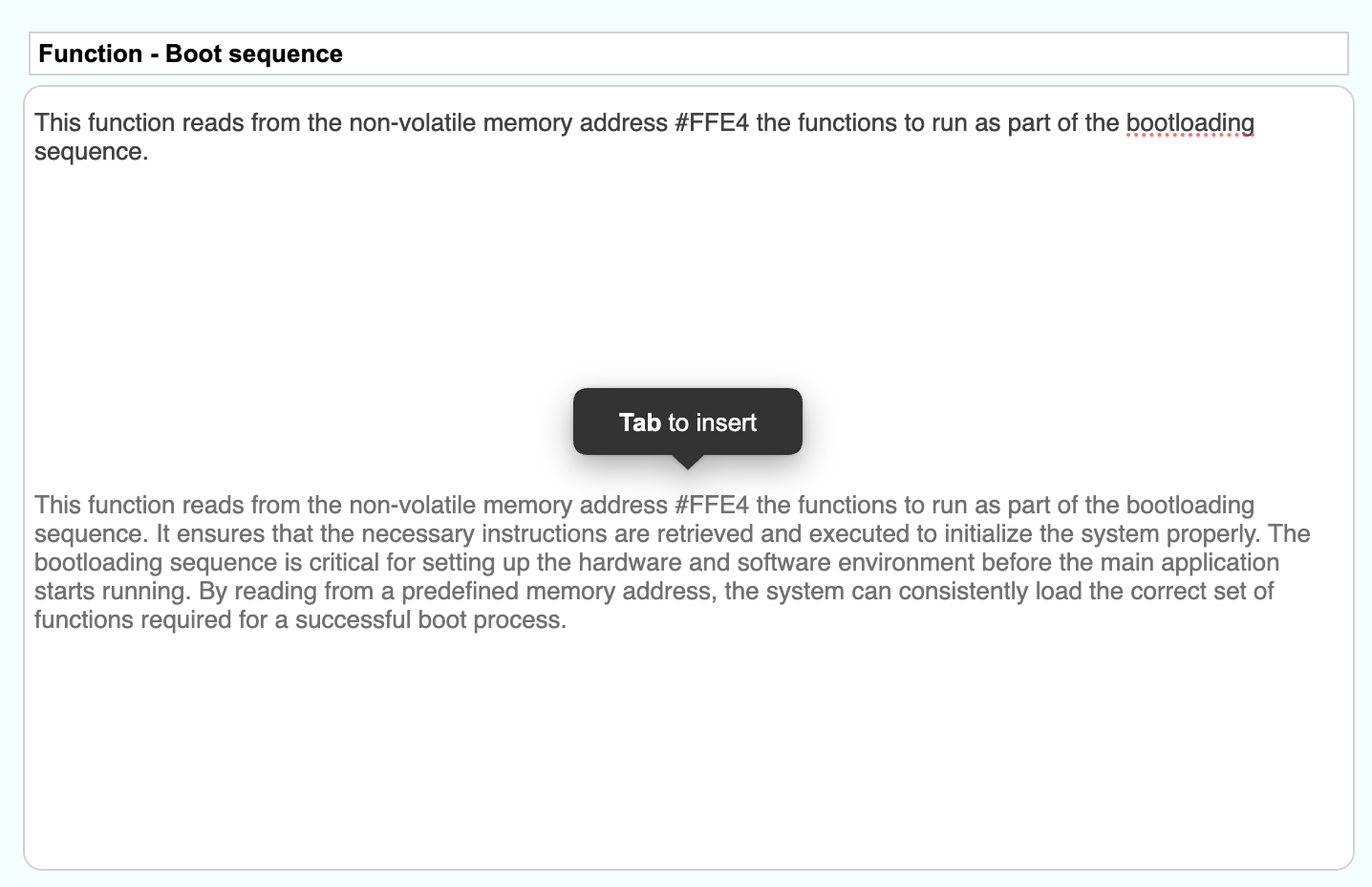
The options function similarly: they display updated text below the active editor. Press the Tab key to insert the suggestion or any other key to cancel and continue editing the original text:
Results and next steps #
Autocomplete helps you write clearer, higher-quality requirements faster by expanding, refining, or correcting text directly in the editor. To use it effectively, draft your requirement first, then apply the relevant Autocomplete options to improve clarity, tone, or structure before finalizing the text.