
Overview #
In IQNECT 26.1, Bulk Refactoring makes large-scale content updates faster and easier. You can now refactor multiple tracker items at the same time directly from the IQNECT menu, search views, and other item-based workflows.
This update streamlines how teams maintain consistency across requirements, specifications, and lifecycle content, reducing the need for repetitive manual edits.
Prerequisites #
- The tracker items you want to Refactor are visible in your project workspace.
- You have permission to edit tracker items.
- You are using IQNECT version 26.1 or later.
Refactor multiple items in bulk #
Follow these steps to Refactor multiple items at once:
Open your project #
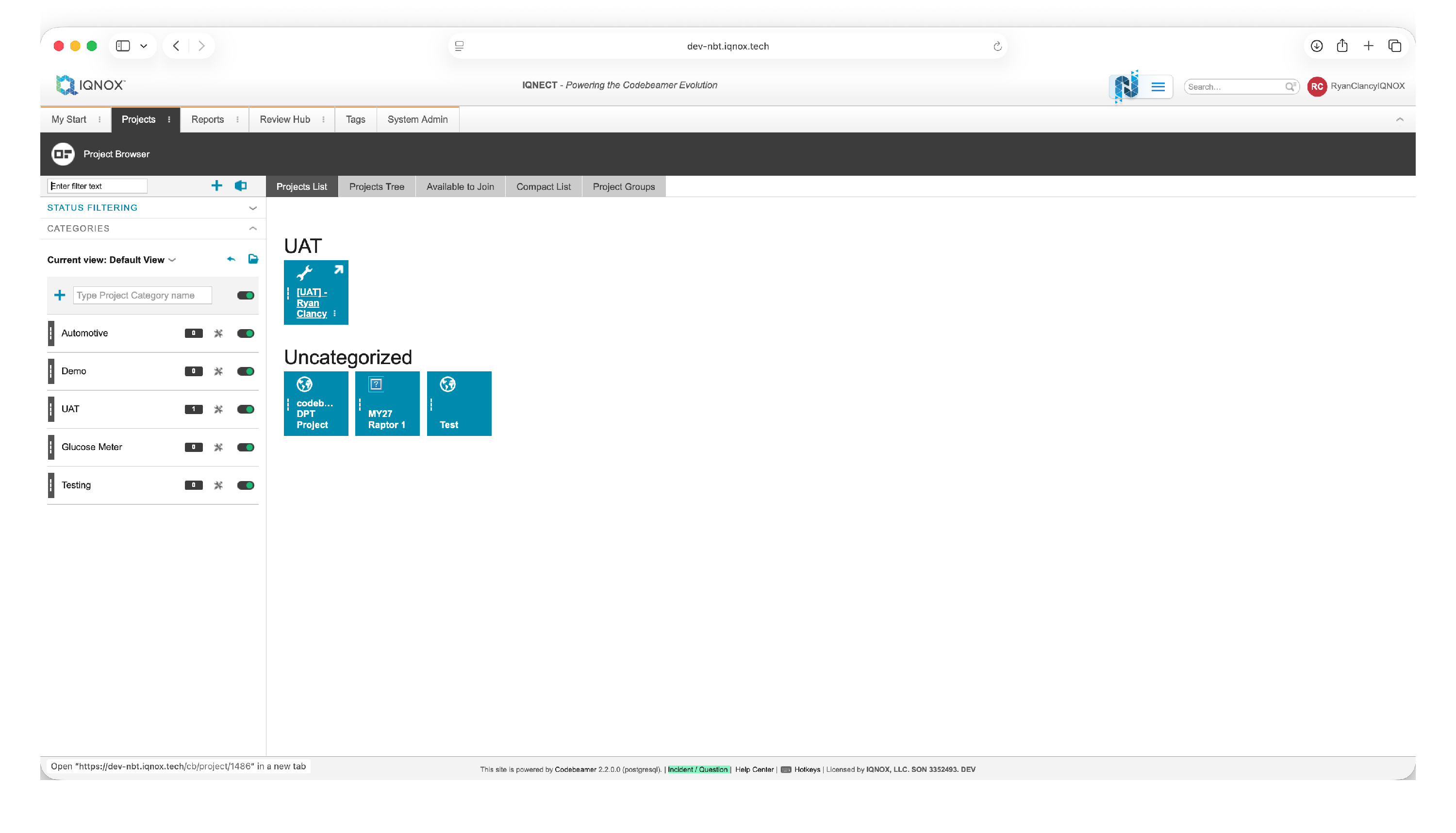
Open the Projects tab and click on the project that contains the tracker items you want to update.
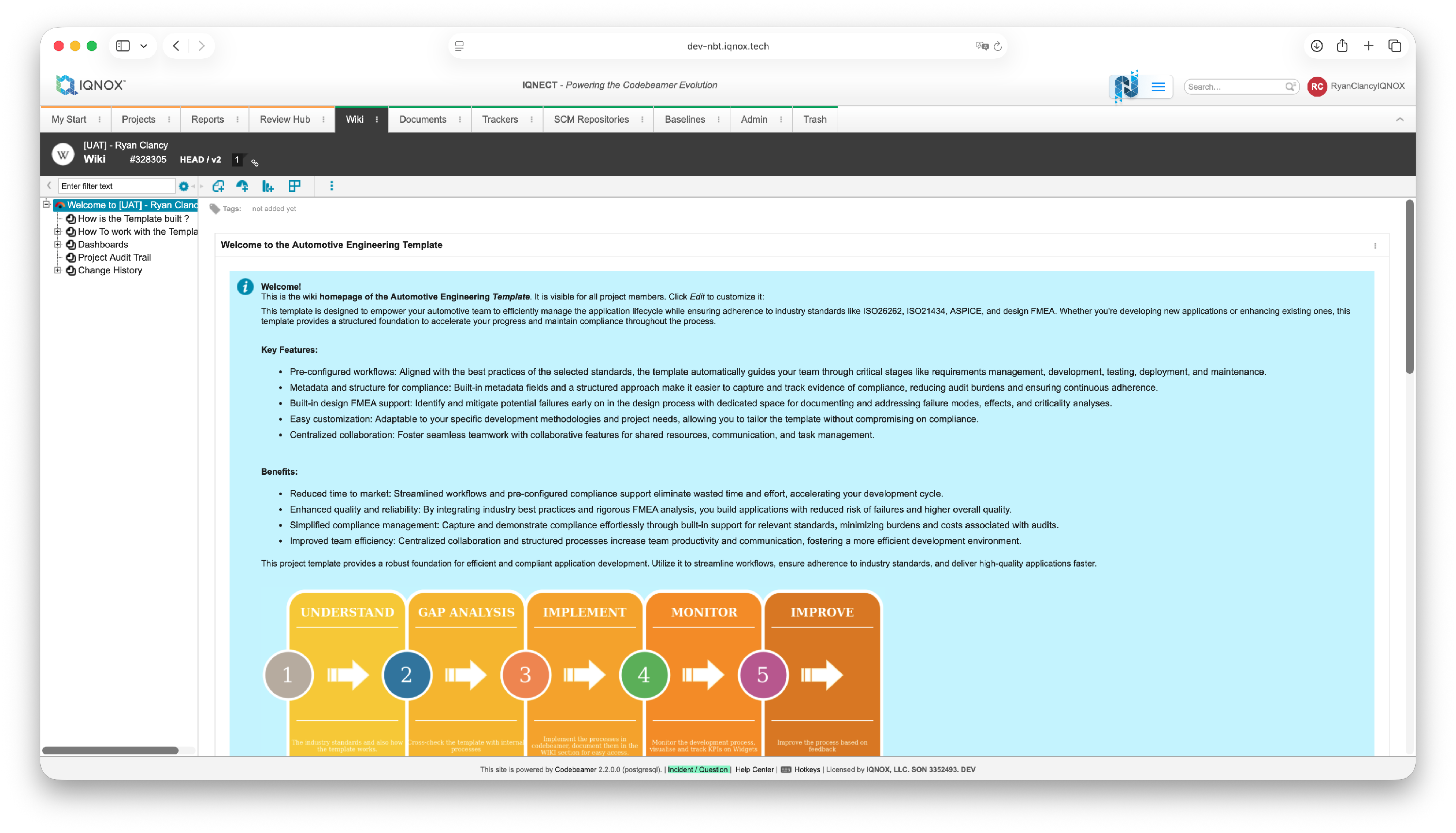
This will open the project workspace.
Select the tracker items #
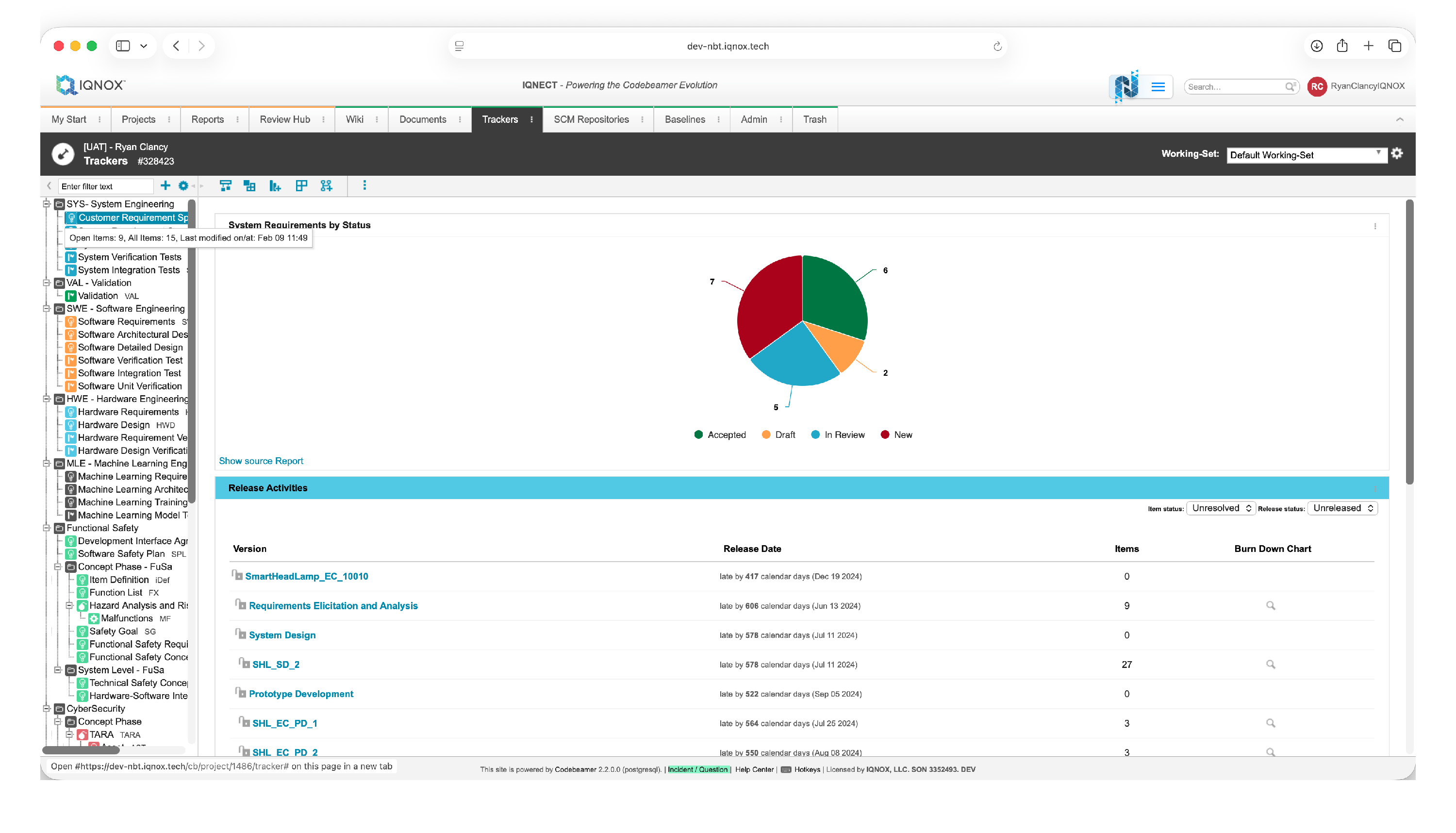
Navigate to the Trackers tab.
Double click the desired tracker in the tree structure on the left.
This opens the All Items view for that tracker, here you can use the IQNECT dropdown and select View in IQNECT to open the search window.
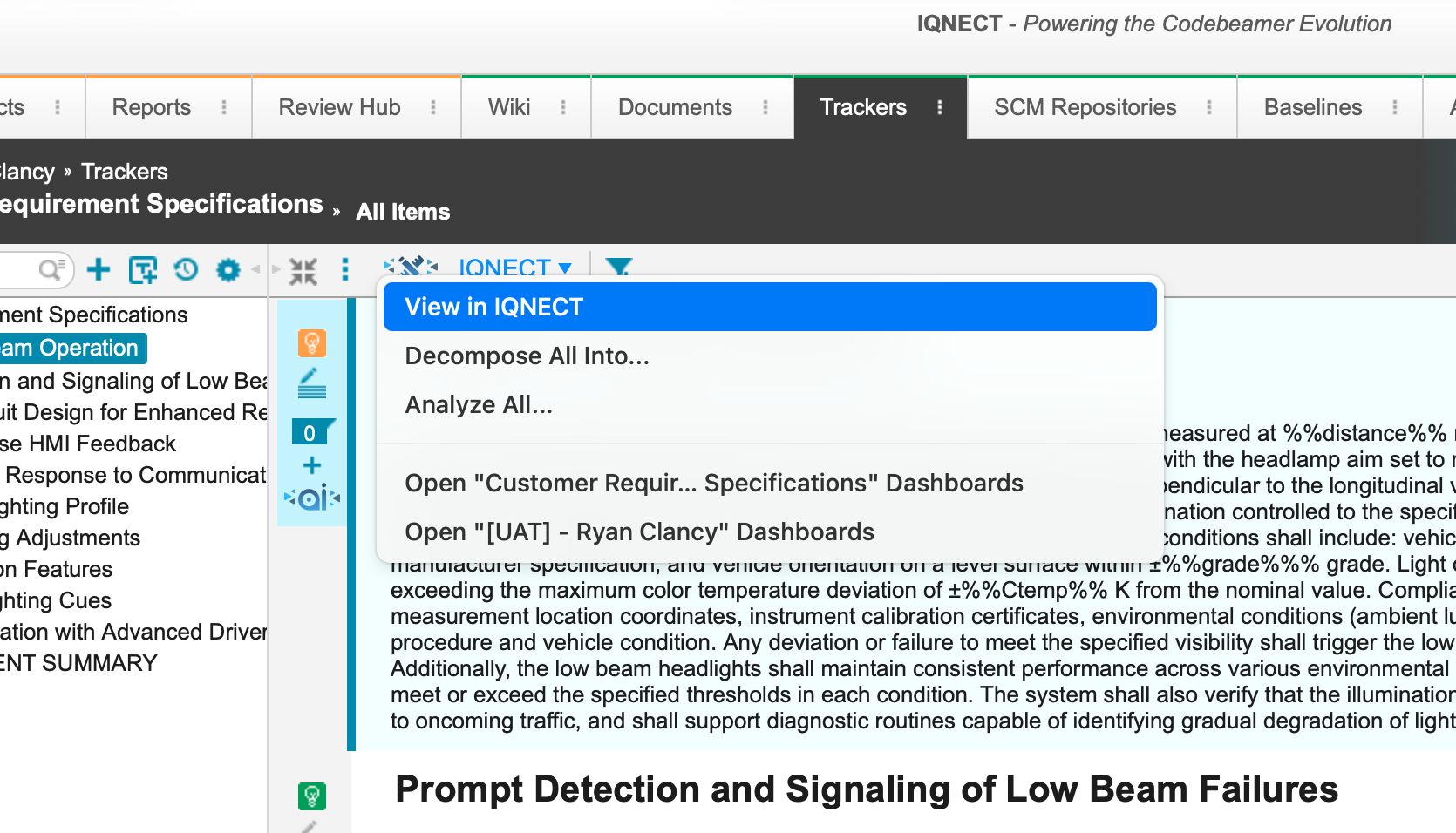
Select one or more items that you want to Refactor by holding Command (Mac) or Control (Windows).
Refactoring #
Open the Refactor dropdown.
Select your desired action, for example Autocomplete.
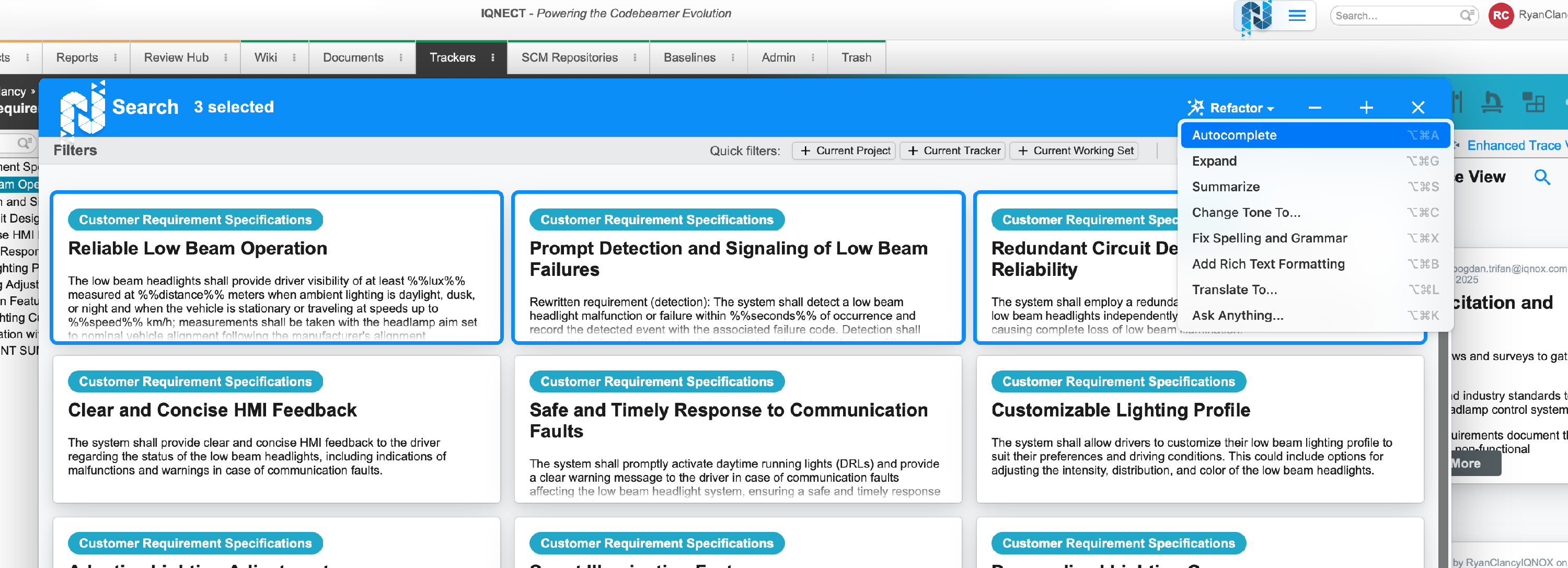
With Refactoring you can:
- Expand/summarize/change the tone of the content
- Fix spelling and grammar
- Apply formatting updates
- Translate to different languages
- Modify multiple items in a single workflow
The Refactoring interface opens with the previewed changes loaded.
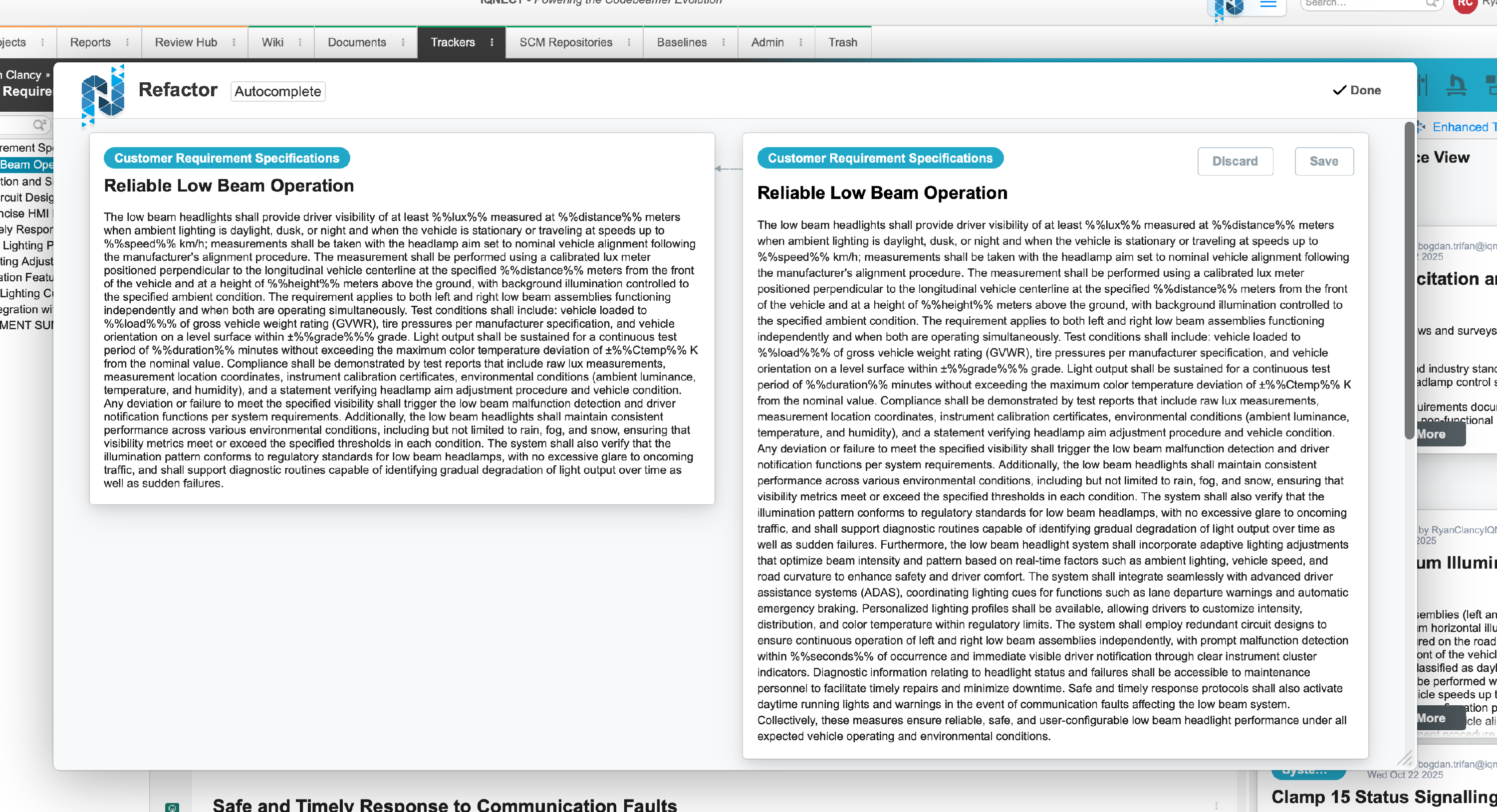
Save or discard changes #
After reviewing updates:
Click Save to apply changes across all selected items.
Click Discard to cancel changes that are not relevant.
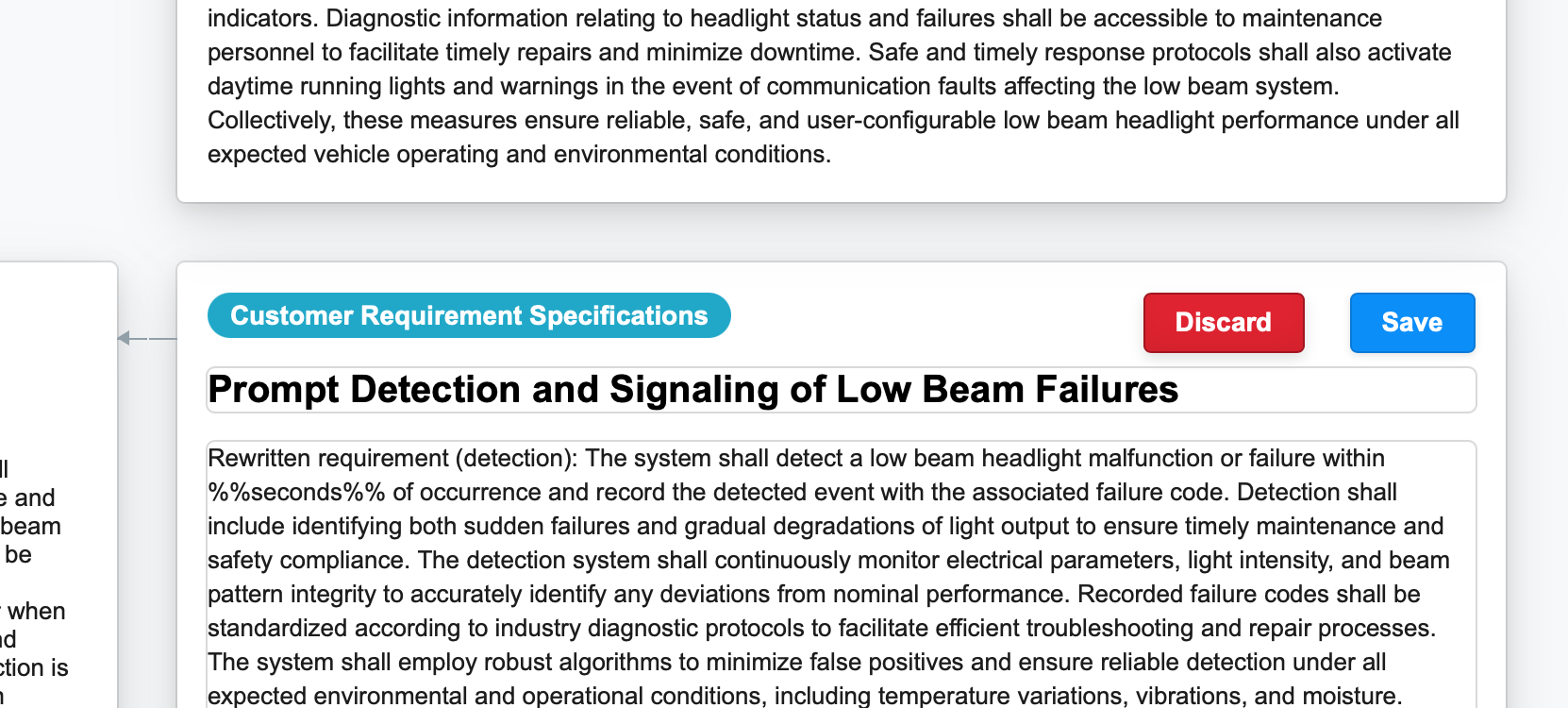
This ensures bulk edits remain controlled and intentional.
Access Bulk Refactoring from other views #
Bulk Refactoring is available anywhere IQNECT allows item selection.
Document Importer #
When importing a document, select one or more imported items and open the Refactor dropdown to refine/edit content before finalizing tracker updates.
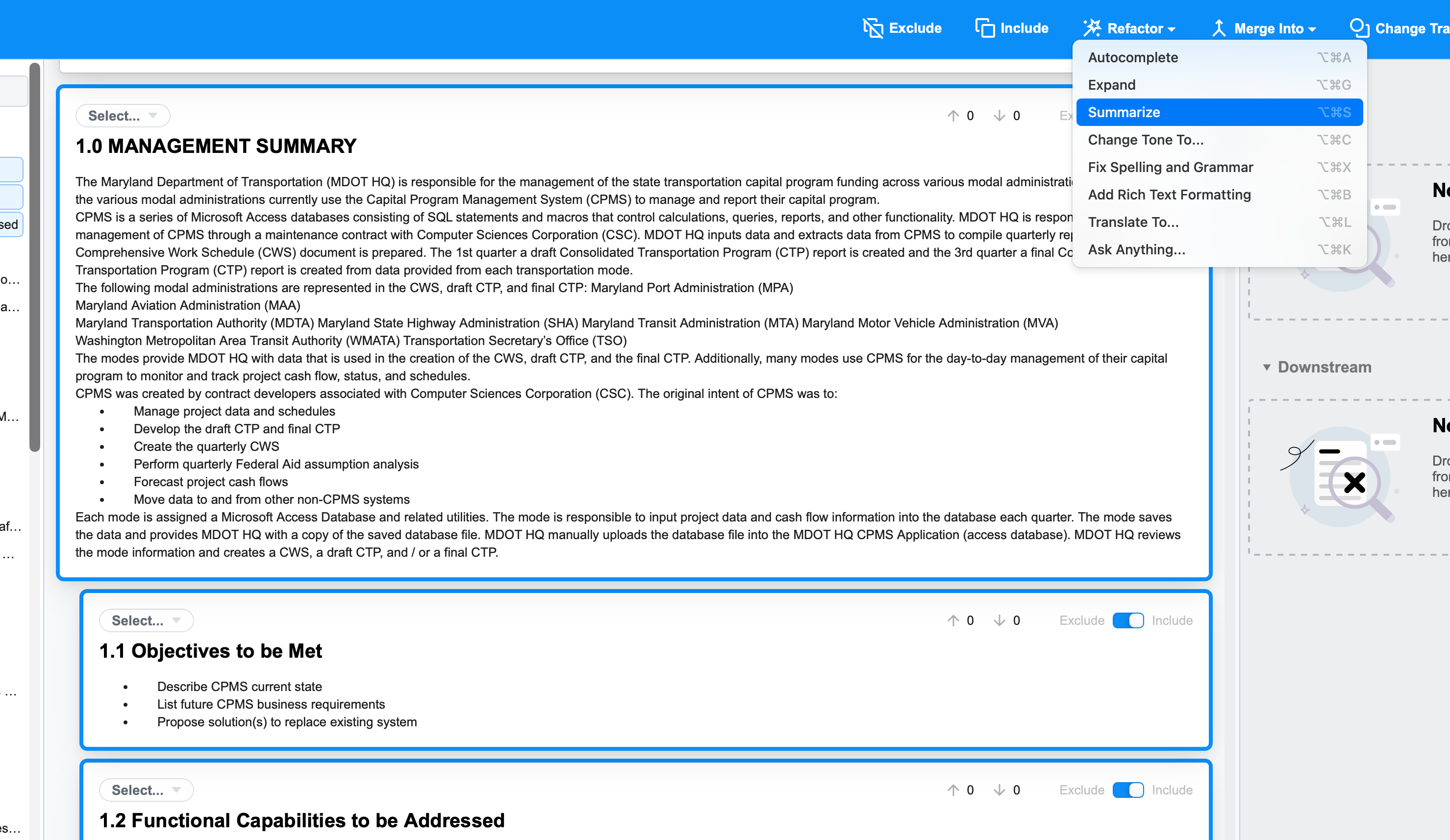
Search views and Semantic Search results #
Run a Semantic Search or Advanced Search to locate relevant items.
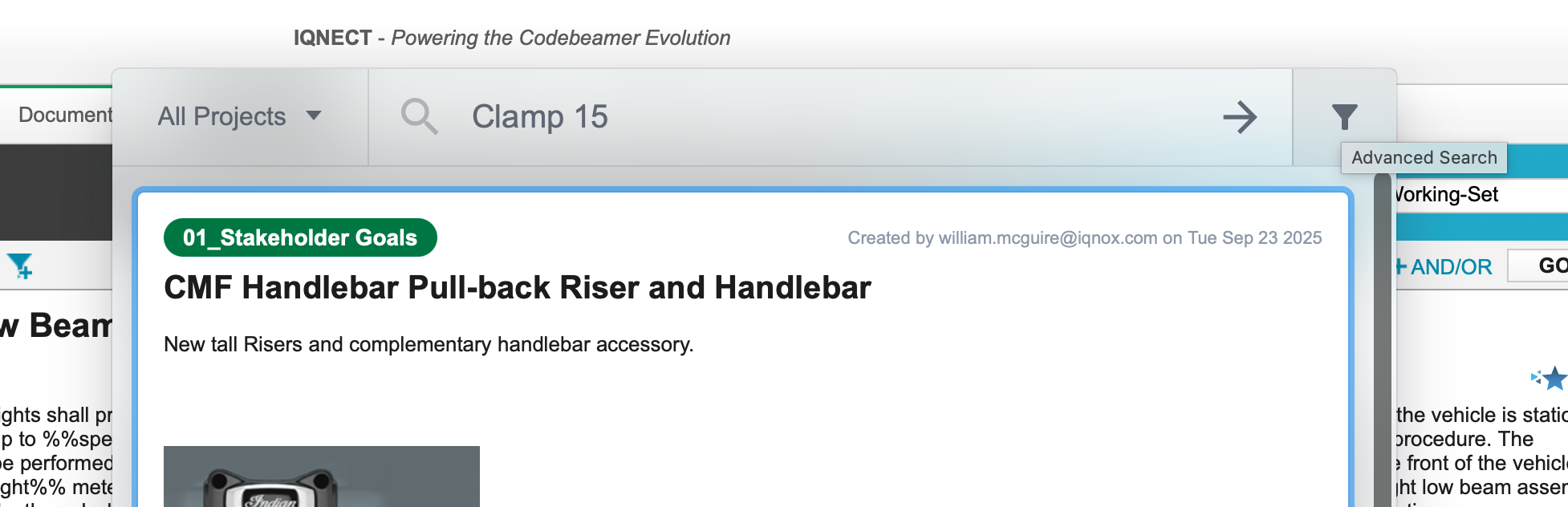
Select multiple results, then open the Refactor dropdown to apply changes across the selection.
This allows users to Refactor content directly from search-driven workflows.
Results and Next Steps #
You’ve successfully Refactored multiple tracker items through a single bulk workflow.
Use Bulk Refactoring to maintain consistency across large trackers, accelerate review cycles, and reduce repetitive manual editing as your project evolves.