
Overview #
Codebeamer X (version 3.1) introduces a refreshed user interface with navigation and visual improvements. While the layout looks different, IQNECT’s tools, functionality, and workflows remain largely unchanged.
This guide walks through enabling the new interface, locating IQNECT features, and understanding what’s new in Codebeamer X.
Prerequisites #
- You have an active IQNECT integration.
- You have permission to modify user preferences within Codebeamer.
- You are using Codebeamer 3.1 or later.
Using IQNECT in Codebeamer X #
Enable the Codebeamer X interface #
Open the existing Codebeamer interface, make sure you are signed in to both Codebeamer and IQNECT.
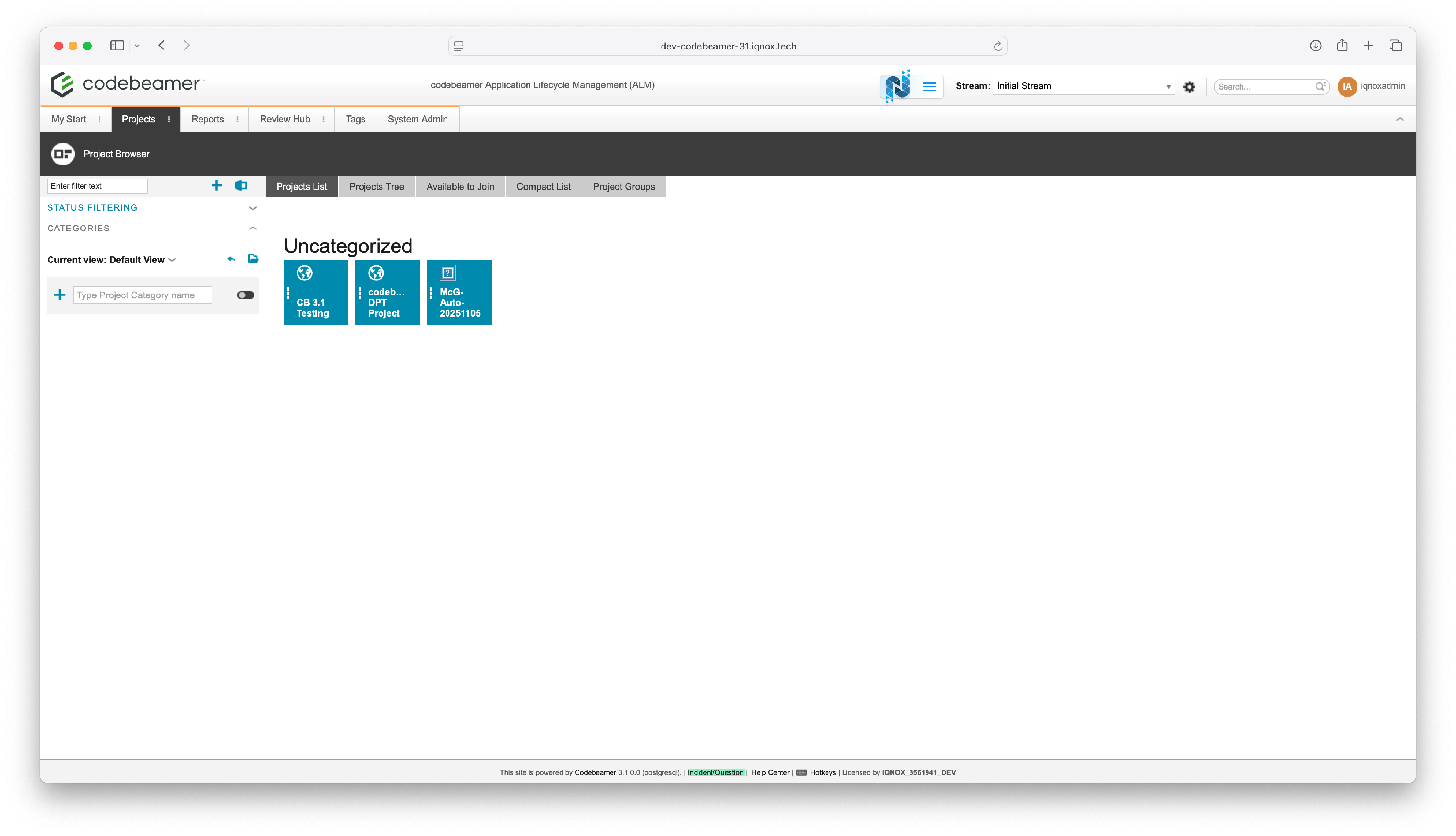
In the top-right corner, click your Profile icon, and select Preferences from the dropdown.
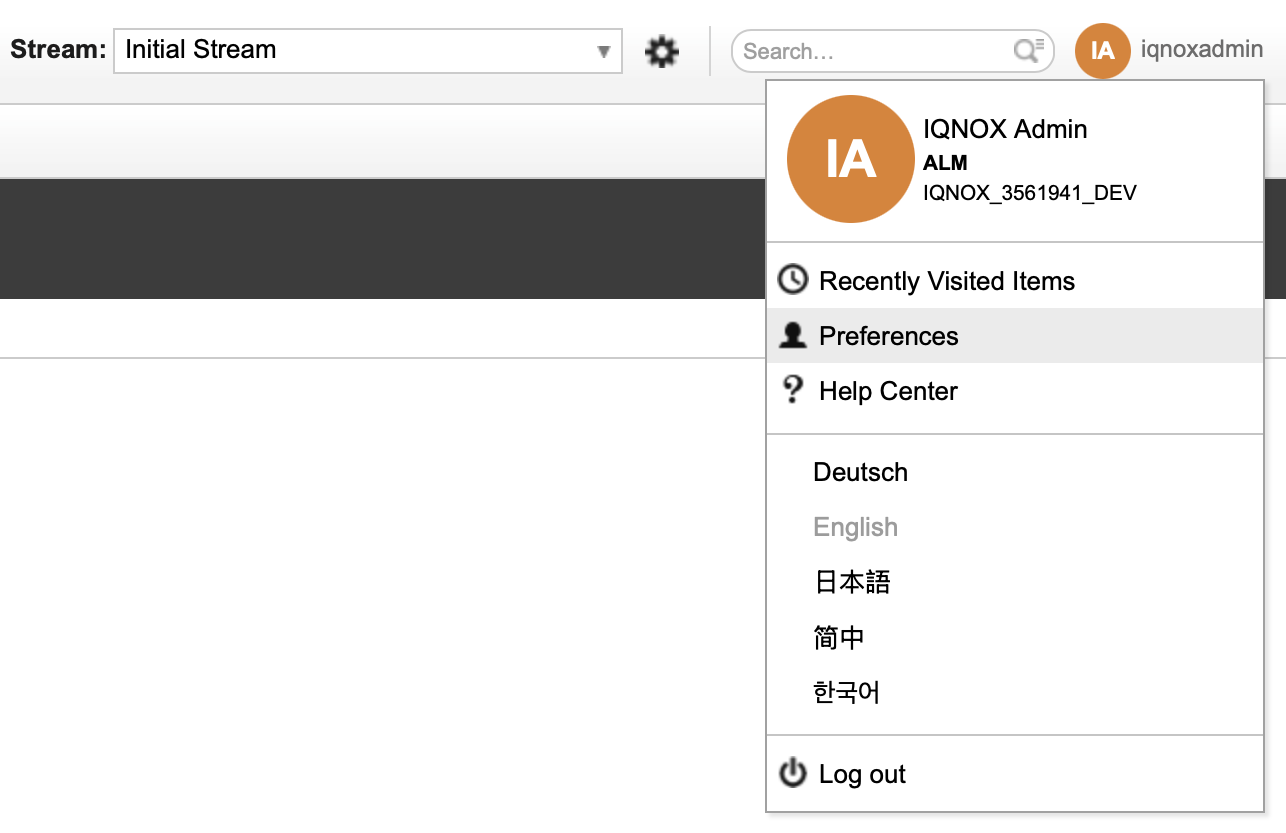
In the Preferred user interface settings dropdown, locate the Use Codebeamer option.
Change this setting to Use Codebeamer X, then click Save.
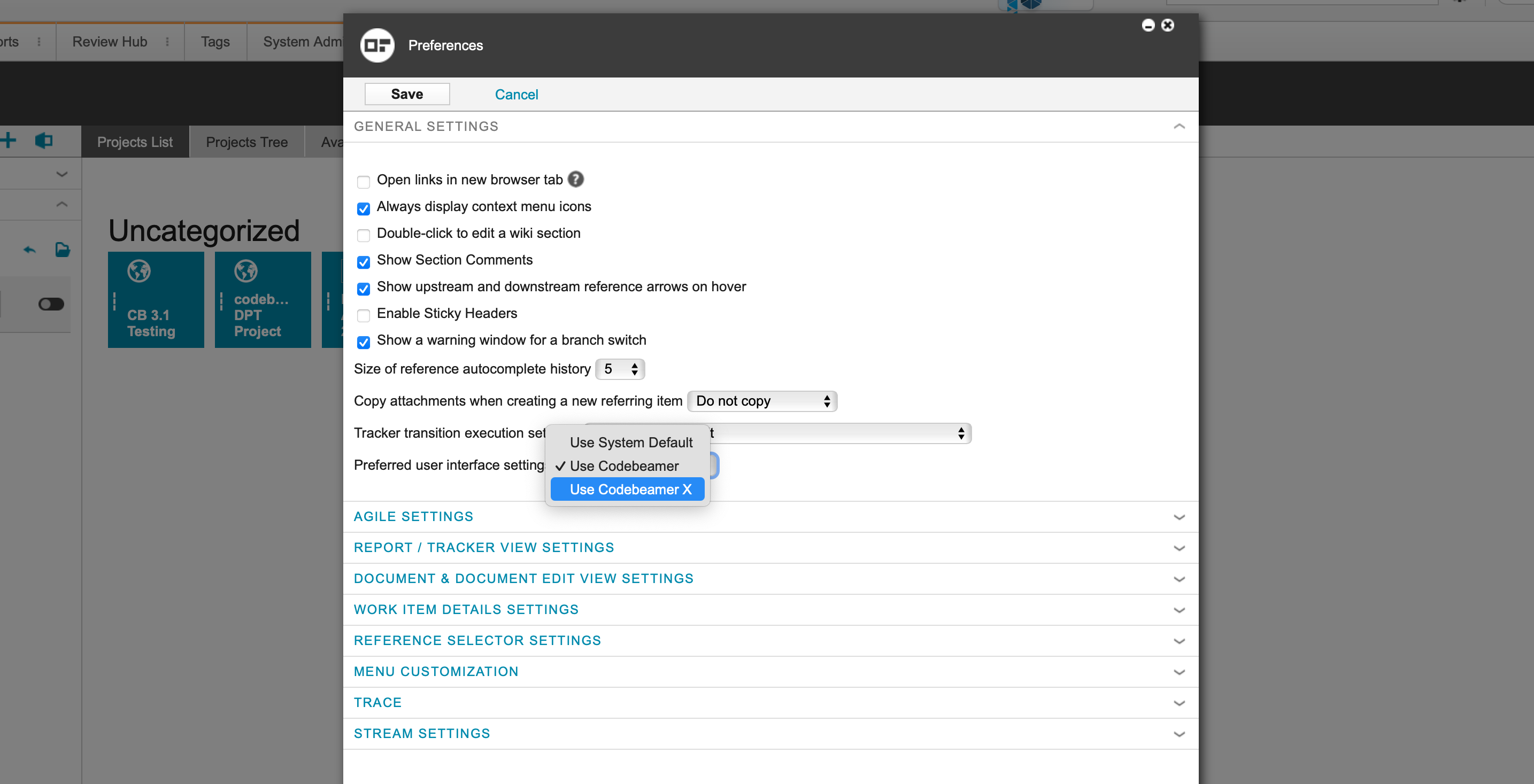
The system automatically refreshes, loading the new Codebeamer X environment.
Navigate the new layout #
The new UI introduces a modern layout, but all IQNECT functionality remains consistent with the previous version.
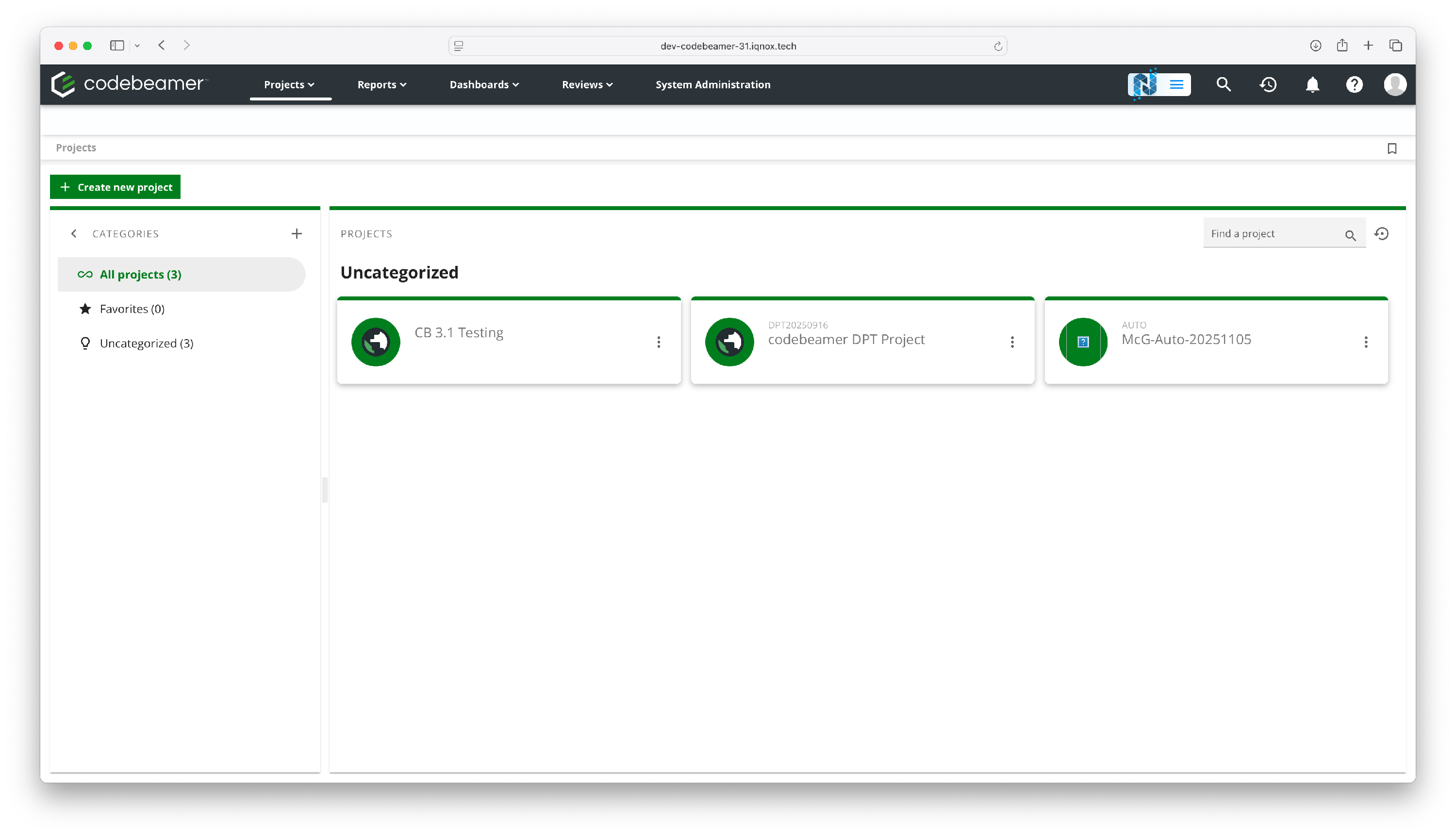
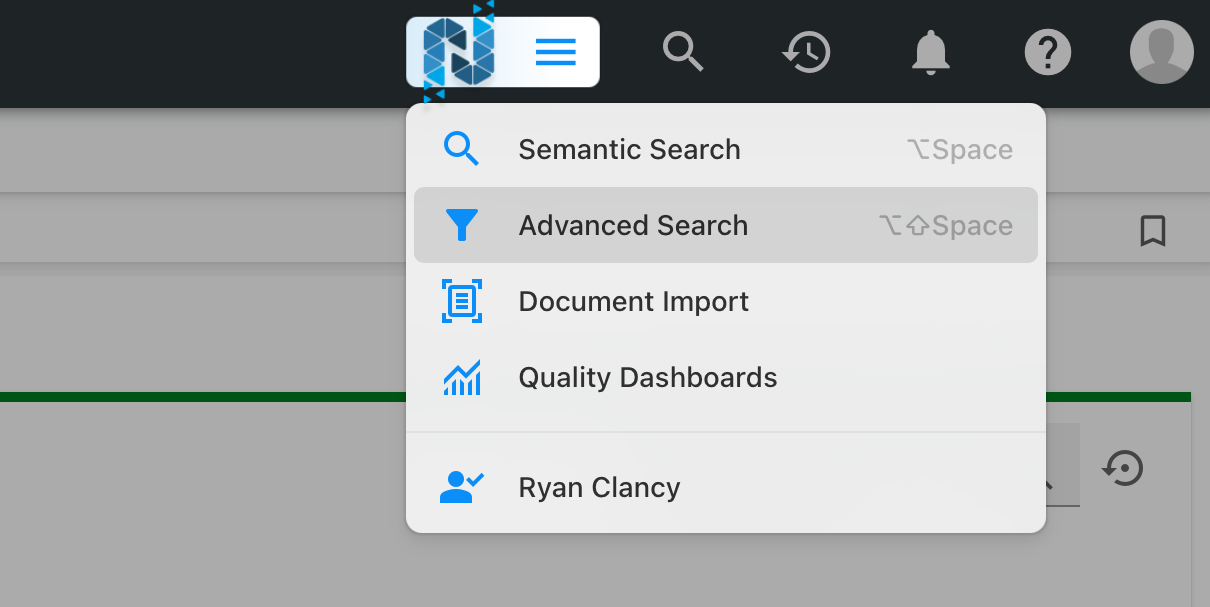
Click the hamburger menu to access the same IQNECT features as before.
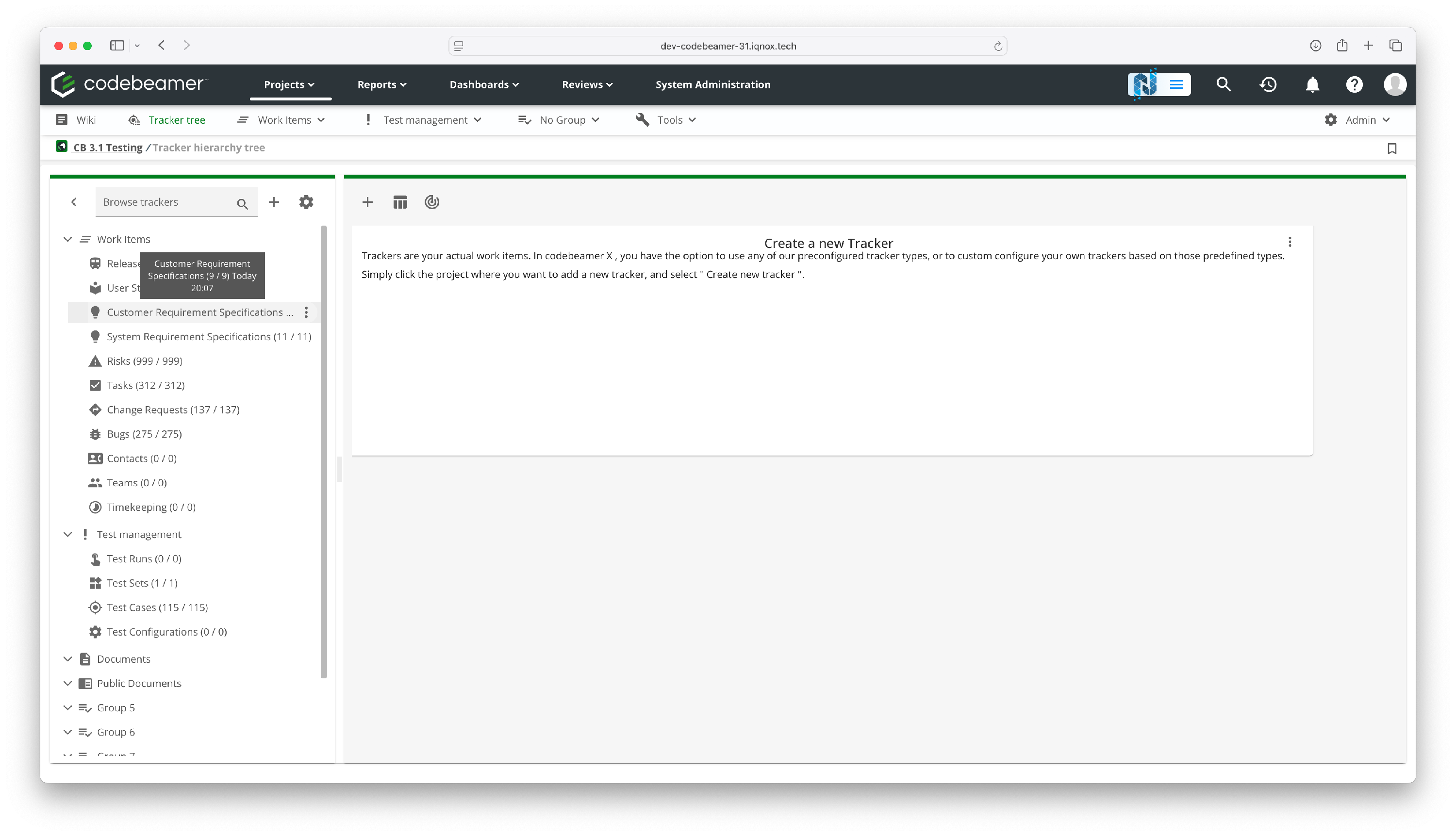
From the Projects tab, open a project to display its Tracker hierarchy tree.
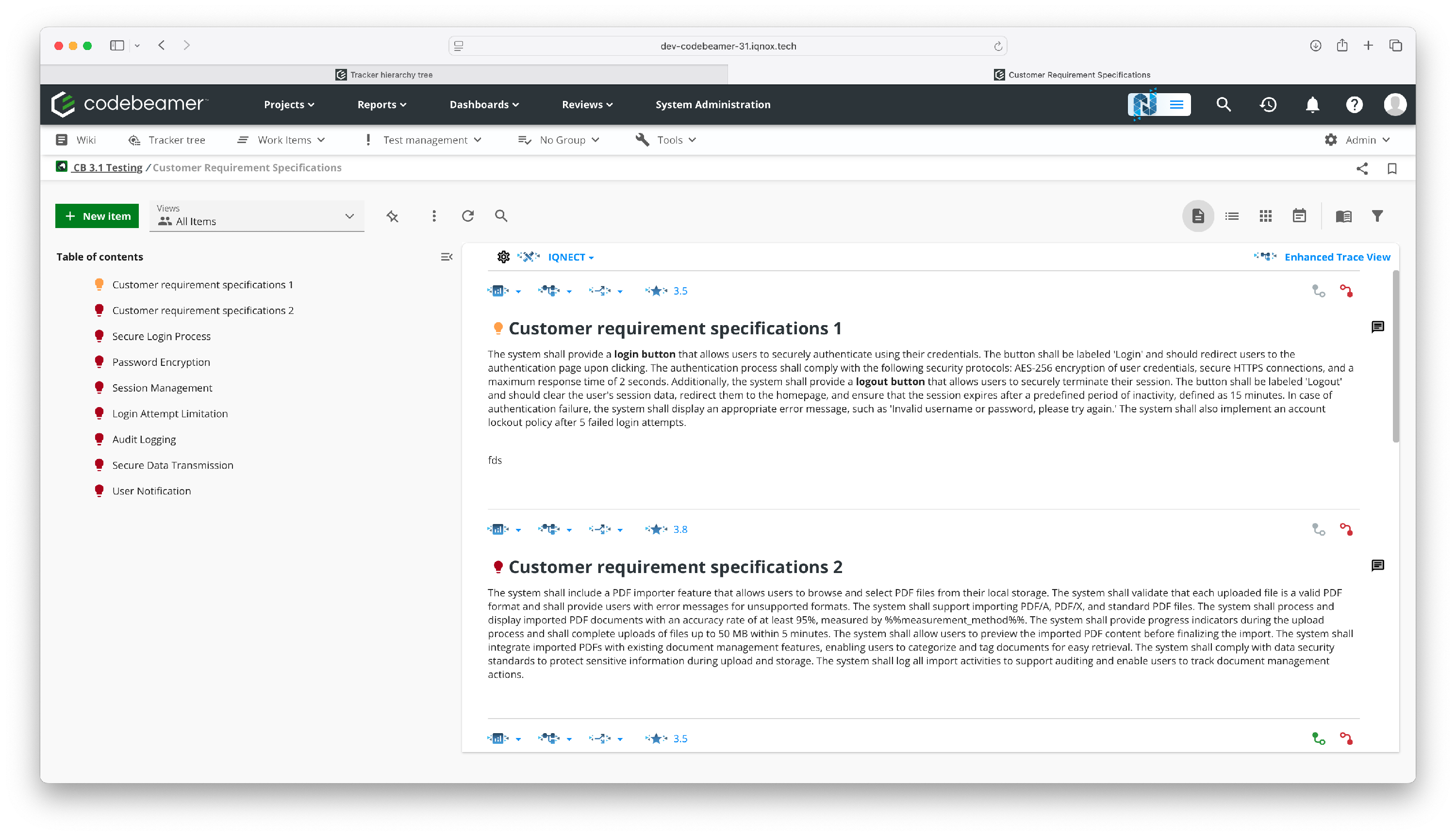
Double-click a tracker in the list on the left to open it.
The tracker opens in a new tab displaying the All Items view, where you can manage tracker items.
Locate IQNECT tools #
IQNECT menu #
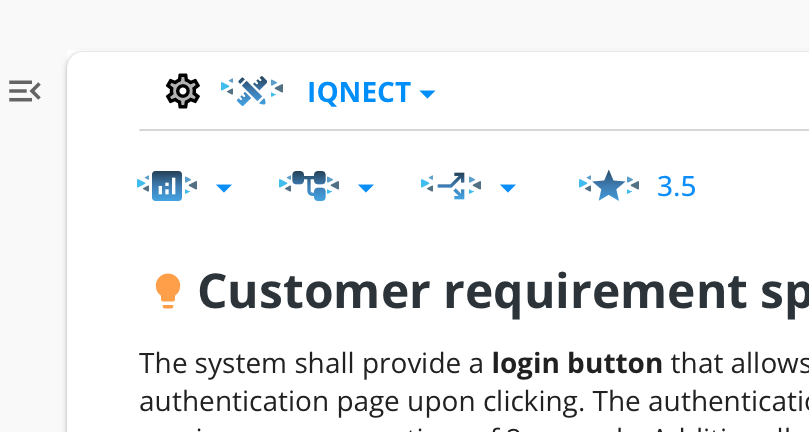
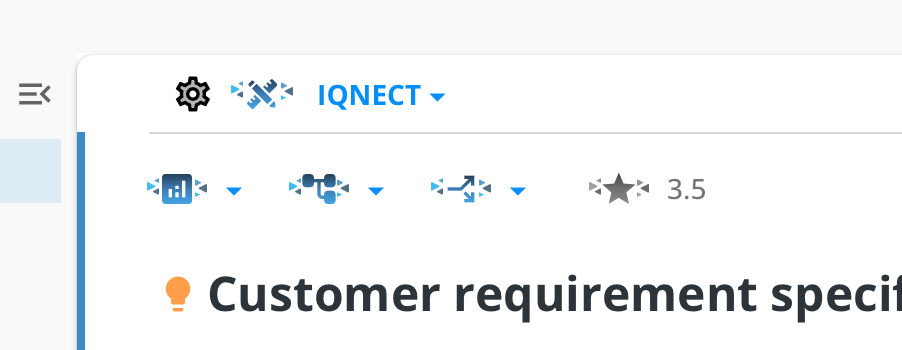
IQNECT features are now found in a menu at the top of the item view rather than the left-hand AI icon used in the previous UI.
The menu buttons from left to right: Dashboards, Traces, Decompose into, and Analyze.
Enhanced Trace View #
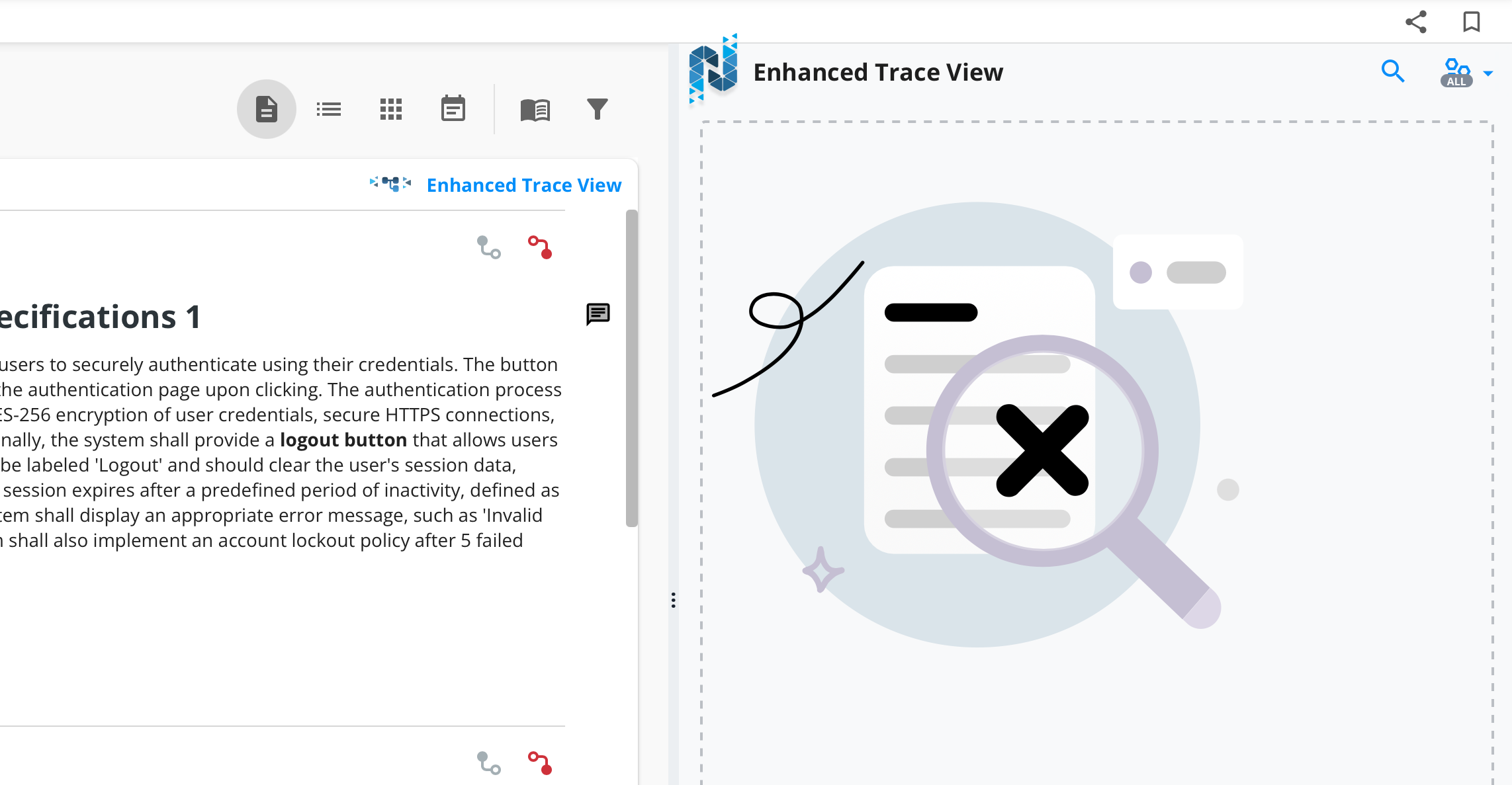
The Enhanced Trace View has also moved, it’s now built directly into the item view instead of appearing in a side panel on the right of the interface.
Autocomplete #
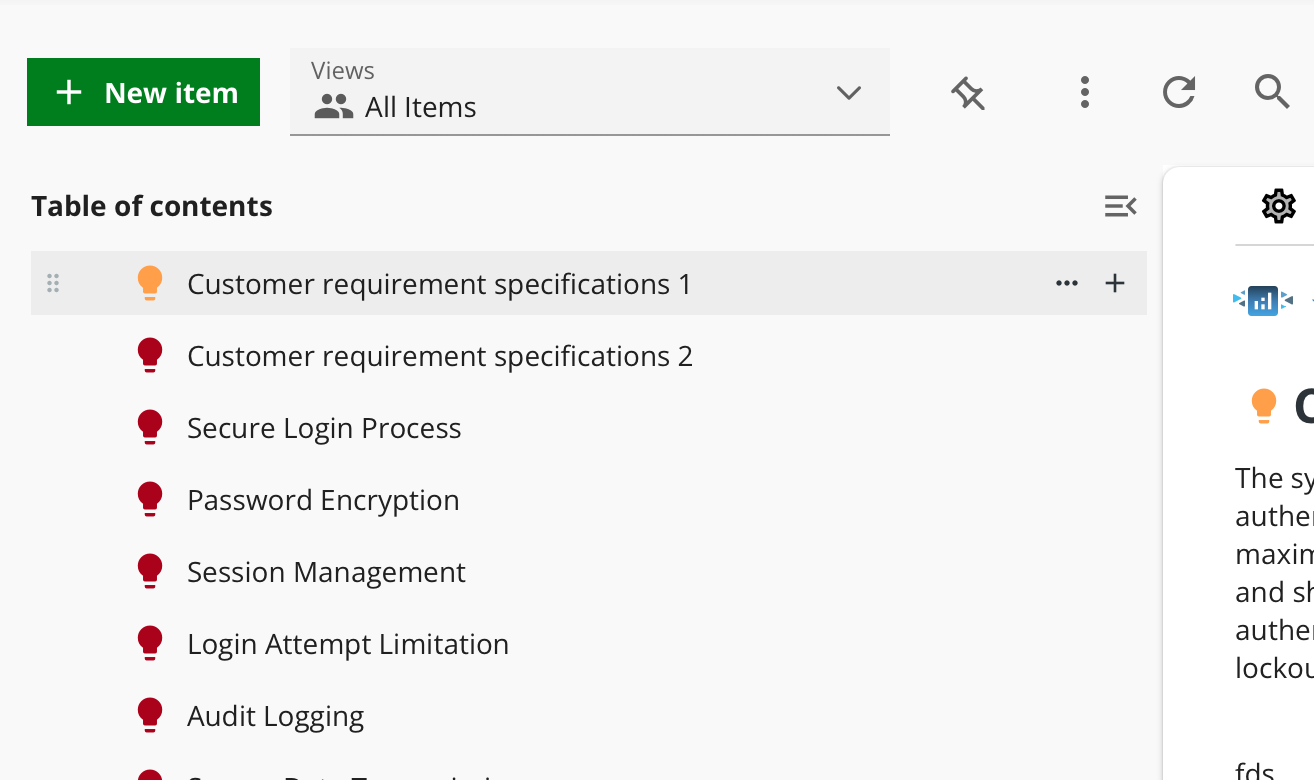
Double-click any item in the All Items view to open it in a separate window.
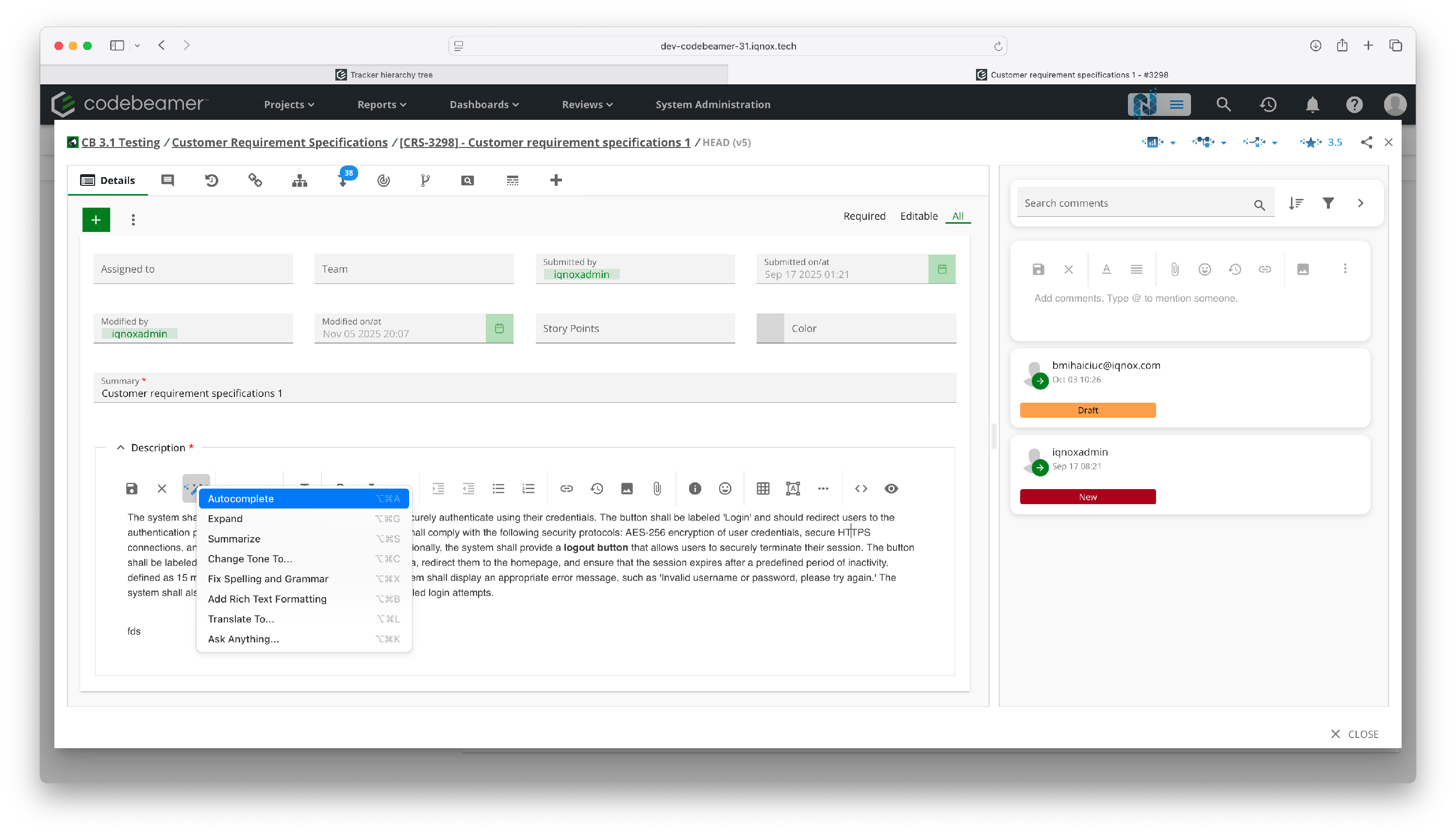
IQNECT functions the same as before within this new window.
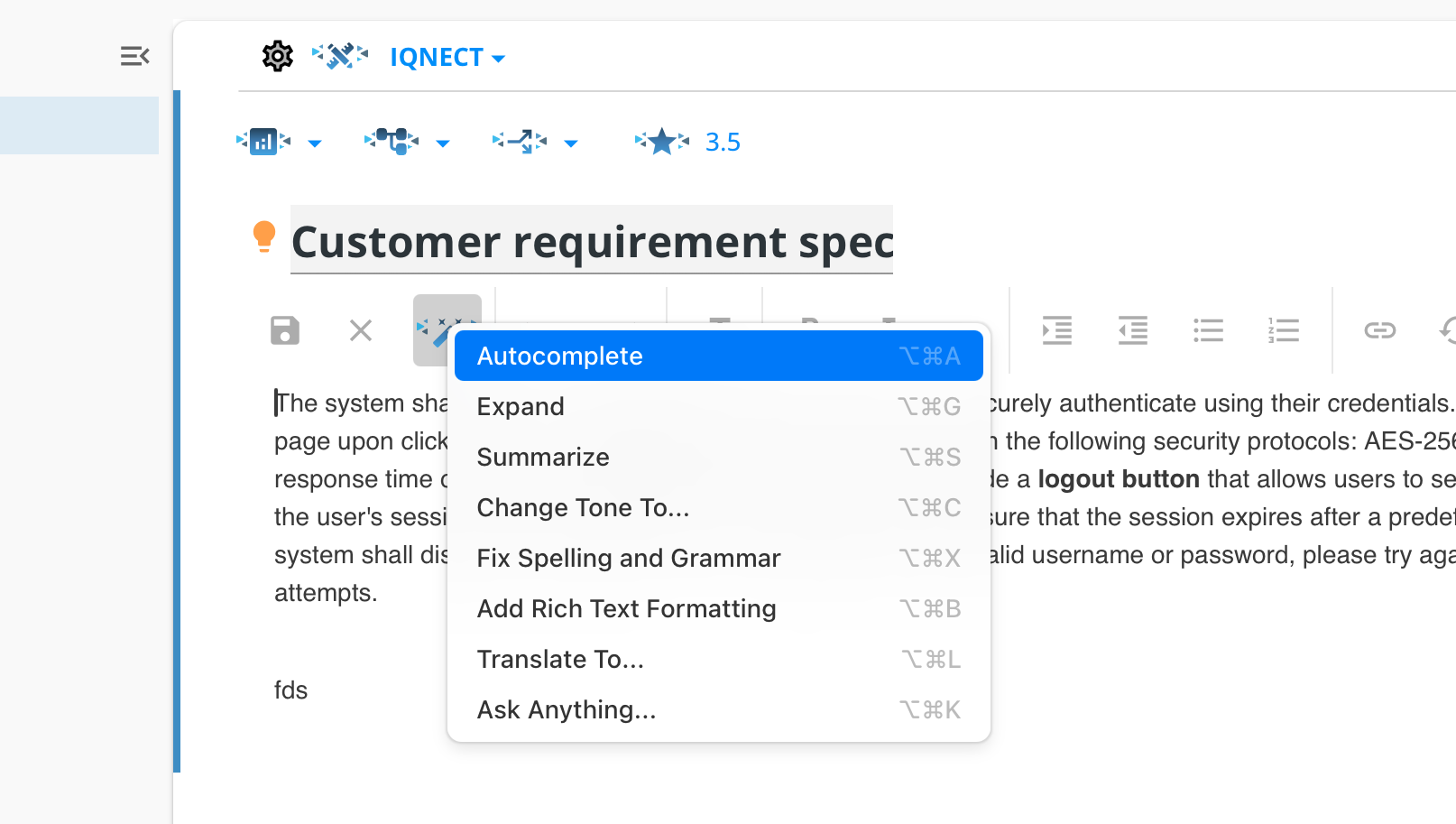
The Autocomplete button works the same way as in previous releases.
You can also access it by editing an Item in the All Items view.
Analyze #
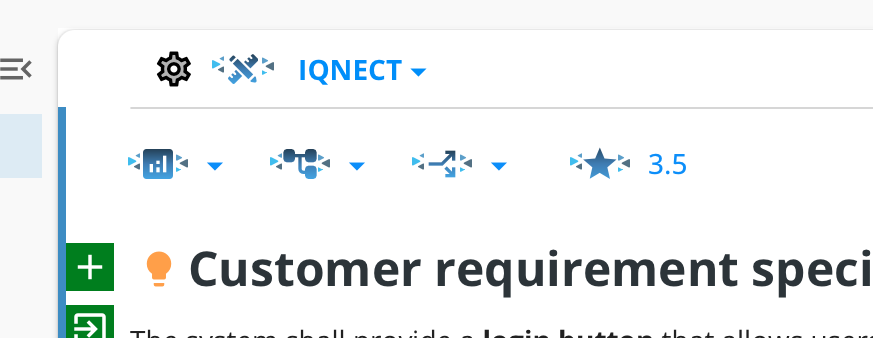
The Analyze button now changes color to indicate analysis state.
If it is grey, the analysis is out of date (for example, after you edit and save the item).
Click the Analyze button to refresh and update the evaluation.
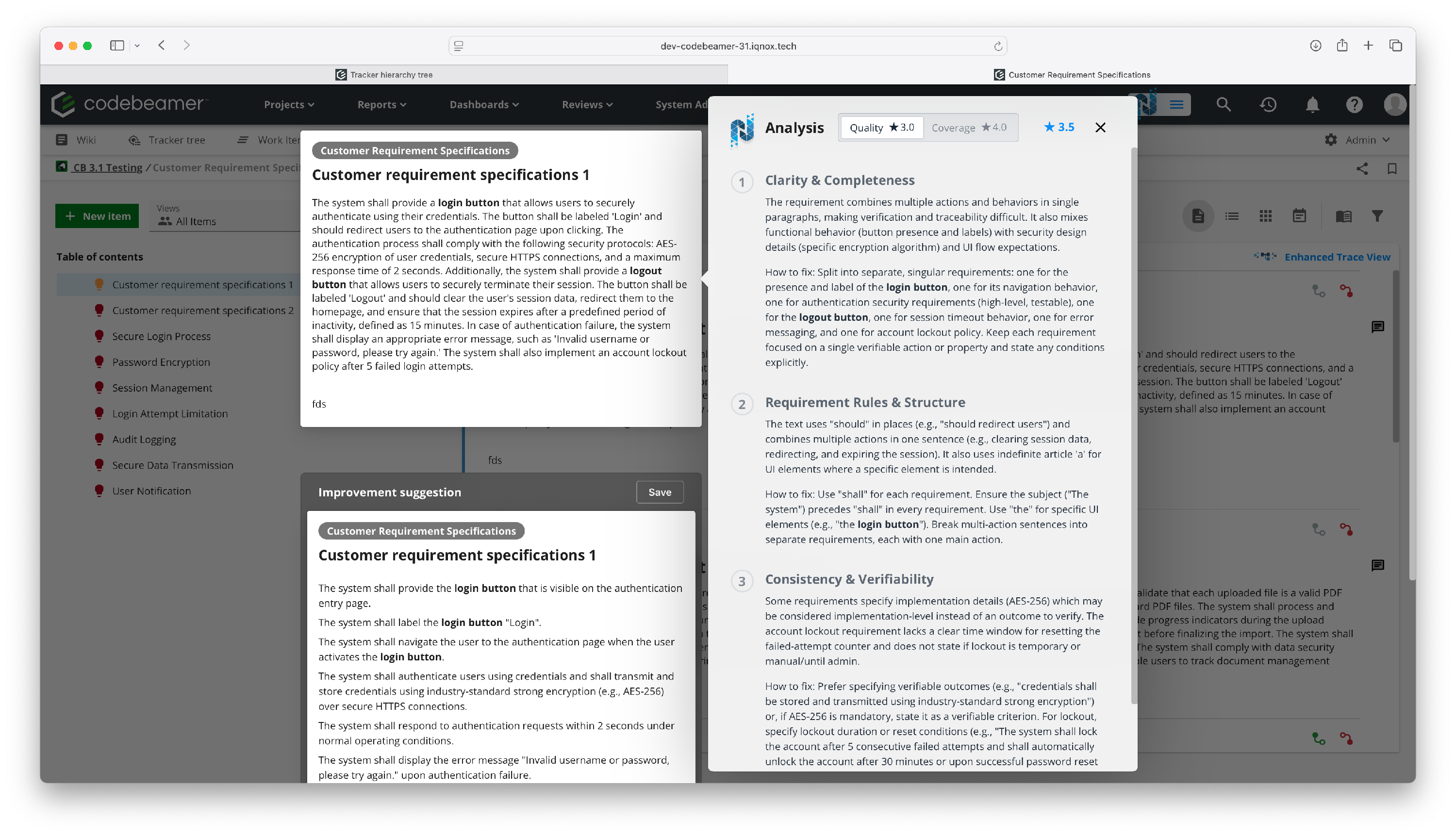
The star icon will change back to blue.
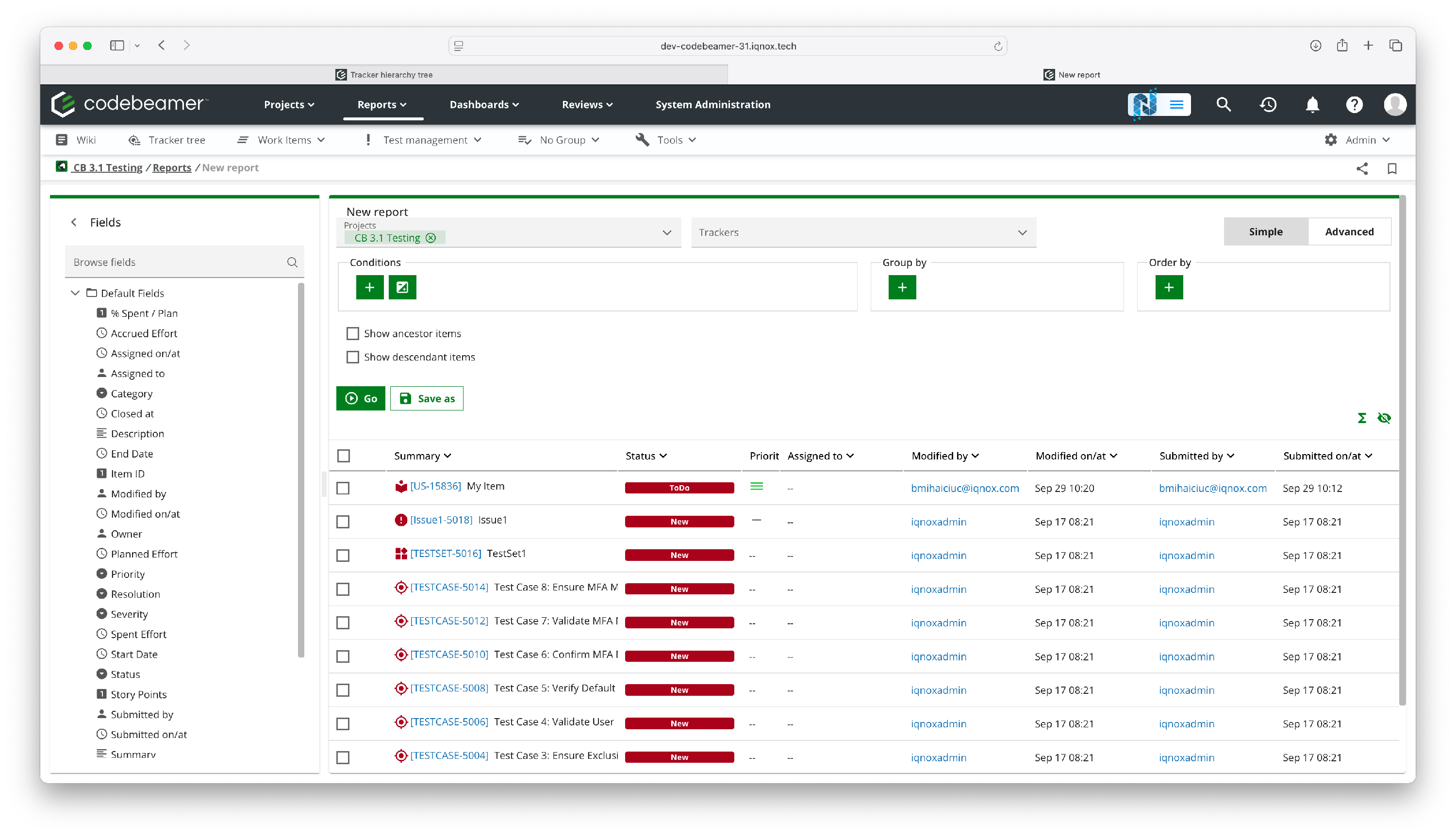
Note: The Index function, located in the previous UI under Reports → New Report → GO, has been removed from Codebeamer X.
Switch back to the previous UI #
If needed, you can return to the previous Codebeamer interface:
Click your Profile icon in the top-right corner.
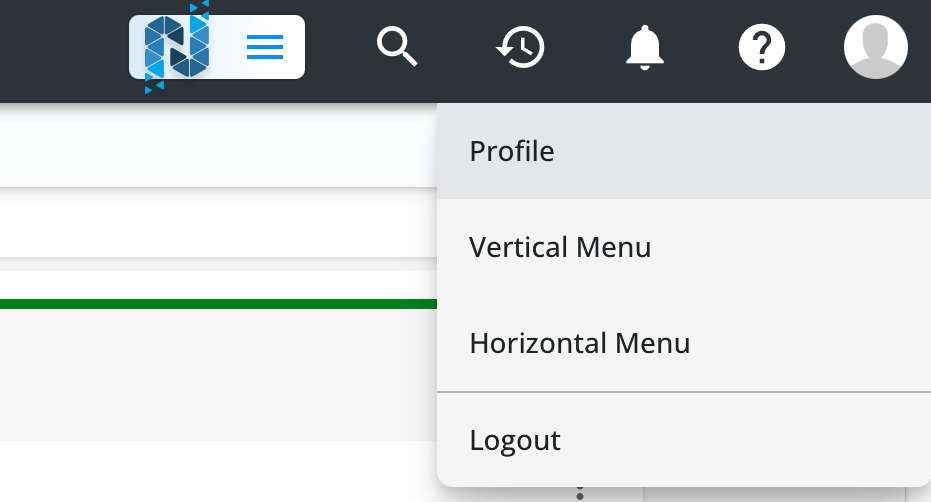
Select Profile, then open the Preferences tab.
Click Edit, and then the Preferred user interface (UI) dropdown.
Change the setting back to Codebeamer.
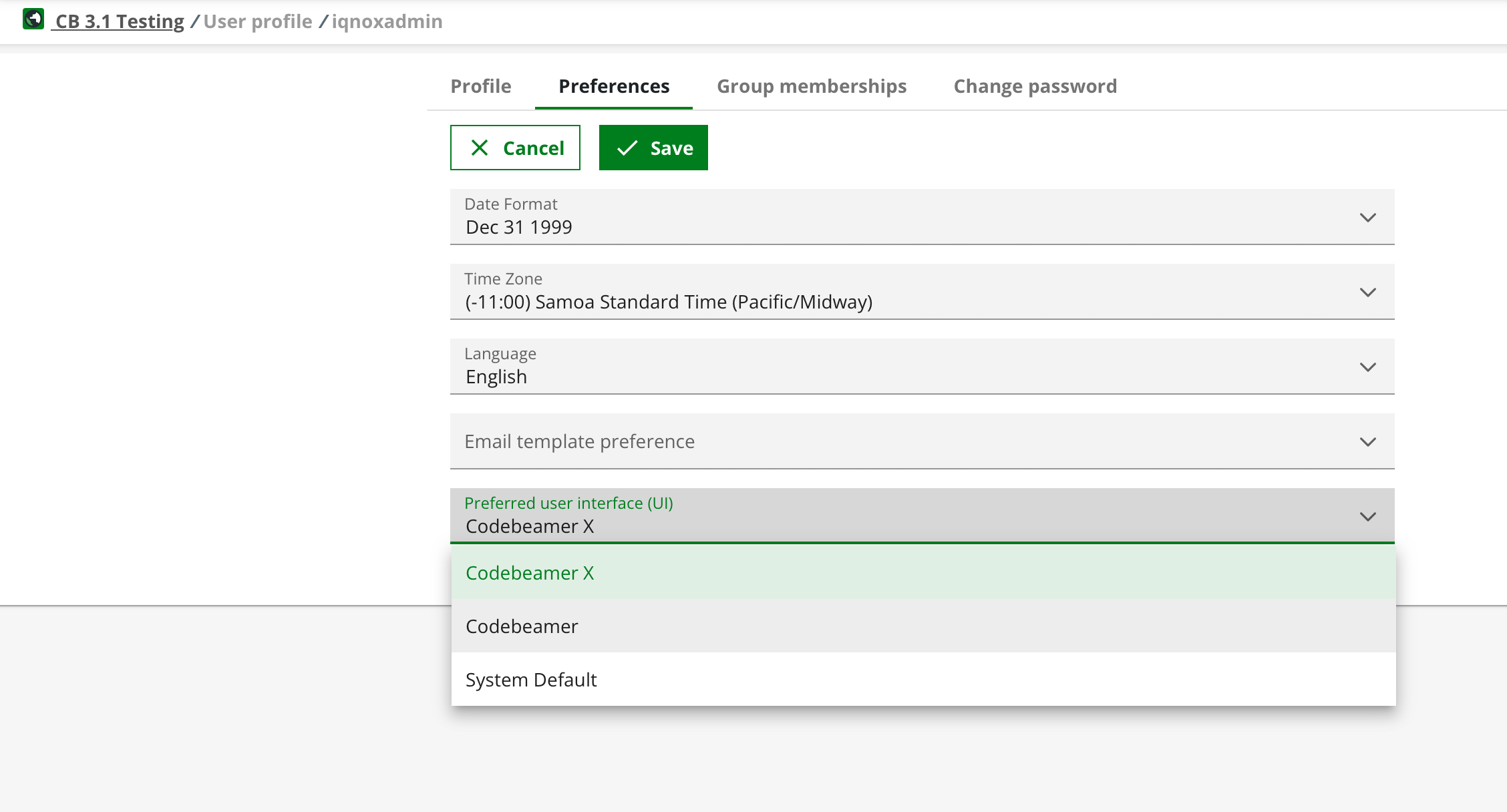
Click Save and refresh the page.
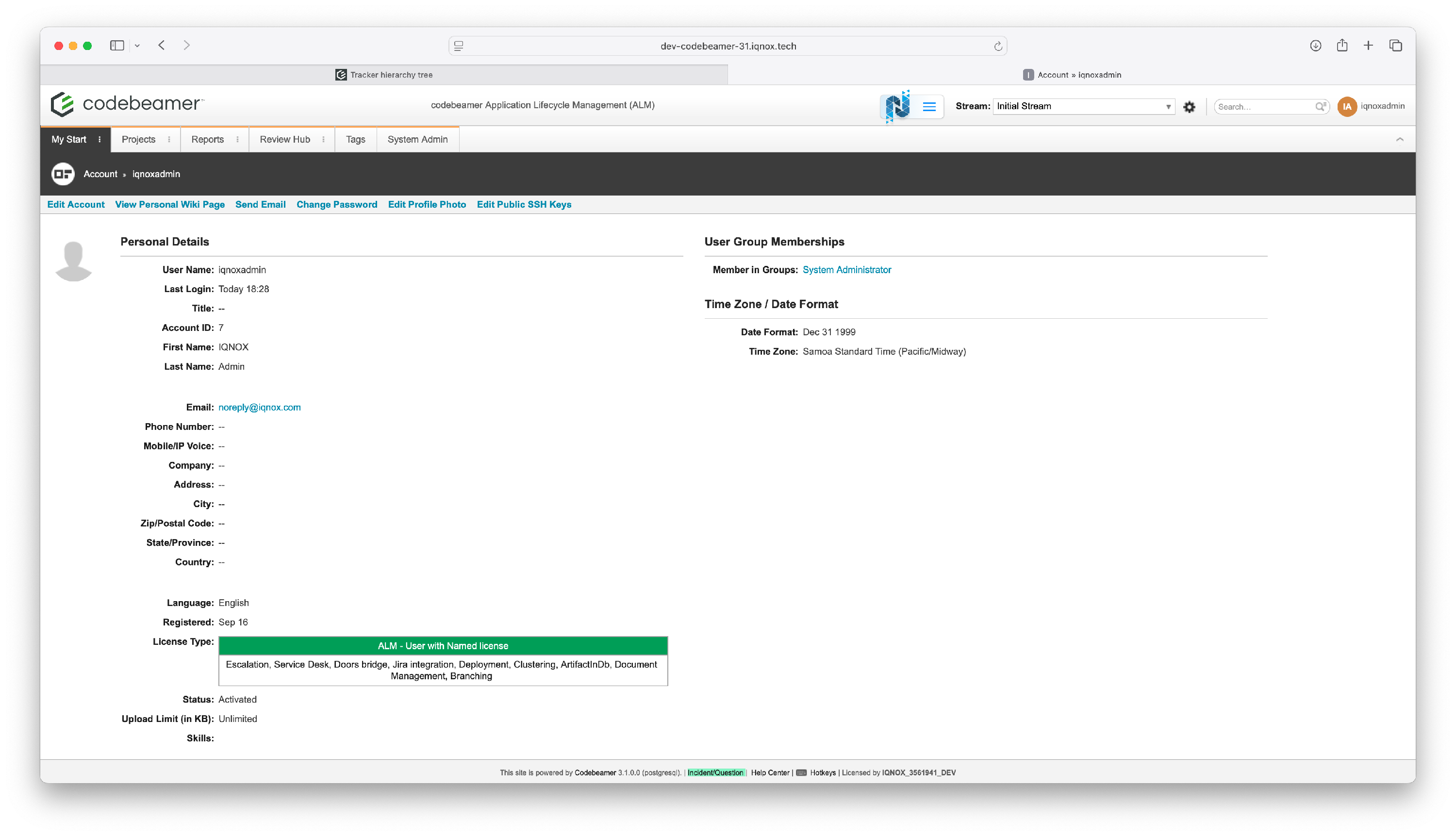
Your environment reverts to the previous interface.
Results and next steps #
You’ve successfully enabled and navigated the new Codebeamer X interface.
IQNECT operates with full feature parity in this release, offering a cleaner design and minor UX improvements.