This guide outlines the essential steps to configure IQNECT within your Codebeamer system, enabling advanced indexing, semantic search, and analysis capabilities. Follow the instructions below to set up SSO, configure your Codebeamer instance, and install the necessary IQNECT extension for seamless integration.
- Customer sets up SSO application in their IdP and provides required information to IQNOX. See this topic.
- Customer provides URL of Codebeamer instance. Even if the instance is behind a firewall, the FQDN is needed.
- Customer confirms CSP configuration is complete (see PTC Help Center, Content Security Policy section. The url
https://app.iqnect.aimust be whitelisted). - Customer ensures that the Networking requirements are fulfilled.
- Customer provides a list of projects and trackers that should be continuously analyzed.
- IQNECT Admin creates an IQNECT tenant and system using admin interfaces:
-
- Set up Tenant Info, add SSO configuration.
- Create system entry, configure its allowed origins. (FQDN of the Codebeamer system)
- IQNECT Admin hands over the credentials that enable the sync between Codebeamer and IQNECT.
- Customer updates Codebeamer application configuration with provided instructions (this article).
- Customer updates all appropriate roles that will use IQNECT to ensure appropriate permissions.
- IQNECT Admin and Customer complete initial index of system.
- IQNECT Admin and Customer test the installation.
System configuration #
IQNOX provides a custom Codebeamer extension that is used for sending tracker information to IQNECT for indexing used by the Semantic Search feature, as well as exposing data used for the initial data onboarding process. The extension is named iqnect-cb-extension-<VERSION>-<CB_VERSION>-<JDK_VERSION>.jar where:
VERSIONis the version of the extension, e.g.,1.0.0JDK_VERSIONis the version of the Java Developer Kit, e.g.,jdk17orjdk21CB_VERSIONis the version of Codebeamer, e.g.,cb2.1orcb2.2, etc.
Which file should I pick? The blue label in front of each link is the
Codebeamer (CB) server version
(e.g. 2.1.x).
Download the JAR whose CB label matches your environment.
IQNECT CB Extension v26.1.0
IQNECT CB Extension v1.7.0
IQNECT CB Extension v1.6.2
IQNECT CB Extension v1.6.1
IQNECT CB Extension v1.6.0
- 2.2.0.0
iqnect‑cb‑extension‑1.6.0‑jdk21‑cb2.2.0.0.jar - 2.2.0.1
iqnect‑cb‑extension‑1.6.0‑jdk21‑cb2.2.0.1.jar - 2.2.0.2
iqnect‑cb‑extension‑1.6.0‑jdk21‑cb2.2.0.2.jar - 2.2.1.0
iqnect‑cb‑extension‑1.6.0‑jdk21‑cb2.2.1.0.jar - 2.1.0.0
iqnect‑cb‑extension‑1.6.0‑jdk17‑cb2.1.0.0.jar - 2.1.0.1
iqnect‑cb‑extension‑1.6.0‑jdk17‑cb2.1.0.1.jar - 2.1.0.2
iqnect‑cb‑extension‑1.6.0‑jdk17‑cb2.1.0.2.jar - 2.1.0.3
iqnect‑cb‑extension‑1.6.0‑jdk17‑cb2.1.0.3.jar - 2.1.0.4
iqnect‑cb‑extension‑1.6.0‑jdk17‑cb2.1.0.4.jar - 2.1.0.5
iqnect‑cb‑extension‑1.6.0‑jdk17‑cb2.1.0.5.jar - 2.1.0.6
iqnect‑cb‑extension‑1.6.0‑jdk17‑cb2.1.0.6.jar
IQNECT CB Extension v1.5.0
- 2.2.0.0
iqnect‑cb‑extension‑1.5.0‑jdk21‑cb2.2.0.0.jar - 2.2.0.1
iqnect‑cb‑extension‑1.5.0‑jdk21‑cb2.2.0.1.jar - 2.2.0.2
iqnect‑cb‑extension‑1.5.0‑jdk21‑cb2.2.0.2.jar - 2.2.1.0
iqnect‑cb‑extension‑1.5.0‑jdk21‑cb2.2.1.0.jar - 2.1.0.0
iqnect‑cb‑extension‑1.5.0‑jdk17‑cb2.1.0.0.jar - 2.1.0.1
iqnect‑cb‑extension‑1.5.0‑jdk17‑cb2.1.0.1.jar - 2.1.0.2
iqnect‑cb‑extension‑1.5.0‑jdk17‑cb2.1.0.2.jar - 2.1.0.3
iqnect‑cb‑extension‑1.5.0‑jdk17‑cb2.1.0.3.jar - 2.1.0.4
iqnect‑cb‑extension‑1.5.0‑jdk17‑cb2.1.0.4.jar - 2.1.0.5
iqnect‑cb‑extension‑1.5.0‑jdk17‑cb2.1.0.5.jar
The JAR file must be installed into the WEB-INF/lib directory of the Codebeamer web application in Tomcat. This will be in a location such as <INSTALL_DIR>/tomcat/webapps/cb/WEB-INF/lib where INSTALL_DIR is the top-level directory where Codebeamer is installed.
It is important that any previous version of the extension is removed by deleting the old extension JAR file, which is only needed when upgrading the extension to a newer version. Simply remove any existing iqnect-cb-extension-xxx.jar and place the new one in the WEB-INF/lib directory.
After installing or upgrading the extension, the Codebeamer server must be restarted.
As a Codebeamer administrator, navigate to System Administration > Application Configuration and add or update the iqnox.iqnect object:
    "iqnox" : {
        "iqnect" : {
            "clientId" : "YOUR_CLIENT_ID",
            "clientSecret" : "YOUR_CLIENT_SECRET",
            "queueMaxSize" : 50,
            "queueMaxWait" : 30000,
            "tokenUrl" : "https://api.iqnect.ai/oauth/token",
            "url" : "https://api.iqnect.ai",
            "uiBootstrapUrl" : "https://app.iqnect.ai/cb/latest/bootstrap.js"
        }
    }
YOUR_CLIENT_ID and YOUR_CLIENT_SECRET values will be shared with you via email from 1Password.
Note that this configuration will load the “latest” version of IQNECT that has been published. If you prefer to control the rollout of new IQNECT versions, see the section below.
Selecting the version IQNECT to load #
In the same Application Configuration file, a specific frontend version can be specified through the uiBootstrapUrl property, for example:
"uiBootstrapUrl" : "https://app.iqnect.ai/cb/latest/bootstrap.js",The following table describes the options available when specifying the version to be loaded. Note that the versions specified are just examples and may not represent the latest released versions at the present time.
| Description | Configuration | Effect |
|---|---|---|
|
No version specified. The | https://app.iqnect.ai/cb/bootstrap.js |
Find the latest IQNECT release version and load it:
|
|
The The | https://app.iqnect.ai/cb/latest/bootstrap.js |
Find the latest IQNECT release version and load it:
|
|
A specific full version specified ( This guarantees that no change is published unless it’s fully validated. | https://app.iqnect.ai/cb/v1.3.1/bootstrap.js |
Validate that the specified version exists, and loaded.
|
|
A specific full version specified ( This loads the latest release in the specified line. | https://app.iqnect.ai/cb/v1.3/bootstrap.js |
Find the latest version in the
|
Additionally, as IQNECT leverages the Codebeamer REST API, the following configuration also needs to be added:
 "apiThrottling" : {
        "urlPatterns" : "/rest/**, /api/**",
        "bandwidthConfigs" : [
            {
                "capacity" : 100,
                "timeUnit" : "SECOND"
            }
        ]
    },
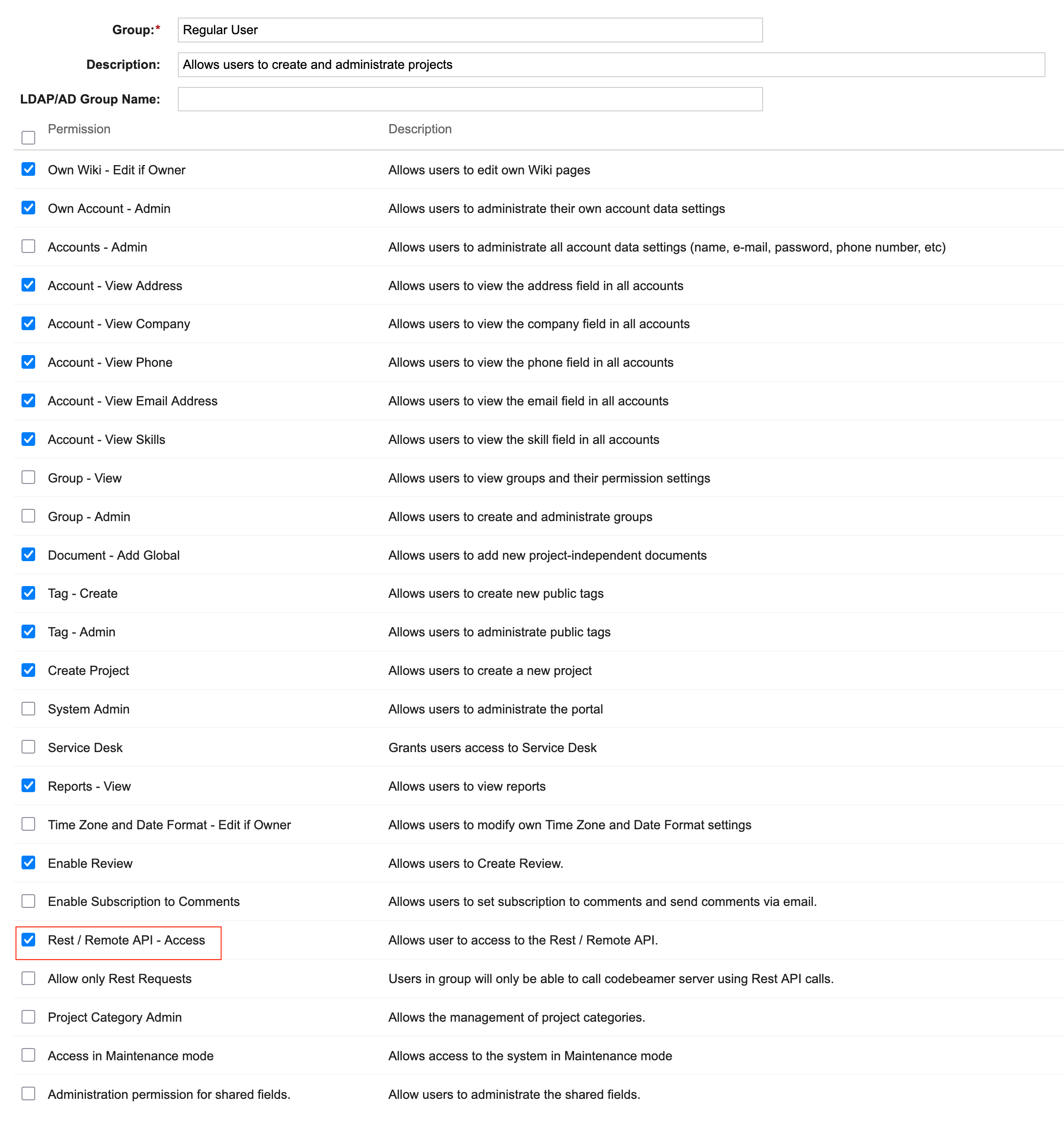
Appropriate Codebeamer User Group Permissions #
Each user who will use IQNECT must be a member of a user group that has the Rest /Remote API – Access permission.
For most users, the Regular User group permissions should be updated.