
Overview #
This article describes how to use the Decompose feature to create downstream items from one or more source items in IQNECT. Use this workflow when you need to break a requirement, specification, or document section into structured, actionable items within your tracker.
Prerequisites #
- You have permission to create tracker items in the target tracker.
- Your project includes at least one tracker type configured for downstream items.
- You are viewing an item or document that supports decomposition.
Access the Decompose menu #
You can open the Decompose menu from several locations within IQNECT. Each entry point leads to the same decomposition workflow.
From document view #
Use the IQNECT AI icon in the tracker toolbar to decompose the entire tracker.
Use the AI icon in an individual item’s toolbar to decompose only that item.
From table view or issue view #
Select the icon with two arrows to open the decomposition menu.
All entry points open a selector where you choose the target item type based on your tracker configuration. You can also filter the tracker type directly within the Decompose menu.
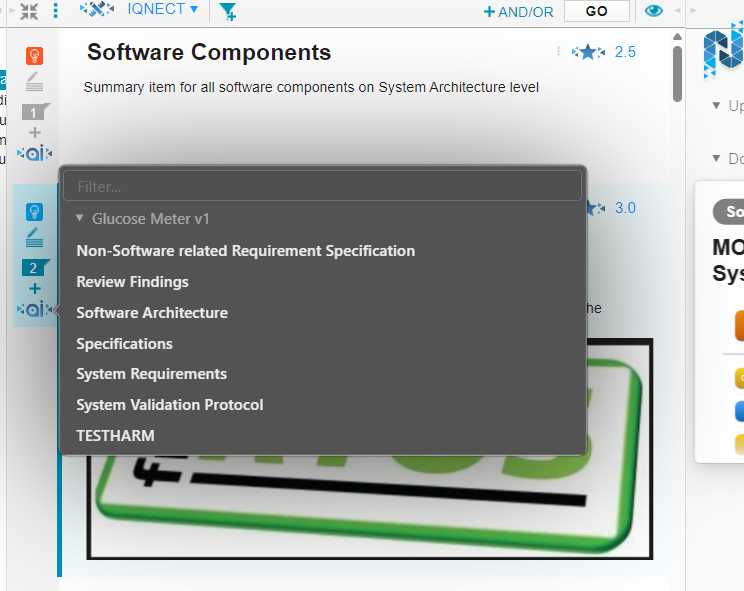
Select a target and open the decomposition view #
Choose the item you want to decompose.
Select the downstream item type to generate.
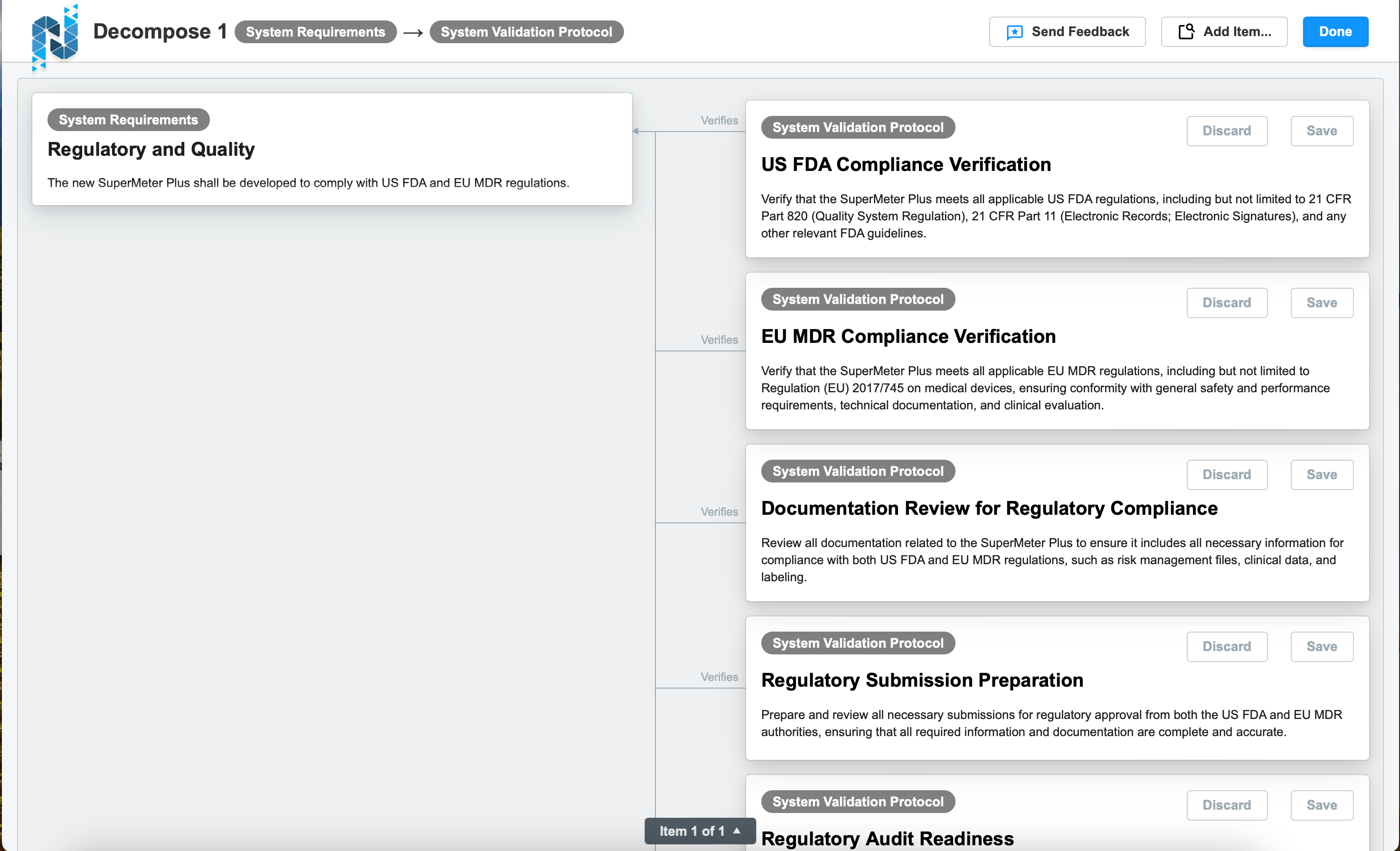
The full-screen decomposition view opens.
This view is divided into two panels:
Left panel: Items being decomposed (source items)
Right panel:
- Existing downstream items of the selected type
- Automatically generated items from the decomposition process
Review and manage generated items #
IQNECT automatically generates draft downstream items for review.
Save or discard generated items #
Keep only the items relevant to your project by choosing which drafts to save.
Discard any items that are not needed.
Edit items inline #
Click the description of any generated item.
An inline editor opens with the full editing toolbar.
AI autocomplete is available directly inside the editor.
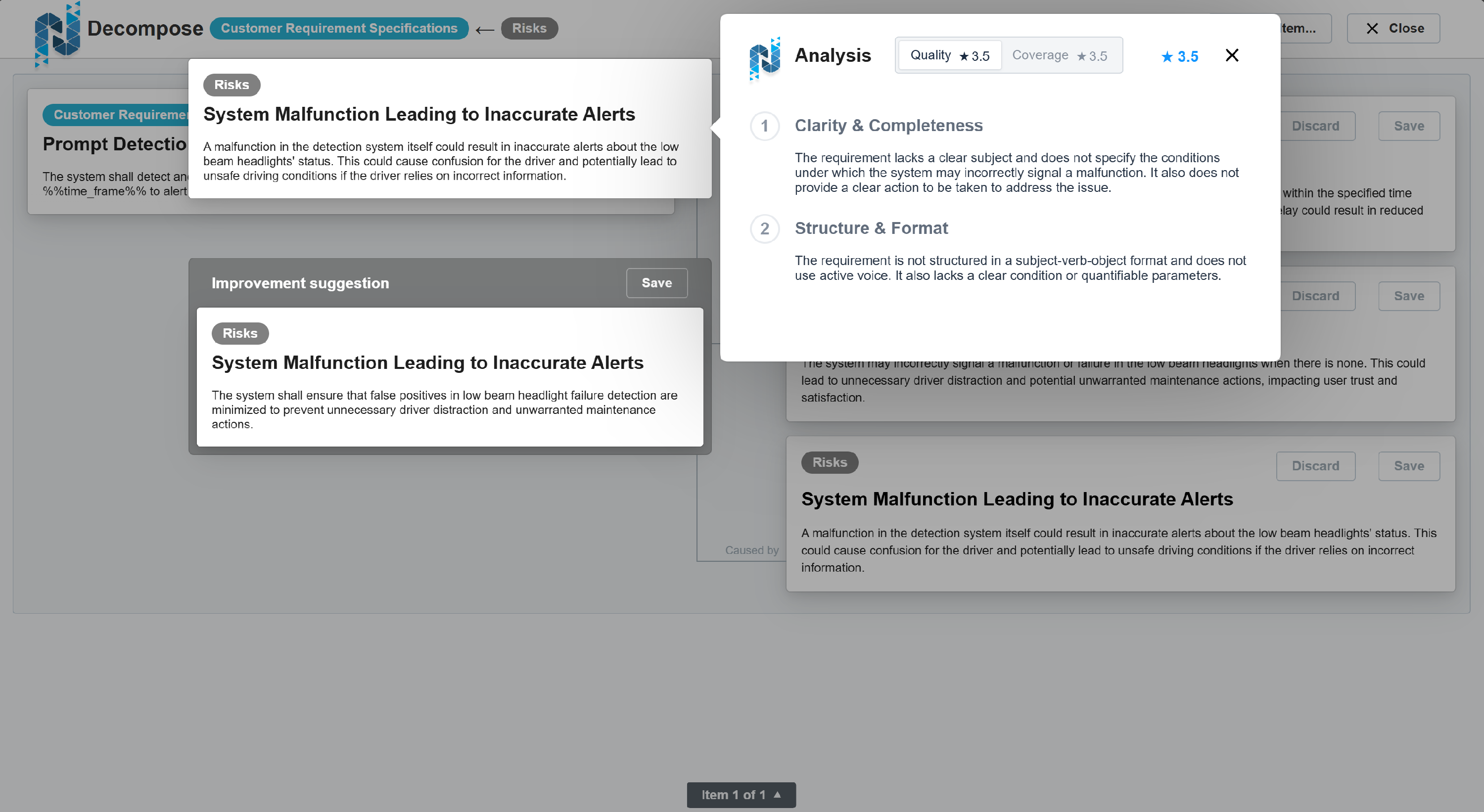
Run AI analysis before saving #
Right-click any unsaved item to access AI analysis.
Apply recommended improvements before finalizing the item.
Add missing downstream items manually #
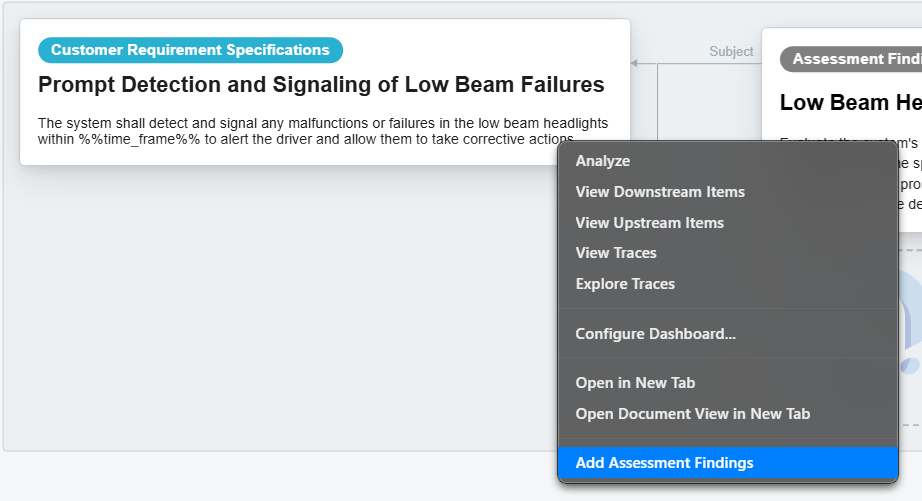
If decomposition does not automatically create an item you expect:
Right-click any source item in the left panel.
Select Add item type.
A blank item appears on the right panel.
Enter a description using the editor, and optionally use autocomplete or analysis.
This ensures your downstream structure remains complete even when decomposition does not detect every necessary item.
Add additional tracker items from the Decompose menu #
In the Decompose view, select Add Item…
A pop-up displays all related tracker item types.
Search for an item using the search bar or scroll the list.
Hold CTRL to select multiple items.
A checkmark appears on each selected item card.
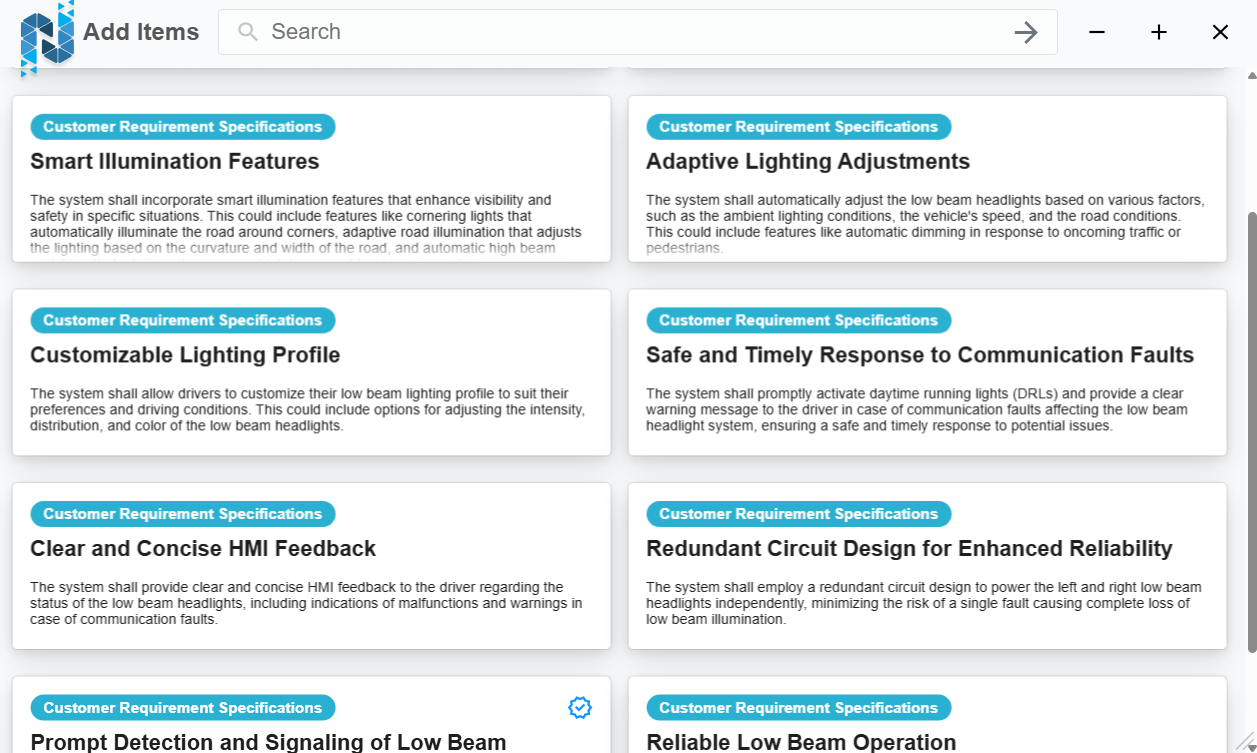
When added, the selected items are automatically decomposed.
View decomposition status #
If an item has been fully decomposed, IQNECT displays an information message indicating that no further downstream items are required.
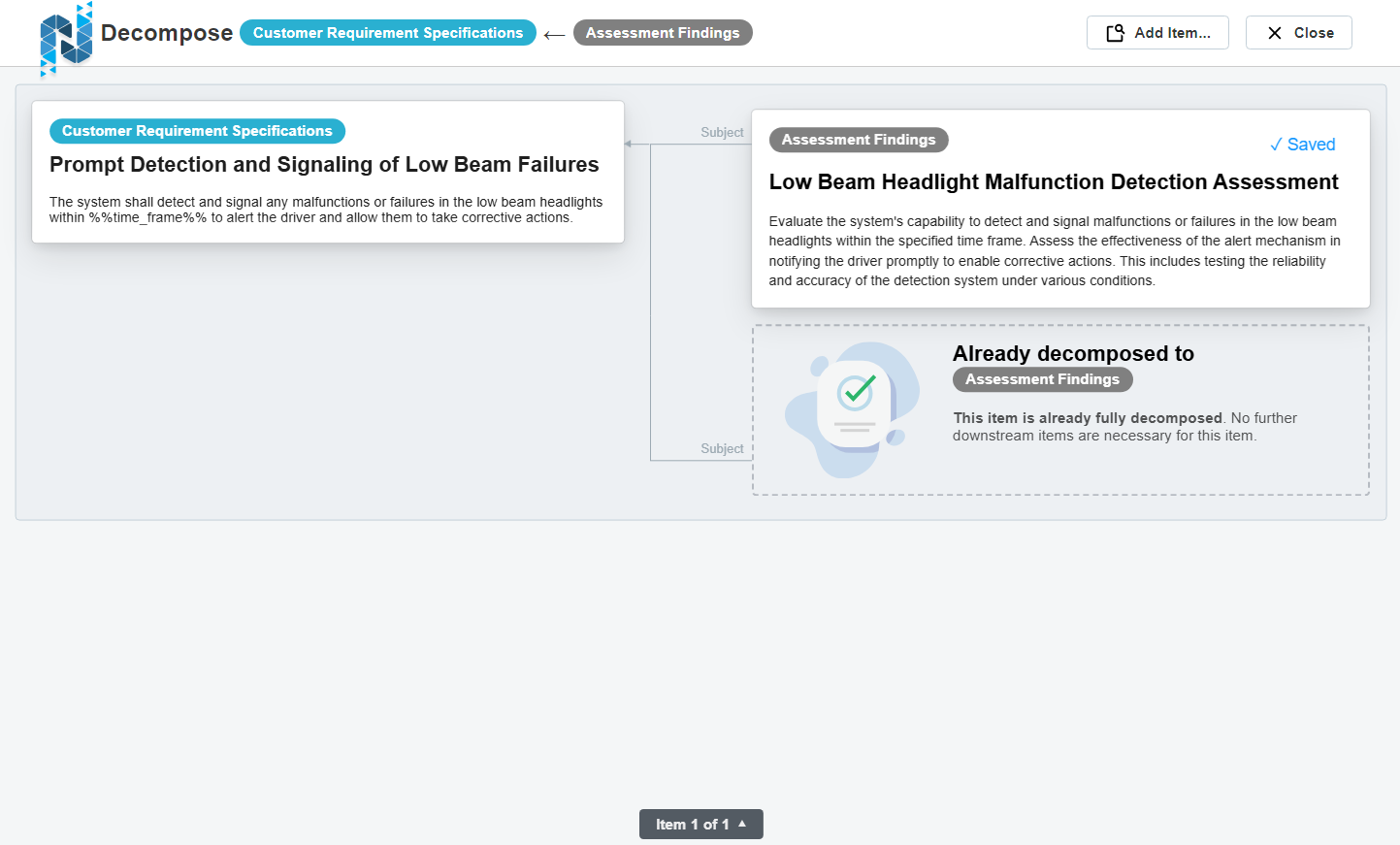
Results and next steps #
After reviewing, editing, adding, or discarding generated items, you can finalize the downstream structure and continue working within your tracker. Decomposition ensures each upstream requirement or document section is fully represented in actionable, well-structured downstream items.