
Overview #
In IQNECT 26.1, Semantic Search has been enhanced to deliver more relevant results and faster navigation across complex project content. The search logic has been upgraded to a hybrid model, improving match accuracy and increasing confidence in returned results.
This release also introduces Quick Filters, allowing users to refine searches instantly, save filter configurations, and set defaults for repeatable workflows.
Together, these improvements reduce time spent searching and help teams locate the right tracker items with less effort.
Prerequisites #
- The project you want to search is available in your workspace.
- You have permission to view tracker content in the selected project.
- You are using IQNECT version 26.1 or later.
Run an improved Semantic Search #
Follow these steps to search project content using the updated Semantic Search experience:
Open your project #
Open the Projects tab and click on the project you want to search within.
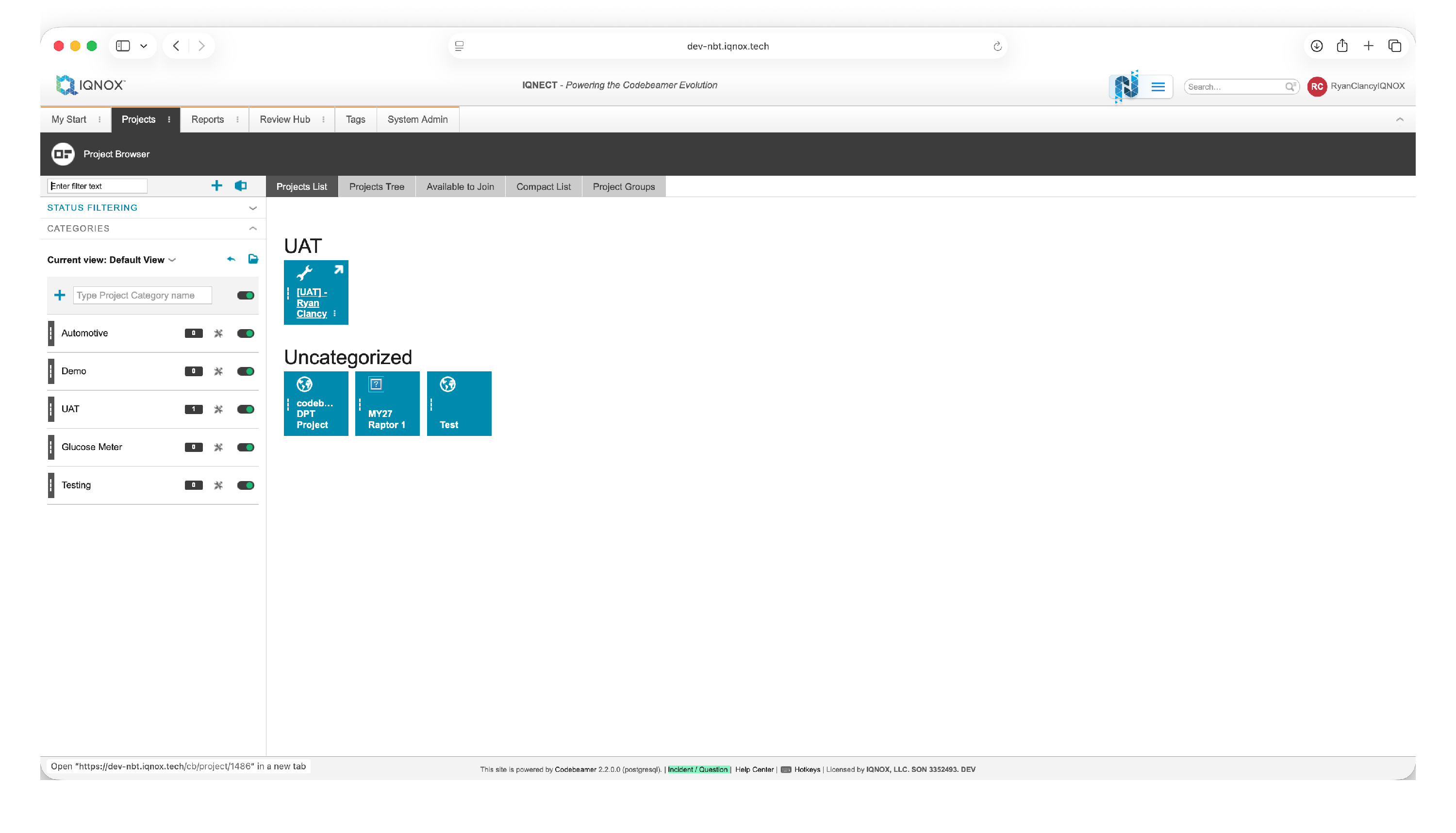
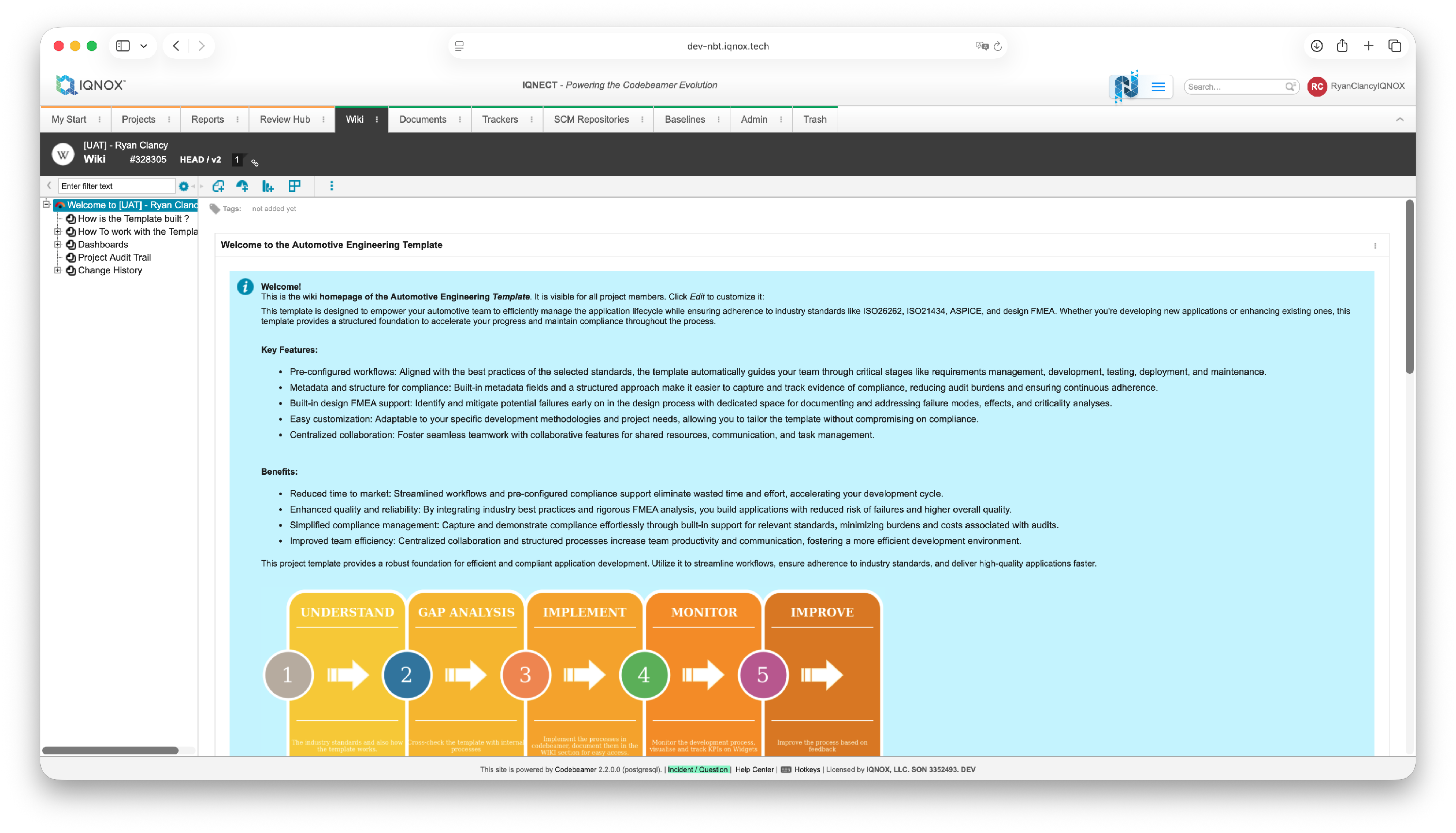
This will open the project workspace.
Select the tracker items #
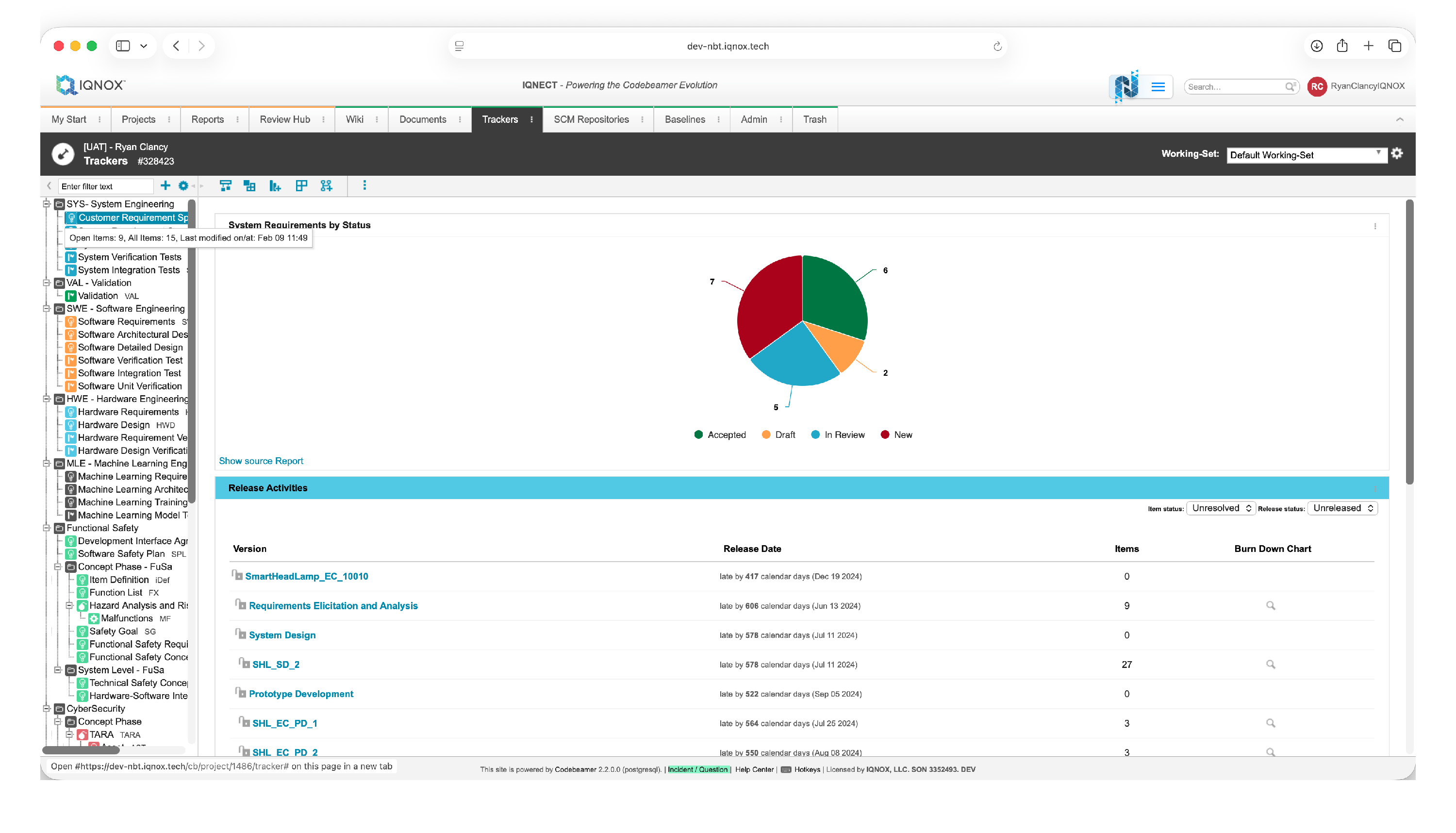
Navigate to the Trackers tab.
Double click the desired tracker in the tree structure on the left.
Open Semantic Search #
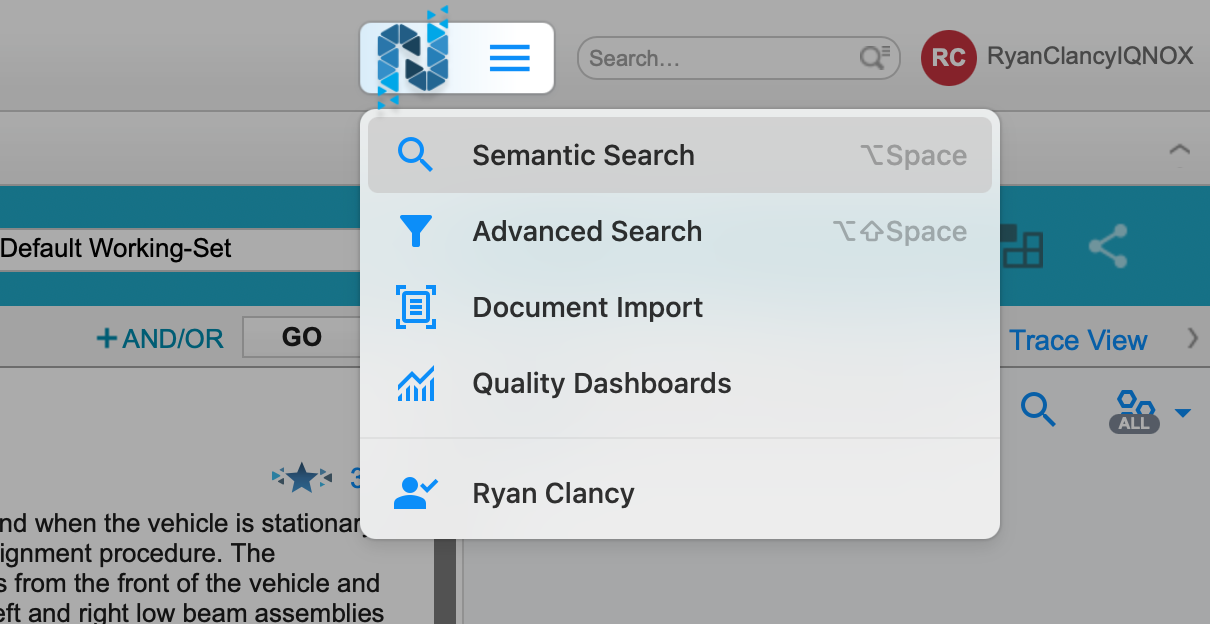
Open the hamburger menu beside the IQNECT logo.
Select Semantic Search .
The Semantic Search panel opens.
Select a project and enter a query #
Choose the project scope for your search.
Enter a term or phrase into the search bar.
IQNECT returns results using the updated hybrid search model, providing more relevant matches and higher scoring results.
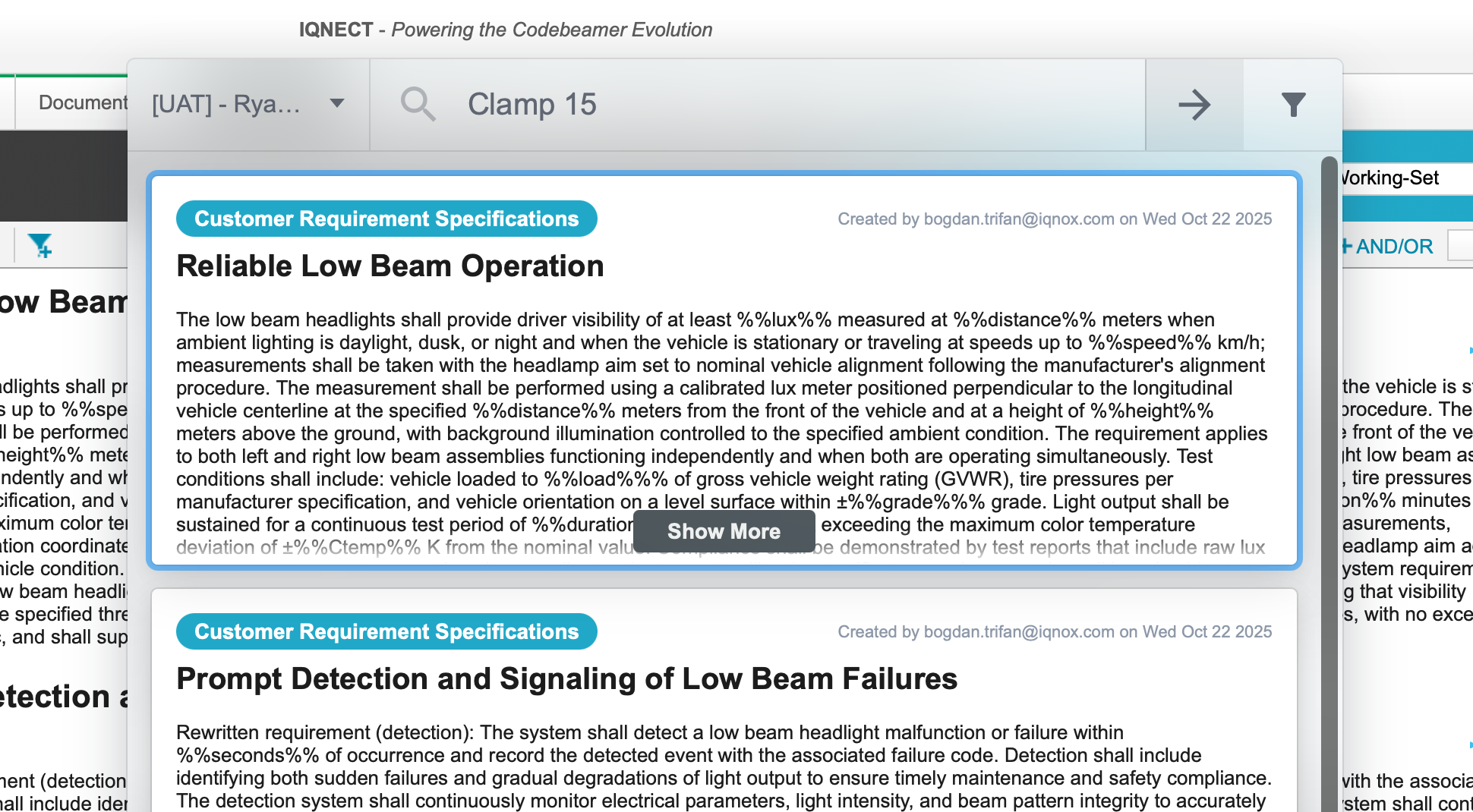
Review matching results #
Semantic Search results are ranked by relevance, to see the results in more detail open up Advanced Search using the funnel icon at the top-right of the Semantic Search window.

This helps users quickly identify the most meaningful tracker items without relying on exact keyword matches.
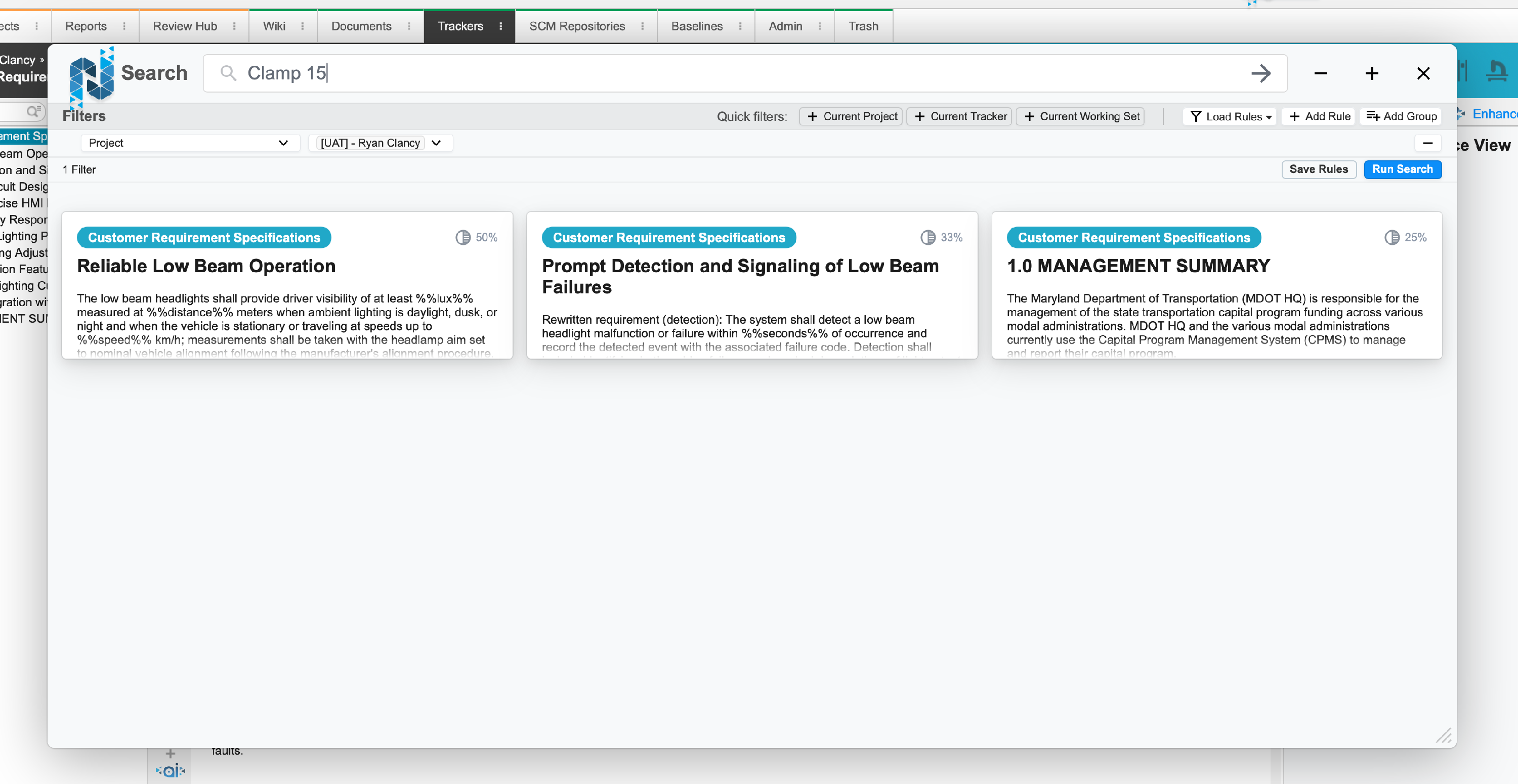
Use Quick Filters to refine results #
IQNECT 26.1 introduces Quick Filters to make search refinement faster and more intuitive.
Apply Quick Filters #
By default, Quick Filters are available at the top of the search interface.

Click a Filter and select on option from the dropdown to apply it immediately.
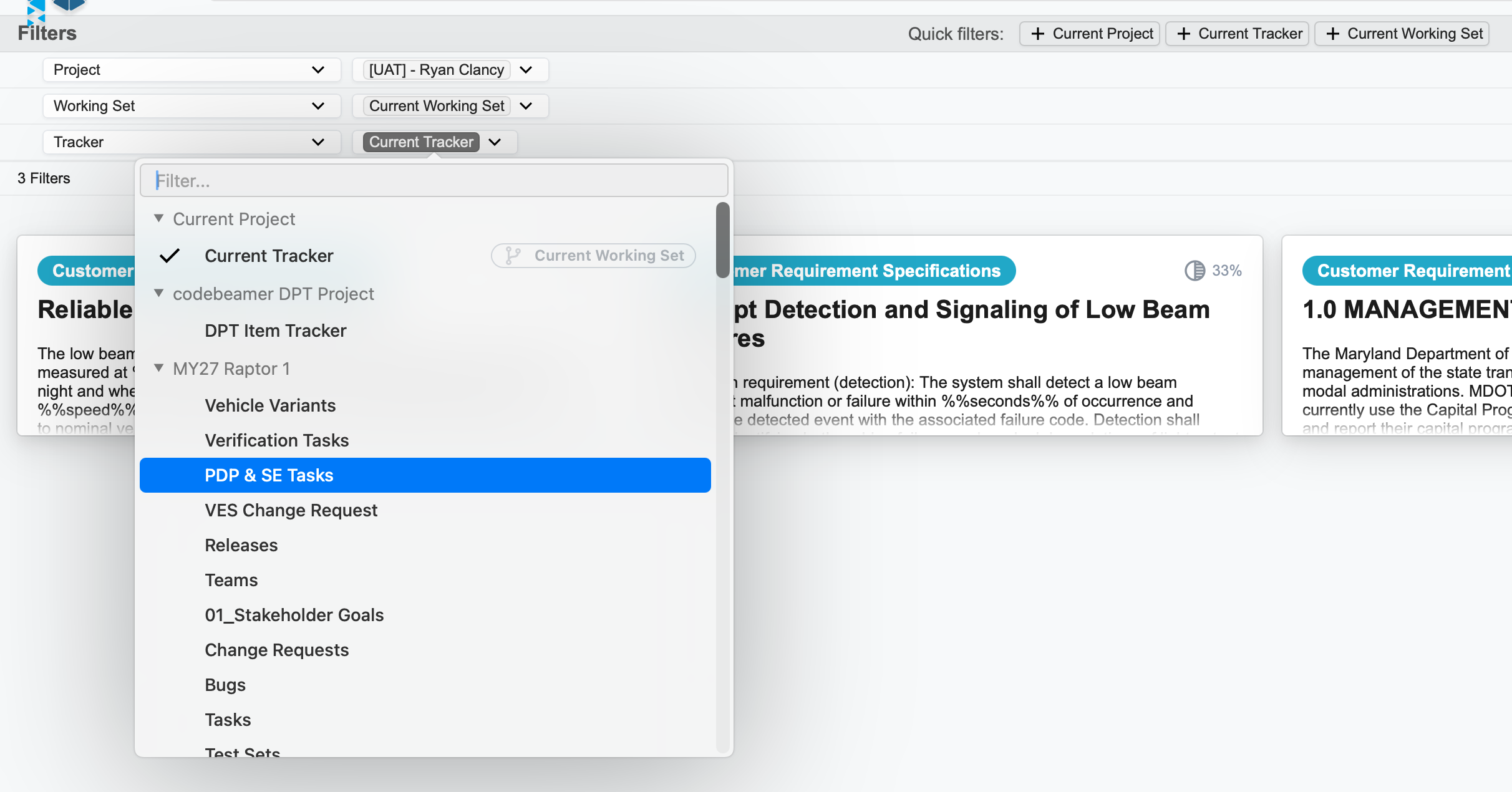
Filters help narrow results by common criteria without requiring manual rule-building.
Add additional rules (optional) #
For more specific filtering, click Add Rule .
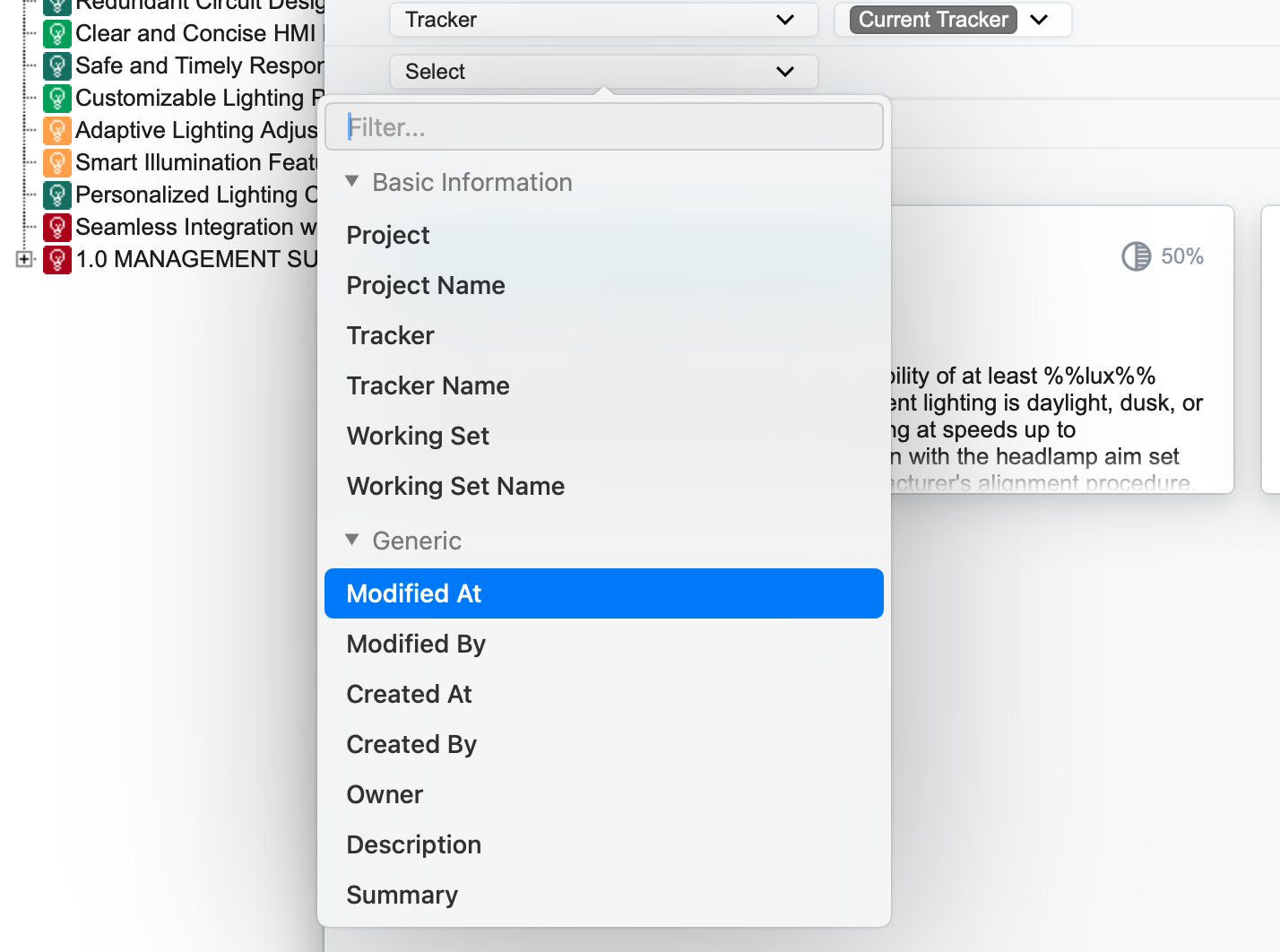
Refine results by project, tracker, entity type, or other criteria.
This allows users to combine semantic relevance with structured constraints.
Save and reuse Filter configurations #
Quick Filters can be saved for consistent workflows.
Save a Filter #
After applying Filters, select Save Rules .
Provide a name for the Filter configuration and hit Save .

Filters are saved per user.
Load saved Filters #
Saved Filters can be reloaded directly from the Filter menu.
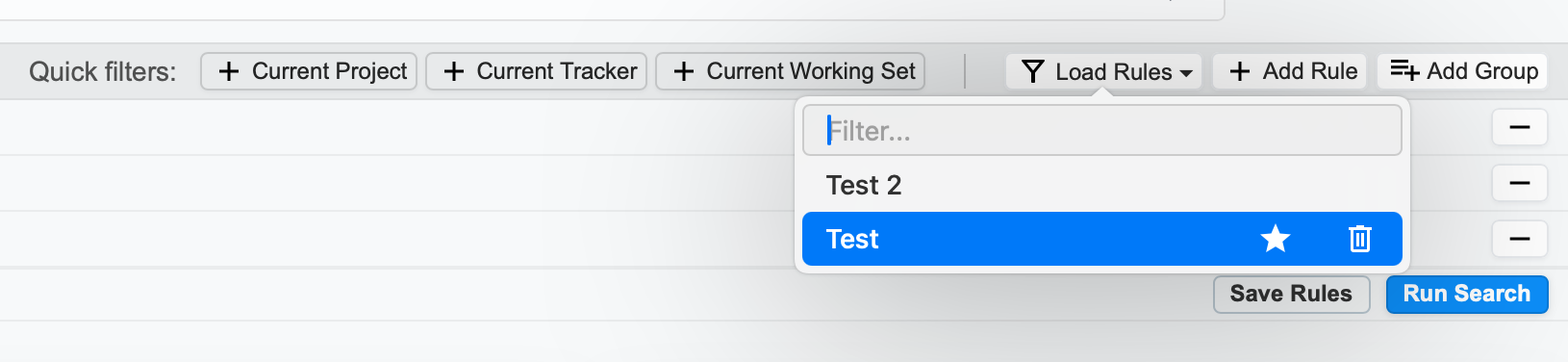
This allows users to return to frequently used search configurations instantly.
Set a default Filter #
A saved Filter can also be set as the default using the star icon.
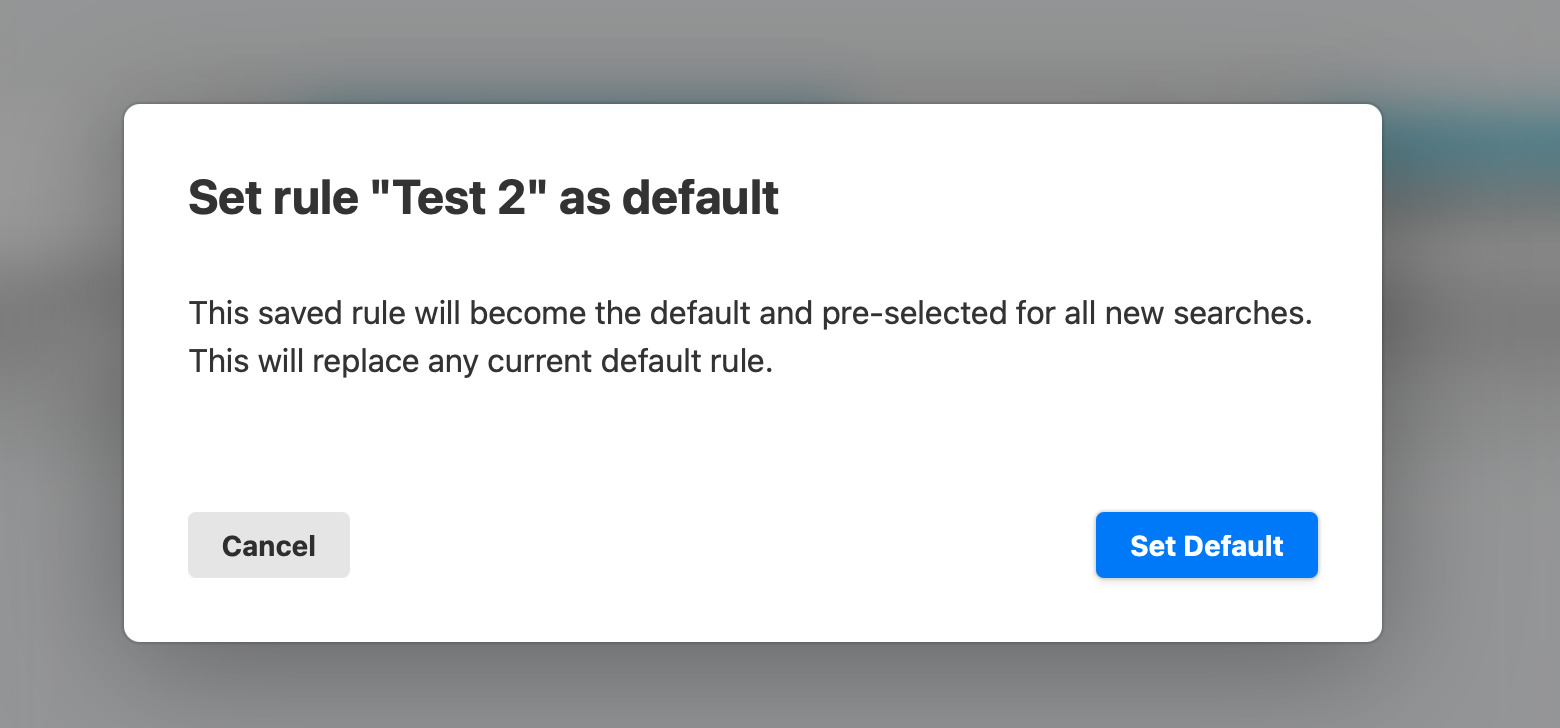
Default Filters appear automatically when Advanced Search is opened, indicated by the star icon.
Results and Next Steps #
You’ve successfully used the improved Semantic Search and applied Quick Filters to refine results.
Use this workflow to locate tracker content faster, reduce manual navigation, and create repeatable search setups for complex projects as your work evolves.