
Skip to content
  • Home
  • Watch Demos
  • Pricing
  • Documentation
  • About Us
  • IQNOX
Let's Talk

Onboarding

2
  • Codebeamer setup
  • Getting started

Codebeamer AI Features

7
  • Analyze items in IQNECT
  • Decompose items in IQNECT
  • Use Autocomplete in requirement editors
  • Find items with Semantic and Advanced Search
  • View dashboards in IQNECT
  • Explore traces in IQNECT
  • Initialize indexing from the Indexing UI

SSO Configuration/Setup

7
  • SSO Introduction
  • Okta SAML
  • Okta OIDC
  • Microsoft Entra SAML
  • Generic OIDC
  • Generic SAML
  • Microsoft Entra OIDC

Trust

7
  • How Often does IQNECT Update its AI Models?
  • IQNOX use of Open AI
  • Responsible AI and IQNECT
  • Does IQNECT train models with my data?
  • IQNOX use of Qdrant
  • Does IQNECT continuously pull in new data from Codebeamer as we add requirements to projects?
  • How does IQNECT handle feature requests and release cycles?

Release notes

8
  • 1.3.1
  • 1.5.0
  • 1.3.0
  • 1.4.0
  • 1.5.1
  • 26.1.1
  • 25.4.2
  • 26.1

IQNECT 1.5.0

5
  • Add traces via drag and drop
  • Run IQNECT in Codebeamer X
  • Select existing item suggestions in Decompose
  • Navigate the End-User Admin UI
  • Import a document to Codebeamer

Licensing and Administrative

1
  • Licensing Basis

IQNECT 26.1.0

5
  • Permission control and Resource Shape management
  • Improved Semantic Search with Quick Filters
  • Bulk Refactoring for multiple items
  • Using Find Similar to identify duplicate items
  • Hierarchy preservation and manipulation in Document Importer
View Categories
  • Home
  • Support
  • Codebeamer AI Features
  • Initialize indexing from the Indexing UI

Initialize indexing from the Indexing UI

1 min read

Overview #

This article explains how administrators can initialize indexing from the Codebeamer Reports page using the Indexing UI. Use this feature when you need to reindex items based on a cbQL query.


Prerequisites #

  • You have Administrator privileges in Codebeamer.
  • You have access to the Reports page.
  • You can generate or view the cbQL string used by the report.

Run a report #

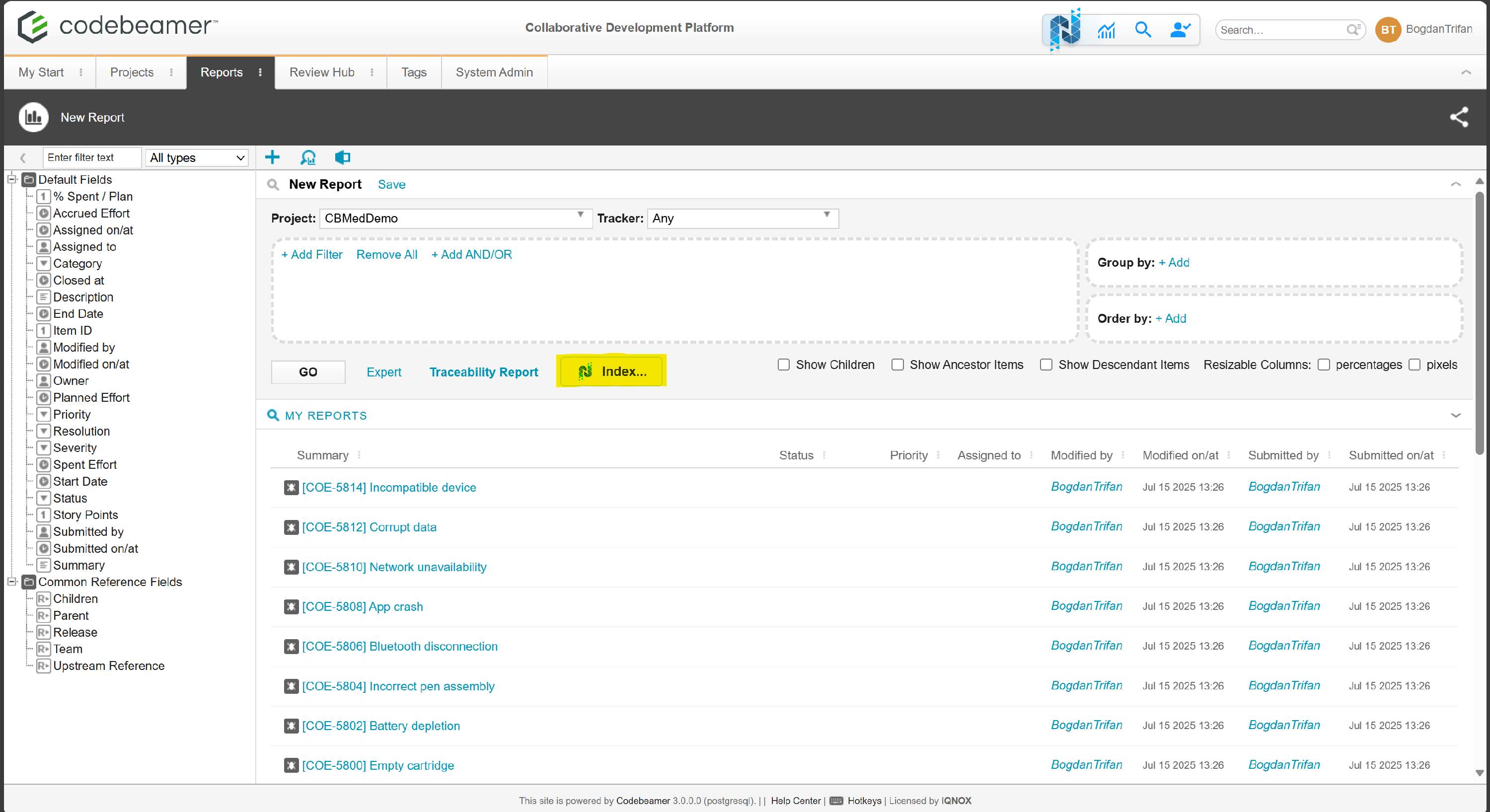
  1. Go to the Reports page in Codebeamer.
  2. Run any report as usual.
  3. After the report loads, a new Index button appears.

This button is only available to administrators.

Open the Indexing UI #

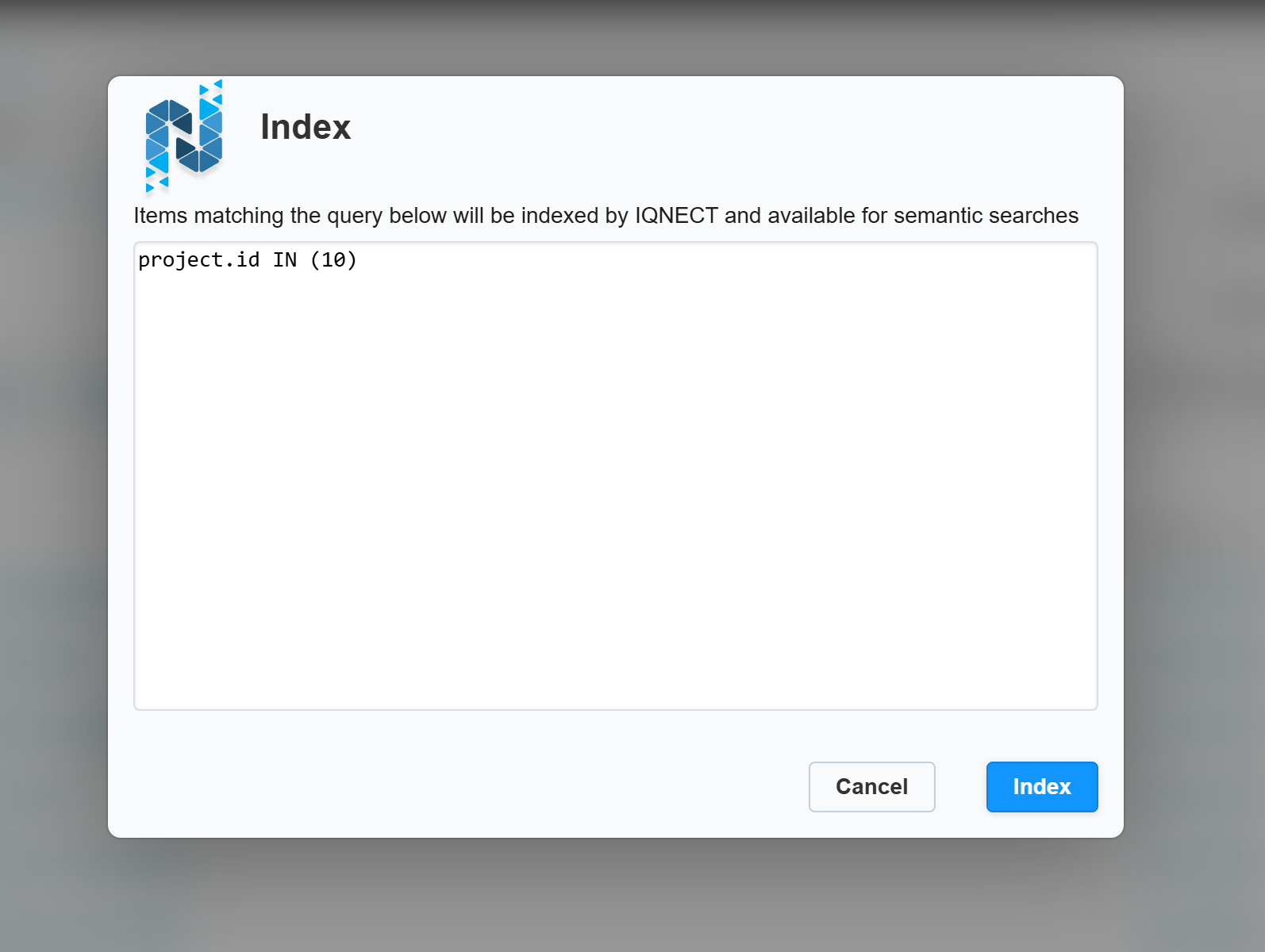
  1. Click the Index button on the report.

    A modal opens showing the cbQL string used by the report.

    • This string is the basis for reindexing.
    • It can be reused to run indexing again without rebuilding the report.

Start indexing #

  1. In the modal, confirm the cbQL selection.
  2. Initiate indexing.
  3. Indexing begins immediately based on the items returned by the cbQL query.

View indexing progress #

Indexing progress is shown in your user account popover.
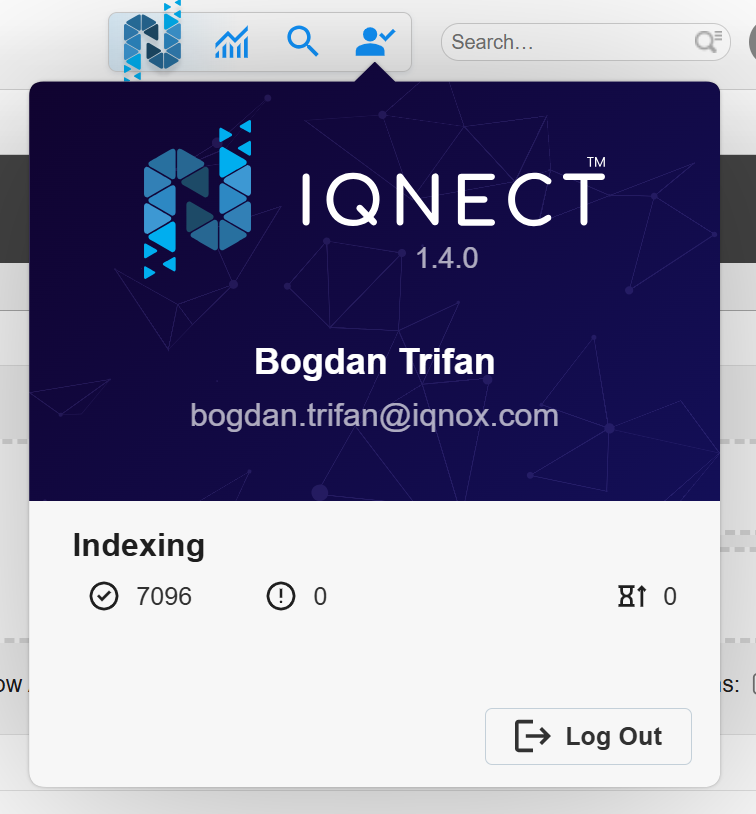
The popover displays:

  • Number of items sent for indexing
  • Number of items that could not be sent for indexing
  • Number of items awaiting indexing

These values update as indexing progresses.


Results and next steps #

After indexing is complete, Codebeamer updates the indexed items based on the cbQL query you submitted. You can run additional reports and reindex again at any time using the same workflow.

Updated on 2026-03-03

What are your Feelings

Explore traces in IQNECTAnalyze items in IQNECT
Table of Contents
  • Overview
  • Prerequisites
  • Run a report
  • Open the Indexing UI
  • Start indexing
  • View indexing progress
  • Results and next steps
IQNECT-horizontal-dark-text
  • Home
  • Watch Demos
  • About Us
  • IQNOX
  • Pricing
  • Contact Us
Linkedin Twitter Youtube
©️ 2026 IQNOX. All rights reserved.
  • VDP
  • Terms
  • Privacy
  • Cookies