
Overview #
This article describes how to open and navigate the Explore Traces view in IQNECT. Use this feature when you want to analyze how resources are connected through upstream and downstream trace relationships.
Prerequisites #
- You are using IQNECT with access to resources that contain trace relationships.
- You have permission to view traces within your project.
Open the Explore Traces view #
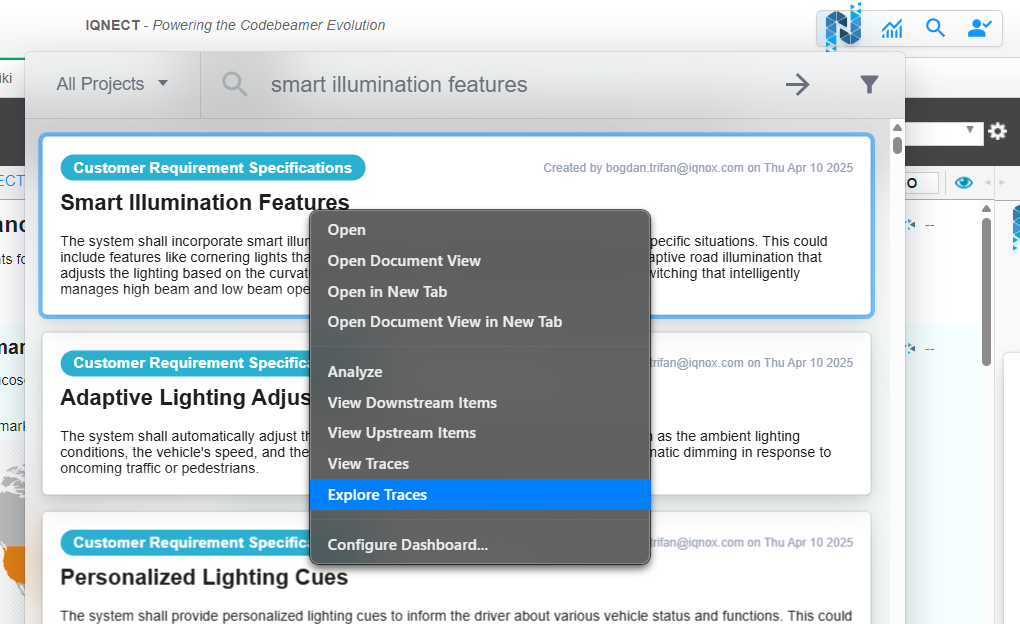
Right-click any item displayed in IQNECT. Select Explore Traces from the context menu.
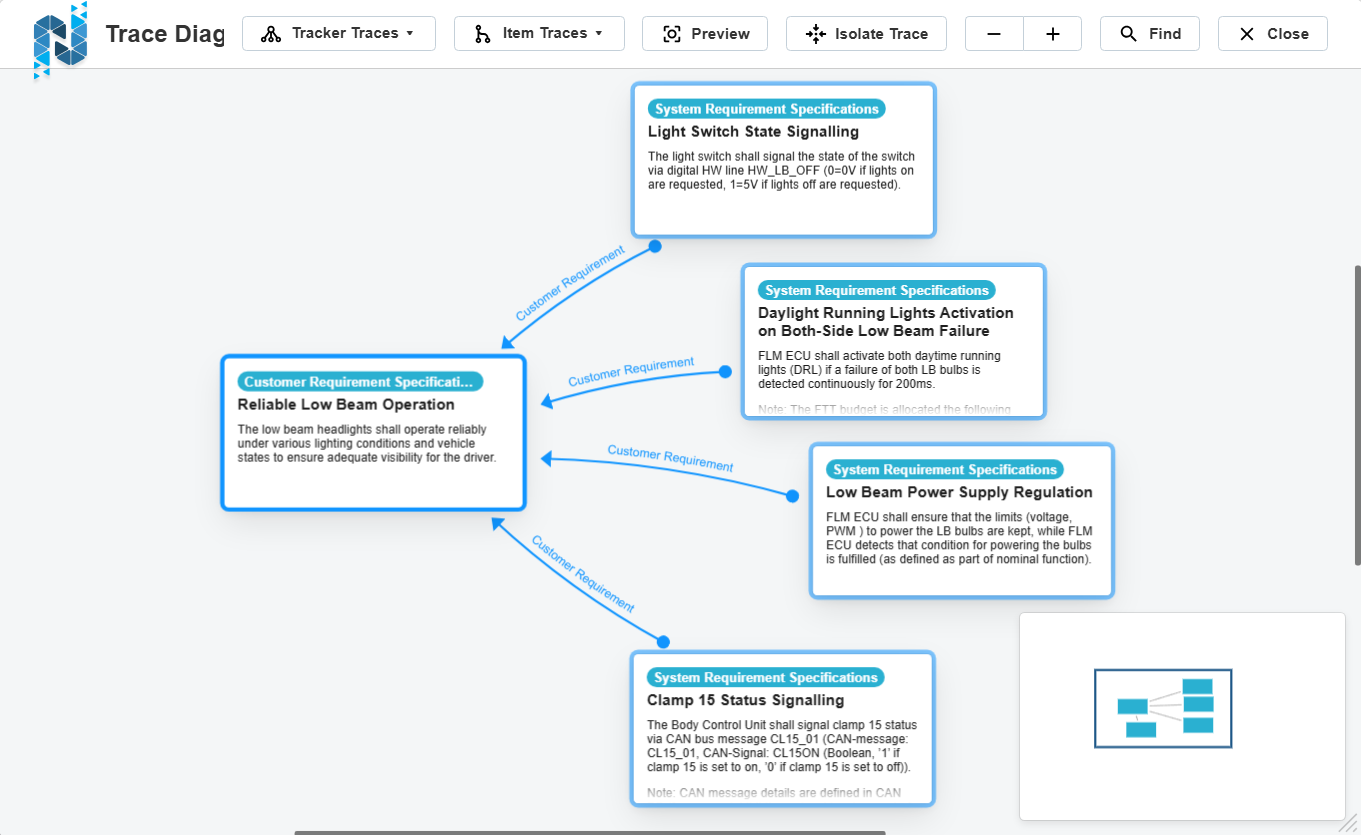
A trace diagram opens with only the selected resource shown.
Expand traces from a resource #
After opening the diagram, you can add related resources by expanding traces.
Select a resource in the diagram.
Expand its upstream or downstream traces using the UI controls.
- Regular traces display as dark gray arrows.
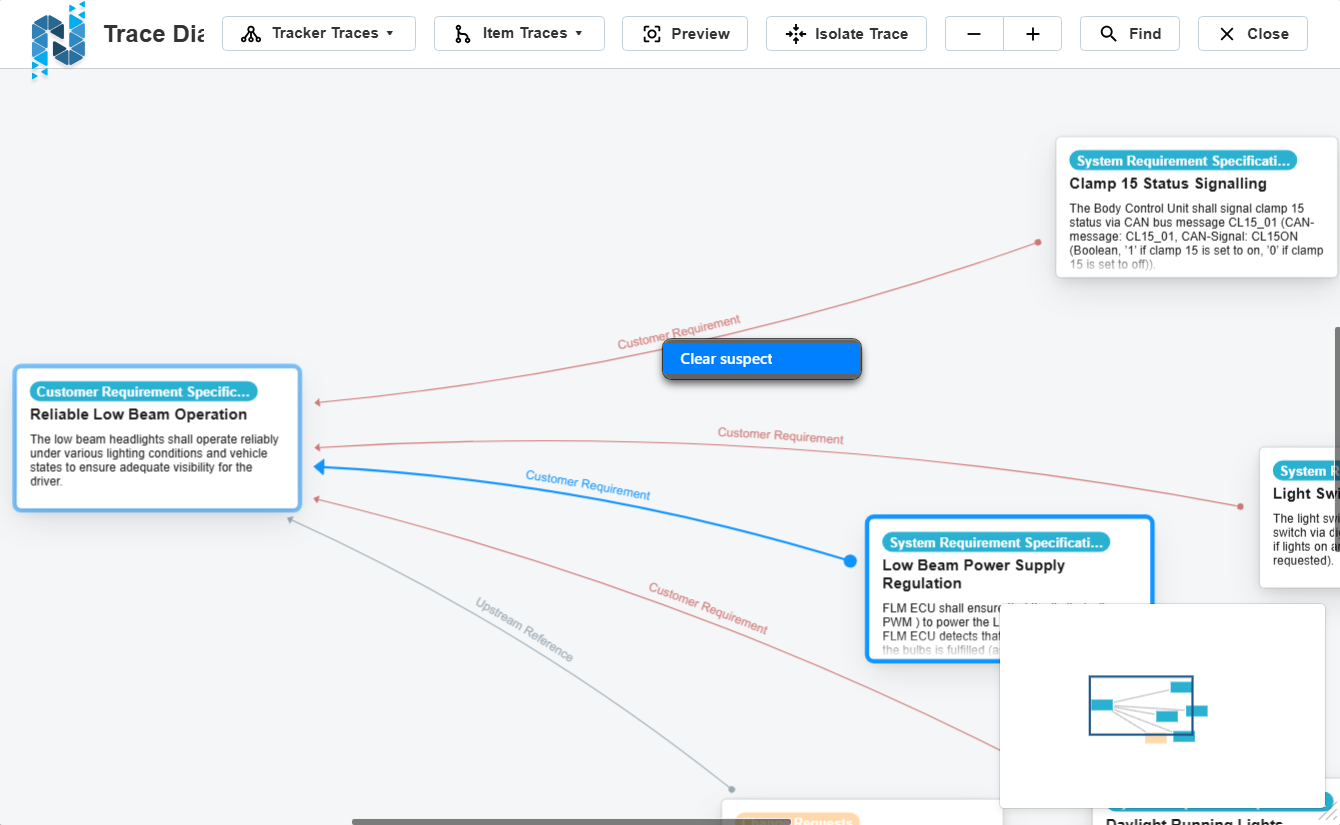
- Suspected traces display as red arrows.
Repeat this process for any newly added resources to build a deeper diagram.
To expand at the tracker level, use the tracker-level expansion options in the UI.
Shortcut: Press Enter while a resource is selected to open the traces menu quickly.
Isolate a trace path #
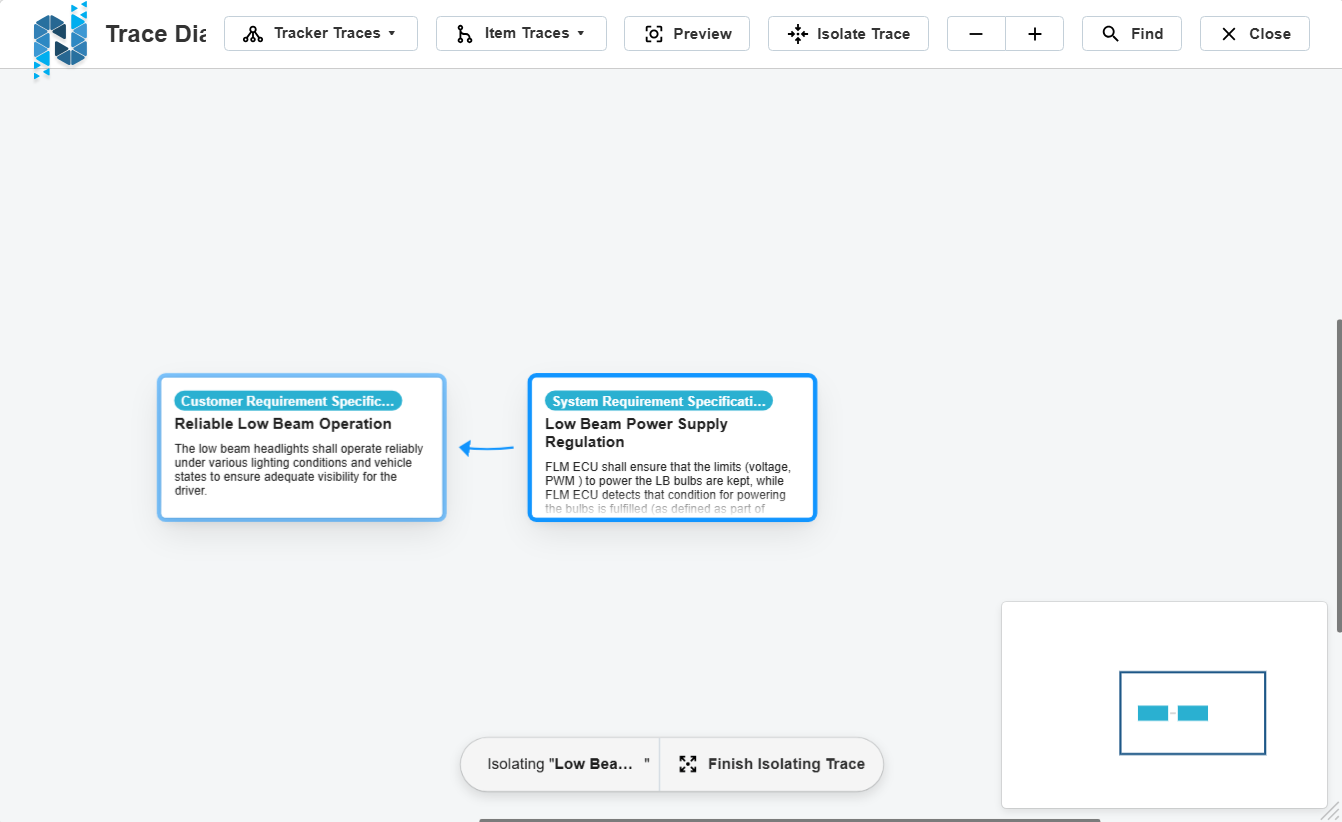
Isolation temporarily hides all resources that are not connected to the selected trace path.
Select a resource in the diagram.
Enable Isolate Traces from the context menu.
Only the selected resource and its upstream/downstream paths remain visible.
Shortcuts:
- Enable isolation: CMD/CTRL + I
- Disable isolation: CMD/CTRL + ALT + I
Manage suspected traces #
Locate a red arrow in the diagram (suspected trace).
Right-click the arrow.
Select the option to clear the suspected state.
This updates the trace to a regular state within the diagram.
Zoom and preview resources #
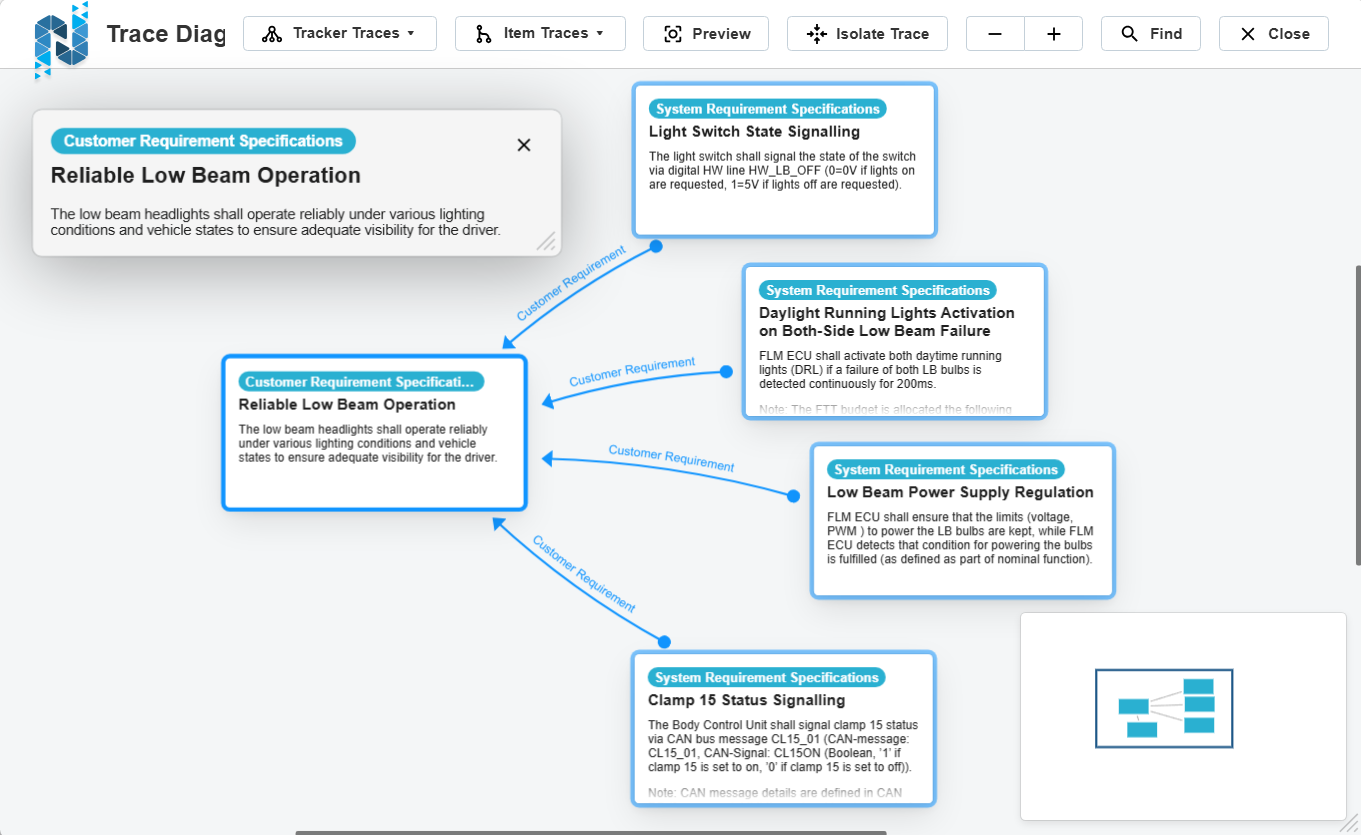
Use navigation controls to examine the diagram more closely.
- Zoom in or out: Press CMD/CTRL + + or CMD/CTRL + –.
- Open the preview window: Press Spacebar while a resource is selected.
- The preview displays the full description of the selected resource.
- Pan the diagram: Click and drag any empty area in the viewer.
To deselect a resource, click an empty area without dragging.
Search within a trace diagram #
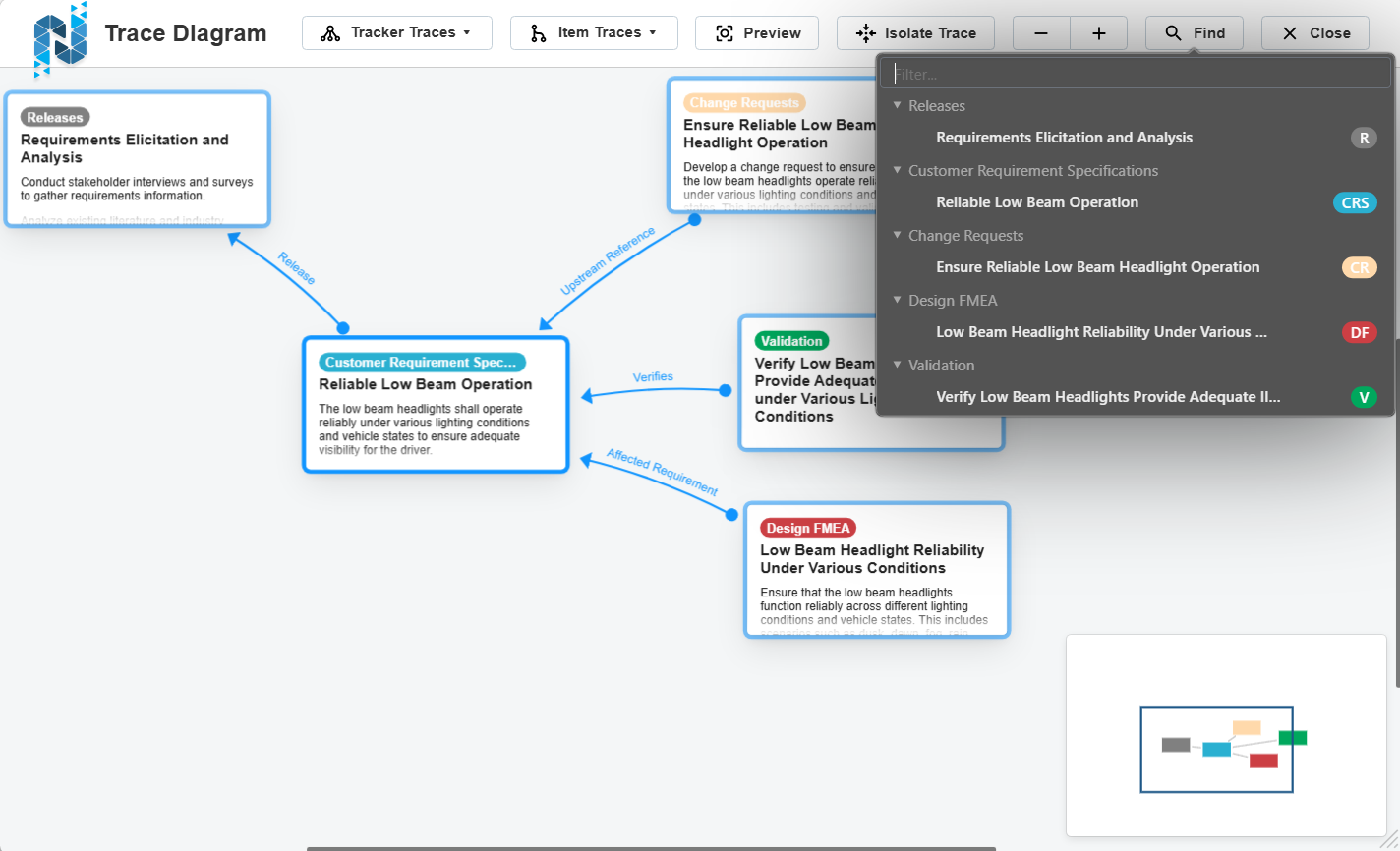
Click Find , or press CMD/CTRL + F.
In the search menu, view the full list of resources currently in the diagram.
Enter a term to filter the list.
Select a resource from the results.
The diagram automatically pans to center that resource and selects it.
While a search term is active, highlighting an item causes the viewer to pan directly to it.
Results and next steps #
After completing these actions, you can use Explore Traces to analyze relationships across any depth of trace expansion. Continue adding or isolating resources to refine your view, or repeat the process for different source items in your project.