
This article explains how to use Semantic Search and Advanced Search in Codebeamer to quickly find items by meaning, not just exact text. These tools help you explore related items, refine search results, and navigate item relationships without interrupting your current workflow.
Prerequisites #
- You have access to Codebeamer.
- You can view items across one or more projects.
- You have permission to open items returned by search.
How Search works in IQNECT #
IQNECT provides two complementary search tools within Codebeamer.
- Semantic Search focuses on speed and context, helping you find items based on meaning rather than exact keywords.
- Advanced Search provides precision, allowing you to apply filters, combine conditions, and refine results.
Use them together: Start with Semantic Search to surface relevant items, then switch to Advanced Search to narrow and analyze results without losing context.
Use Semantic Search #
Semantic Search finds items that are similar in meaning to your query, even when they do not contain exact keyword matches.
Search across multiple languages #
Semantic Search is multilingual, allowing you to search in one language and find relevant items written in another.
For example, you can:
- Search in English and retrieve results from items written in German, French, or other supported languages.
- Search using terminology familiar to your team, even when documentation or requirements are maintained in a different language.
- Discover related content across global projects without translating queries or relying on exact keyword matches.
Because Semantic Search focuses on meaning rather than exact text, it can identify relevant items across languages and help teams collaborate more effectively in multilingual development environments.
Open Semantic Search #
You can activate Semantic Search from anywhere in Codebeamer.
- Click the magnifying glass icon in the global toolbar.
- Or press Alt + Space for immediate access.
A search bar appears over your current page. You do not lose your place while searching.

Choose a project to search #
Next to the search bar is a project dropdown.
You can:
- Search across all projects (default)
- Or choose a specific project
Run a search #
- Enter your text query.
- Press Enter to search.
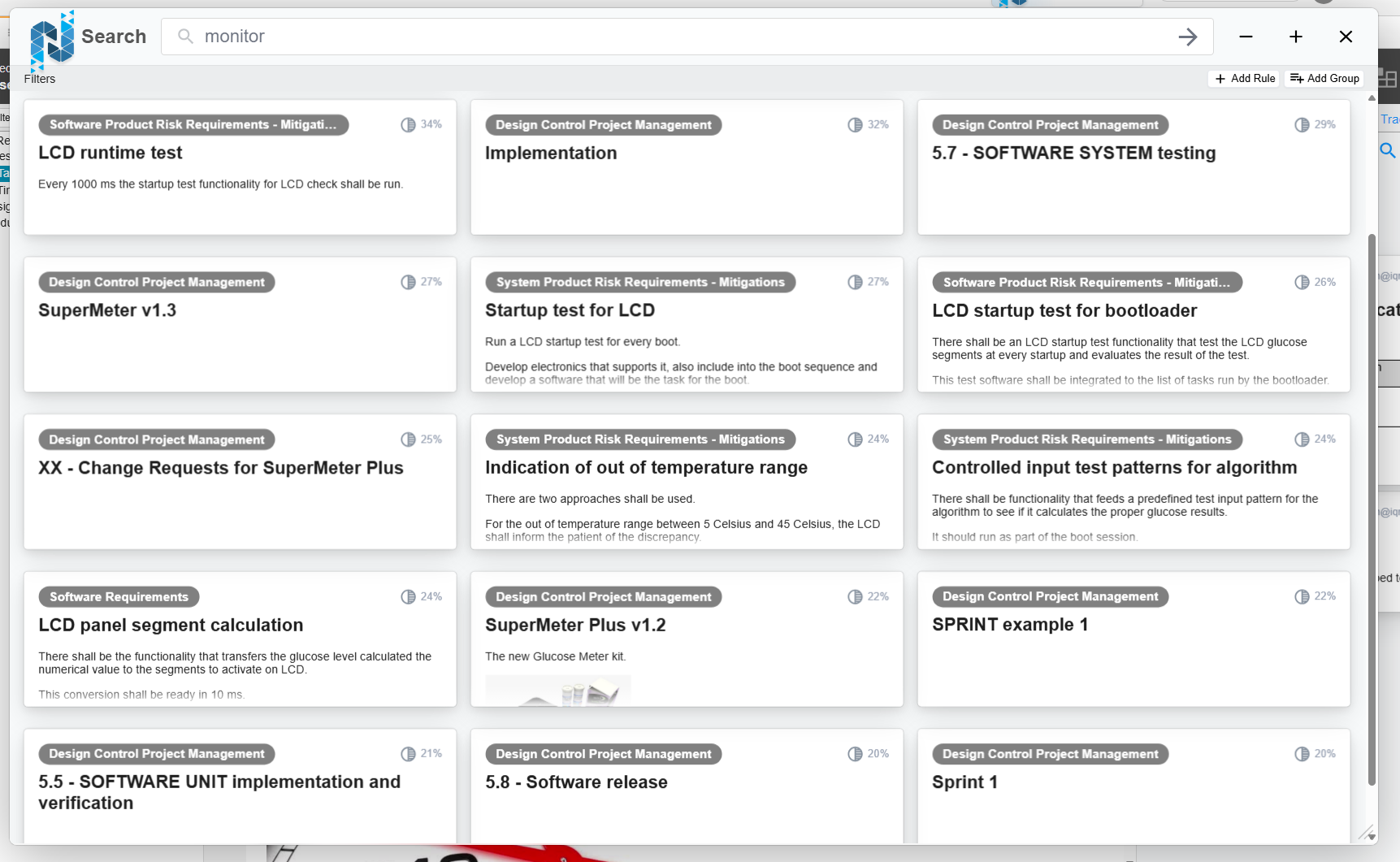
- Results appear below the search bar.
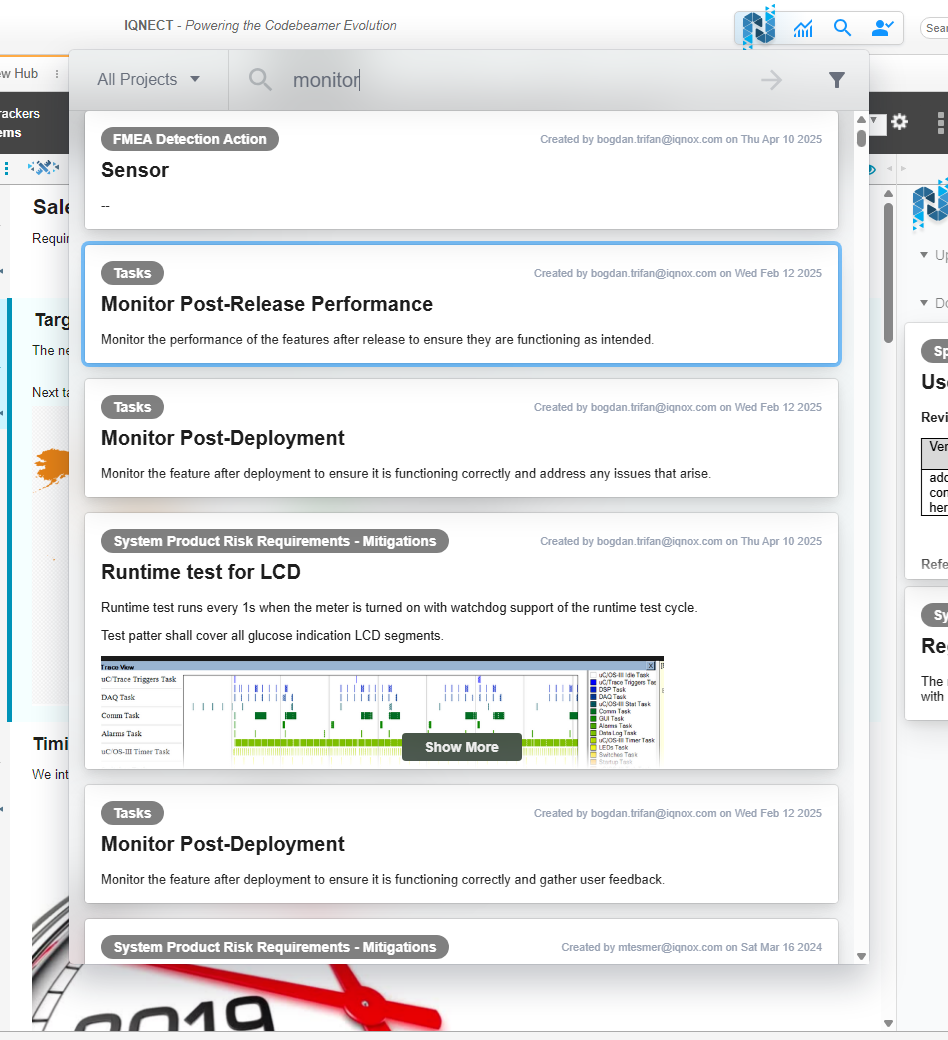
Navigate search results #
Once results load, you can open or explore items in multiple ways:
Press Enter to open the first result.
Use the arrow keys to navigate through all returned items.
Click a result to open it.
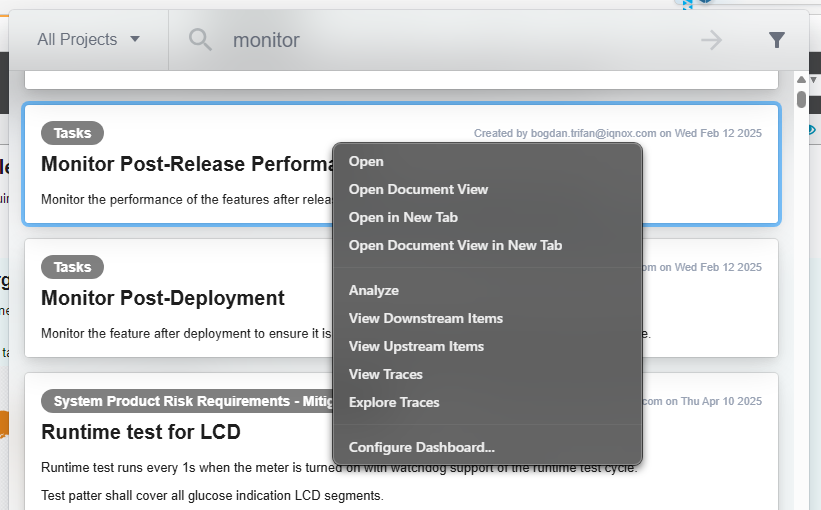
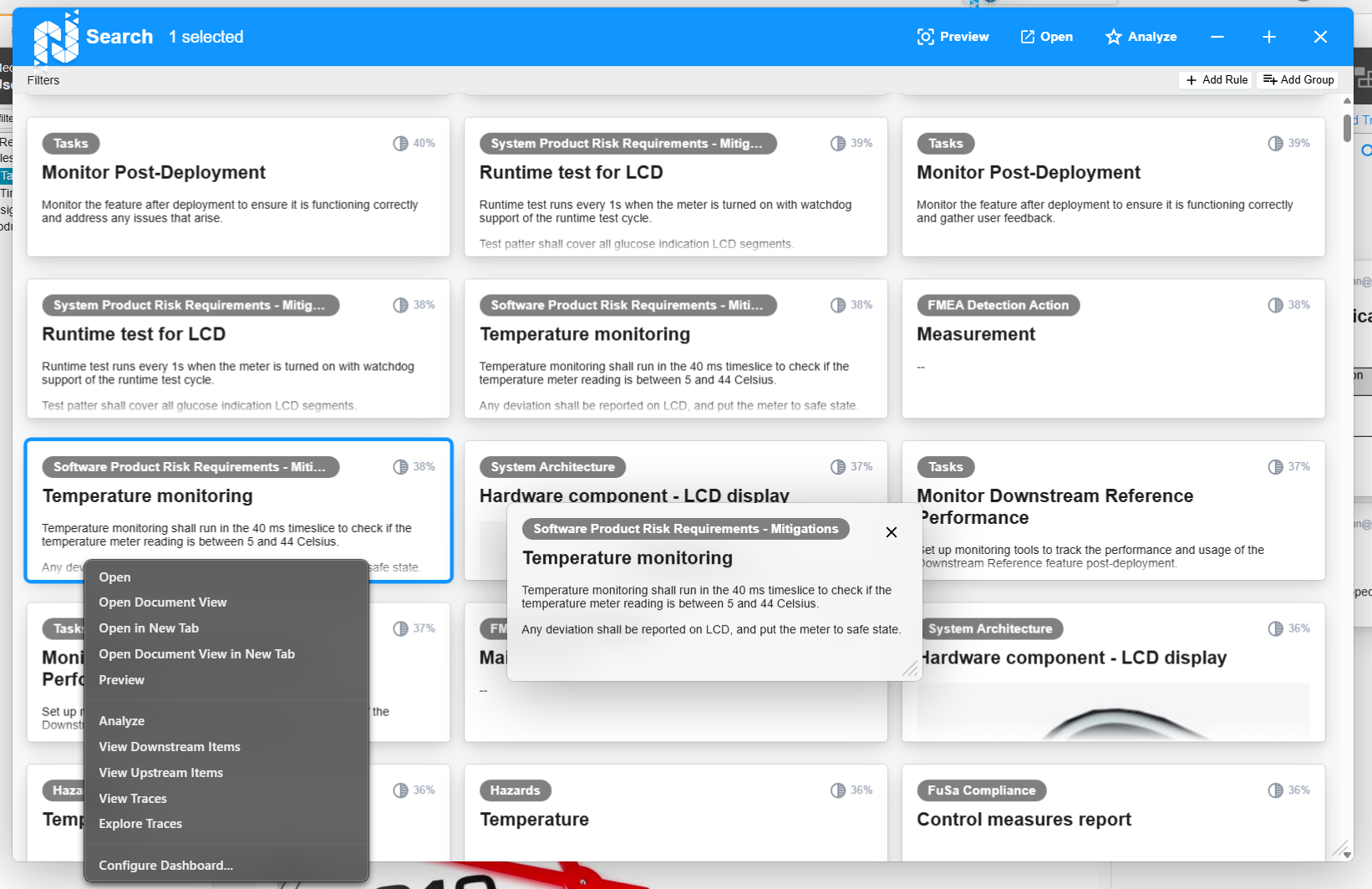
Right-click or press Alt + Enter to open a menu with additional options:
Open in document view
Open in a new browser tab
Analyze the item
View downstream items
View upstream items
View upstream or downstream relationships #
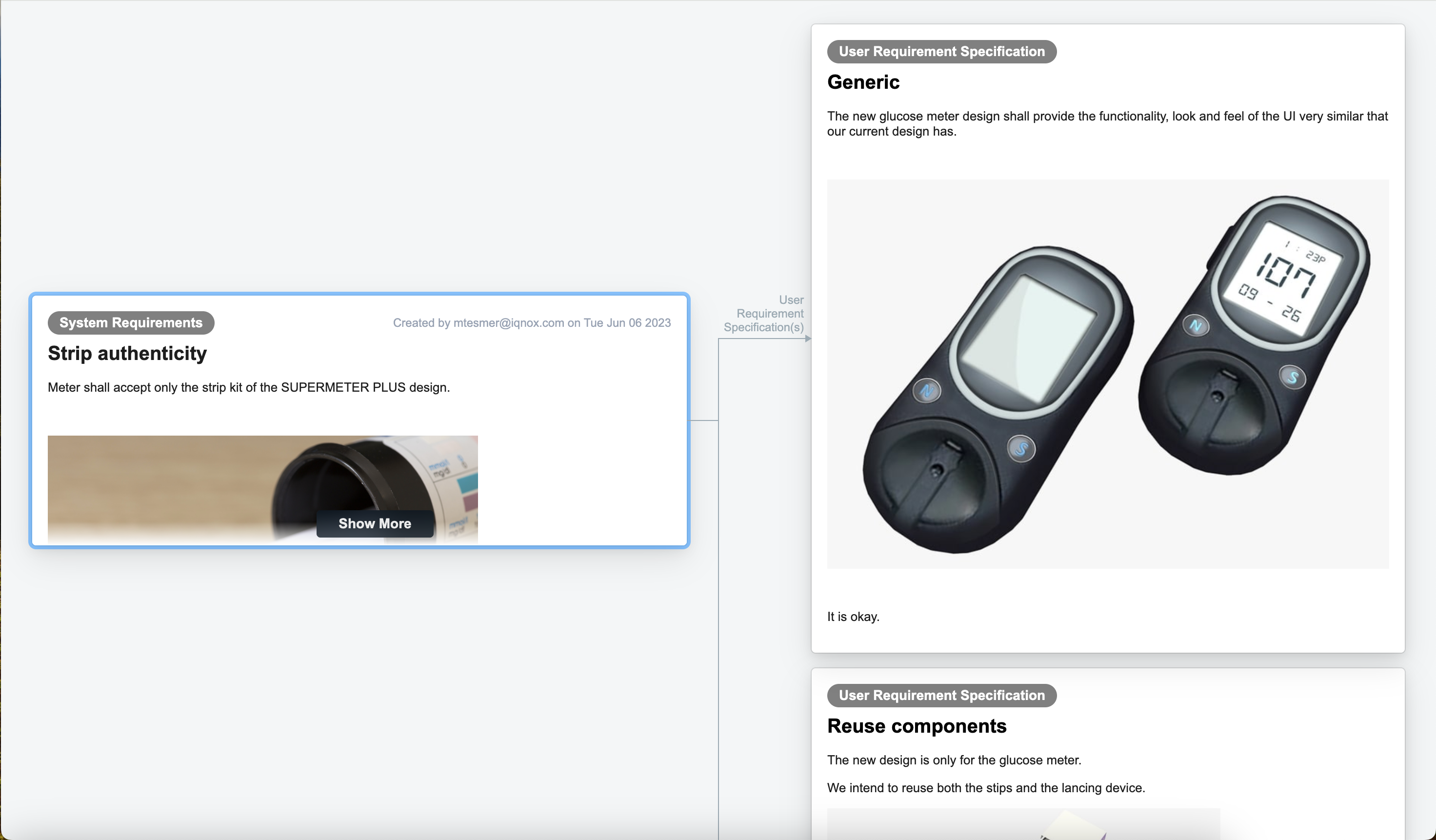
If you choose to view upstream or downstream items:
A full-screen graphical viewer opens.
The viewer displays item relationships visually.
Right-click any related item to:
- Open its upstream items
- Open its downstream items
- Open the item in document view or issue view
- Click any empty space to close the relationship viewer.
Use Advanced Search #
Advanced Search provides more filtering options and more control than Semantic Search. Use this when you need precise conditions or complex search logic.
Open Advanced Search #
You can open Advanced Search globally or from within Semantic Search.
- Press Alt + Shift + Space
- Or click the funnel icon in any Semantic Search bar
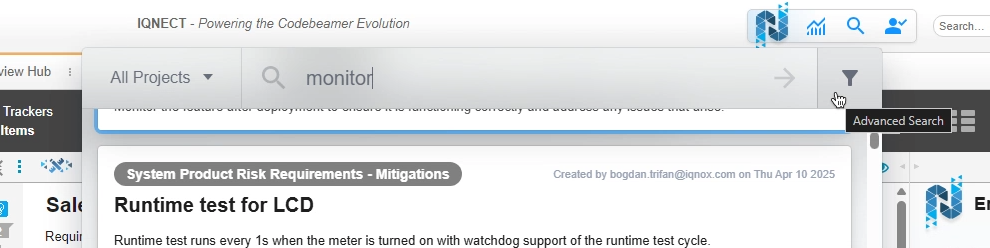
When opened from Semantic Search, your previous semantic results carry over into Advanced Search, and each result shows a relevance score.
Window behavior #
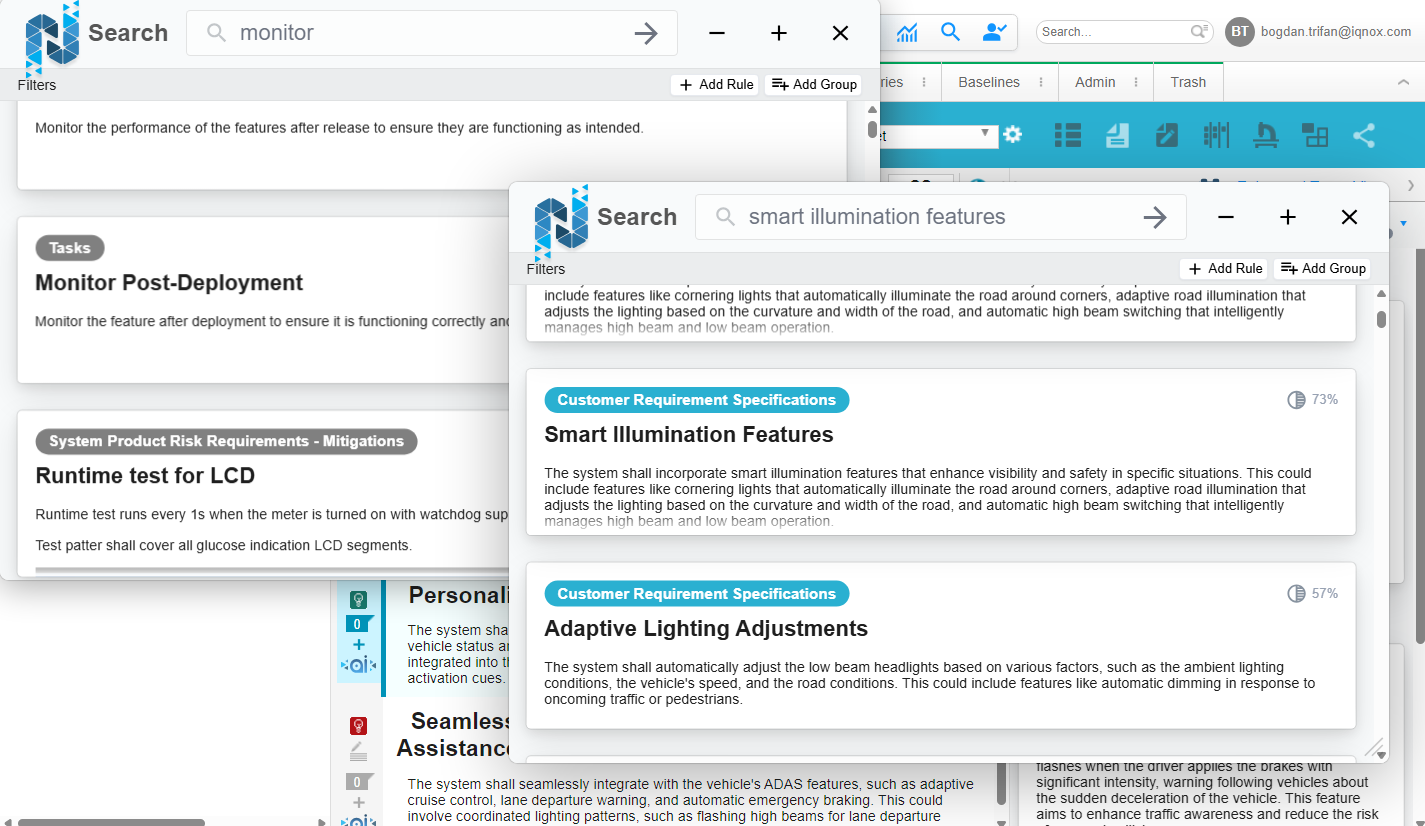
Advanced Search windows:
- Can be moved
- Can be resized
- Can be minimized
- Can be opened multiple times
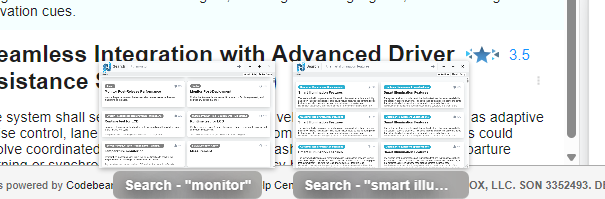
When minimized, a preview strip appears at the bottom of the page.
Hover your cursor over the bottom edge to view the minimized search preview, including the query used.
Add filters #
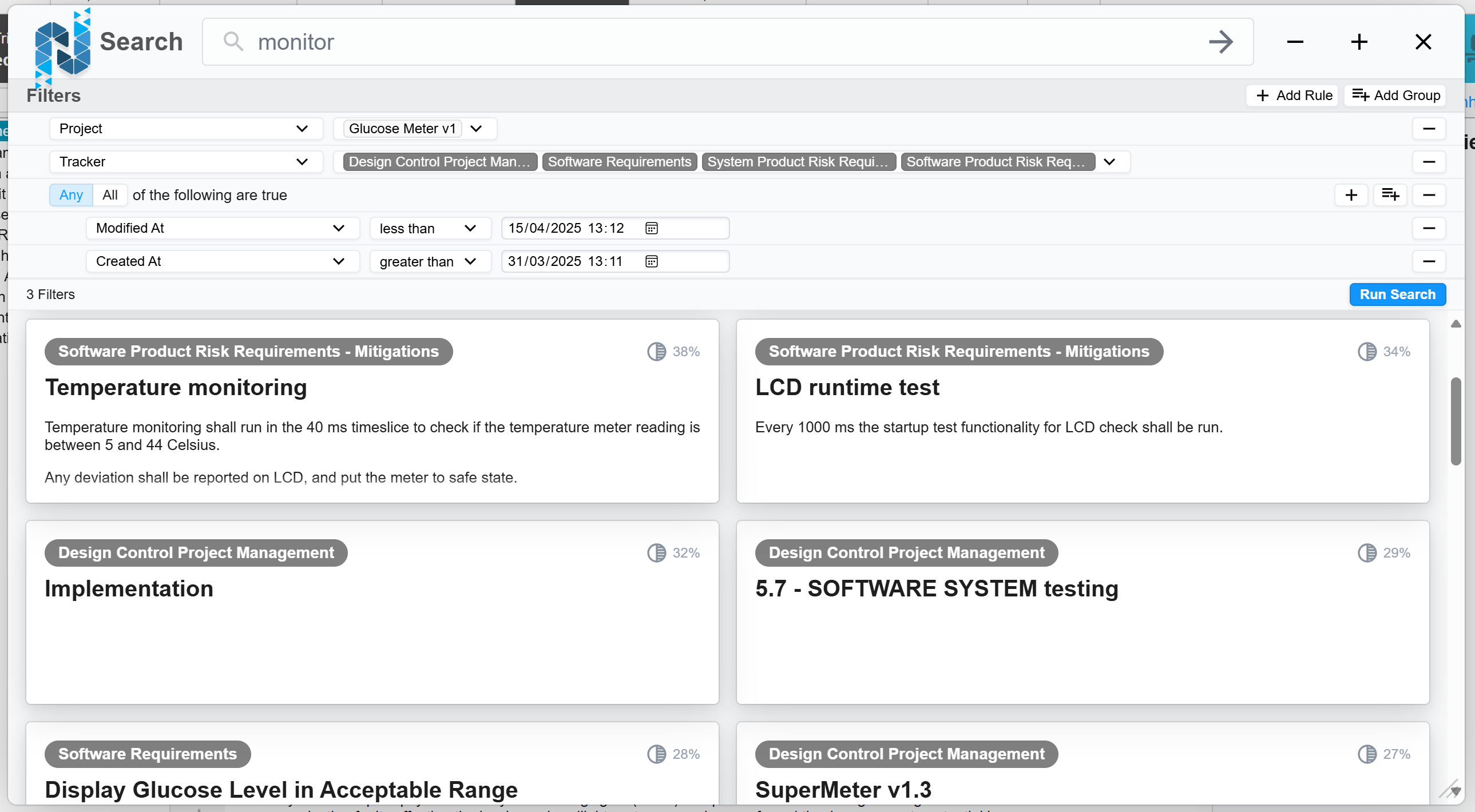
Advanced Search supports structured filtering through a filter bar. You can add one or many filters.
Supported filters #
- Project, Project name
- Tracker, Tracker name
- Working set, Working set name
- Created by, Created at
- Modified by, Modified at
- Owner
- Description
- Summary
Add filter groups #
Groups combine filters using AND or OR relationships.
Shortcuts #
With an Advanced Search window focused:
- Add filter: CMD/CTRL + =
- Add group: CMD/CTRL + SHIFT + =
You can also click:
- + Add Rule to add a filter
- =+ Add Group to add a group
Run the search #
Filters are not applied automatically.
After adding filters or groups:
- Click Run Search below the filter bar.
- Results refresh with the updated criteria.
Navigate results in Advanced Search #
Advanced Search provides additional navigation options not available in Semantic Search.
Double-click a resource to navigate to it.
Right-click a resource to see:
- Open item
- Open tracker
- Press Space to open the item preview.
- Press Enter to navigate to the selected resource.
Each result also displays a search ranking score.
Use the result toolbar #
When you click on items in the results list, they become selected.
The toolbar at the top of the window activates with these actions:
Preview: Opens the preview pane for the selected item.
Open: Opens the resource.
- In the same tab when using Advanced Search
- In a new tab when opened from other resource browsers
- Analyze: Opens the Analysis view for the selected item.
Results and next steps #
Semantic Search provides quick, meaning-based results without leaving your current workflow. Advanced Search adds powerful filters, groups, ranking scores, and multi-window flexibility for deeper analysis.
Use both tools together to locate items efficiently, explore relationships, and refine search conditions for large or complex projects.
