
Overview #
IQNECT 26.2 introduces support for managing multi-system user connections. This capability supports IQNECT’s move toward system-agnostic workflows across Codebeamer, Jira, Windchill PLM, and future systems.
As IQNECT connects more systems, users need a clear way to manage which systems are connected and how those connections are used. Multi-system connection management provides a foundation for working across multiple tools without treating each system as an isolated environment.
This update helps users and administrators manage connected systems more consistently and supports cross-system workflows such as search, trace diagrams, and embedded experiences.
Prerequisites #
- You are using IQNECT version 26.2 or later.
- You have access to connection management settings.
- At least one supported external system has been configured.
- You have the required permissions for each connected system.
How multi-system connection management works #
Multi-system connection management allows IQNECT to maintain connections across different systems and use those connections in supported workflows.
Instead of limiting search and traceability to one source, IQNECT can work with normalized data from multiple systems. This allows search, trace diagrams, and analysisworkflows to include cross-system context.
The workflow focuses on connection control:
- Configure supported system connections.
- Confirm user access to each system.
- Use connected systems in search and trace workflows.
- Maintain a foundation for future integrations.
Manage multi-system connections #
Follow these steps to review and manage connected systems:
Open connection management #
Open the IQNECT Admin UI and select the Systems tab.
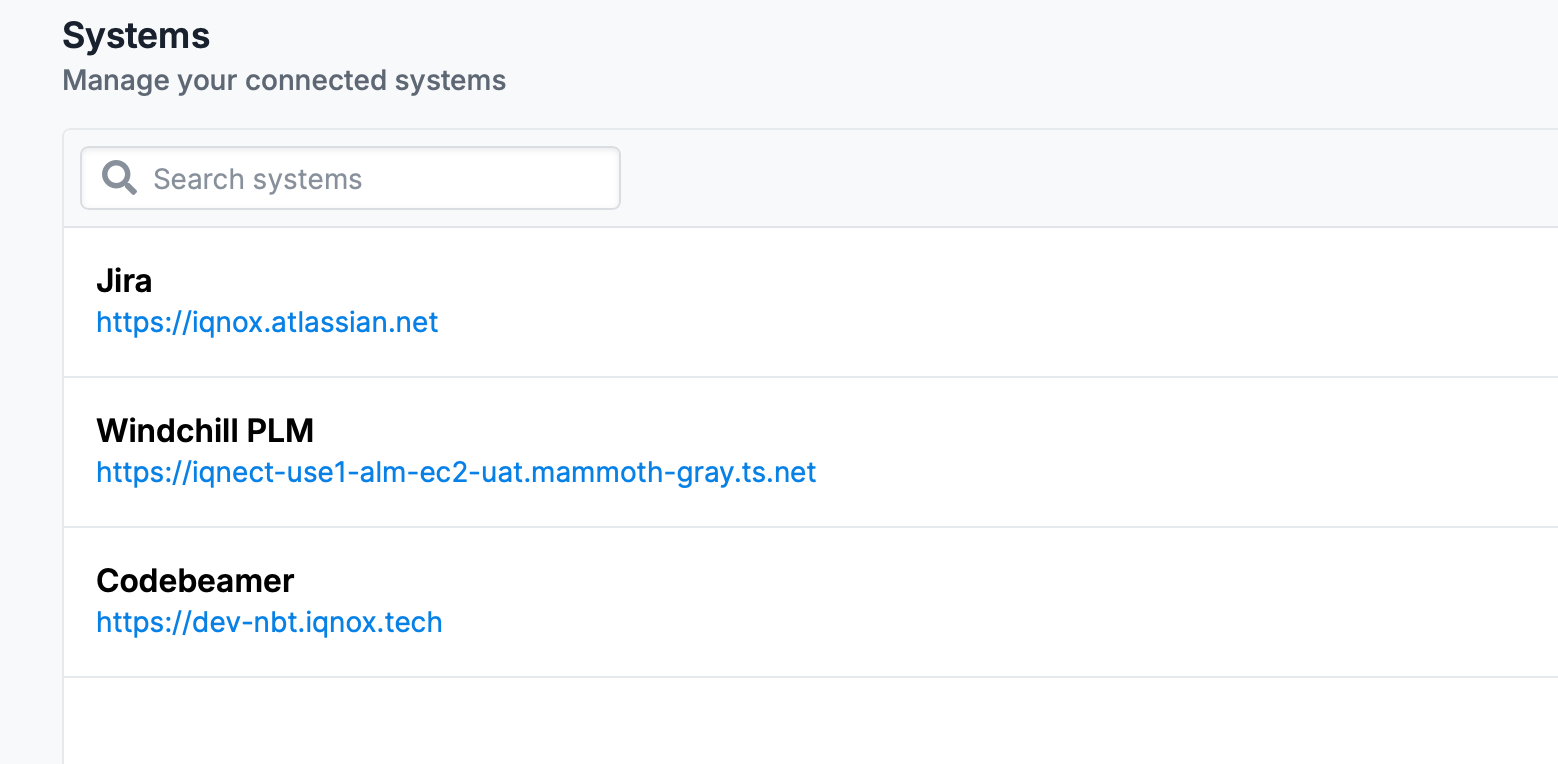
This view displays configured system connections.
Review the systems connected to IQNECT. Supported systems may include Codebeamer, Jira, Windchill PLM, or other configured environments.
Select a system connection #
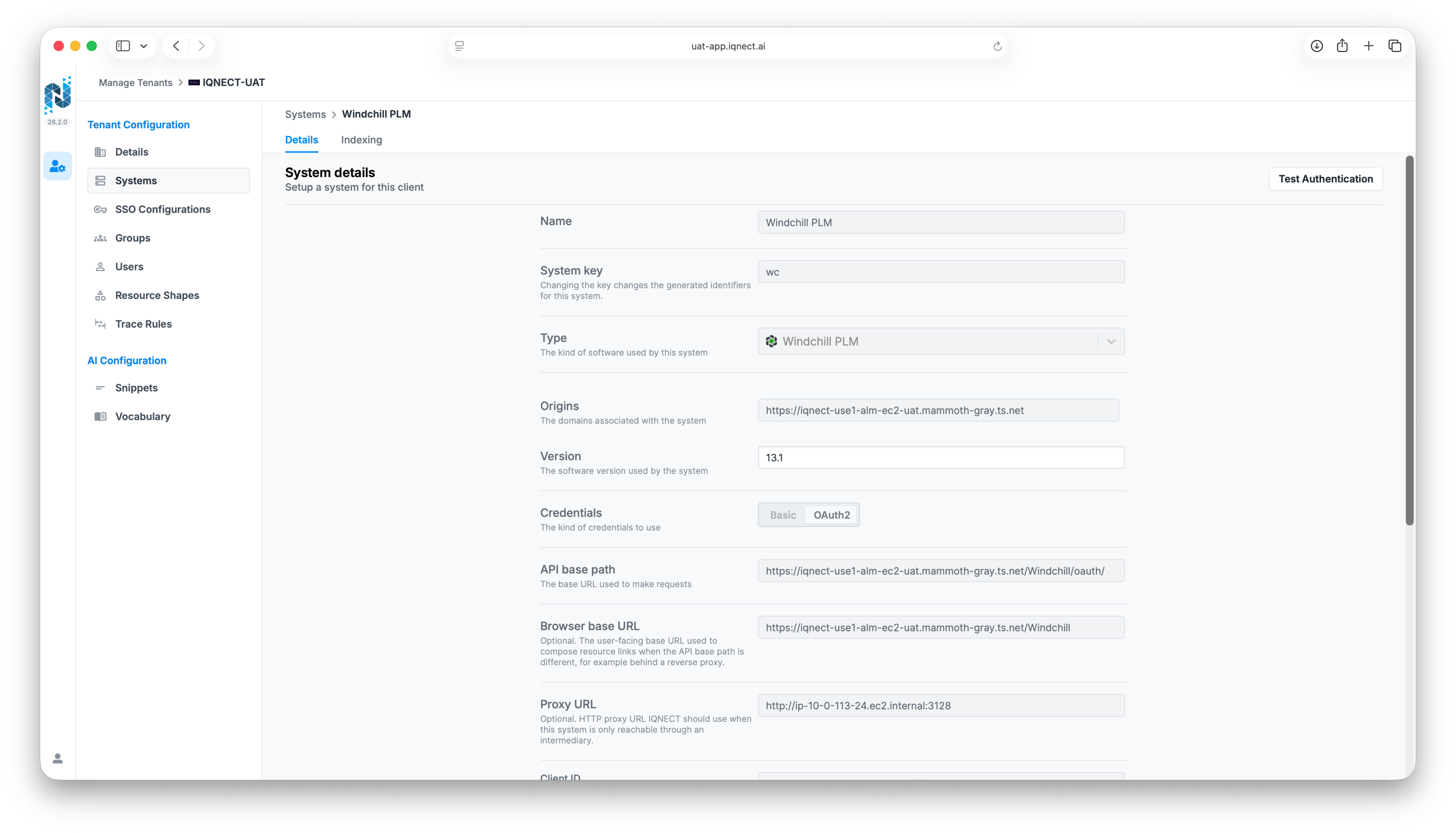
Choose the system connection you want to review. Check that the connection is active and configured correctly by clicking Test Authentication.
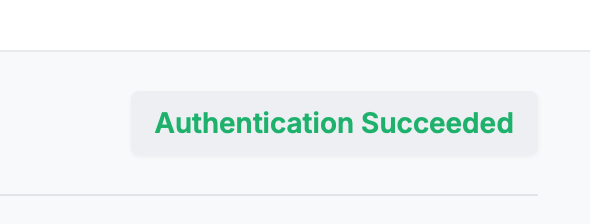
You will get an Authentication Succeeded button where Test Authentication was, if the connection is properly set up.
Save connection changes #
If changes are made, save the updated connection configuration.
IQNECT applies the connection settings to supported cross-system workflows.
Verify connections in IQNECT #
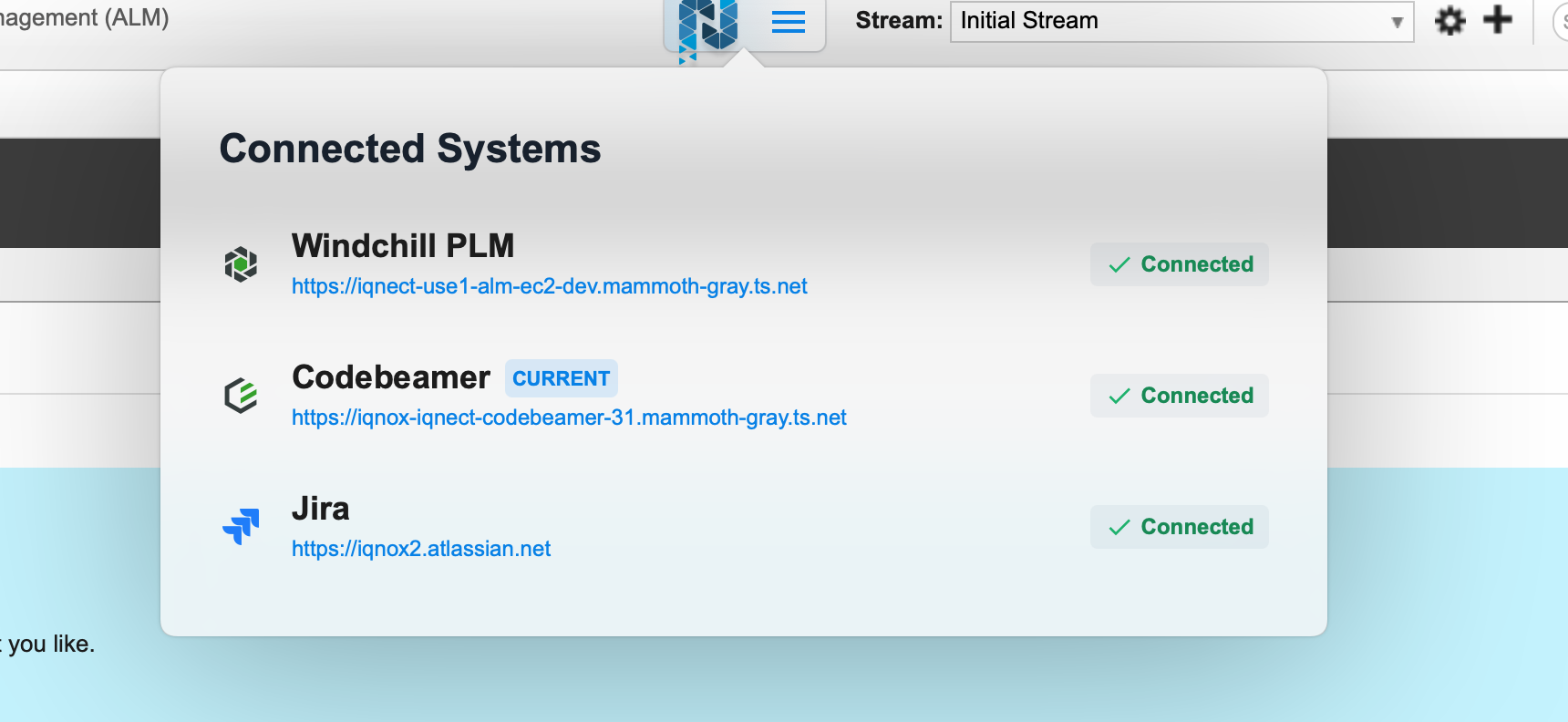
The connected systems can also be verified by checking the Connected Systems menu option in IQNECT:
Results and next steps #
You’ve reviewed and managed multi-system connections.
Use this feature to support cross-system search, traceability, and lifecycle workflows across the tools your organization already uses.
