
Overview #
IQNECT 26.2 introduces an improved Enhanced Trace View experience by enabling real-time updates when trace relationships are modified or removed.
In previous versions, Enhanced Trace View could become outdated after changes were made, requiring users to manually refresh the view to see the latest state. This created gaps in visibility and increased the risk of working with inaccurate or incomplete trace information.
With this update, the Enhanced Trace View now reflects changes instantly as they occur. Whether a trace link is removed, updated, or adjusted, the visualization updates automatically without interrupting the user’s workflow.
This ensures that traceability remains accurate, reliable, and aligned with the current system state at all times, supporting faster analysis and more confident decision-making.
Prerequisites #
- You are using IQNECT version 26.2 or later.
- You have access to trace views within your project.
- You have permission to view and modify trace relationships in the relevant trackers.
How real-time Enhanced Trace View updates work #
IQNECT continuously monitors changes to trace relationships within the system. When a trace link is removed or updated, the Enhanced Trace View dynamically refreshes to reflect the new state.
This behavior eliminates the need for manual page refreshes and ensures that users are always working with the most current representation of relationships between items.
The update applies across trace diagrams and related views, maintaining consistency between what is stored in the system and what is displayed to the user.
View real-time Enhanced Trace View updates #
Follow these steps to observe real-time updates in the Enhanced Trace View:
Open your project #
Open the Projects tab and select your project.
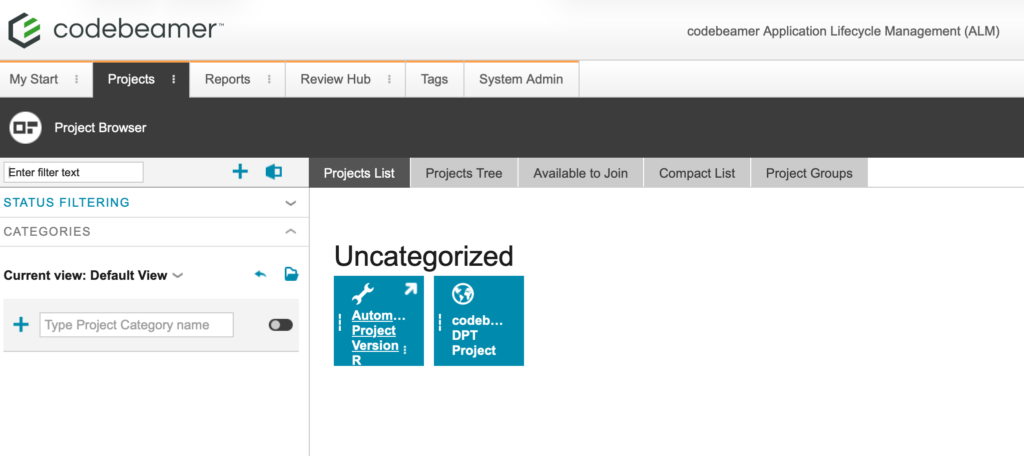
This will open the Wiki tab for that project.
Select the tracker item #
Navigate to the Trackers tab. Double-click on the desired tracker in the tree structure on the left.
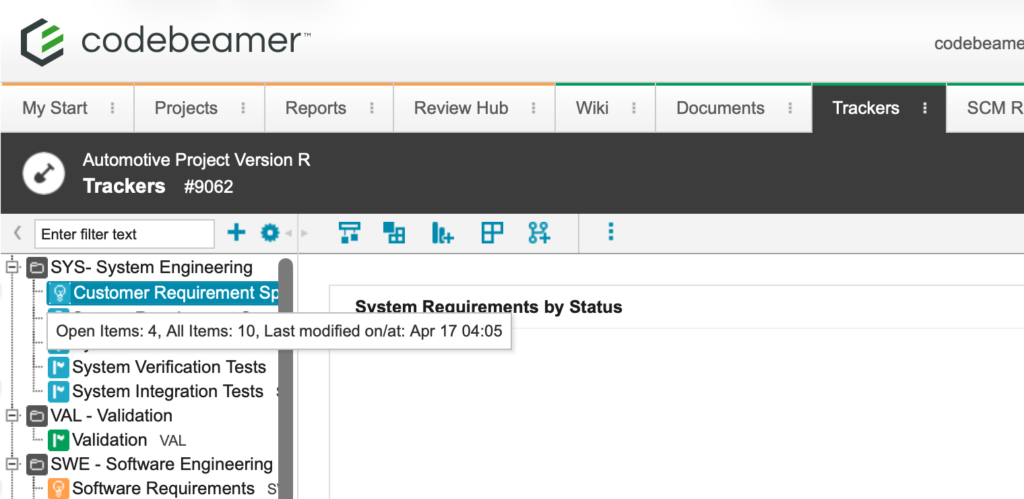
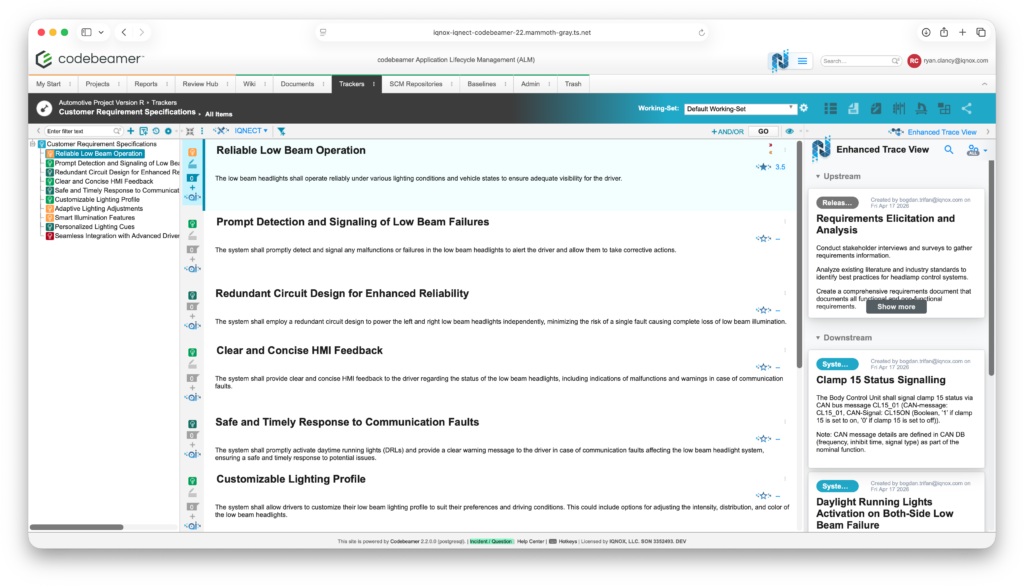
This will bring you into the All Items view within that tracker.
Open Explore Traces #
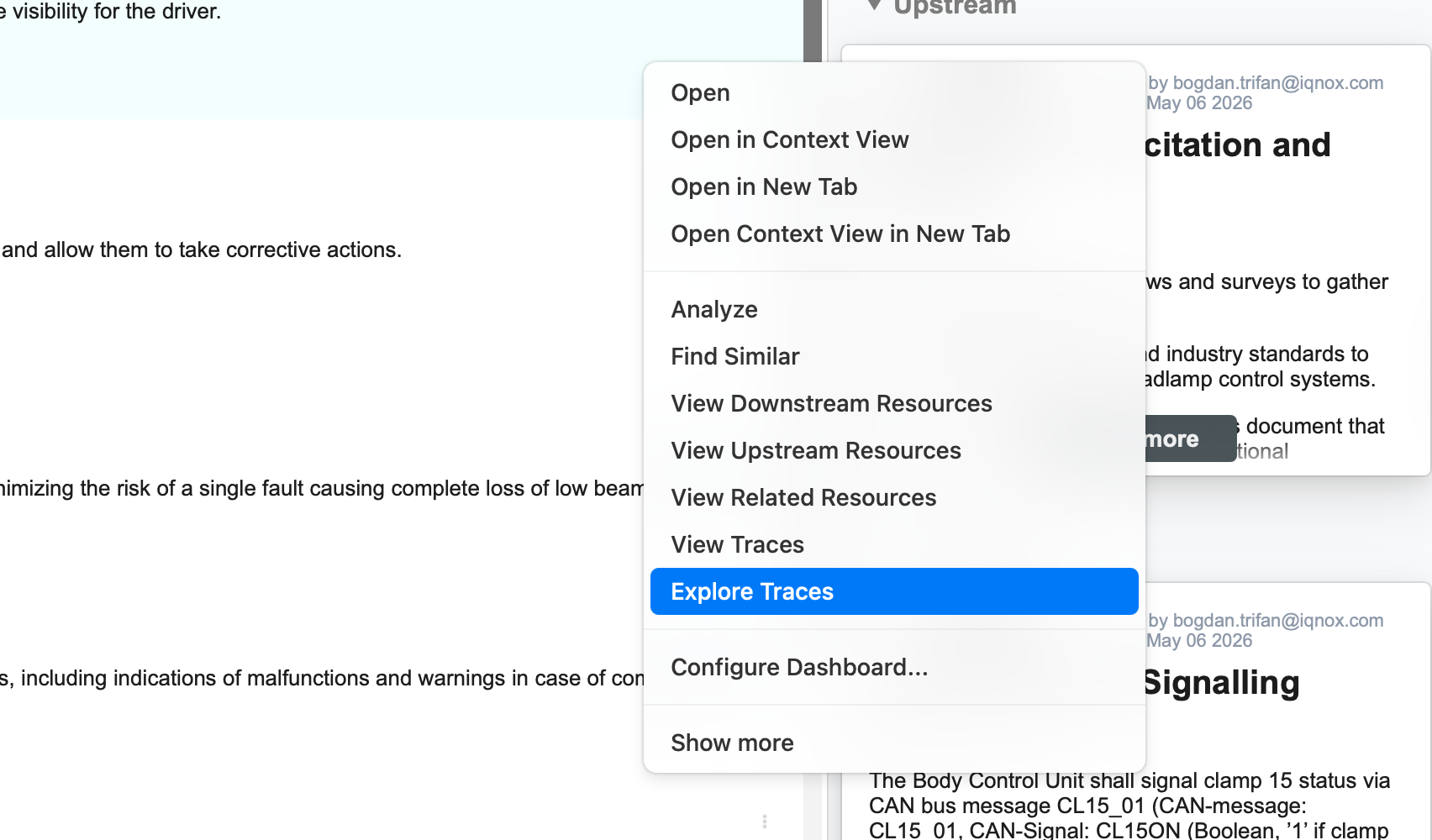
Navigate to a requirement or item you want to analyze. To bring up the item in Explore Traces, right-click on any trace item:
Or click on the IQNECT icon in the toolbar on the left on an item:
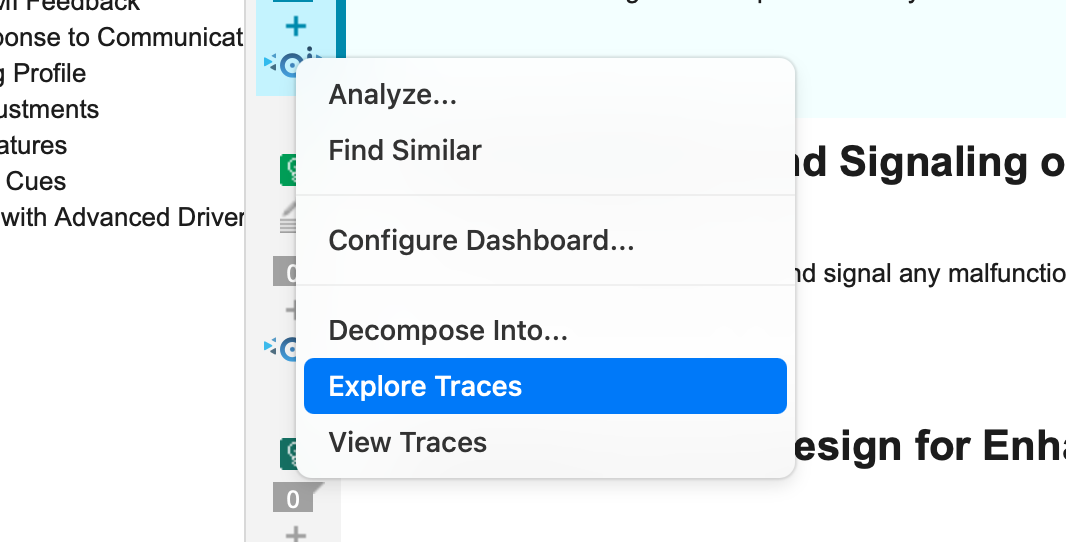
The Explore Traces option will appear in the dropdown menu. Click this to bring you to the Explore Traces view.
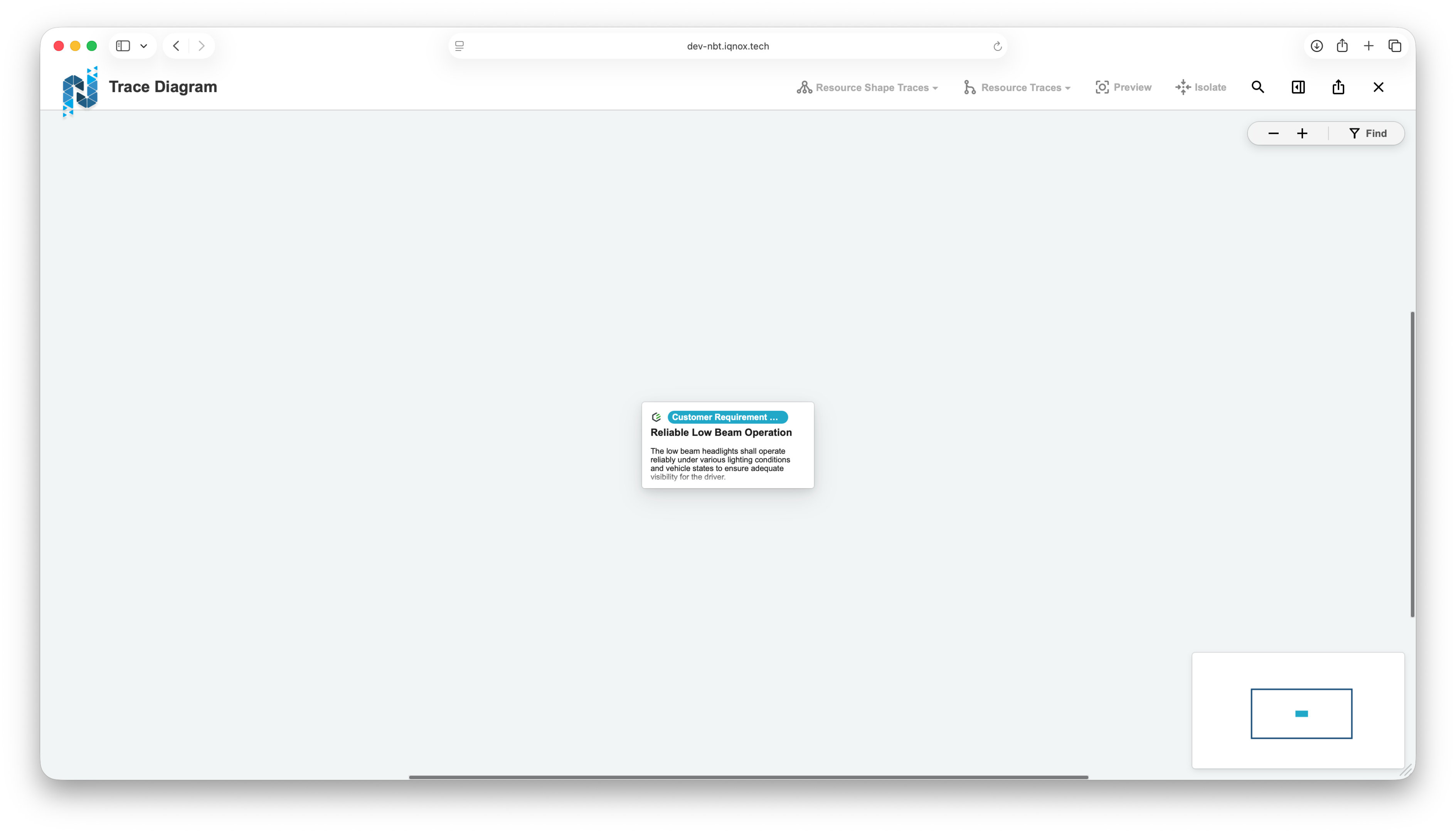
Modify trace relationships #
Within the trace view, remove, add, or update a trace connection. This may include:
- Updating dependencies as part of a change
- Deleting or adding an existing trace link
- Adjusting relationships between items
Below, we are adding a downstream trace using Advanced Search:
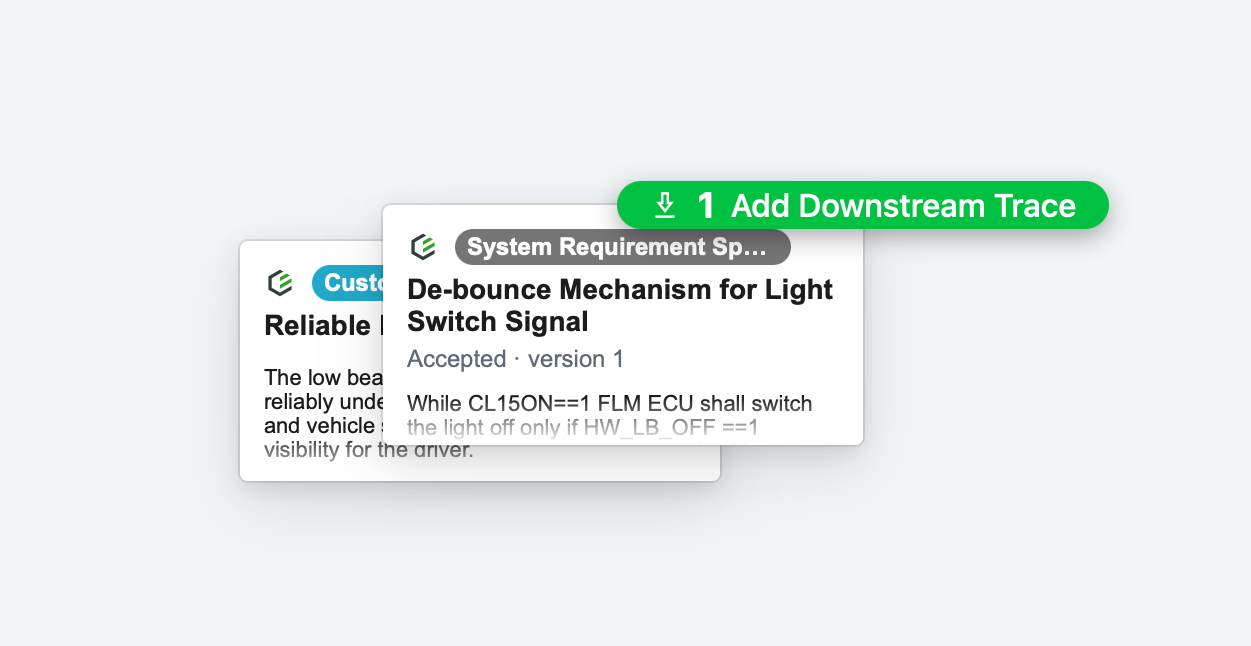
Observe updates #
As soon as the trace relationship is modified, the Enhanced Trace View updates automatically. The removed or updated connection is reflected immediately in the menu, without requiring a page refresh or manual reload.
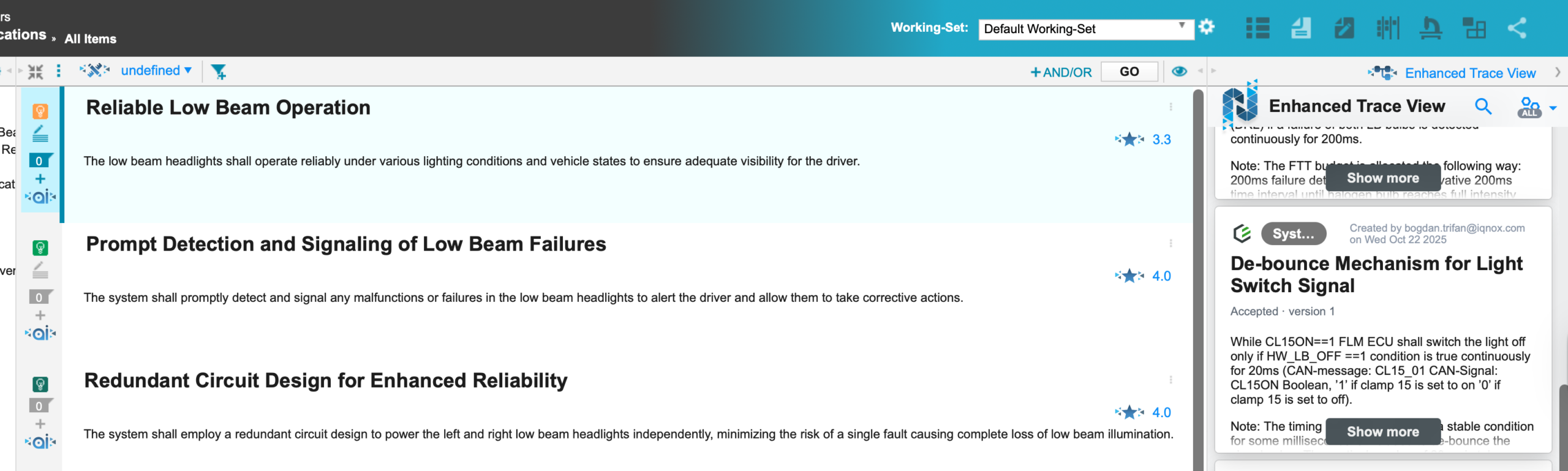
This allows you to:
- Continue working without interruption
- Instantly verify the impact of changes
- Confirm that relationships have been correctly updated
Results and next steps #
You’ve successfully observed real-time updates in the Enhanced Trace View.
By removing the need for manual refresh cycles, this feature helps ensure that traceability data remains accurate and continuously aligned with system changes.
Use this capability to perform faster impact analysis, maintain confidence in trace relationships, and reduce the risk of working with outdated or incomplete information as your project evolves.
