
This document describes how to upgrade an existing IQNECT tenant to version 26.2.1. This migration requires changes on both the IQNECT side and the connected system side, including deployment of a new extension and additional system configuration.
Prerequisites #
Before starting the migration, confirm the following:
- You have Codebeamer administrator access.
- You have file system access to the Codebeamer server.
- You have IQNECT tenant administrator access at https://app.iqnect.ai.
- You have identified the Integration user for each connected system, and that user has access to all relevant items that must be indexed.
- You have a maintenance window available, because the Codebeamer server must be restarted.
What changed in 26.2.1 #
This release changes how Codebeamer systems are connected to IQNECT.
In previous versions, the IQNECT Codebeamer widget obtained data from two sources:
- The IQNECT server, which is the source of truth for data and configuration.
- The connected system directly, for example to fetch item titles and item contents.
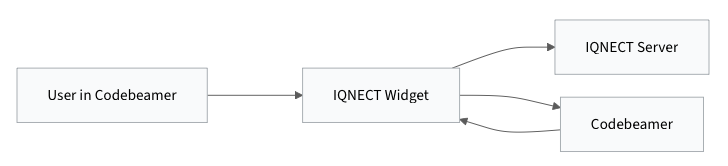
As of 26.2.1, the IQNECT Codebeamer widget only communicates with the IQNECT server. IQNECT is now responsible for reaching the connected system on behalf of the user by using delegated authorization. If the system is not publicly accessible, IQNECT can connect through the tunnel relay.
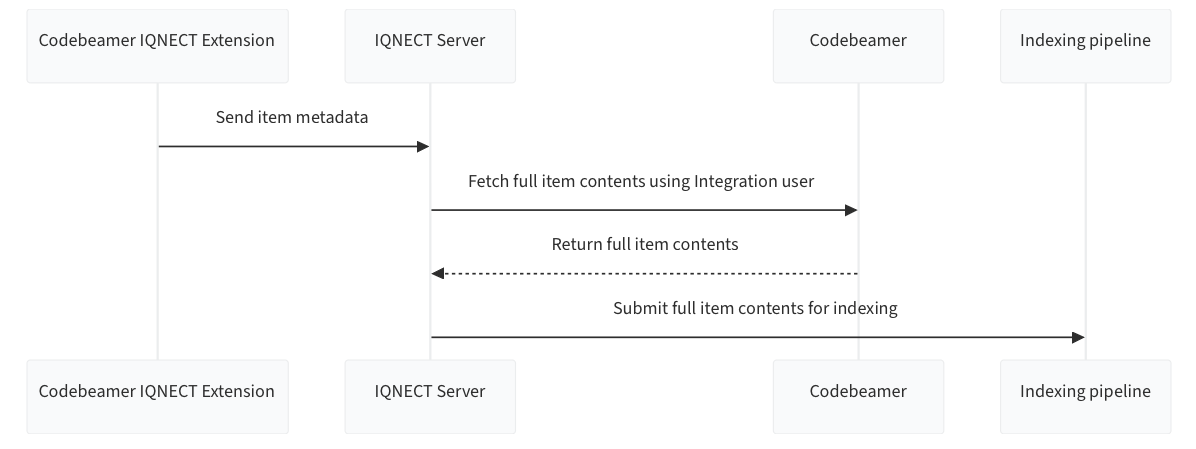
This release also changes how indexing works. Previously, the Codebeamer IQNECT extension sent full item contents to IQNECT for indexing. As of 26.2.1, the extension only sends item metadata. IQNECT then fetches the full item contents directly from Codebeamer by using the configured Integration user. The Integration user must have access to all relevant items that should be indexed.
Runtime data flow before 26.2.1 #
Runtime data flow as of 26.2.1 #

Indexing flow before 26.2.1 #

Indexing flow as of 26.2.1 #
Migration order #
Perform the migration in the following order for each Codebeamer-connected environment:
- Update the Codebeamer extension and application configuration.
- Restart Codebeamer and confirm that the extension is loaded.
- Update the IQNECT tenant version to
v26.2.1. - Reconfigure each connected system in IQNECT for the new connection model.
- Configure the Integration user in the
Integrationtab for each system. - Run the delegated authentication flow by clicking
Connectfor each system. - Verify that the widget works, the system is connected, and indexing can proceed.
Codebeamer server changes #
- Download the IQNECT Codebeamer extension from https://app.iqnect.ai/cb_extension/codebeamer-extension-26.2.1.zip.
- Unzip the downloaded file and identify the JAR file that matches your Codebeamer version. The JAR file is named
iqnect-cb-extension-26.2.1-<<CB_VERSION>>-<<JDK_VERSION>>.jar. - Log in to the Codebeamer web interface as an administrator, navigate to
System Administration > Application Configuration, and update theiqnox.iqnectobject as follows:
"iqnox" : {
     "iqnect" : {
         "clientId" : "KEEP_EXISTING",
         "clientSecret" : "KEEP_EXISTING",
         "queueMaxSize" : 50,
         "queueMaxWait" : 30000,
         "tokenUrl" : "https://api.iqnect.ai/v26.2.1/oauth/token",
         "uiBootstrapUrl" : "https://app.iqnect.ai/cb/26.2/bootstrap.js",
         "url" : "https://api.iqnect.ai/v26.2.1",
         "oauth" : {
             "clientId" : "iqnect",
             "redirectUris" : "https://api.iqnect.ai/systems/oauth2/callback, https://api.iqnect.ai/v26.2.1/systems/oauth2/callback",
             "renewalsEnabled" : true,
             "scope" : "iqnect",
             "tokenValidMinutes" : 60
         },
         "tunnel" : {
             "allowedBaseUrls" : "FULLY_QUALIFIED_DOMAIN_NAME_OF_YOUR_CODEBEAMER_SERVER",
             "enabled" : true,
             "url" : "https://relay.iqnect.ai"
         }
     }
 },
Keep the existing values of clientId and clientSecret.
Set allowedBaseUrls to the fully qualified base URL of your Codebeamer instance. For example, if the instance URL is https://cbdemo.iqnox.com/, then allowedBaseUrls should be https://cbdemo.iqnox.com.
- Access the Codebeamer server file system and navigate to
<INSTALL_DIR>/tomcat/webapps/cb/WEB-INF/lib, whereINSTALL_DIRis the top-level directory where Codebeamer is installed. - Remove the existing IQNECT Codebeamer extension JAR file from the
libdirectory. - Copy the new JAR file to the
libdirectory. - Restart the Codebeamer server.
IQNECT tenant changes #
Tenant version update #
- Log in to the https://app.iqnect.ai portal.
- Open the tenant you want to upgrade.
- Go to the
Detailsview and inspect theIQNECT Versionfield. - Click
Edit. - If the tenant is not already set to
v26.2.1, update it and clickSave.
Per-system configuration matrix #
Apply the following configuration to each connected Codebeamer system under the Systems menu.
| Setting | Required value or choice | Notes |
System Key | Short, unique value within the tenant | Use a stable identifier for the system. |
Credentials | OAuth2 | Required for the new connection model. |
API base path | URL used by IQNECT to access the environment | This is the backend-reachable URL. |
Browser base URL | URL used by end users to access the environment | In most cases this is the same as API base path. |
Use tunnel relay | true or false | Set to true if the environment is not publicly accessible from IQNECT. It may also be true if you want to force traffic through the relay. |
OAuth2 Mode | Backchannel delegated or Standard OIDC/OAuth2 | Use Backchannel delegated for local authentication or SAML 2.0 SSO. Use Standard OIDC/OAuth2 for OIDC-based SSO. |
ClientID | iqnect for Backchannel delegated | For Standard OIDC/OAuth2, use the value required by your identity provider. |
ClientSecret | Identity-provider specific when using Standard OIDC/OAuth2 | Not used for Backchannel delegated in this document. |
Scopes | iqnect for Backchannel delegated | For Standard OIDC/OAuth2, use the scopes required by your identity provider. |
Authorization URL | https://CODEBEAMER_BASE_URL/iqnect/oauth/authorize.sprfor Backchannel delegated | For Standard OIDC/OAuth2, use the identity-provider value. |
Token URL | Identity-provider specific for Standard OIDC/OAuth2 | Not required in this document for Backchannel delegated. |
Integration user | A user with access to all relevant items | Configure this in the Integration tab. This user is used for indexing. |
For systems using Standard OIDC/OAuth2, consult your identity provider documentation for the correct values of ClientID, ClientSecret, Scopes, Authorization URL, and Token URL.
After saving the configuration for each system, click Connect and complete the delegated authentication flow.
Validation checklist #
Use the following checks after the migration:
- Confirm that the Codebeamer server is running after the restart.
- Log in to Codebeamer and confirm that the IQNECT button is visible and functional in the top-right corner.
- Click the IQNECT button, then click the user name, and confirm that the displayed IQNECT version is
26.2.1. - In IQNECT, confirm that each expected system appears under
Connected Systems. - Click
Connectfor each system and confirm that the delegated authentication flow completes successfully. - Confirm that the system status indicates that the system is connected.
- Confirm that the configured Integration user is saved in the
Integrationtab for each system. - Confirm that indexing can proceed by checking that IQNECT can fetch full item contents through the new indexing path.
Rollback/failure signals #
Stop the migration and investigate before proceeding further if any of the following occurs:
- The IQNECT button is missing after the Codebeamer restart.
- The IQNECT version shown in Codebeamer is not
26.2.1. - The delegated authentication flow fails when clicking
Connect. - The system does not appear under
Connected Systems, or remains disconnected after authentication. - IQNECT cannot reach the system through the configured direct path or tunnel relay.
- The configured Integration user cannot access the content required for indexing.
- Indexing fails because IQNECT can receive metadata but cannot fetch full item contents from Codebeamer.
If rollback is required, restore the previous Codebeamer extension JAR, restore the previous iqnox.iqnect application configuration, restart Codebeamer, and return the tenant version and per-system IQNECT configuration to their previous values.
