
Overview #
In IQNECT 26.4, IQNECT Projects introduces an improved resource exploration experience that allows engineering teams to browse, search, and analyze project resources from a unified workspace.
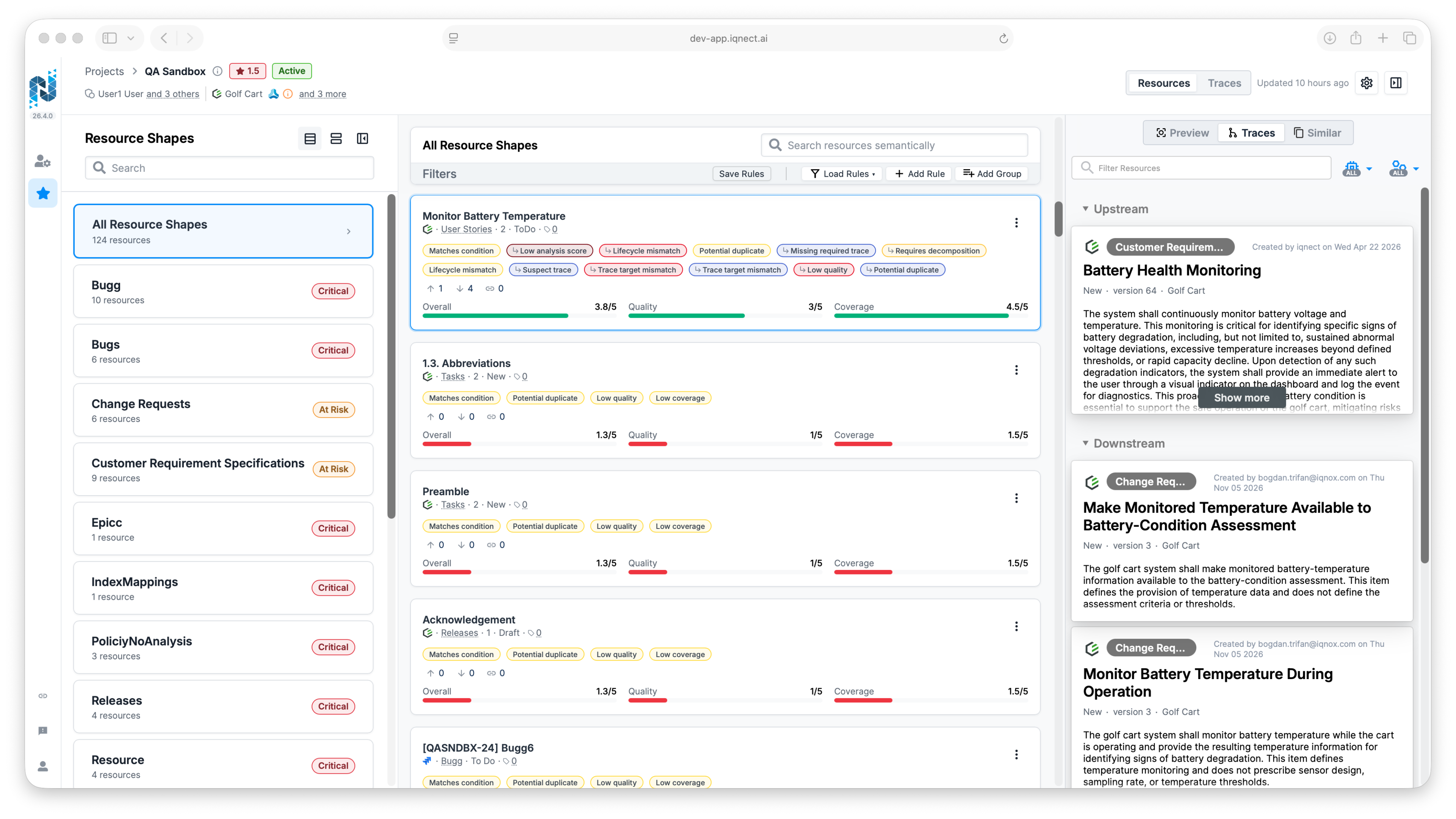
The updated Project Details view brings resource shapes, engineering resources, trace relationships, and similar resources together on a single screen.
This functionality improves engineering visibility by reducing navigation between separate views and helping teams explore lifecycle information across connected systems such as Codebeamer, Jira, and Windchill.
Prerequisites #
- Cross-system integrations are configured.
- You have access to an IQNECT Project.
- The project contains connected engineering resources.
- Resource shapes and mapping rules are configured.
- You are using IQNECT version 26.4 or later.
How enhanced resource exploration works #
IQNECT Projects organizes engineering resources using normalized resource shapes, allowing teams to explore information from different connected systems within a consistent interface.
The enhanced Project Details view supports:
- Resource shape navigation using expandable cards
- Compact and expanded resource shape displays
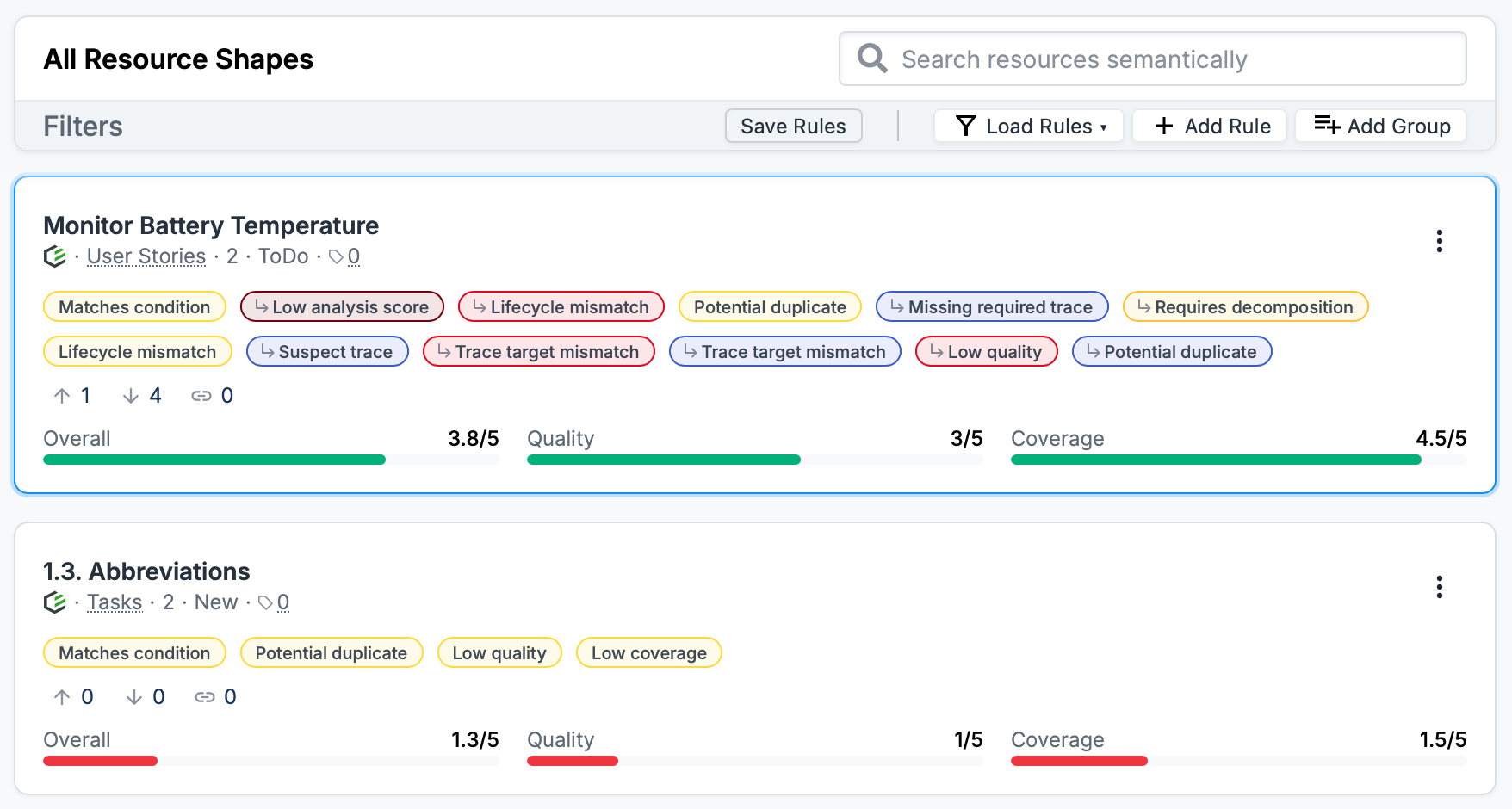
- Resource filtering based on available signals
- Project-wide resource search
- Resource previews and details
- Trace relationship and similar resource exploration
- Collapsible sidebars for additional workspace
The updated layout helps engineering teams review project information, identify relevant resources, and investigate engineering relationships without switching between multiple screens.
Explore resources in IQNECT Projects #
Follow these steps to browse, search, and review engineering resources using the enhanced Project Details view.
Open an IQNECT Project #
Open IQNECT.
Navigate to IQNECT Projects.
Select the project you want to explore.
IQNECT opens the Project Details view and displays the available project resources.
Browse available resource shapes #
Locate the resource shapes panel on the left side of the workspace.
Review the available resource shapes and their associated resource counts.

Select a resource shape.
IQNECT displays the resources associated with the selected shape in the center of the workspace.
Change the resource shape display #
Locate the resource shape cards in the left sidebar.
Switch between the available compact and expanded card displays.

Expanded cards provide additional information, including available signals.
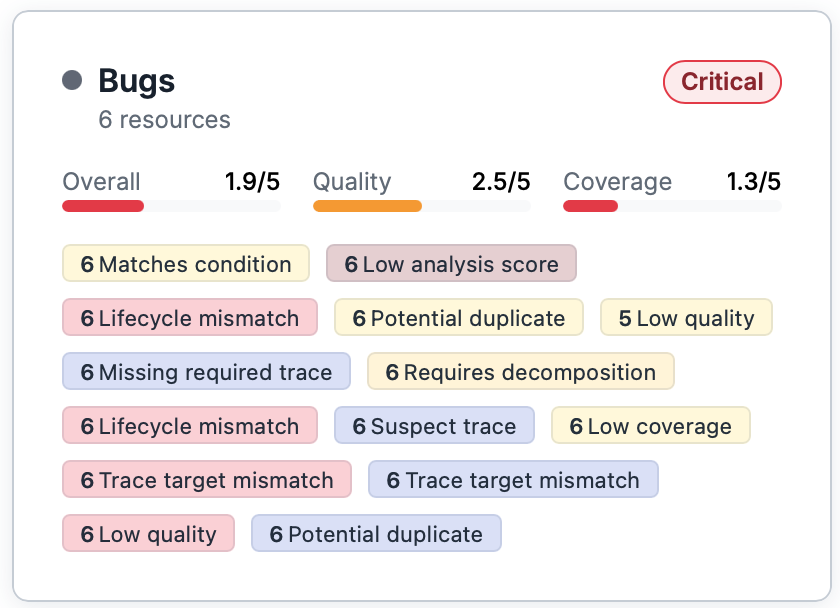
Compact cards display a simplified summary with status information and resource counts.
Filter resources using signals #
Expand a resource shape card to view its available signals.
Select a signal.
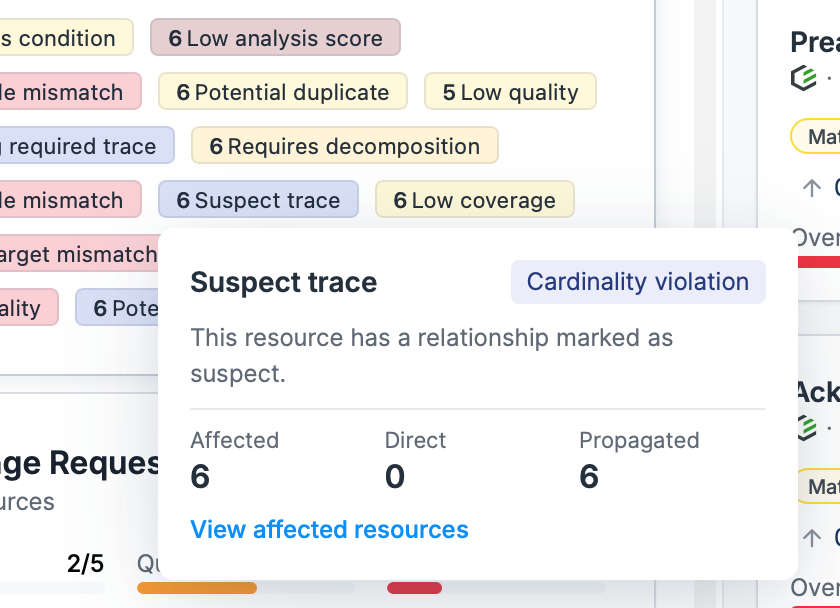
IQNECT applies the corresponding filter and displays the matching resources.
This allows you to investigate resources associated with specific signals without manually configuring the same filter.
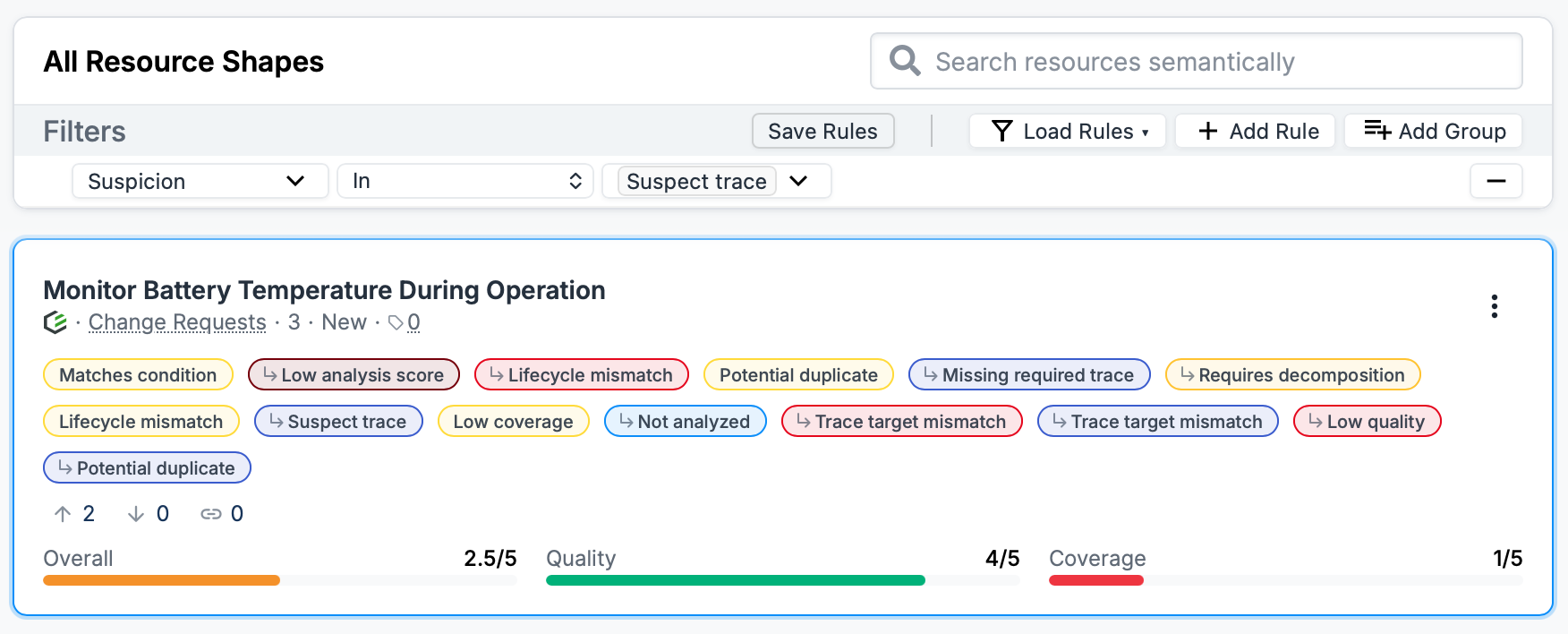
Search across project resources #
Open the Project Details view.
Select all resource shapes.
Enter a search term in the resource search field.

IQNECT searches across the selected resource shapes within the project.
Review the matching resources.
This provides a project-wide search experience across the engineering resources included in the IQNECT Project.
Preview engineering resources #
Select a resource from the resource list.
Review the available resource information.
Use the resource preview to inspect its content without opening the original engineering system.
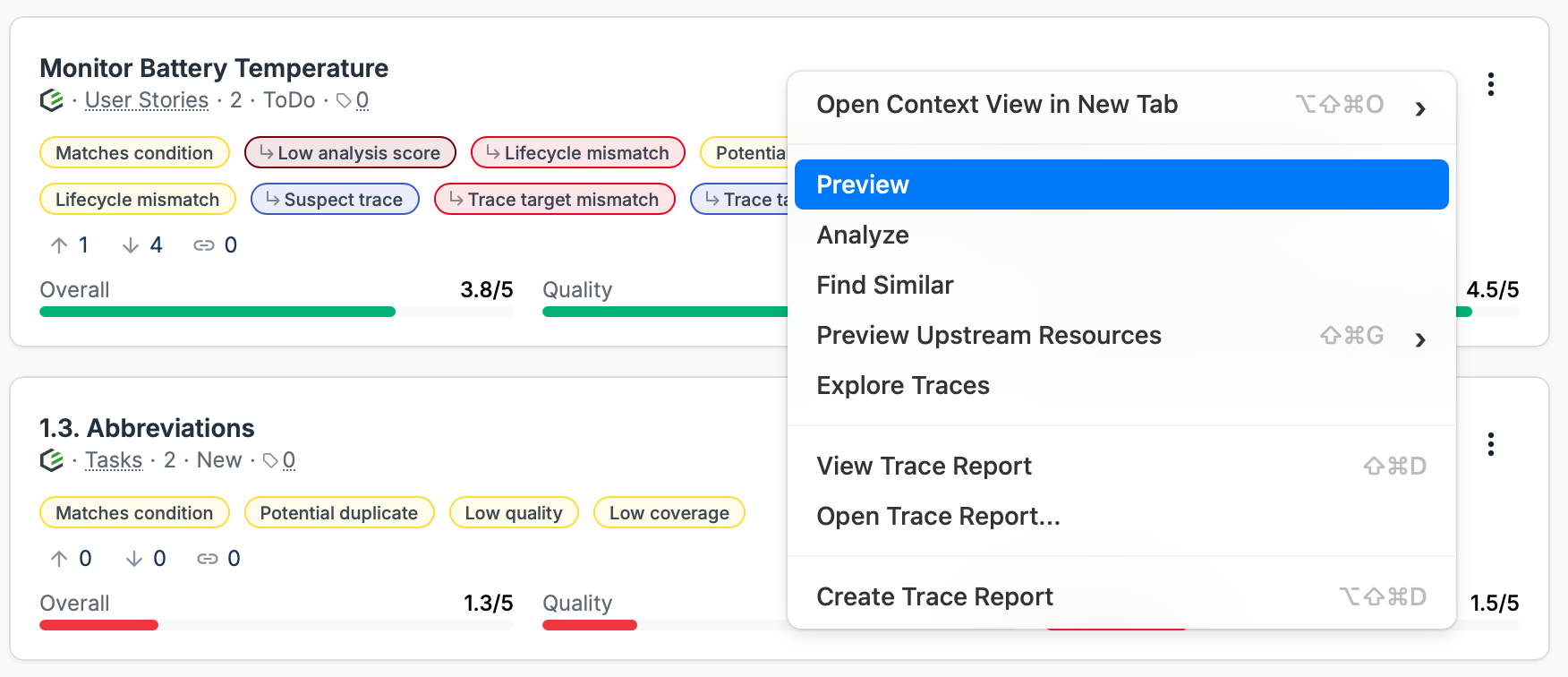
IQNECT displays resource information within the project workspace, reducing the need to navigate between connected applications.

Explore traces and similar resources #
Select an engineering resource.
Locate the traces and similar resources panel on the right side of the workspace.
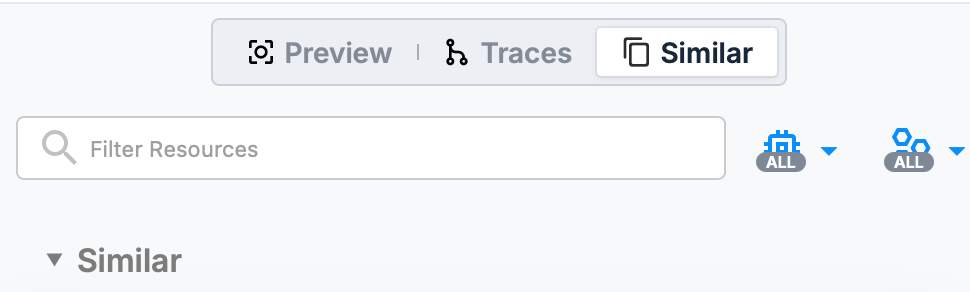
Review the available trace relationships.
Explore similar resources using the available options and filters.
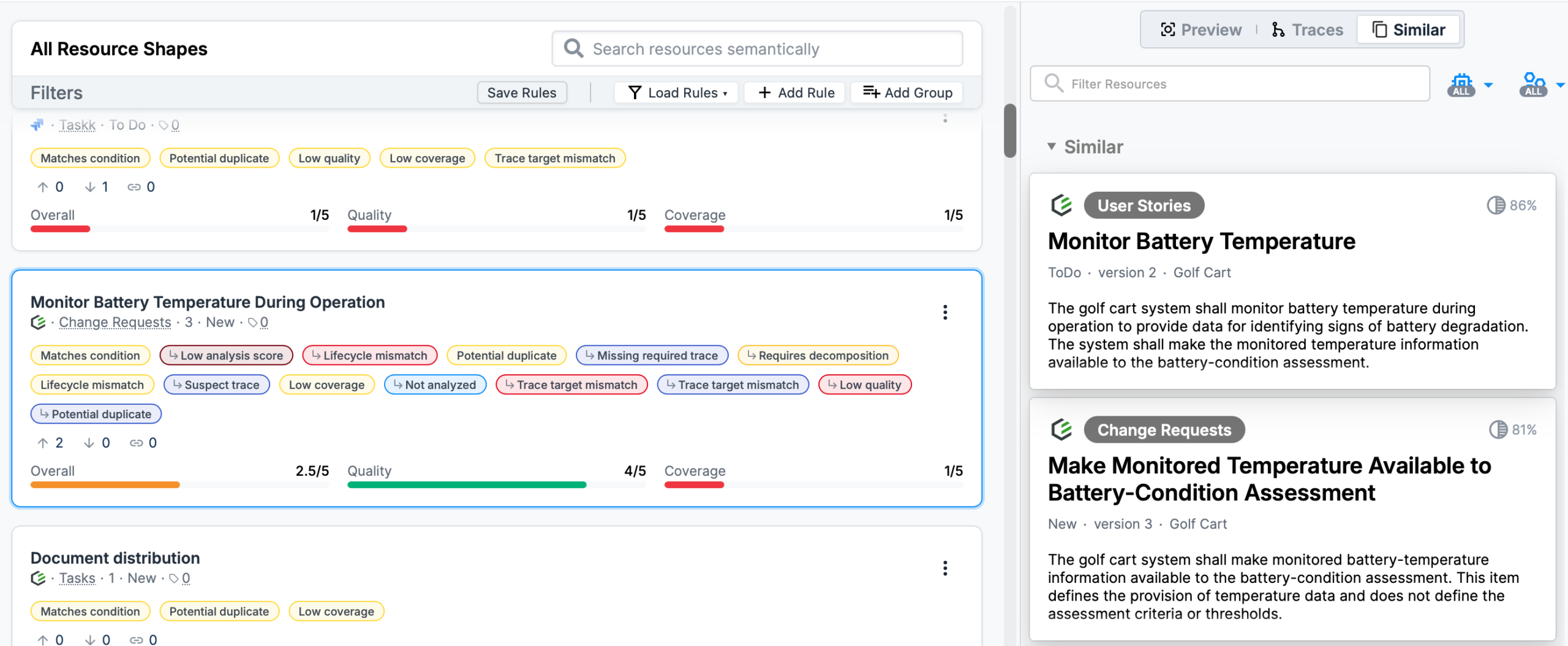
This helps identify related engineering information and understand dependencies across connected lifecycle systems.
Expand the resource workspace #
Locate the sidebar controls in the Project Details view.
Collapse the resource shapes panel on the left.
Collapse the traces and similar resources panel on the right.
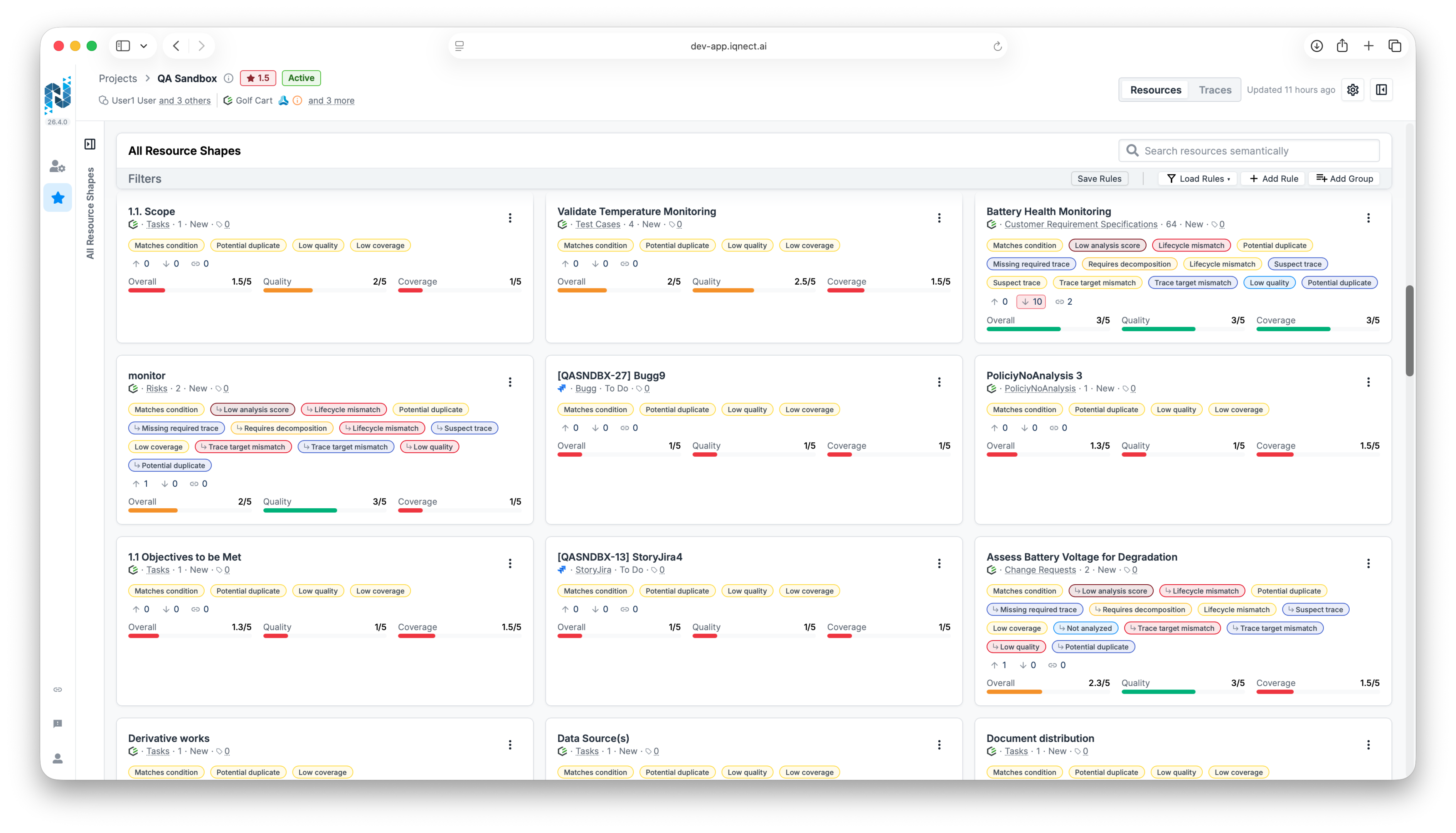
IQNECT expands the central resource workspace to provide additional room for reviewing project information.
Expand either sidebar when you need to return to resource shape navigation or relationship exploration.
Results and next steps #
You’ve successfully explored engineering resources using the enhanced IQNECT Projects experience in IQNECT 26.4.
Use this workflow to search across project resources, review engineering information, investigate signals, and explore trace relationships within a unified workspace.
The enhanced Project Details view helps teams reduce navigation between systems, improve engineering visibility, and maintain a consistent understanding of connected lifecycle information.
